---
title: "Why are Custom Fields not visible in the Frappe HR Mobile App?"
space: "Frappe HR"
url: "https://docs.frappe.io/hr/frappe-hr-mobile/help-articles/why-dont-my-custom-fields-show-in-the-frappe-hr-mobile-app"
updated: "2026-10-25"
---
You added a custom field in Desk, but the Frappe HR mobile app does not show it on the check-in screen, the expense claim form, or another screen. Or the check-in fails with `Value missing for Employee Checkin`. This article explains which custom fields the app shows, and what you can do when a field does not show.
## The error
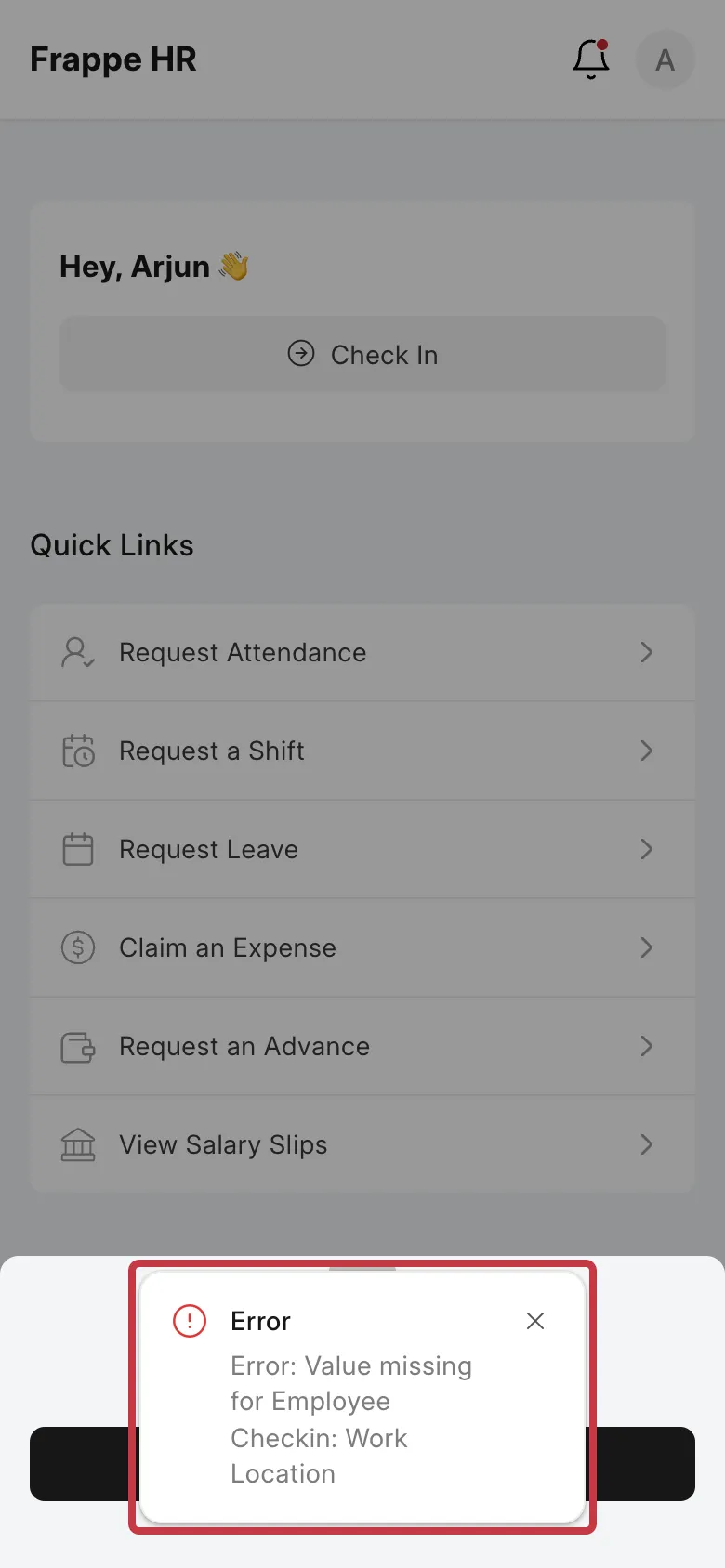
If the custom field on Employee Check-in is mandatory, each check-in from the app fails with this message:
```
Error: Value missing for Employee Checkin: Work Location
```
 ## How it works
The mobile app (the `/hrms` app) is not Desk. It has its own screens. Each screen decides which fields it shows.
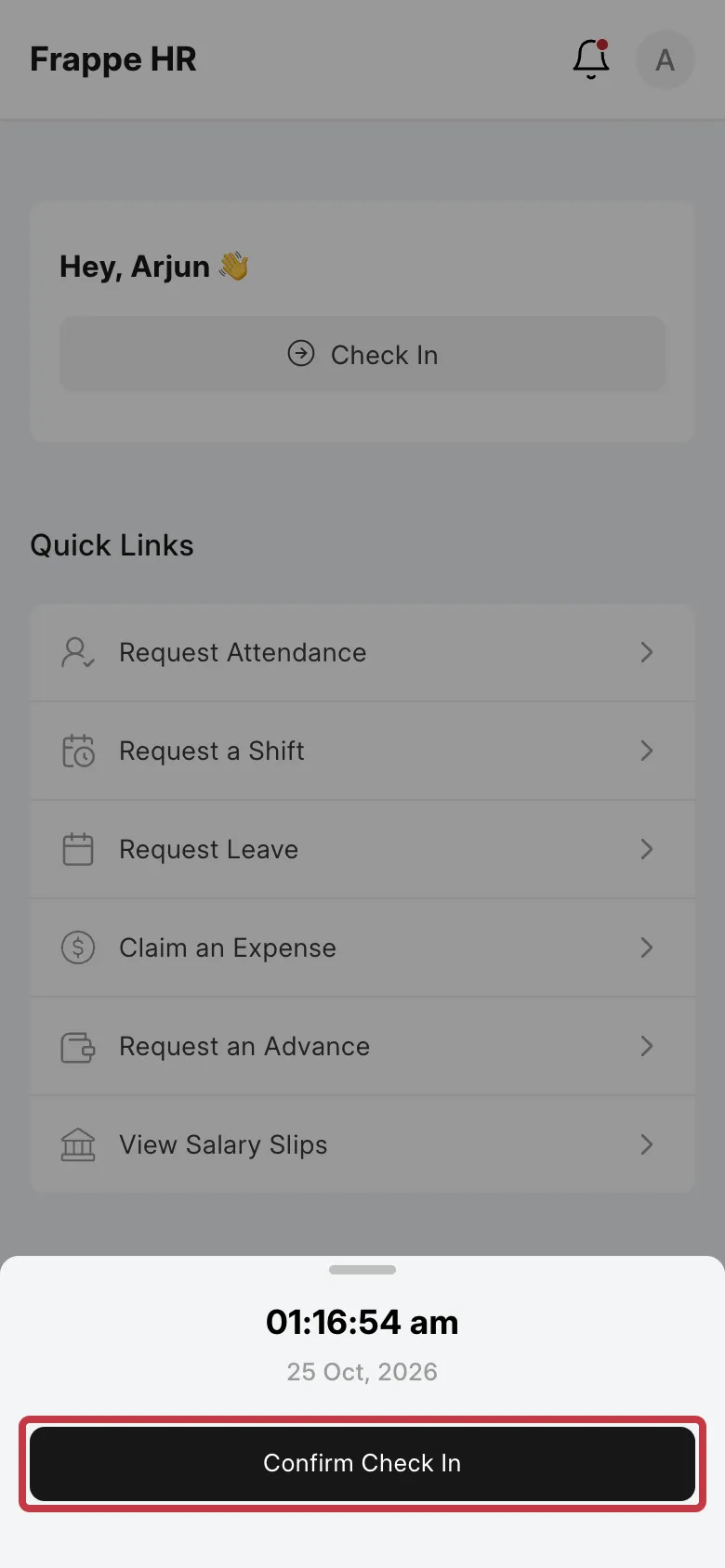
**Check-in has no form.** The **Check In** and **Check Out** buttons show only the time and a **Confirm** button. The app saves the employee, the log type, the time, and the location. It never shows custom fields for Employee Check-In. If a custom field is mandatory, the server cannot save the check-in, and you see the error above.
## How it works
The mobile app (the `/hrms` app) is not Desk. It has its own screens. Each screen decides which fields it shows.
**Check-in has no form.** The **Check In** and **Check Out** buttons show only the time and a **Confirm** button. The app saves the employee, the log type, the time, and the location. It never shows custom fields for Employee Check-In. If a custom field is mandatory, the server cannot save the check-in, and you see the error above.
 **The request forms read the fields from the DocType.** These screens show the custom fields that you add in Desk:
- Leave Application
- Expense Claim, and the rows of its **Expenses** table
- Attendance Request
- Shift Request
- Employee Advance
**The request forms read the fields from the DocType.** These screens show the custom fields that you add in Desk:
- Leave Application
- Expense Claim, and the rows of its **Expenses** table
- Attendance Request
- Shift Request
- Employee Advance
 A custom field on these forms shows only when all these conditions are true:
1. **The field type is supported.** The app shows these types: **Data**, **Link**, **Select**, **Check**, **Date**, **Datetime**, **Int**, **Float**, **Currency**, **Small Text**, **Text**, **Long Text**, **Text Editor,** and **Section Break**. It does not show other types, for example, **Attach**, **Attach Image**, **Table**, **Table MultiSelect**, **Phone**, **Duration**, **HTML,** or **Button**. It ignores **Column Break**, so all fields show in one column.
2. **The field is not hidden.** A field with **Hidden** turned on does not show.
3. **On Expense Claim, the field is in a tab the app shows.** The app has three tabs: **Expenses**, **Advances,** and **Totals**. Fields that come after **Cost Center** in the field order (the **More Info** tab in Desk) do not show.
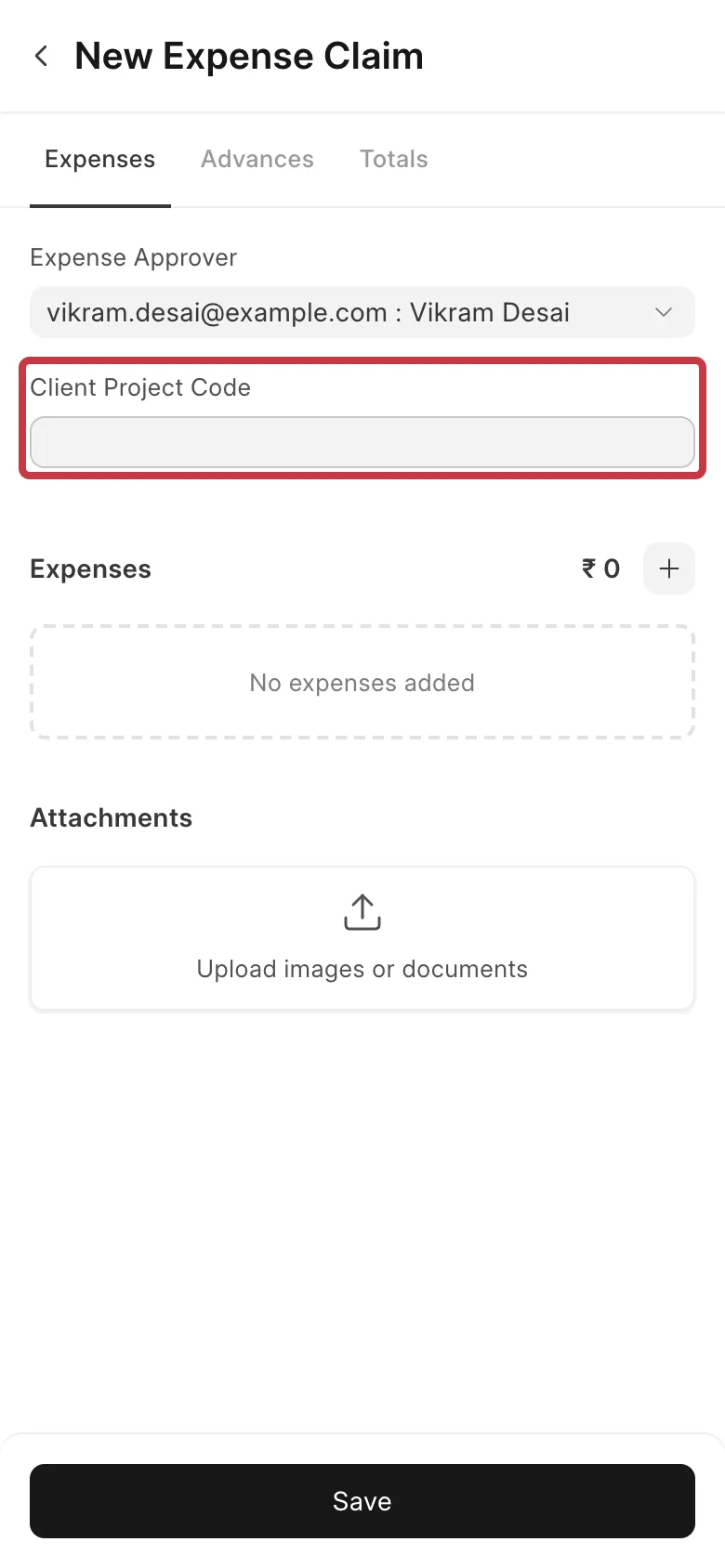
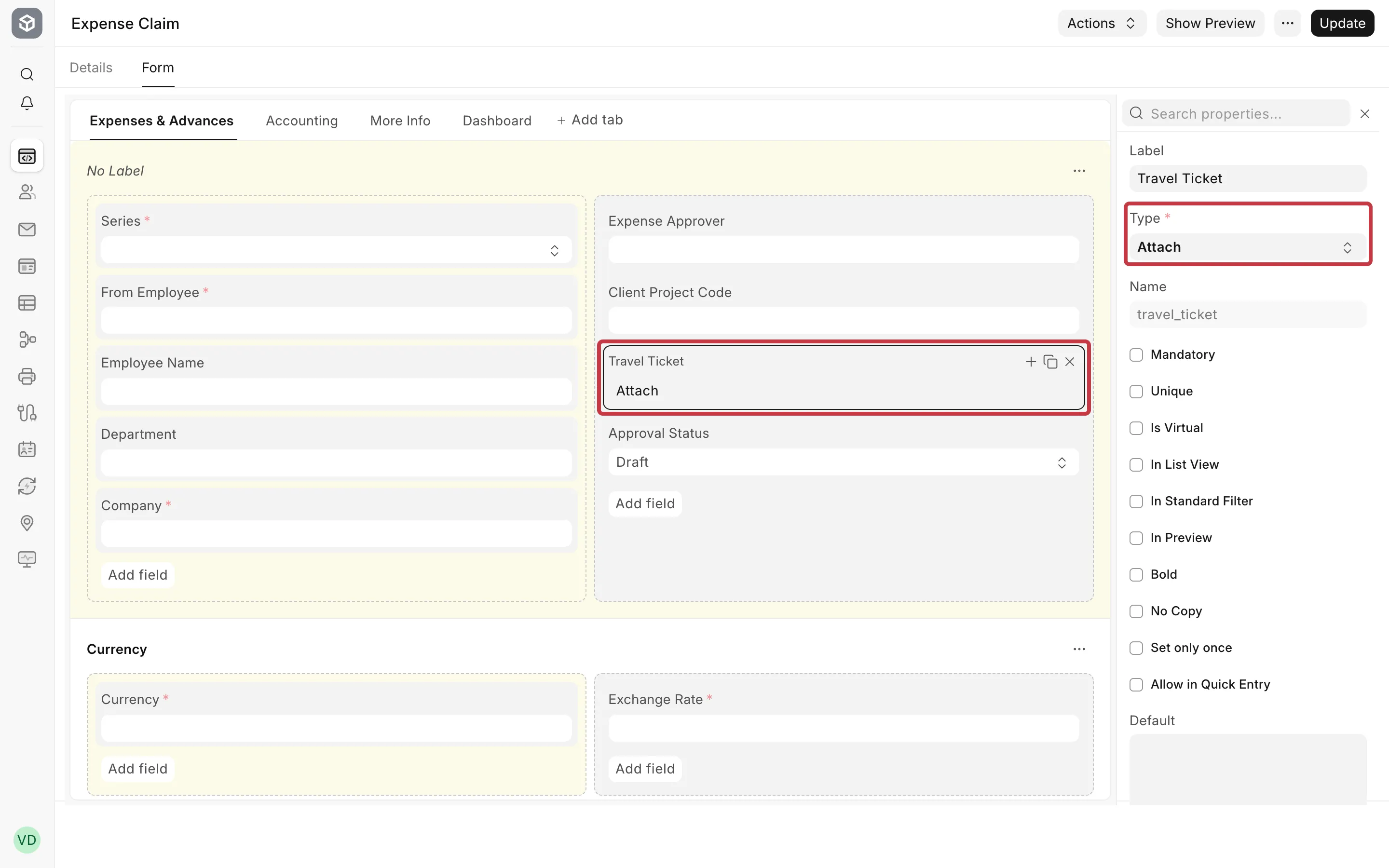
For example, Bluepeak Technologies adds three custom fields to Expense Claim. **Client Project Code** is a Data field after **Expense Approver**, so it shows in the app. **Travel Ticket** is an Attach field, so it does not show. **Billable to Client** is a Check field in the **More Info** tab, so it does not show.
**Depends On and Mandatory Depends On do not work in the app.** The app ignores these conditions. A field with **Depends On** always shows. A field with **Mandatory Depends On** is never mandatory in the app. The static **Mandatory** and **Hidden** settings work.
**Custom DocTypes do not show in the app.** The app has screens only for the standard Frappe HR documents.
## What you can do
### Fix check-in when a custom field on Employee Checkin is mandatory
Give the field a value that the server can set without the employee. The check-in then saves.
1. Go to **Customize Form** and select **Employee Checkin** in **Enter Form Type**.
2. Open the **Form** tab and click your custom field. In this example, click **Work Location**.
3. In the field properties, type a value in **Default**. In this example, type **Hyderabad**.
4. Click **Update**.
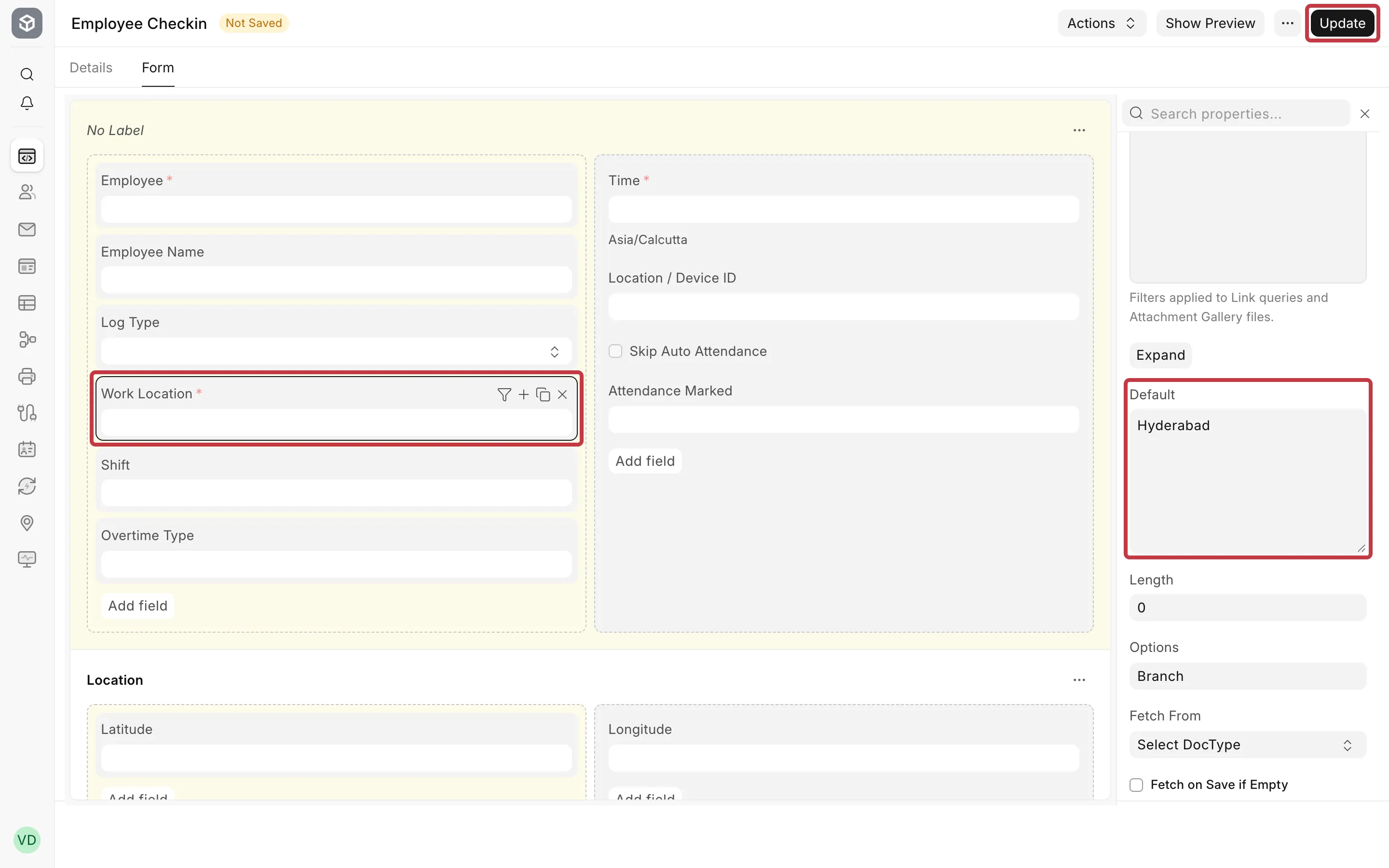
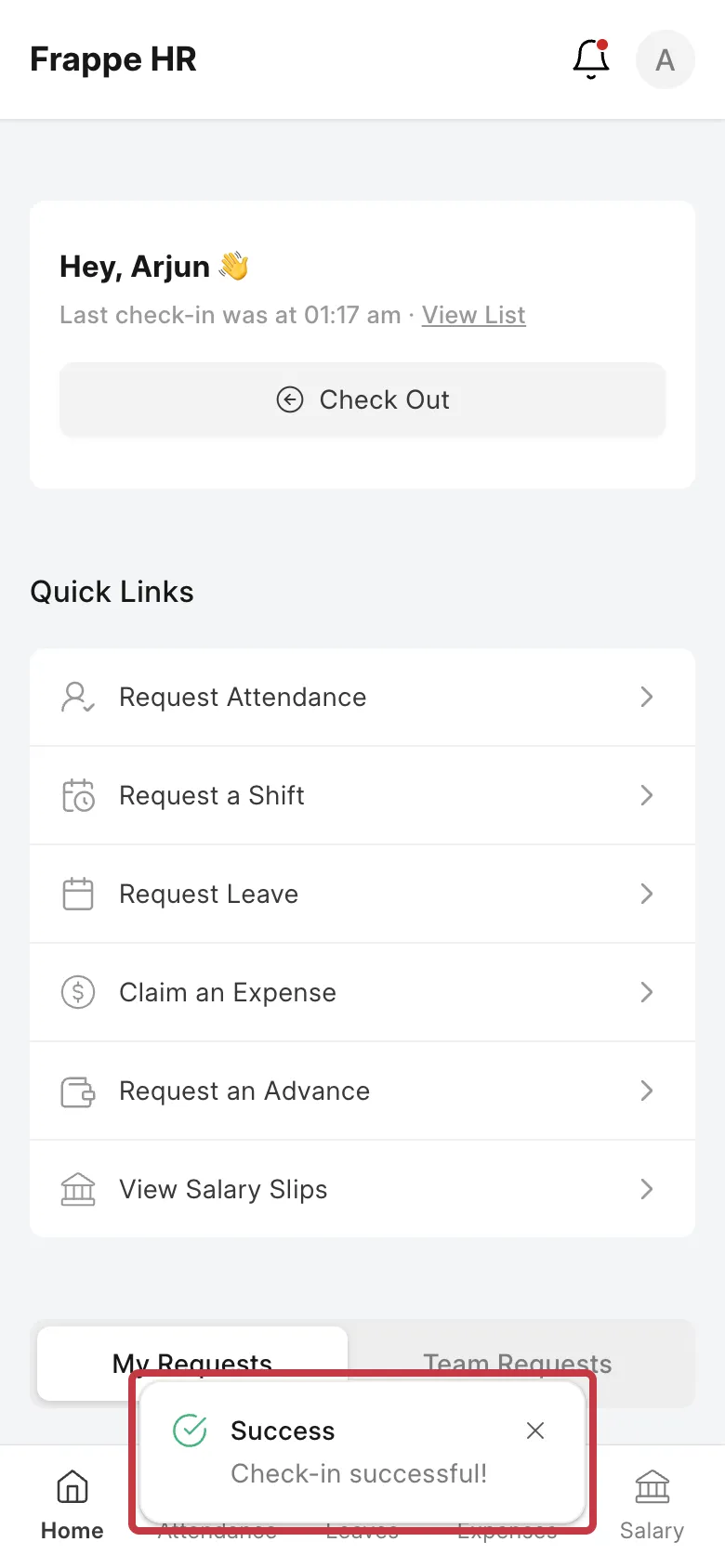
The next check-in from the app saves with **Hyderabad** in **Work Location**. The employee or the HR team can change the value later in Desk.
A custom field on these forms shows only when all these conditions are true:
1. **The field type is supported.** The app shows these types: **Data**, **Link**, **Select**, **Check**, **Date**, **Datetime**, **Int**, **Float**, **Currency**, **Small Text**, **Text**, **Long Text**, **Text Editor,** and **Section Break**. It does not show other types, for example, **Attach**, **Attach Image**, **Table**, **Table MultiSelect**, **Phone**, **Duration**, **HTML,** or **Button**. It ignores **Column Break**, so all fields show in one column.
2. **The field is not hidden.** A field with **Hidden** turned on does not show.
3. **On Expense Claim, the field is in a tab the app shows.** The app has three tabs: **Expenses**, **Advances,** and **Totals**. Fields that come after **Cost Center** in the field order (the **More Info** tab in Desk) do not show.
For example, Bluepeak Technologies adds three custom fields to Expense Claim. **Client Project Code** is a Data field after **Expense Approver**, so it shows in the app. **Travel Ticket** is an Attach field, so it does not show. **Billable to Client** is a Check field in the **More Info** tab, so it does not show.

**Depends On and Mandatory Depends On do not work in the app.** The app ignores these conditions. A field with **Depends On** always shows. A field with **Mandatory Depends On** is never mandatory in the app. The static **Mandatory** and **Hidden** settings work.
**Custom DocTypes do not show in the app.** The app has screens only for the standard Frappe HR documents.
## What you can do
### Fix check-in when a custom field on Employee Checkin is mandatory
Give the field a value that the server can set without the employee. The check-in then saves.
1. Go to **Customize Form** and select **Employee Checkin** in **Enter Form Type**.
2. Open the **Form** tab and click your custom field. In this example, click **Work Location**.
3. In the field properties, type a value in **Default**. In this example, type **Hyderabad**.
4. Click **Update**.

The next check-in from the app saves with **Hyderabad** in **Work Location**. The employee or the HR team can change the value later in Desk.
 If one default value is not correct for all employees, use one of these instead:
- Turn off **Mandatory** for the field, and fill the field in Desk later.
- Ask your developer or partner to set the value on the server before the check-in saves, for example from the Employee master.
### Make a custom field show on a request form
1. Go to **Customize Form** and select the DocType.
2. Click the custom field and look at **Type**. If the type is not in the supported list above, change the field to a supported type, or add a supported field for the app.
3. Make sure **Hidden** is off.
4. For Expense Claim, drag the field to the **Expenses & Advances** or **Accounting** tab, before **Cost Center**.
5. Click **Update**, then close and open the form in the app again.
Do not move the standard fields of Expense Claim to other places. The app uses the position of **Taxes**, **Advances,** and **Cost Center** to split the form into tabs. If you move them, standard fields such as **Posting Date** can go missing from the app, and the employee cannot save the claim.
## Related
- [Frappe HR mobile app](https://docs.frappe.io/hr/frappe-hr-mobile)
- [Customize Form](https://docs.frappe.io/erpnext/user/manual/en/customize-form)
- [Employee Checkin](https://docs.frappe.io/hr/employee-checkin)
- [Expense Claim](https://docs.frappe.io/hr/expense-claim)
If one default value is not correct for all employees, use one of these instead:
- Turn off **Mandatory** for the field, and fill the field in Desk later.
- Ask your developer or partner to set the value on the server before the check-in saves, for example from the Employee master.
### Make a custom field show on a request form
1. Go to **Customize Form** and select the DocType.
2. Click the custom field and look at **Type**. If the type is not in the supported list above, change the field to a supported type, or add a supported field for the app.
3. Make sure **Hidden** is off.
4. For Expense Claim, drag the field to the **Expenses & Advances** or **Accounting** tab, before **Cost Center**.
5. Click **Update**, then close and open the form in the app again.
Do not move the standard fields of Expense Claim to other places. The app uses the position of **Taxes**, **Advances,** and **Cost Center** to split the form into tabs. If you move them, standard fields such as **Posting Date** can go missing from the app, and the employee cannot save the claim.
## Related
- [Frappe HR mobile app](https://docs.frappe.io/hr/frappe-hr-mobile)
- [Customize Form](https://docs.frappe.io/erpnext/user/manual/en/customize-form)
- [Employee Checkin](https://docs.frappe.io/hr/employee-checkin)
- [Expense Claim](https://docs.frappe.io/hr/expense-claim)