---
title: "Send a Raven from Desk"
space: "Raven"
url: "https://docs.frappe.io/raven/frappe-apps/send-from-desk"
updated: "2026-10-19"
---
You can send a message about a document straight from its form in Desk. The message goes to a channel or a person in Raven, with the document card attached.
## Send a message from a document
1. Open the document in Desk.
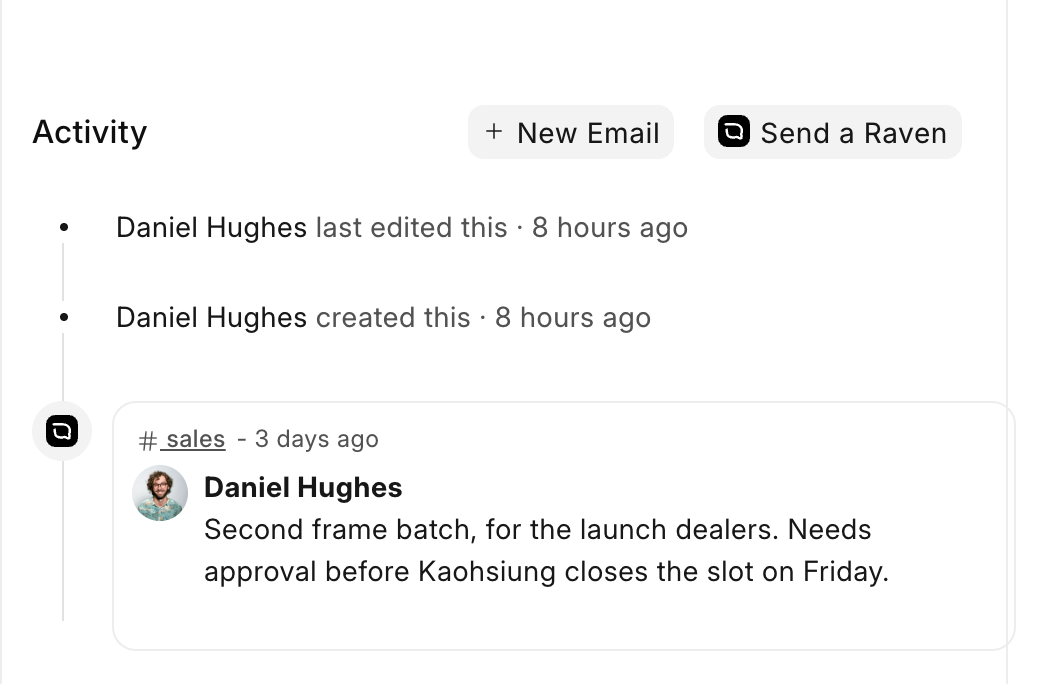
2. Scroll down to **Activity**.
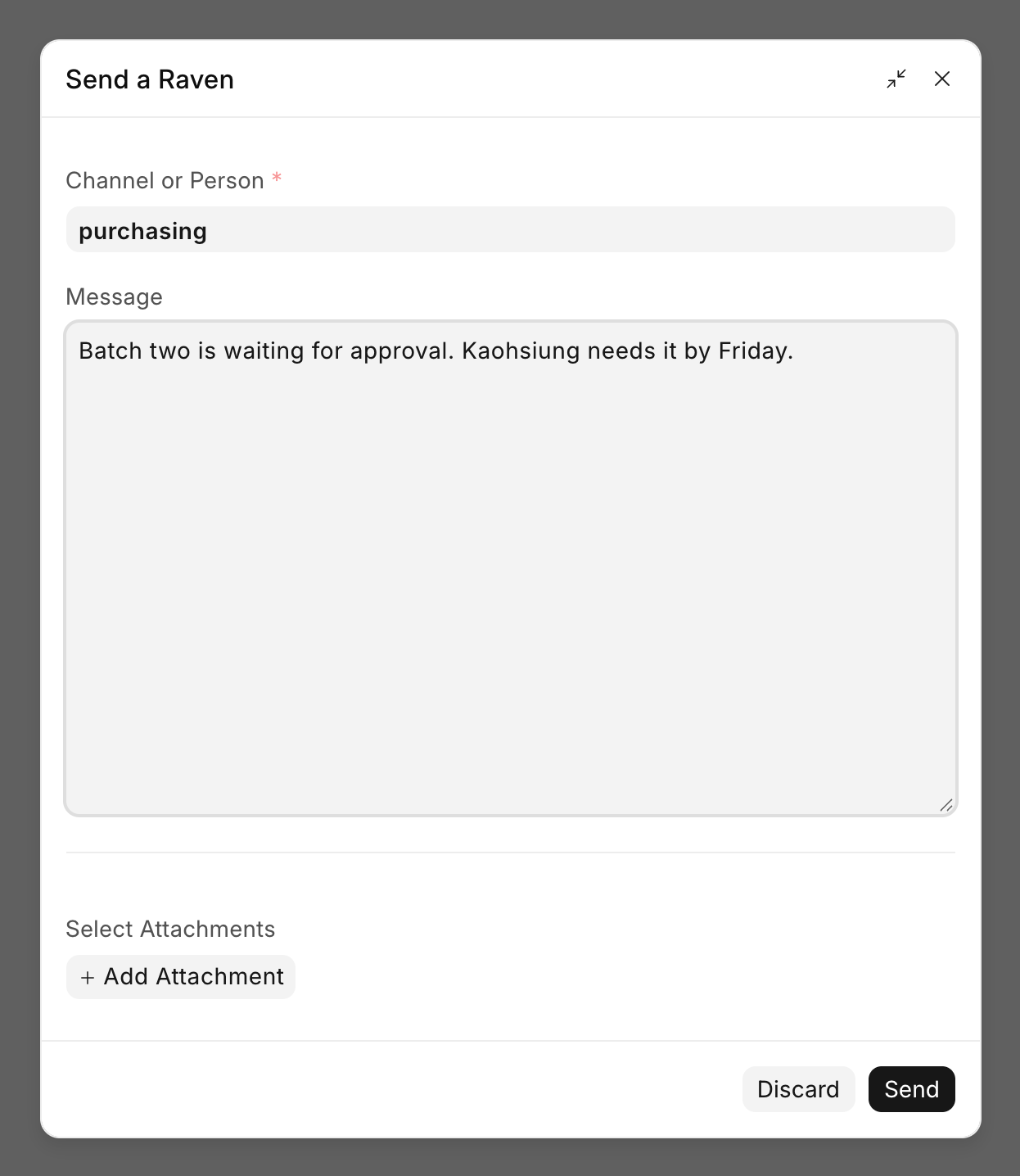
3. Click **Send a Raven**.
4. Under **Channel or Person**, pick a channel or a person. Channels show their workspace under the name. People show **Direct Message**.
5. Type your message.
6. To send a file from the document too, pick it under **Select Attachments**. Click **Add Attachment** to upload a new file to the document first.
7. Click **Send**.
The message shows in Raven with the document card under it. You can send one file with each message.
:::note
The **Send a Raven** button shows on every saved document you can read. It does not show on a new document until you save it.
:::
## See messages on the document's timeline
Messages about a document show on its timeline, under **Activity**. This includes messages sent from Desk and messages sent in Raven with the document attached. Each one shows the channel or person it was sent to. Click the channel name to open it in Raven.
You see a message on the timeline only if you can read the document and the channel it was sent in.