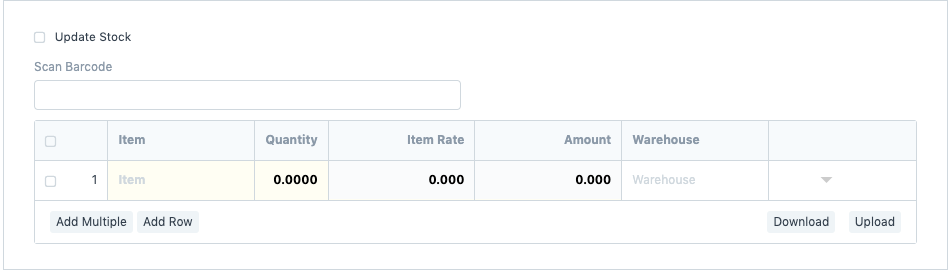
Field Level Permission Management
Restricting a field based on Roles can be easily configured using Perm Level, which is required by most organizations. To define a Perm Level, you can go to the respective form and Customize it.
Let's take a scenario where the organization doesn't want its Employee (Accounts User) to edit the Rate of the item while creating a Sales Invoice. To do that, we can simply make the Item Rate field a read-only.
Step 1: Customize Form
To achieve this, go to Customize Form, select DocType as Sales Invoice Item, scroll to the Item Rate field and expand it.
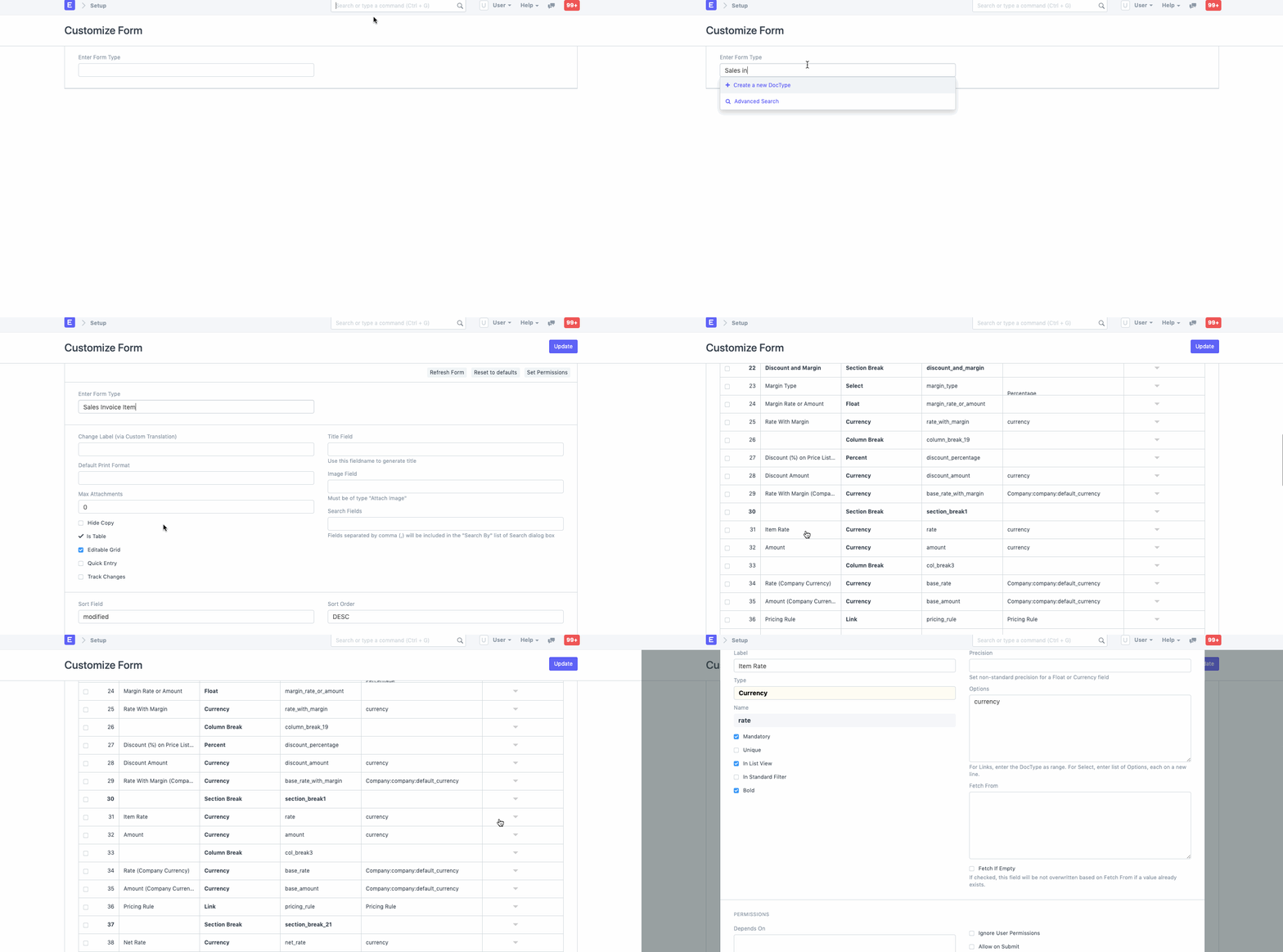
Step 2: Perm Level
Search for the Perm Level, enter the number (0, 1, 2, 3, etc), and Save it.
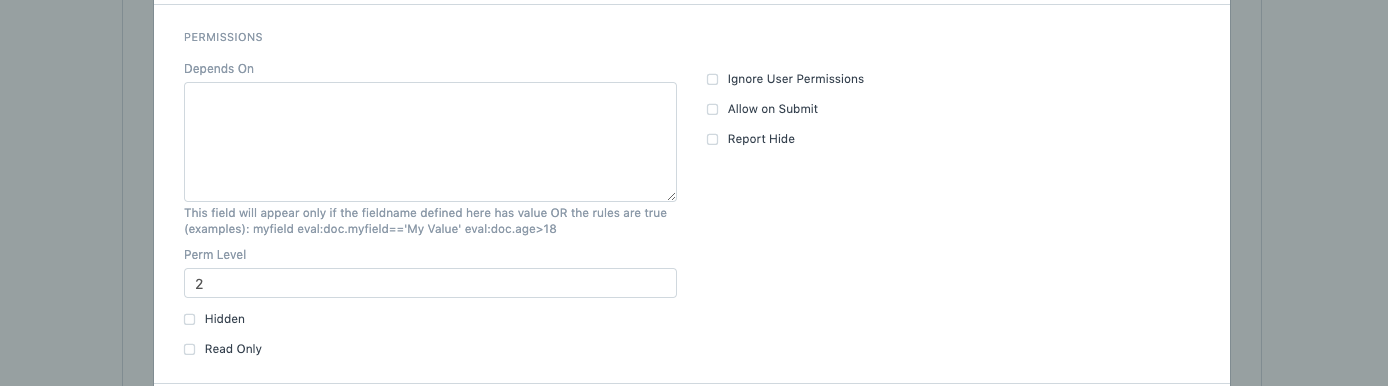
Step 3: Permission Rule
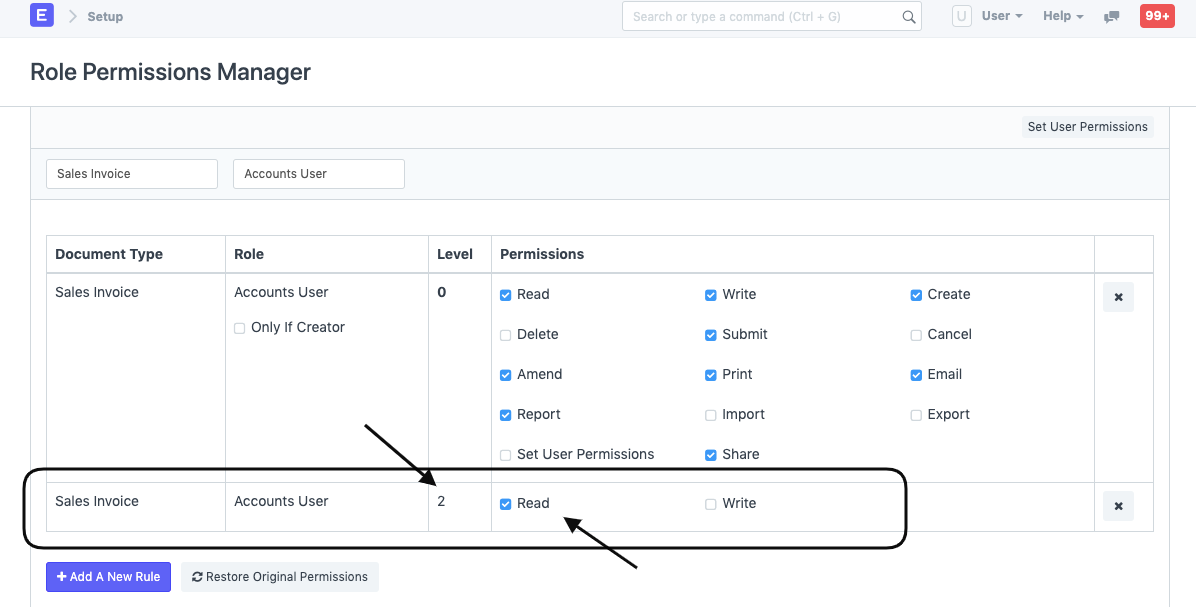
Once saved, click on Add a New Rule in Role Permission Manager and select the Document Type and the Role, in our case, Accounts User, set the Perm Level as 2 and grant the Employee Read access.
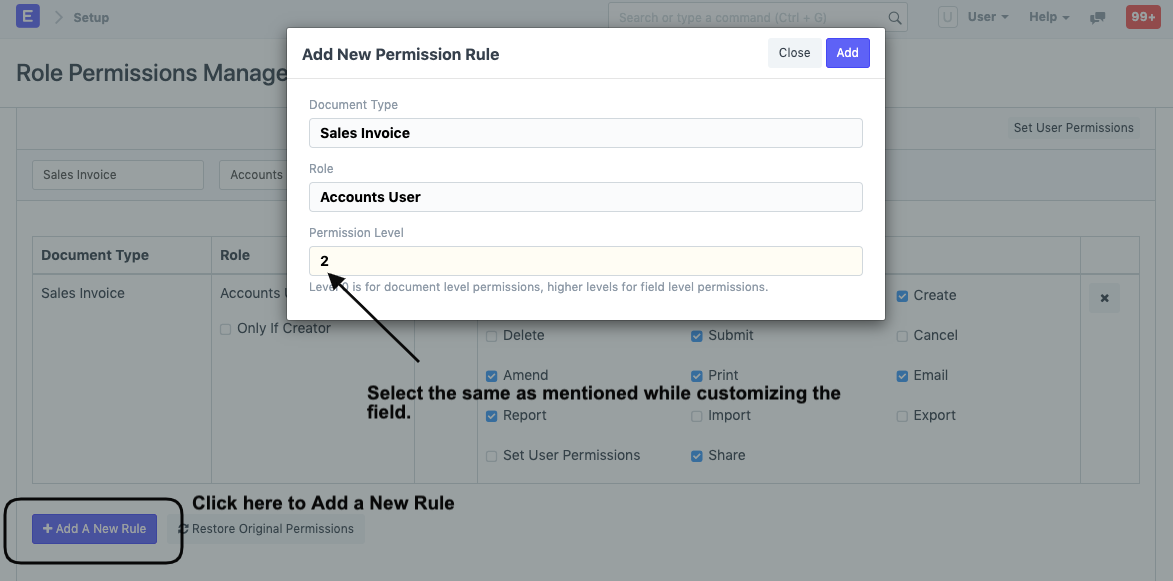
This is how the Role Permissions Manager will display the newly created Rule with Perm Level as 2:
Step 4: Validate View
Now, as you can see in the Sales Invoice the User can only read the Item Rate field which will be fetched automatically from the Price List.