


















Getting Started with Frappe Books
Frappe Books is an accounting app for small businesses. It runs on a Frappe site, and you use it in a browser on a computer or a phone. If your organization does not have a site with Frappe Books, see Installation.
Open Frappe Books
- Open
https://<your-site>/booksin a browser. - If you are not signed in, sign in with your Frappe user.
Your user must have a Books role to open Frappe Books. For more information, see Roles and Permissions.
Set Up Your Organization
The setup wizard opens the first time someone opens Frappe Books on a new site. Only a Books Manager or a System Manager can complete it.
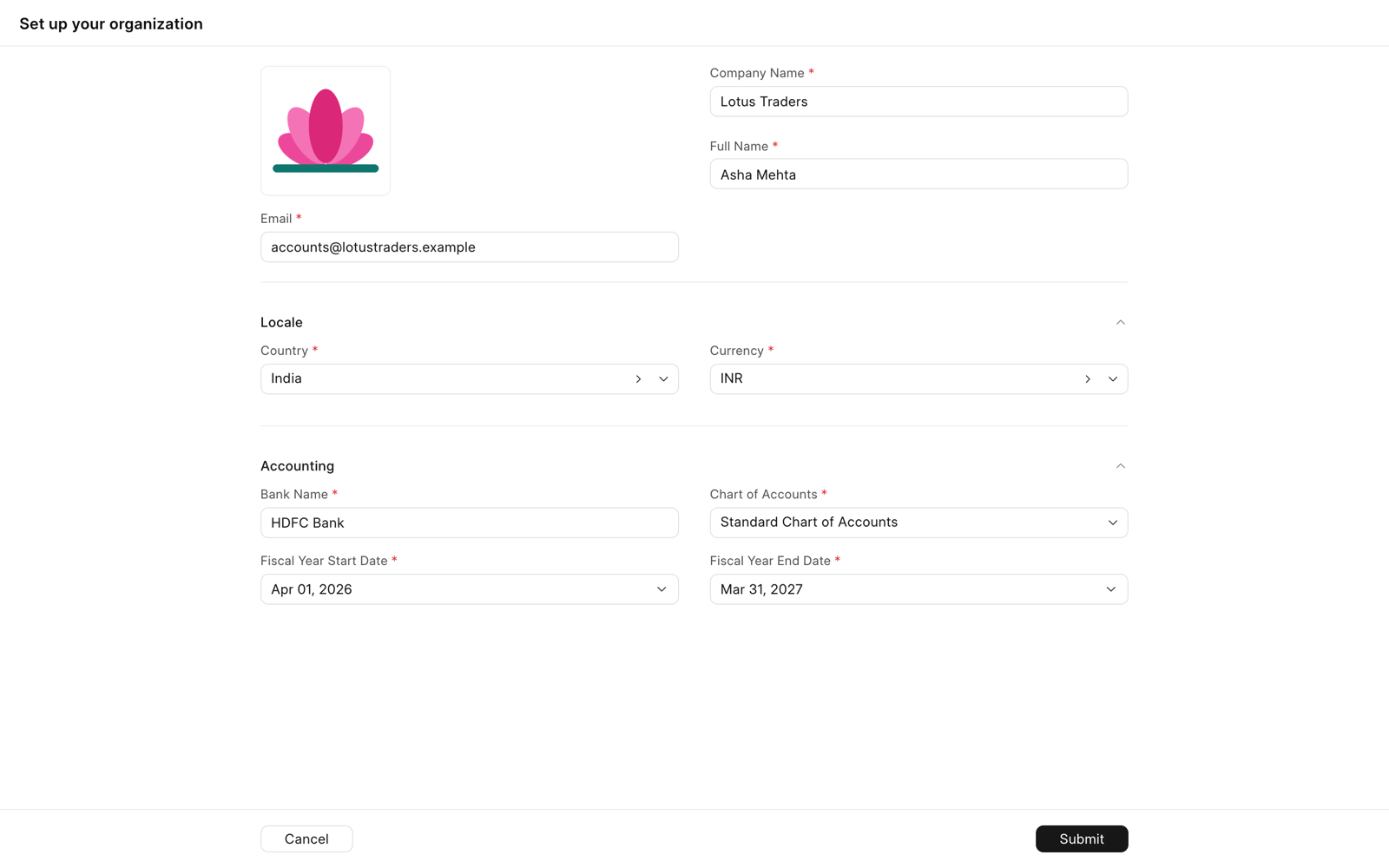
- Enter the details of your company.
- Click Submit.
On a phone, the wizard has three steps. Tap Next to go to the next step, and tap Submit on the last step.
| Field | Description |
|---|---|
| Company Logo and Email | They show on printed documents. The logo is optional. |
| Country | Frappe Books uses the country to fill the currency, the chart of accounts, and the fiscal year. |
| Bank Name | Frappe Books makes a bank account with this name. |
| Chart of Accounts | The list of accounts for your country. If there is no chart for your country, select Standard Chart of Accounts. |
| Fiscal Year Start Date and Fiscal Year End Date | The first and the last day of your financial year. Frappe Books fills these dates for some countries only. For other countries, enter the start date, and Frappe Books fills the end date. |
After you submit, Frappe Books makes the chart of accounts, the bank account, a Cash account, and the default settings. Then the Dashboard opens. The setup does not turn on automatic payments of invoices. To turn them on, see Auto Payments.
Get Started Page
The Get Started page lists the tasks that prepare your company for use. To open it, click Get Started in the sidebar. This page is not available on a phone.
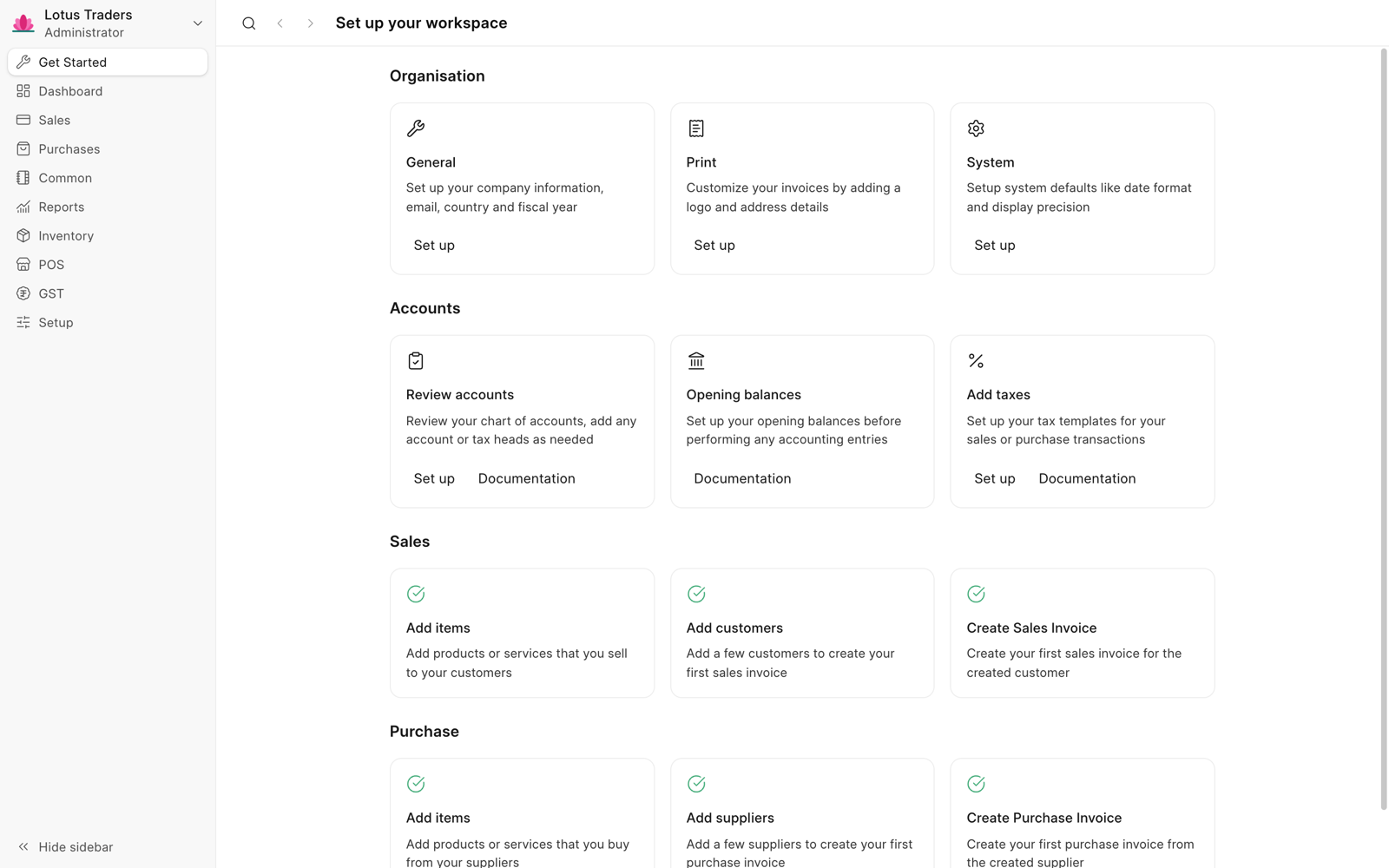
Click Set up on a task to open its page, or Documentation to open its help page. Some tasks have only one of these buttons. A complete task shows a green check instead. When all the tasks are complete, Frappe Books removes Get Started from the sidebar.
Save and Submit Documents
A transaction, such as an invoice or a payment, goes through these states:
| State | Description |
|---|---|
| Draft | You saved the document. You can still change it. |
| Submitted | Frappe Books made the ledger entries. You cannot change the document. |
| Cancelled | Frappe Books reversed the ledger entries. You cannot change the document. |
On a computer, the main button is in the page header. It shows Save while the document has changes that are not saved. After you save, it shows Submit. Frappe Books asks you to confirm each save and submit. Click Yes to continue. On a phone, the main button is at the bottom of the form, and Frappe Books asks you to confirm only when you submit.
To cancel a submitted document, click the … button in the page header, and then click Cancel. To confirm, click Cancel and the document type, such as Cancel Sales Invoice. To delete a document, click … > Delete, and then click Delete to confirm. In both confirmations, the other button keeps the document, such as Keep Sales Invoice.
Next Steps
- Review your accounts in the Chart of Accounts.
- Add your taxes, items, and customers. See Create Initial Entries.
- If you move from a different accounting system, set up your opening balances.