


















Inventory Settings
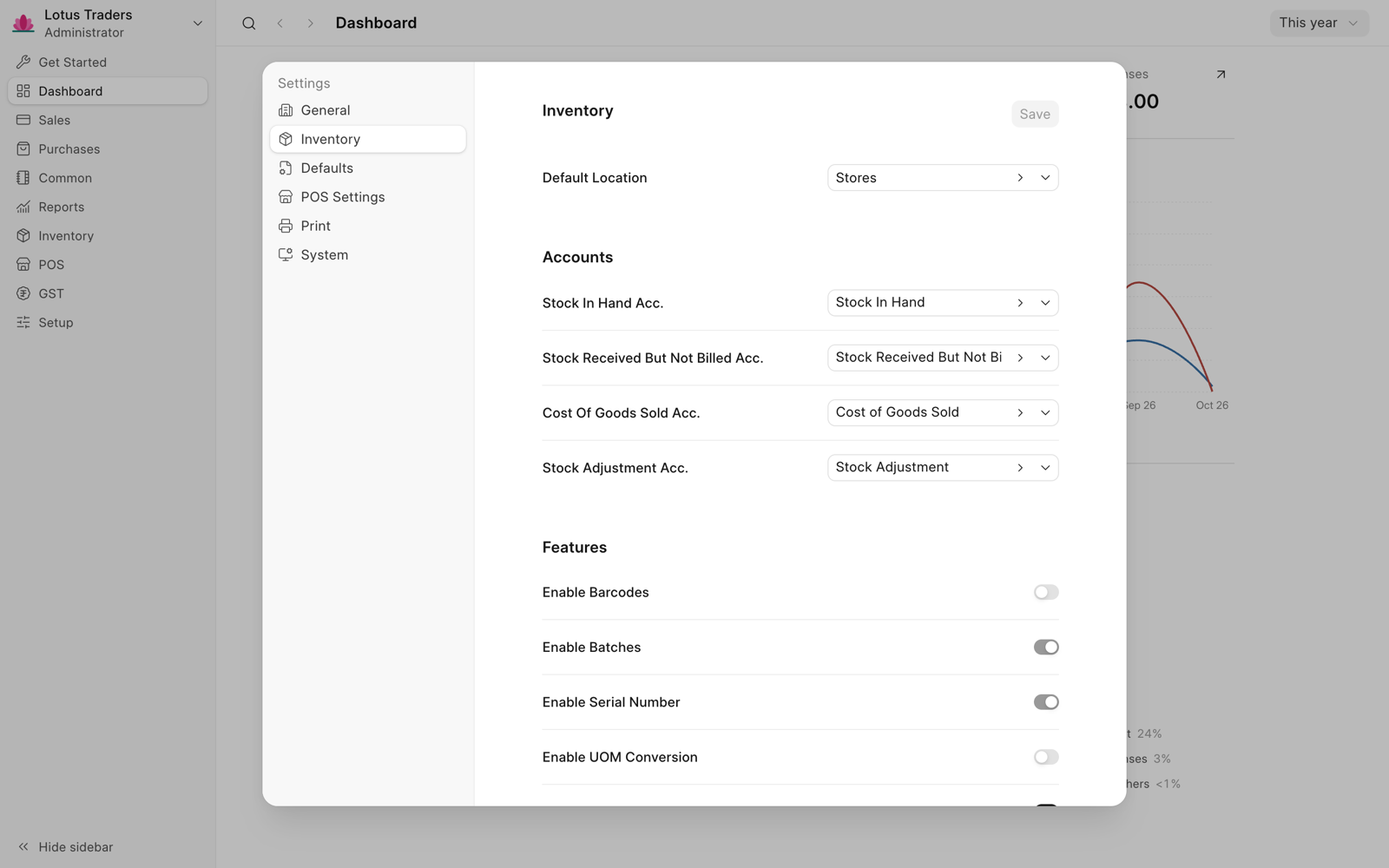
The inventory settings set the default location, the stock accounts, and the inventory features that you use. The Inventory tab of the settings shows only when inventory is on. To turn on inventory, see Introduction to Inventory.
Open the Inventory Settings
- Click Setup > Settings in the sidebar.
- Click Inventory.
- Change the settings.
- Click Save.
- Click Yes to reload Frappe Books. Your changes show after the reload.
Only a Books Manager or a System Manager can change the settings. A Books User can only read them.
Default Location
Default Location is the location that Frappe Books puts in a stock row when the row has no location. It is used for:
- The From location of a Material Issue and the To location of a Material Receipt. See Stock Movement.
- A shipment row or a purchase receipt row that you leave empty.
The setup wizard sets it to Stores. To add a location, type its name in the field and click Create. Sales invoices and purchase invoices use their own locations. See Related Settings.
Accounts
Frappe Books posts the value of the stock to these accounts when you submit a shipment, a purchase receipt, or a stock movement. The setup wizard fills them from your chart of accounts.
| Field | Account Type | Use |
|---|---|---|
| Stock In Hand Acc. | Stock | The value of the stock that you have. |
| Stock Received But Not Billed Acc. | Stock Received But Not Billed | The value of the stock that you received but did not bill yet. |
| Cost Of Goods Sold Acc. | Cost of Goods Sold | The cost of the stock that you shipped. |
| Stock Adjustment Acc. | Stock Adjustment | The other side of a stock movement, such as a Material Receipt. |
Each list shows only ledger accounts of the account type in the table. To add an account, see Create a New Account. For the entries that each document makes, see Stock Accounts.
Frappe Books values stock with the FIFO (first in, first out) method. You cannot select a different method. See Stock Valuation.
Features
| Field | What It Does |
|---|---|
| Enable Barcodes | Adds a Barcode field to items, and above the item rows of draft forms. Type or scan a barcode to add the item. A barcode has exactly 12 digits. On a phone, tap the scan button to scan with the camera. |
| Enable Batches | Adds Has Batch to items that track inventory, and a Batch field to item rows. See Batches. |
| Enable Serial Number | Adds Has Serial Number to items, and a Serial Number field to item rows. See Serial Number. |
| Enable UOM Conversion | Adds a UOM Conversions table to items. Item rows get a Transfer Unit and a Qty. in Transfer Unit. |
| Enable Point of Sale | Shows POS in the sidebar and the POS Settings tab. See Point of Sale. |
After you save, you cannot turn off barcodes, batches, serial numbers, or UOM conversion. You can turn off Enable Point of Sale, but not while a POS shift is open.
To return shipments and purchase receipts, turn on Enable Invoice Returns in the General tab.
Related Settings
These settings are in the Defaults tab:
| Field | Description |
|---|---|
| Shipment Location | The location that a sales invoice ships from. While it is empty, only POS sales make shipments on submit. See Automatic Shipments. |
| Purchase Receipt Location | The location that a purchase invoice receives into. While it is empty, purchase invoices do not make purchase receipts on submit. See Purchase Receipts. |
| Number series and print templates | The default number series and the print template that opens first for stock movements, shipments, and purchase receipts. See Number Series and Print Templates. |
| Shipment Terms, Purchase Receipt Terms | The text that new shipments and purchase receipts get in Notes. |