


















Chart of Accounts
The chart of accounts is the list of all the accounts of your company. Frappe Books makes it from the chart that you select in the setup wizard.
To open it, click Setup > Chart of Accounts in the sidebar. This page is not available on a phone.
Organization of Accounts
There are two types of accounts:
- Ledger accounts: Transactions use these accounts. They show in the General Ledger. A ledger account has a circle icon and shows its balance, such as
1,000.00 Dr. - Group accounts: These accounts contain other group accounts and ledger accounts. A group account has a folder icon. Some root accounts have a different icon.
Root Accounts
The accounts at the top level are the root accounts. The Standard Chart of Accounts has five root accounts: Application of Funds (Assets), Source of Funds (Liabilities), Equity, Income, and Expenses. The charts of other countries can have a different number of root accounts.
Each root account is a debit account or a credit account. All the accounts below a credit root account are also credit accounts. For more information, see Credit and Debit.
Open the Groups
All the groups are closed when the page opens. Click a group, or the arrow before it, to open or close it. Click Expand or Collapse at the top of the page to open or close all the groups.
View an Account
Click a ledger account to open it in a side panel. The panel shows these fields:
- Root Type. It is read only when the account has a Parent Account.
- Parent Account
- Account Type
- Is Group
- GST Head, only for a company in India. The GST reports use it to find the GST amounts. Select CGST, SGST, IGST, or Exempt. For more information, see GST Reports.
To change a value, edit the field and click Save. To close the panel, click the X button.
Create a New Account
- Move the pointer over a group account.
- Click the … button at the end of the row.
- Click Add account or Add group.
- Enter the account name.
- Click Save, or press
Enter.
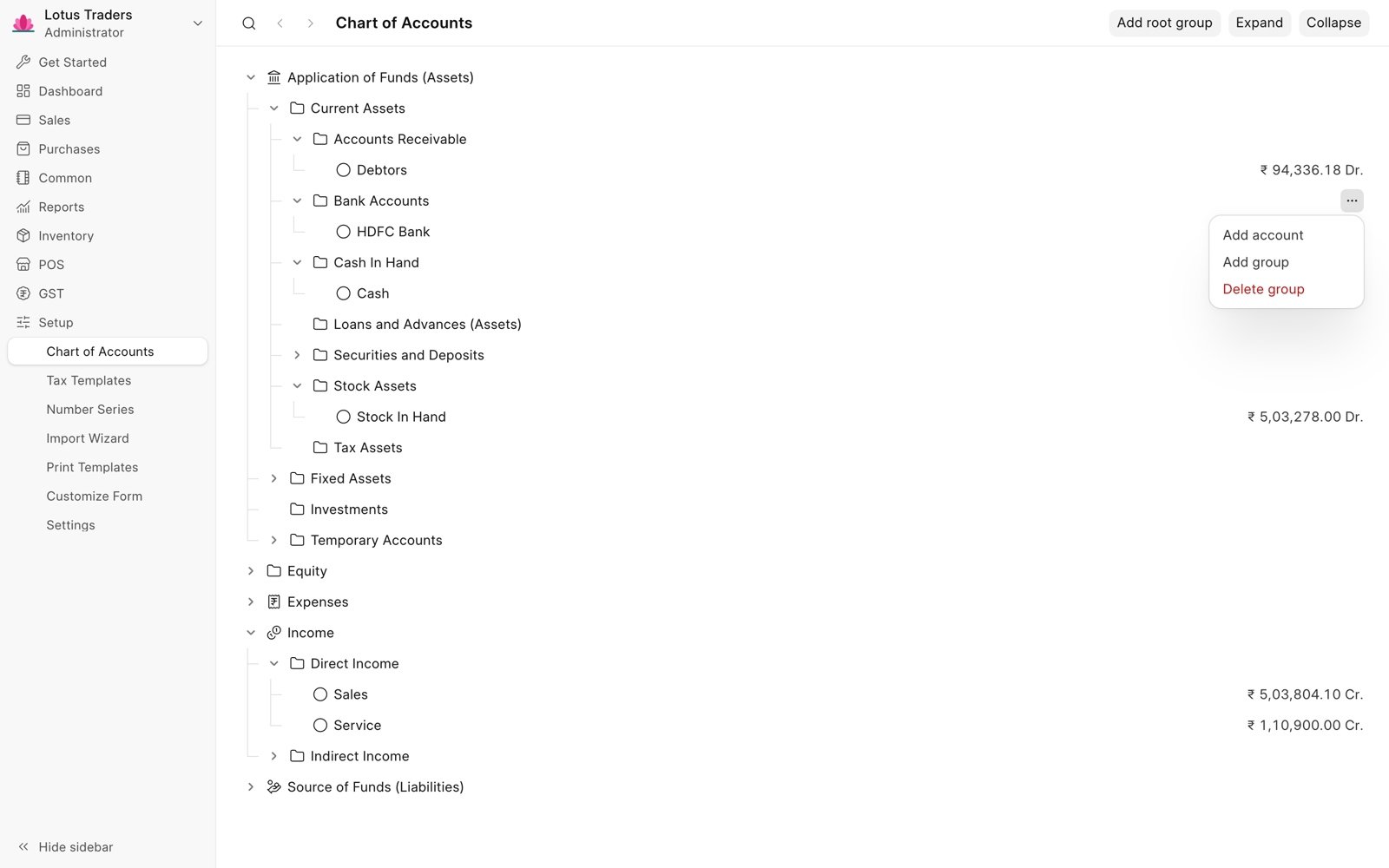
The new account gets the root type and the account type of its group. Frappe Books then opens the account in the side panel, where you can change the account type.
To make a new root account, click Add root group at the top of the page. Enter the account name and the root type in the side panel. Then click Save.
Delete an Account
- Move the pointer over the account.
- Click the … button on the right side of the row.
- Click Delete account or Delete group.
- Click Delete to confirm. To stop, click Keep Account, or Keep Group for a group.
You cannot undo a delete. You cannot delete a root account, or a group that contains other accounts.