


















Stock Ledger
The Stock Ledger report shows the stock entries of your items. Frappe Books makes stock entries when you submit a stock movement, a shipment, or a purchase receipt. Each entry shows the change in quantity and in value, and the balance after the change. Stock that goes out takes the FIFO rate of the oldest stock that is still in. Only a Books Manager or a System Manager sees the rates and the values.
Open the Stock Ledger
Click Reports > Stock Ledger in the sidebar. The report shows only when inventory is on. On a phone, tap Reports in the bottom tabs, tap the report title in the header, and then tap Stock Ledger.
Open the Entries of a Document
- Open a submitted stock movement, shipment, or purchase receipt.
- Click View > Stock entries in the page header. On a phone, tap the … button in the header, and then tap Stock entries.
The report opens with Ref Type and Ref Name set to the document. From Date and To Date change to the date of the document. After you submit one of these documents, you can also click View stock entries in the message.
Columns
| Column | Description |
|---|---|
| Batch, Serial Number | Show when batches or serial numbers are on. |
| Quantity | The change in quantity. Stock that comes in is positive and green. Stock that goes out is negative and red. |
| Balance Qty. | The quantity of the item at the location after the entry. For an item with batches, the quantity of the batch. |
| Incoming rate | For stock that comes in, the rate of the entry. For stock that goes out, the FIFO rate at which it went out. |
| Valuation Rate | The balance value divided by the balance quantity. |
| Balance Value | The value of the stock at the location after the entry. |
| Value Change | The change in the stock value. Green is an increase, and red is a decrease. |
| Ref Name, Ref Type | The document that made the entry, such as SHPM-1001, and its type. |
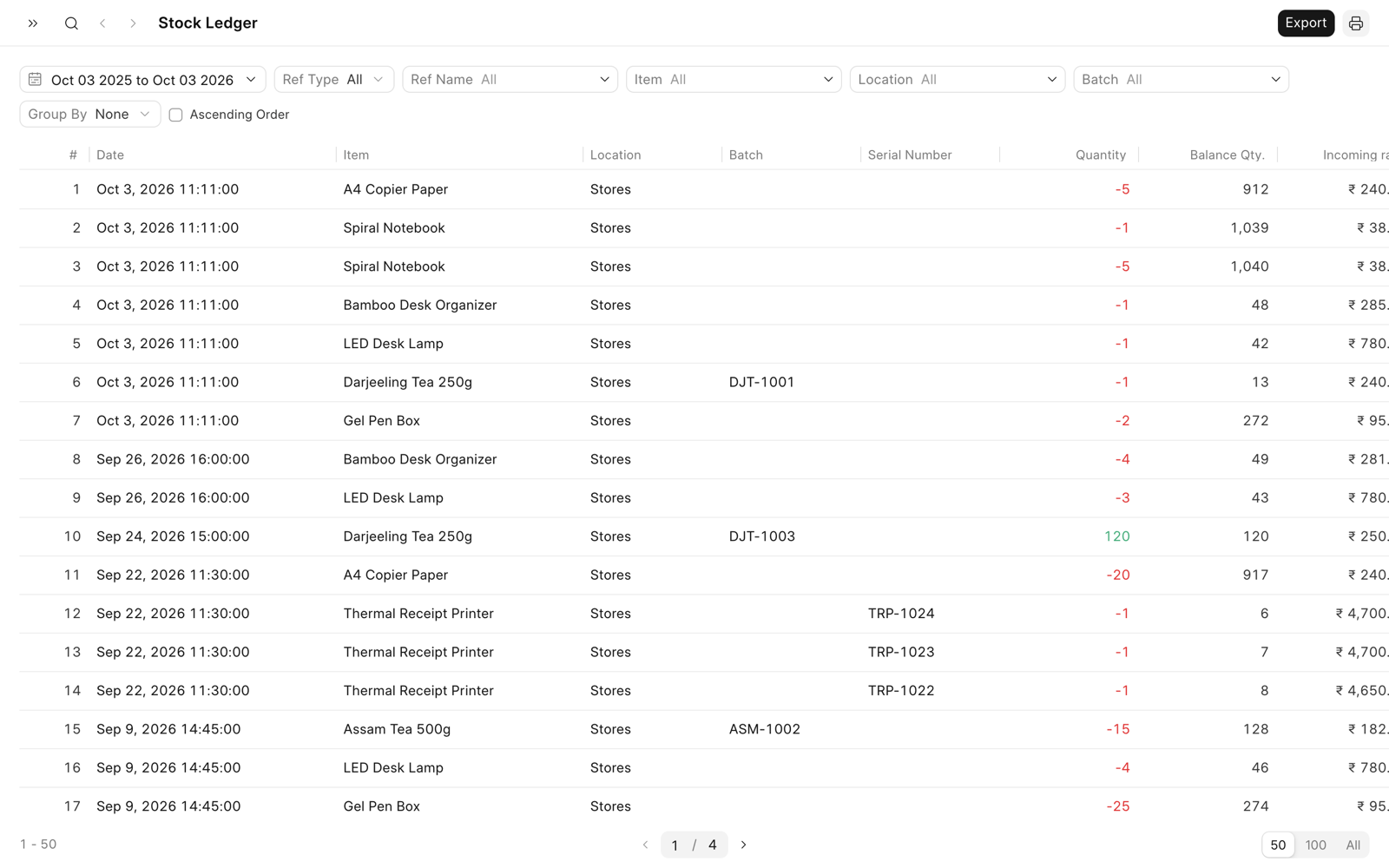
A Material Transfer makes two entries for each row. One takes the stock out of the source location. The other puts it into the destination location, with the value that the first entry took out. For an item with serial numbers, each serial number gets its own entry with a quantity of 1.
Filters
| Filter | Description |
|---|---|
| Ref Type | Stock Movements, Shipment, or Purchase Receipt. The default is All. |
| Ref Name | One document. Select a Ref Type first. |
| From Date, To Date | The defaults are one year before today and today. The report includes both dates. |
| Group By | Puts the entries of each Item, Location, or Reference together. |
| Ascending Order | Shows the oldest entries first. By default, the newest entries show first. |
You can also filter by Item and Location. When batches are on, you can also filter by Batch.
Use the Report
To change the dates, move between pages, export, or print, see Reports. The export file is stock-ledger.csv or stock-ledger.json, with all the rows of the current filters.
On a phone, the report shows the entries below their dates, with the change in quantity and the balance quantity on the right. To see all the columns of an entry, tap it. The sheet has a button that opens the document, such as Open SHPM-1001. To show more entries, tap Load more. You cannot export the report on a phone.