


















Sales Quotes
A sales quote is an offer of prices that you send to a customer or a lead. A quote does not make ledger entries. When the customer accepts the quote, make a sales invoice from it.
Create a Sales Quote
- Click Sales > Sales Quotes in the sidebar.
- Click New.
- In Type, select Party for a customer or Lead for a lead.
- Select the Customer. If the type is Lead, select the lead in this field.
- In Items, click Add row.
- Select the Item and enter the Qty.
- Add a row for each item that you offer.
- Click Save.
- Click Submit and click Yes.
To quote a lead, turn on Enable Lead in the General settings. You can also open the lead and click Create > Sales Quote. For more information, see Lead.
A quote has most of the fields of a sales invoice. Frappe Books calculates the taxes, the discounts, and the totals in the same way. A quote does not have an Account, and it does not make payments or shipments. For more information, see Invoice Fields. To change the default number series, select the Sales Quote Number Series in the Defaults settings.
When you submit a quote to a lead, Frappe Books sets the status of the lead to Quotation.
Make a Sales Invoice From a Quote
- Open the submitted quote.
- Click Create > Sales Invoice. A new sales invoice opens with the customer, the items, the price list, and the notes of the quote.
- Check the invoice.
- Click Save.
- Click Submit and click Yes.
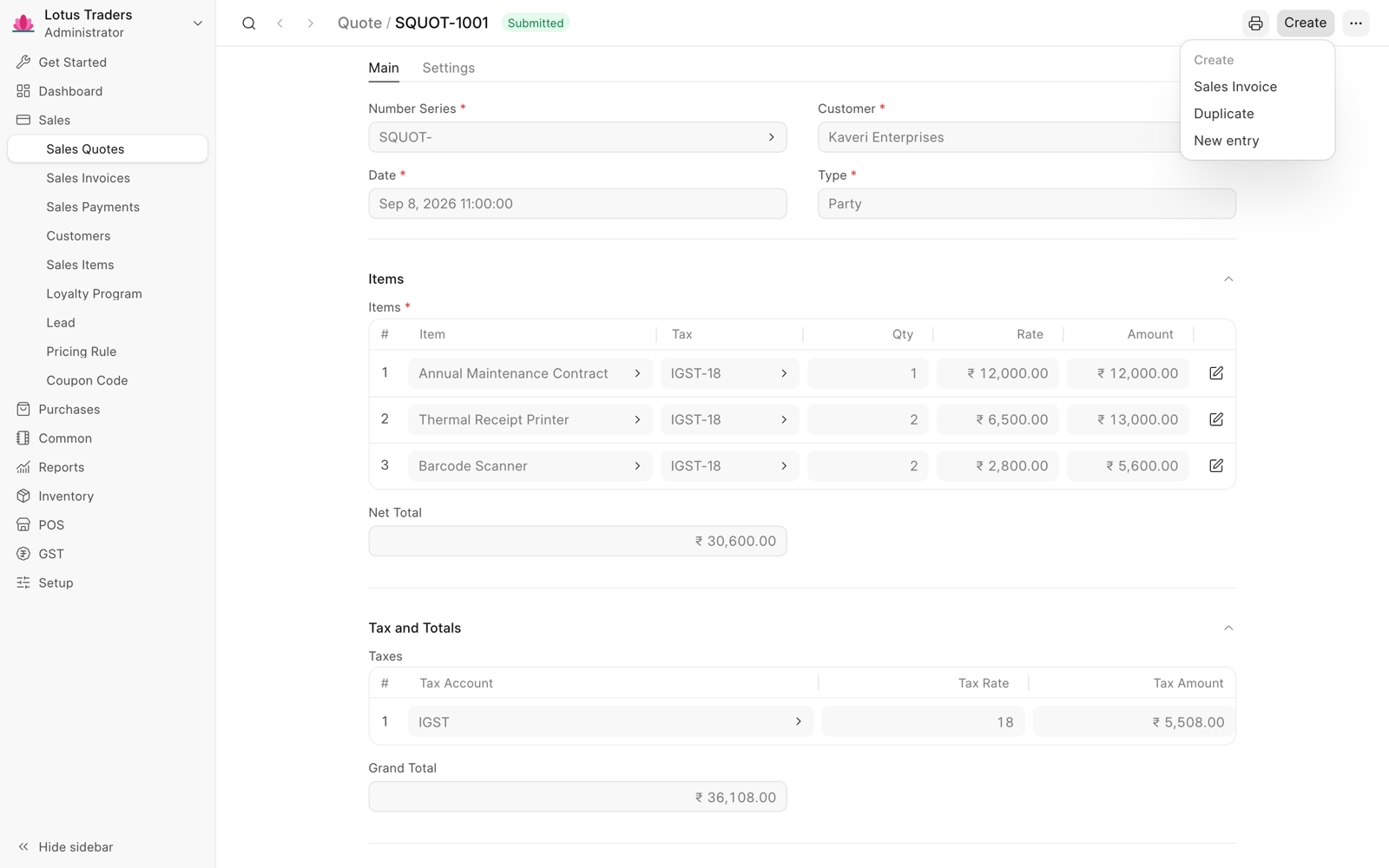
The Quote Reference field of the invoice shows the quote. To find the invoices of a quote, open the quote and click the link icon in the page header.
Print a Sales Quote
For the steps, see Print a Document. Frappe Books has the template Business - Quote for quotes. To set the template that opens first, select the Sales Quote Print Template in the Defaults settings.
Cancel or Change a Quote
You cannot edit a submitted quote. To change it, cancel it. Then click Create > Duplicate to make a new quote with the same values. You cannot cancel a quote while a submitted sales invoice refers to it.
A Books User can create, submit, cancel, and duplicate quotes. Only a Books Manager or a System Manager can delete a quote. For more information, see Roles and Permissions.