

















A pricing rule changes the price of an item on a sales invoice when the invoice meets the conditions of the rule. Use them for quantity discounts, free items, special rates, and offers between two dates. Pricing rules apply to sales invoices and to POS sales. They do not apply to sales quotes, purchase invoices, or returns.
Turn On Pricing Rules
Pricing rules need discount accounting.
- Click Setup > Settings in the sidebar.
- In the General tab, turn on Enable Discount Accounting. Enable Pricing Rule then shows.
- Turn on Enable Pricing Rule.
- Click Save, and then click Yes to reload Frappe Books.
Pricing Rule now shows in the Sales group of the sidebar.
You can turn off pricing rules later. Frappe Books then stops applying them. Submitted invoices keep their prices.
Create a Pricing Rule
Only a Books Manager or a System Manager can make and change pricing rules.
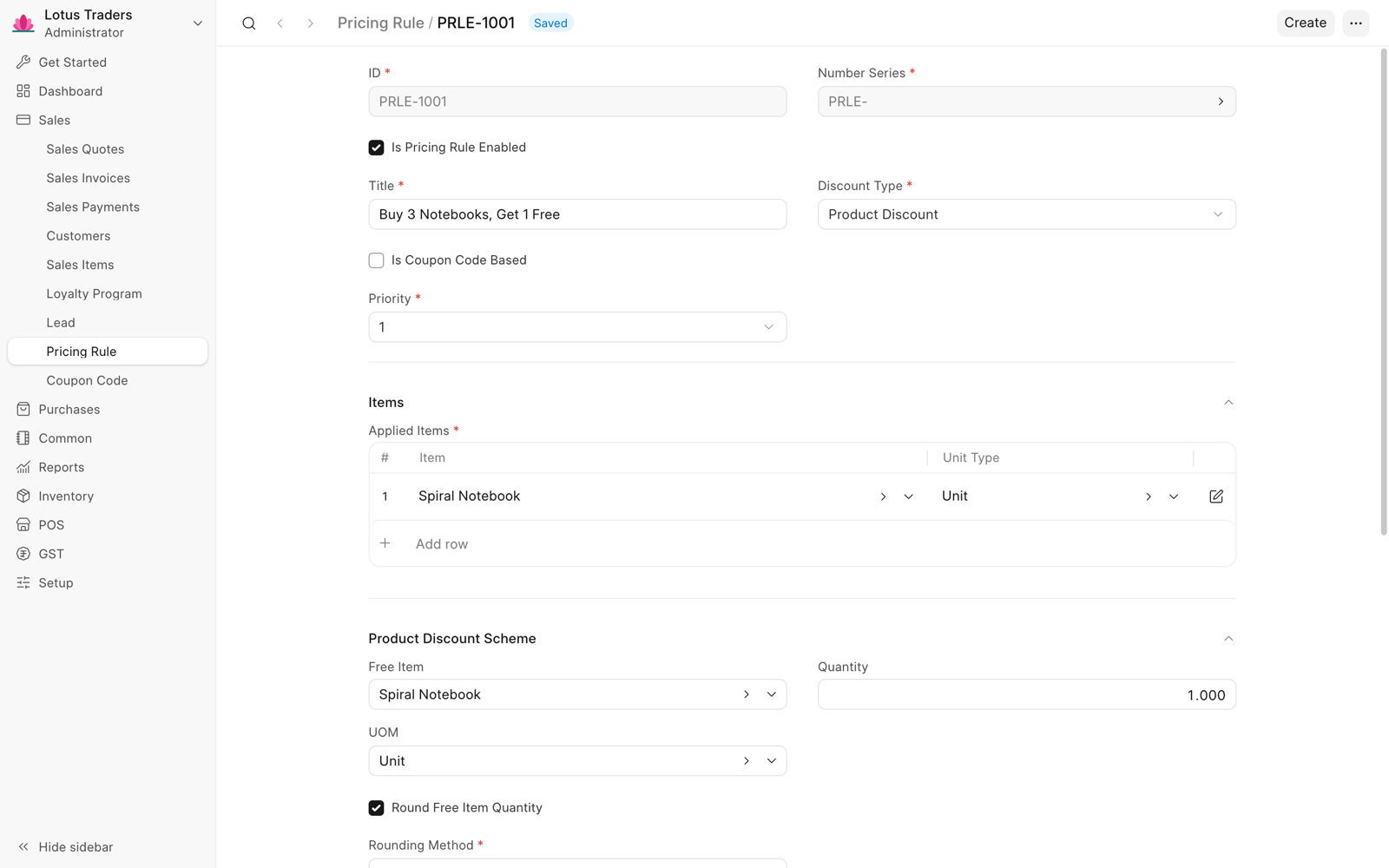
- Click Sales > Pricing Rule in the sidebar.
- Click New.
- Enter a Title, such as
Buy 5, get 10% off. - In Applied Items, click Add row and select the Item. Add a row for each item of the offer.
- Select the Discount Type, and then fill in the fields of the discount.
- Select the Priority.
- Optional: Set the quantity, amount, and date conditions.
- Click Save.
On a phone, Add row opens a sheet. Fill in the row and tap Done.
Pricing Rule Fields
| Field | Description |
|---|---|
| Is Pricing Rule Enabled | Only enabled rules apply. A new rule is enabled. |
| Discount Type | Price Discount changes the rate or gives a discount. Product Discount gives a free item. |
| Is Coupon Code Based | The rule applies only when the invoice has a coupon code for the rule. Shows only when coupon codes are on. See Coupon Code. |
| Priority | A number from 1 to 20. See Priority. |
Applied Items
Each row has an Item and a Unit Type. The Unit Type starts as the stock unit of the item. You can change it to a unit in the UOM Conversions of the item.
The rule applies only to invoice rows whose Transfer Unit is the Unit Type. A row without a Transfer Unit is in the stock unit. To apply the rule to two units, add two rows with the same item, such as one for Unit and one for Box.
Price Discount
Select the Price Discount Type, and then enter its value.
| Price Discount Type | What the Rule Does to Each Row of the Item |
|---|---|
| Rate | Sets the rate to the Rate, for one unit of the Unit Type. If you entered a rate in the row, Frappe Books keeps your rate. |
| Discount Percentage | Sets the discount percent of the row, from 0 to 100. |
| Discount Amount | Sets the discount amount of the full row, not of one unit. If it is more than the row amount, the discount is the row amount. |
A discount from a rule replaces a discount that you entered in the row. Frappe Books posts it to the discount account.
Product Discount
| Field | Description |
|---|---|
| Free Item | The item that the customer gets free. It can be the same item as in Applied Items. |
| Quantity | The quantity of the free item, in the UOM. |
| UOM | The unit of the free row. If it is empty, Frappe Books uses the unit of the free item. |
| Round Free Item Quantity | Rounds the free quantity to a whole number with the Rounding Method: Floor (down), Round (nearest), or Ceil (up). |
| Is Recursive | Gives the free item again for each set of items that the customer buys. |
| Recurse Every (As Per Stock Unit) | The number of items in each set, in the stock unit. |
Frappe Books adds one free row with a rate of zero, also when the item is on more than one row.
With Is Recursive, the free quantity is the Quantity multiplied by the item quantity, divided by Recurse Every. For example, with Quantity 1 and Recurse Every 3, 7 notebooks give 2.33 free notebooks. With the rounding method Floor, they give 2. For units that allow only whole quantities, such as Unit, select Round Free Item Quantity. If the free quantity is zero after rounding, the rule does not apply.
Conditions
| Field | The Rule Applies When |
|---|---|
| Min Qty, Max Qty (As Per Stock Unit) | The total quantity of the item is in this range. |
| Min Amount, Max Amount | The total amount of the item is in this range. |
| Valid From, Valid To | The date of the invoice is in this range. |
The totals count only the rows in a Unit Type of the rule. A zero or empty value means no limit on that side. Min Amount must be less than Max Amount.
Enter the Rate, the Discount Amount, and the amount limits in your company currency. For an invoice in a different currency, Frappe Books converts them with the exchange rate.
Priority
More than one rule can apply to the same item. Frappe Books then uses the rule with the highest Priority. The highest priority is 20.
If two rules have the same highest priority for an item, Frappe Books shows an error, and you cannot save the invoice. Give each rule for the same item a different priority.
How Frappe Books Applies Pricing Rules
Frappe Books applies pricing rules while you edit a sales invoice, and again when you save and submit it. For each row, it applies the matching rule with the highest priority. Each row gets one pricing rule at most. If a condition stops matching, Frappe Books removes the free item or the price change. The Pricing Rule Detail table of the invoice shows each rule that applied.
Pricing Rules in the POS
In the POS cart, a free item shows the name of its pricing rule. You cannot edit a free item.
To stop pricing rules in the POS, turn on Ignore Pricing Rule in the POS settings or in the POS profile. A pricing rule can change the rate or the discount also when Can Change Rate or Can Change Discount is off. See Point of Sale (POS).
Example: Buy 3, Get 1 Free
| Field | Value |
|---|---|
| Applied Items | Notebook |
| Discount Type | Product Discount |
| Free Item | Notebook |
| Quantity | 1 |
| Round Free Item Quantity | Selected, with Floor |
| Is Recursive | Selected |
| Recurse Every (As Per Stock Unit) | 3 |
| Min Qty (As Per Stock Unit) | 3 |
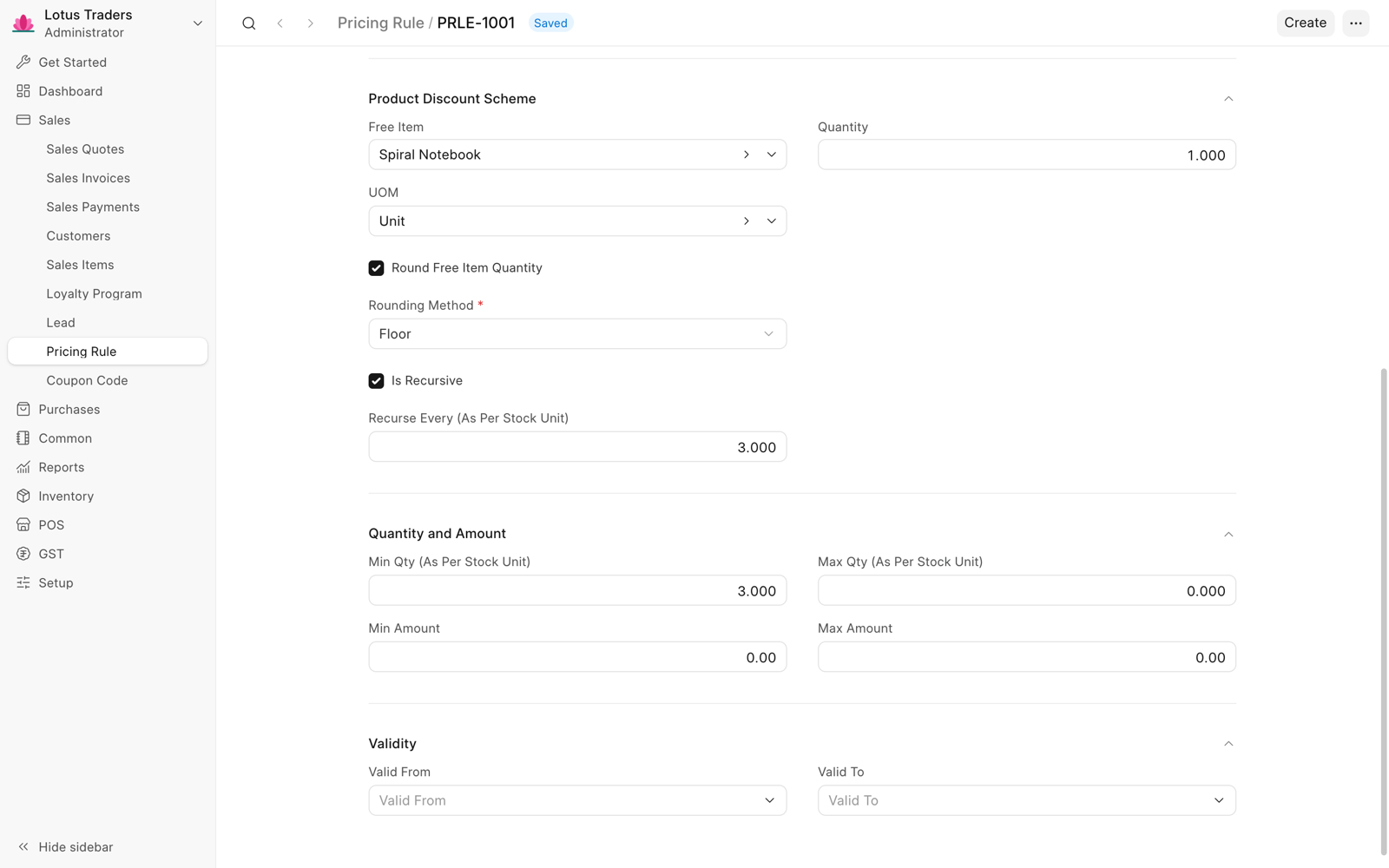
A row with 7 notebooks gets a row with 2 free notebooks.