


















Payments
A payment records money that moves between you and a party. When you submit a payment, Frappe Books makes the ledger entries and decreases the outstanding amount of the invoices that the payment settles.
Payment Types
| Payment Type | Use |
|---|---|
| Receive | A customer pays you, or a supplier refunds a purchase return. |
| Pay | You pay a supplier, or you refund a sales return to a customer. |
The labels of the account fields change with the Payment Type. From Account always shows the account that the money comes from.
Making Payments from Invoices
- Open a submitted sales invoice or purchase invoice that has an outstanding amount.
- Click Create > Payment.
- Check the Payment Method and the cash or bank account.
- If the payment method is not Cash, enter the Ref. / Cheque No.
- Click Save.
- Click Submit and click Yes.
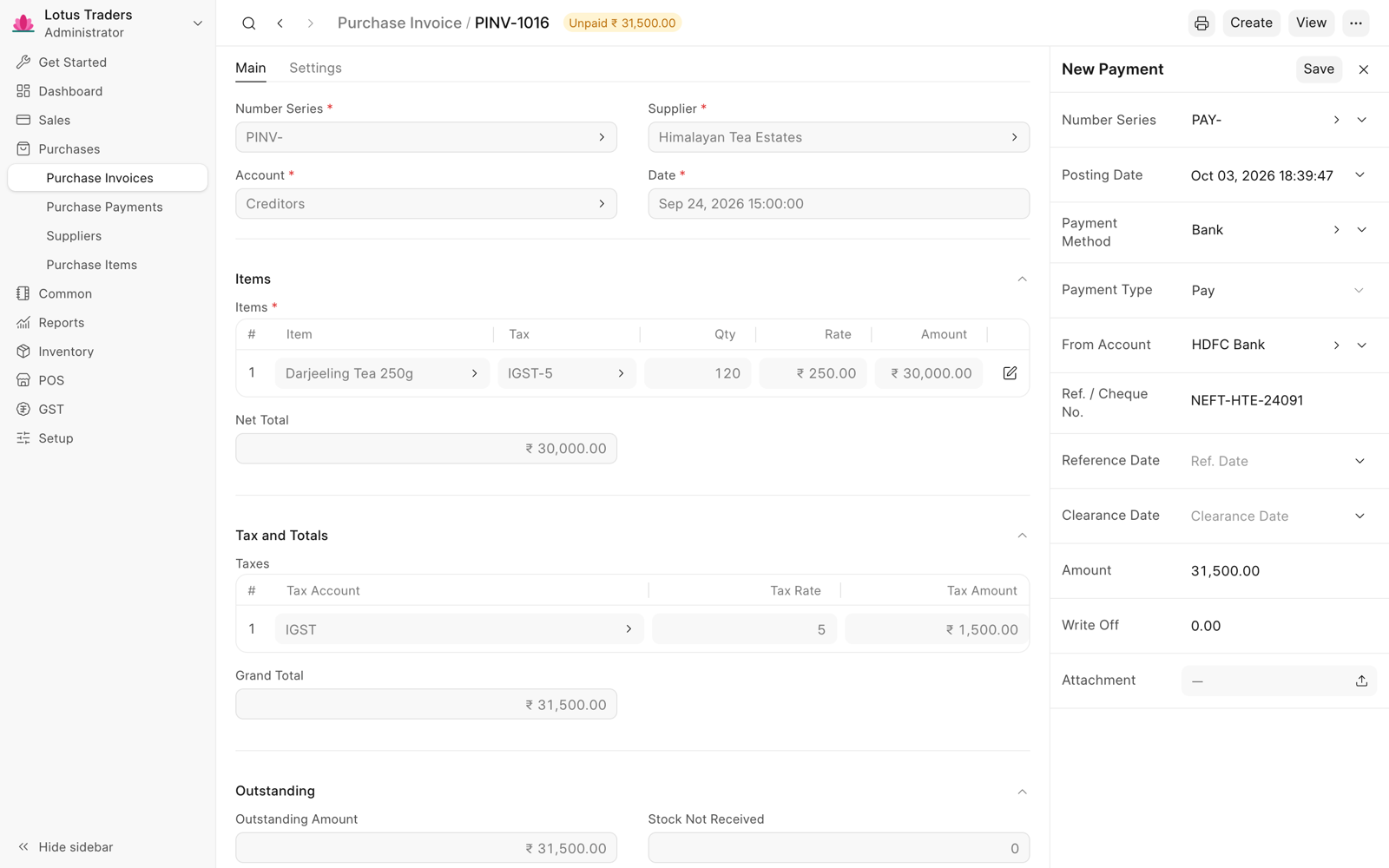
Frappe Books fills the party, the payment type, the Amount, and a reference to the invoice. The amount is the outstanding amount of the invoice. The cash or bank account is the Sales Payment Account or the Purchase Payment Account in the Defaults settings. If that account is not set, it is the account of the Cash payment method.
Making Payments from the Payments List
Use this way for a payment that settles more than one invoice, or a payment without an invoice.
- Click Sales > Sales Payments or Purchases > Purchase Payments in the sidebar.
- Click New.
- Select the Party. Frappe Books fills the Payment Type and the party account.
- Select the Payment Method, and check the cash or bank account.
- In Payment Reference, add one row for each invoice that the payment settles. In each row, select the Type and the invoice in Name.
- Check the Amount of the payment.
- Click Save.
- Click Submit and click Yes.
A payment for a sales invoice shows in Sales Payments, and a payment for a purchase invoice shows in Purchase Payments. A payment without an invoice shows in Sales Payments for the type Receive, and in Purchase Payments for the type Pay.
Payment Reference Rules
- The invoice must be submitted and must belong to the party of the payment.
- The amount of a row cannot be more than the outstanding amount of the invoice.
- The total of the rows cannot be more than the Amount of the payment.
To pay less than the outstanding amount, turn on Enable Partial Payment in the General settings. The invoice then shows the Partly Paid status. A payment without references, such as an advance, does not change the outstanding amount of an invoice.
Payment Methods
Frappe Books adds two payment methods: Cash and Bank. Each method has a Type (Cash, Bank, or Transfer) and an Account. When you change the Payment Method of a payment, Frappe Books changes the cash or bank account too.
- For the Bank and Transfer types, you must enter the Ref. / Cheque No.
- If the method has Requires Clearance Date selected, you must enter the Clearance Date.
To add a payment method, search for Payment Method in Quick Search. Only a Books Manager or a System Manager can add or edit payment methods.
Write Off
Write Off is a part of the amount that you do not receive or pay, such as a bank charge. The write-off goes to the Write Off Account in the General settings.
For example, an invoice has an outstanding amount of 1,000, and the customer pays 990. Enter 1000 in Amount and 10 in Write Off. Amount Paid shows 990, and the invoice becomes Paid.
Taxes and Currency
If a tax template row has a Tax Payment Account, a payment moves the paid part of that tax to this account. See Taxes. Payments are always in the company currency. See Multi Currency Invoicing.
Cancelling a Payment
When you cancel a payment, Frappe Books reverses the ledger entries of the payment and adds its amounts back to the outstanding amounts of its invoices. When you cancel an invoice, Frappe Books also cancels the payments that settle it.