


















Coupon Code
A coupon code applies a pricing rule to a sales invoice. The customer gives you the code, and you add it to the invoice. The pricing rule of the coupon then gives the discount or the free item.
Turn On Coupon Codes
Coupon codes need discount accounting and pricing rules.
- Click Setup > Settings in the sidebar.
- In the General tab, turn on Enable Discount Accounting, Enable Pricing Rule, and Enable Coupon Code.
- Click Save, and then click Yes to reload Frappe Books.
Coupon Code now shows in the Sales group of the sidebar, and sales invoices have a Coupons section. You cannot turn off discount accounting after you save it. If you turn off coupon codes later, Frappe Books does not save sales invoices that have coupons.
Set Up a Coupon Code
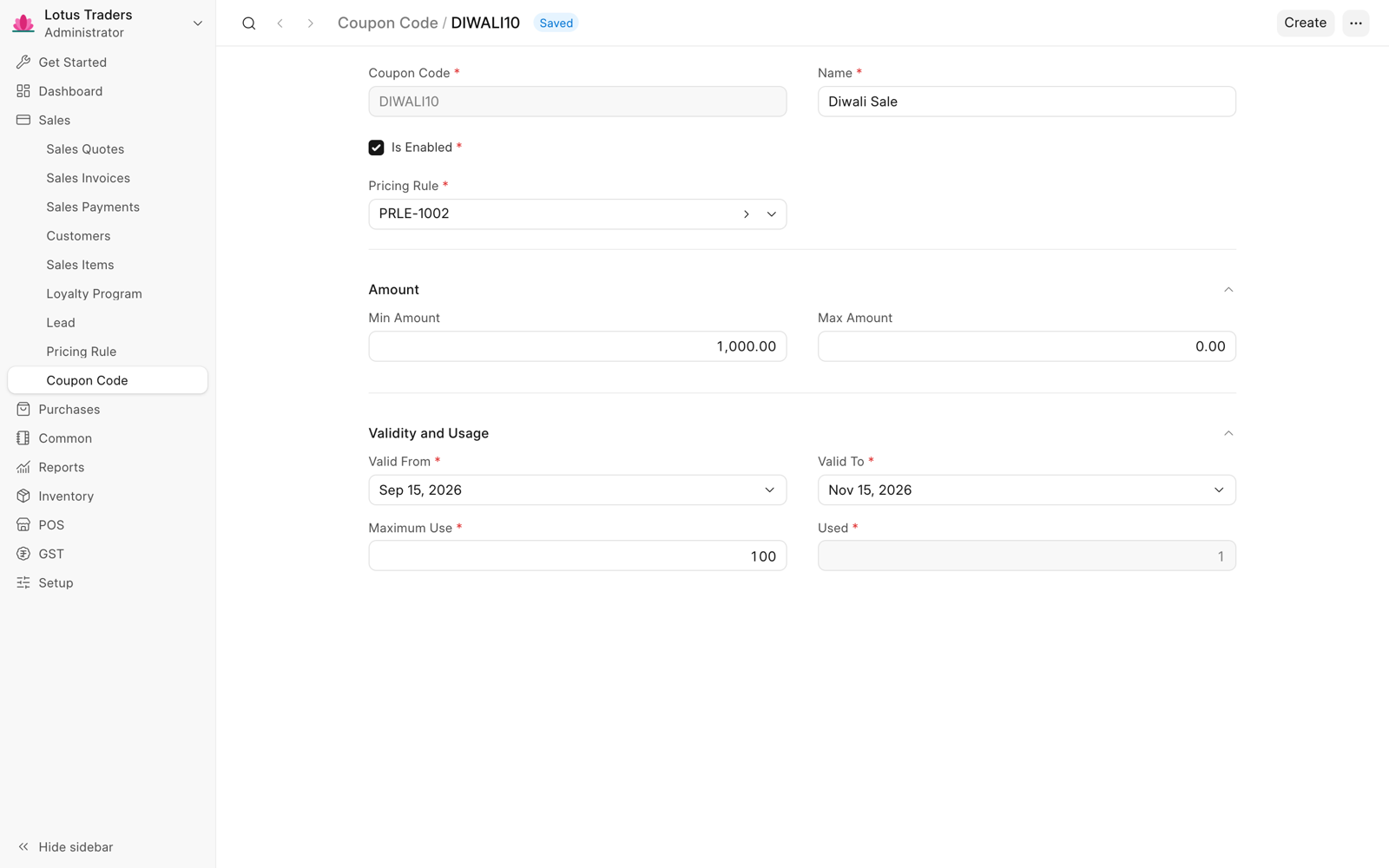
Each coupon applies one pricing rule, and the rule must be coupon based. Only a Books Manager or a System Manager can make coupon codes.
- Create a pricing rule and select Is Coupon Code Based. This rule applies only when the invoice has its coupon.
- Click Sales > Coupon Code in the sidebar.
- Click New.
- Enter a Name, such as
Summer Sale. Frappe Books fills the Coupon Code, such asSUMMERSA. You can change the code before you save, but not after. - Select the Pricing Rule.
- Set Valid From and Valid To.
- In Maximum Use, enter the number of invoices that can use the coupon. Enter
0for no limit. - Optional: Enter a Min Amount and a Max Amount for the order value.
- Click Save.
The order value is the total of the rate multiplied by the quantity of all the rows, without discounts and taxes. Enter the amounts in your company currency.
The amounts and dates of the coupon must stay inside the limits of its pricing rule. Used shows the number of submitted invoices that use the coupon.
Apply a Coupon on a Sales Invoice
- Open a draft sales invoice.
- Select the customer and add the items.
- In Coupons, click Add row, and select the coupon code in the new row. On a phone, select it in the sheet that opens, and tap Done.
- Click Save.
Frappe Books applies the pricing rule of the coupon. The Pricing Rule Detail table shows the rule. You can add more than one coupon, but not the same coupon two times.
Frappe Books shows an error and does not save the invoice when the coupon is disabled, used up, out of its dates or amounts, or its pricing rule does not apply to an item of the invoice.
When you submit an invoice, Frappe Books adds 1 to Used for each coupon. If this makes Used more than Maximum Use, the invoice does not submit. When you cancel the invoice, Frappe Books takes 1 away from Used.
Apply a Coupon in the POS
- Select the customer and add the items.
- Click Coupon above the totals of the cart.
- In Coupons, select the coupon code. If the coupon does not apply, the reason shows below the field.
- Click Done.
On a phone, tap Apply coupon code on the payment screen.
The coupon does not apply when Ignore Pricing Rule is on in the POS settings or the POS profile. If you change the cart or the price list so that the coupon no longer applies, Frappe Books removes it from the sale and shows a warning. See Point of Sale (POS).