


















Stock Balance
The Stock Balance report shows the stock of each item at each location. It shows the quantity and the value of the stock, and the stock that came in and went out in a period. Frappe Books values stock by FIFO (first in, first out).
Open the Stock Balance
Click Reports > Stock Balance in the sidebar. The report shows only when inventory is on. On a phone, tap Reports in the bottom tabs, tap the report title in the header, and then tap Stock Balance.
How Frappe Books Calculates the Balance
The report uses the stock entries up to the end of the To Date:
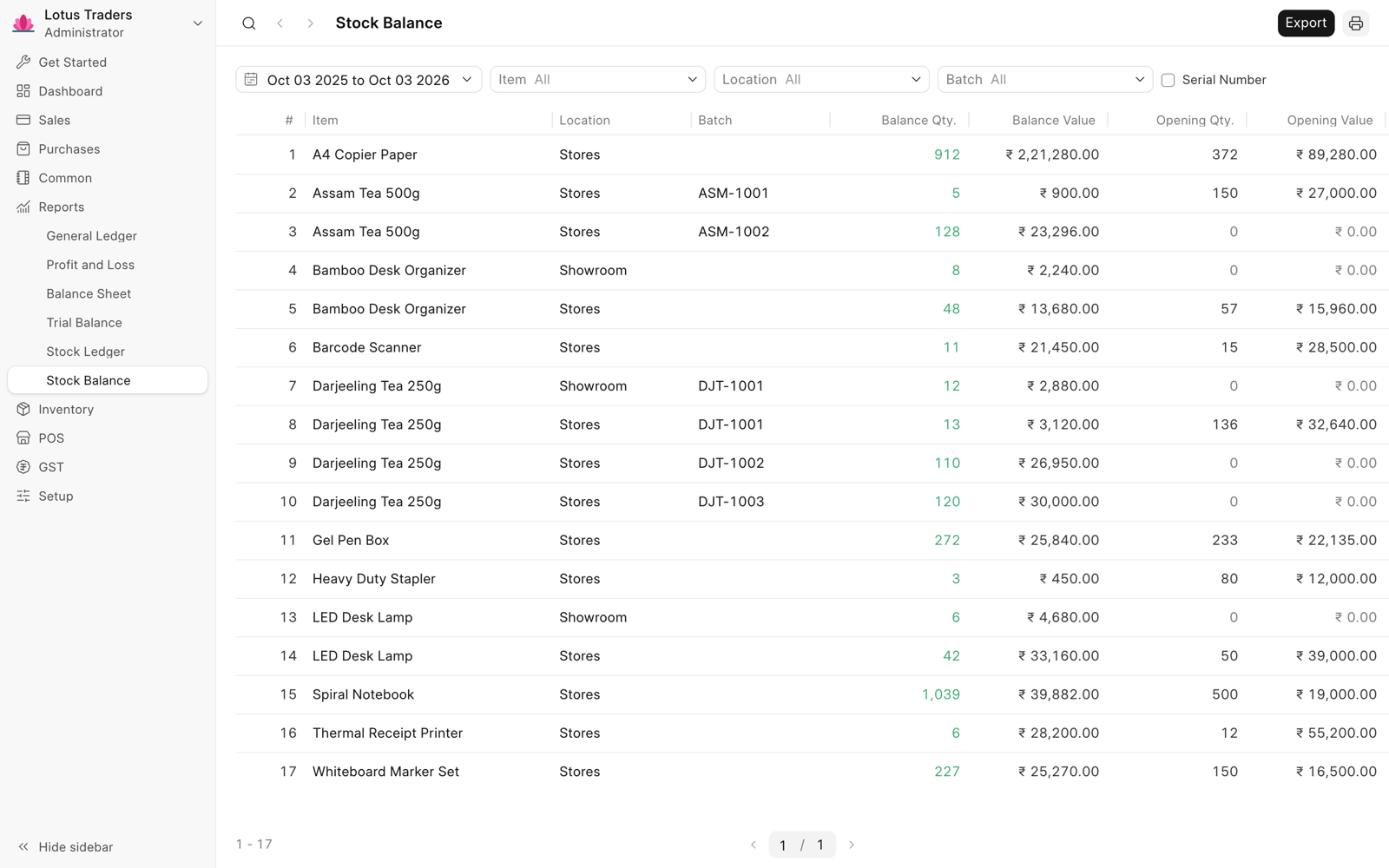
- Opening Qty. is the stock before the From Date.
- In Qty. and Out Qty. are the stock that came in and went out from the From Date to the To Date.
- Balance Qty. is the opening quantity, plus the incoming quantity, minus the outgoing quantity. This is the stock at the end of the To Date.
The value columns work in the same way. Valuation rate is the balance value divided by the balance quantity. A negative Balance Qty. is red. Only a Books Manager or a System Manager sees the value columns.
The report shows one row for each item and location. When batches are on, it shows one row for each batch of an item at a location, with a Batch column.
Filters
| Filter | Description |
|---|---|
| Item, Location | Shows only one item or one location. |
| Batch | Shows only one batch. Shows when batches are on. |
| From Date, To Date | The period. The defaults are one year before today and today. |
| Serial Number | Shows the stock of each serial number. Shows when serial numbers are on. See Serial Numbers. |
| Serial Number Status | Shows when Serial Number is selected. Select All, In stock, or Out stock. |
Serial Numbers
When you select Serial Number, the report shows only the items with serial numbers. It shows one row for each serial number at each location, with a Serial Number column. In stock shows the serial numbers with a balance quantity of more than zero. Out stock shows the others. For more information, see Serial Number.
Use the Report
To change the dates, export, or print, see Reports. The export file is stock-balance.csv or stock-balance.json, with all the rows of the current filters.
On a phone, the report shows one row for each item, with its total Qty and Value. The row also shows the number of locations, such as 2 locations. To show the locations of an item, tap the item. To see all the columns of a location, tap the location. The Total row at the bottom shows the total of all items. You cannot export the report on a phone.