


















Using Frappe Books on a Phone
Frappe Books has a layout for phones. It opens when the browser window is narrower than 768 pixels. If you turn the phone sideways and the screen becomes wider, the computer layout opens.
Install Frappe Books
You can add Frappe Books to the home screen of your phone. It then opens full screen, like an app.
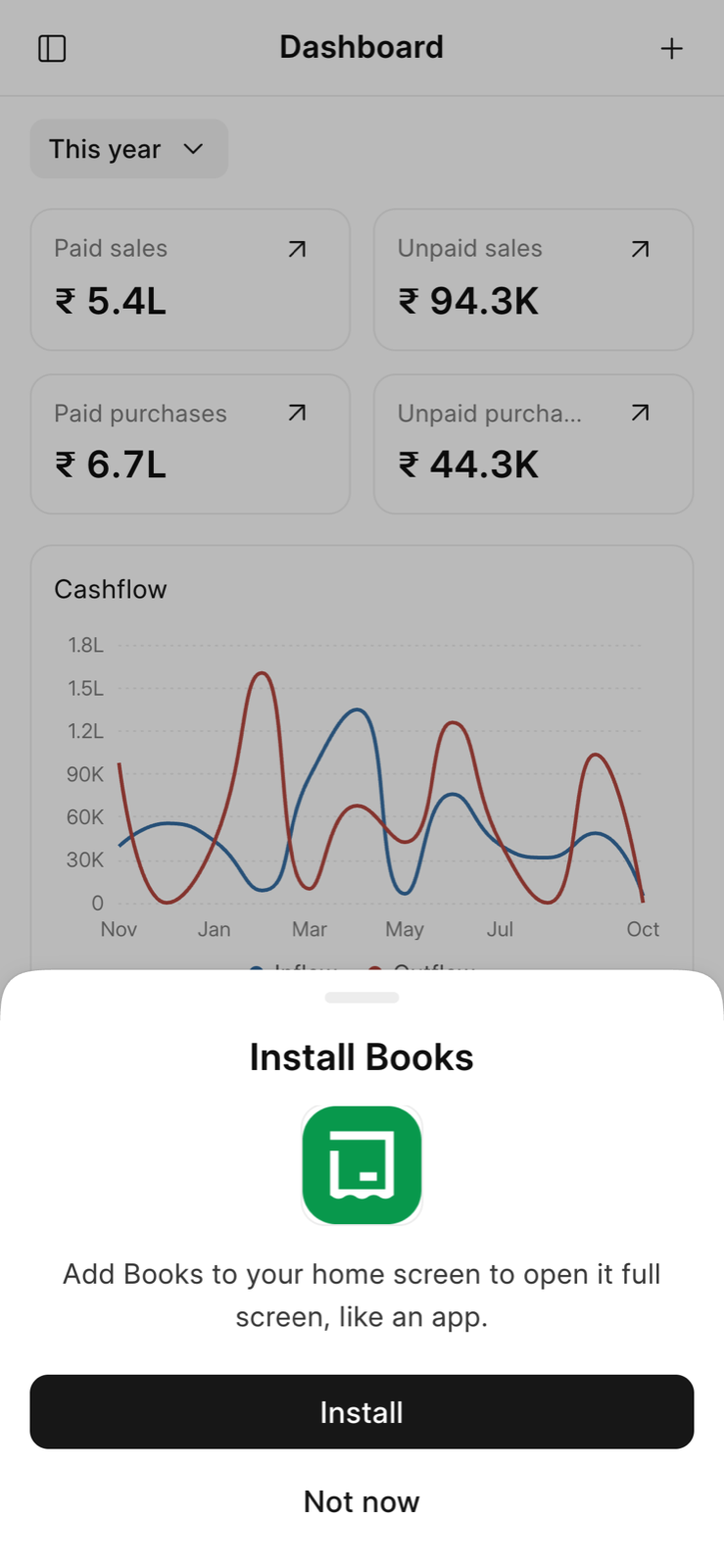
The Install Books sheet opens the first time that you open Frappe Books on a phone.
- On Android, tap Install.
- On an iPhone or an iPad, tap Share in the Safari toolbar. Then tap Add to Home Screen.
If you tap Not now, the sheet does not open again for 30 days. You can also tap Install Books in Settings.
Move Around
The bottom tabs open the main pages:
| Tab | Opens |
|---|---|
| Dashboard | The dashboard. Tap the + button in the header to make a new entry. |
| Sales | The list of sales invoices |
| Purchases | The list of purchase invoices |
| Reports | The General Ledger, or the first report that you can open. See Reports. |
| Search | Quick Search |
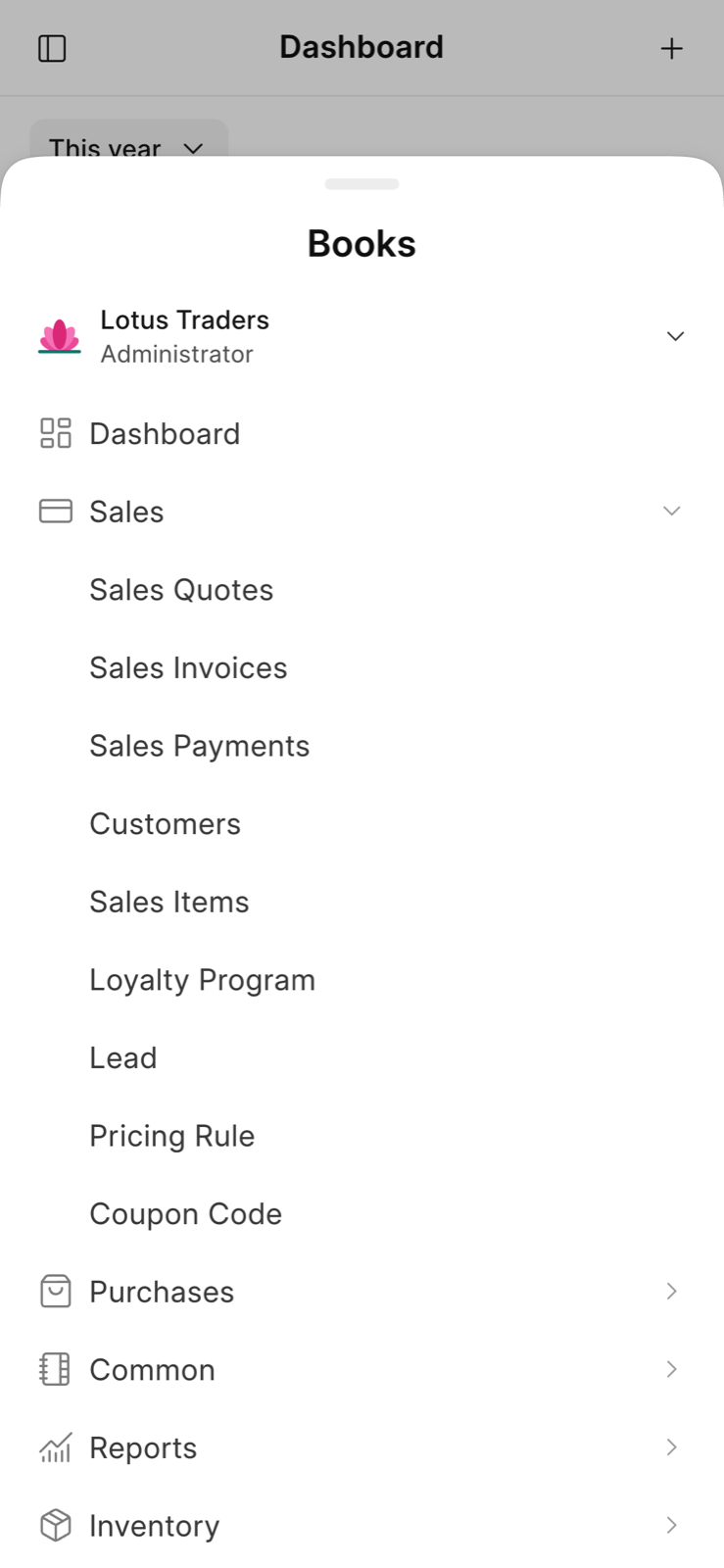
To open other pages, tap the menu button in the header. The Books sheet opens with all the groups of the sidebar. Tap a group, and then tap a page.
A form, a print preview, or the POS opens on top of the page. To go back, tap Back in the header, or use the back gesture or the back button of your phone. If a sheet or a menu is open, it closes first.
When POS is on, you can use it on a phone. For more information, see Point of Sale (POS).
Lists
- Tap New in the header to make a new entry.
- Type in the Search box to find an entry.
- Tap the filter button next to the search box to add filters. Then tap Apply.
- Tap Load more to show more entries. Pull down the list to refresh it.
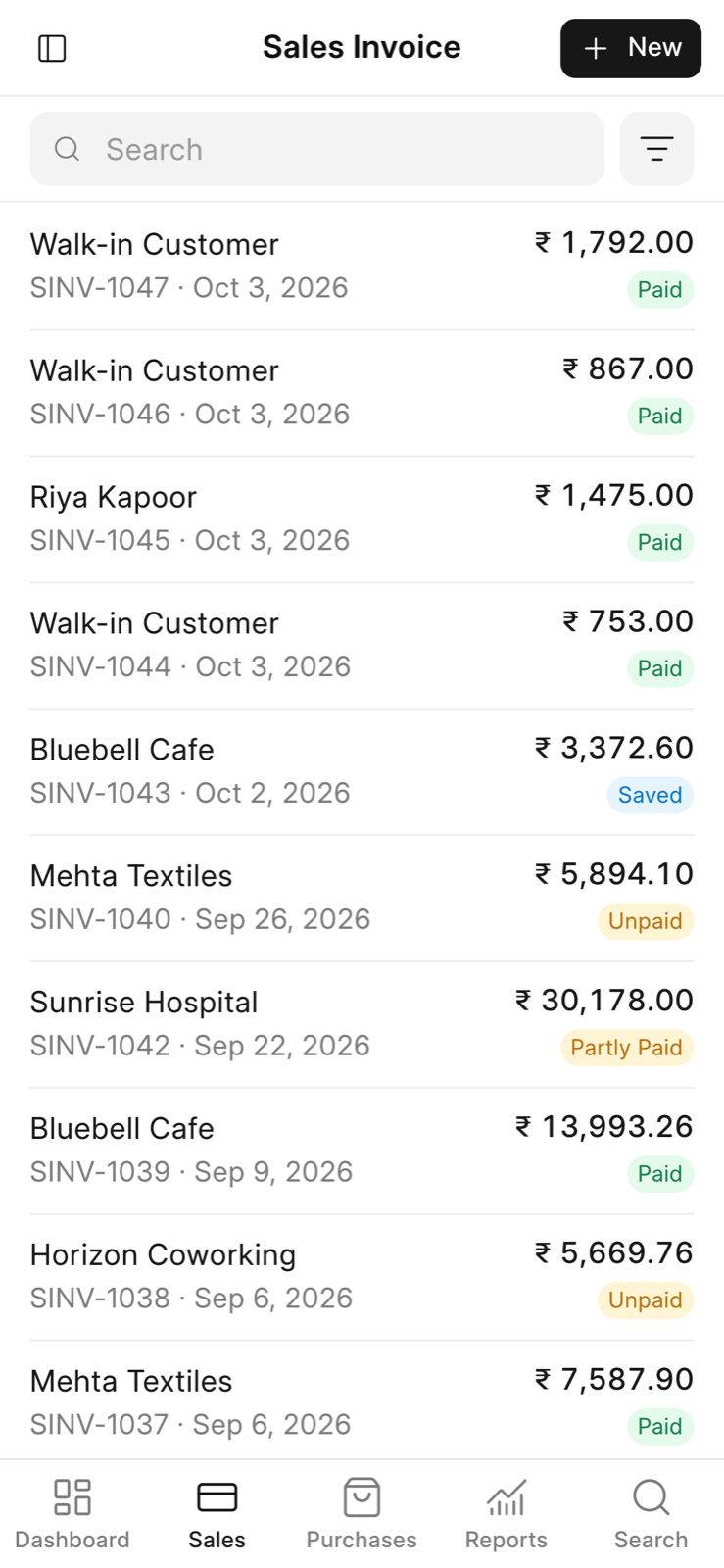
You cannot sort or export a list on a phone.
Forms
The main button is at the bottom of the form. It shows the next step, such as Save, Submit, or Receive payment. Tap Print next to it to open the print view. In the print view, tap Share to send the PDF to a different app. For more information, see Print a Document.
The … button in the header shows more actions, such as Linked entries, Duplicate, Cancel, and Delete.
- To add a table row, tap Add row. Fill in the row in the sheet that opens, and tap Done.
- To edit a table row, tap the row.
- A link field opens a full-screen list. Search for an entry and tap it, or tap Create.
- A date field opens the date picker of your phone.
Pages for Computers Only
These pages are not available on a phone:
- Get Started
- Chart of Accounts
- Import Wizard
- Print Templates
- Customize Form
- GSTR-1 and GSTR-2 reports
You also cannot export a report on a phone. To do these tasks, open Frappe Books on a computer.