


















GST Reports
Frappe Books has two GST reports for companies in India:
- GSTR1 lists your sales invoices. Use it to prepare the GSTR-1 return.
- GSTR2 lists your purchase invoices from registered suppliers.
Each row of a report is one invoice and one tax rate. For the controls that all reports share, such as pages, columns, and print, see Reports.
GST Setup
GST Accounts and Tax Templates
When you set up a company in India, Frappe Books adds the accounts CGST, SGST, IGST, and Exempt below the Duties and Taxes group. It sets the GST Head of each account to its name. It also adds these tax templates:
| Tax Templates | Rows | Use |
|---|---|---|
| GST-28, GST-18, GST-12, GST-6, GST-5, GST-3, GST-0.25, GST-0 | CGST and SGST, each at half the rate | A supply in your own state |
| IGST-28, IGST-18, IGST-12, IGST-6, IGST-5, IGST-3, IGST-0.25, IGST-0 | IGST at the full rate | A supply to a different state |
| Exempt-GST-0, Exempt-IGST-0 | Exempt at 0% | An exempted supply |
For example, GST-18 has a CGST row at 9% and an SGST row at 9%. To see the templates, click Setup > Tax Templates in the sidebar. Set a template in the Tax of each item. For more information, see Taxes.
The tax columns of the reports show only the amounts of the accounts with the GST Head IGST, CGST, or SGST. The name of the account does not matter. If you add your own GST account, set its GST Head in the Chart of Accounts.
Your GSTIN
The GST group shows in the sidebar only after you set the GSTIN of your company.
- Click Setup > Settings in the sidebar.
- Click General.
- Enter your GSTIN. This field shows only when the country of your company is India.
- Click Save.
- Click Yes to reload Frappe Books.
The first two digits of the GSTIN are the state code of your company. The reports use this state to find the supplies in your own state.
GST Fields on Parties
For a company in India, the customer and supplier forms have these fields:
| Field | Description |
|---|---|
| GST Registration | Unregistered, Registered Regular, or Consumer. The default is Unregistered. |
| GSTIN No. | The GSTIN of the party. Shows only for Registered Regular, and is then required. |
For more information, see Party.
Place of Supply
The reports use the Place of Supply of the party address. If the address does not have one, the place of supply is the state of the GSTIN No. Frappe Books fills the Place of Supply of an address from its State when the Country is India.
GSTR1
Click GST > GSTR1 in the sidebar. GSTR1 lists your submitted sales invoices. Select the list in Transfer Type:
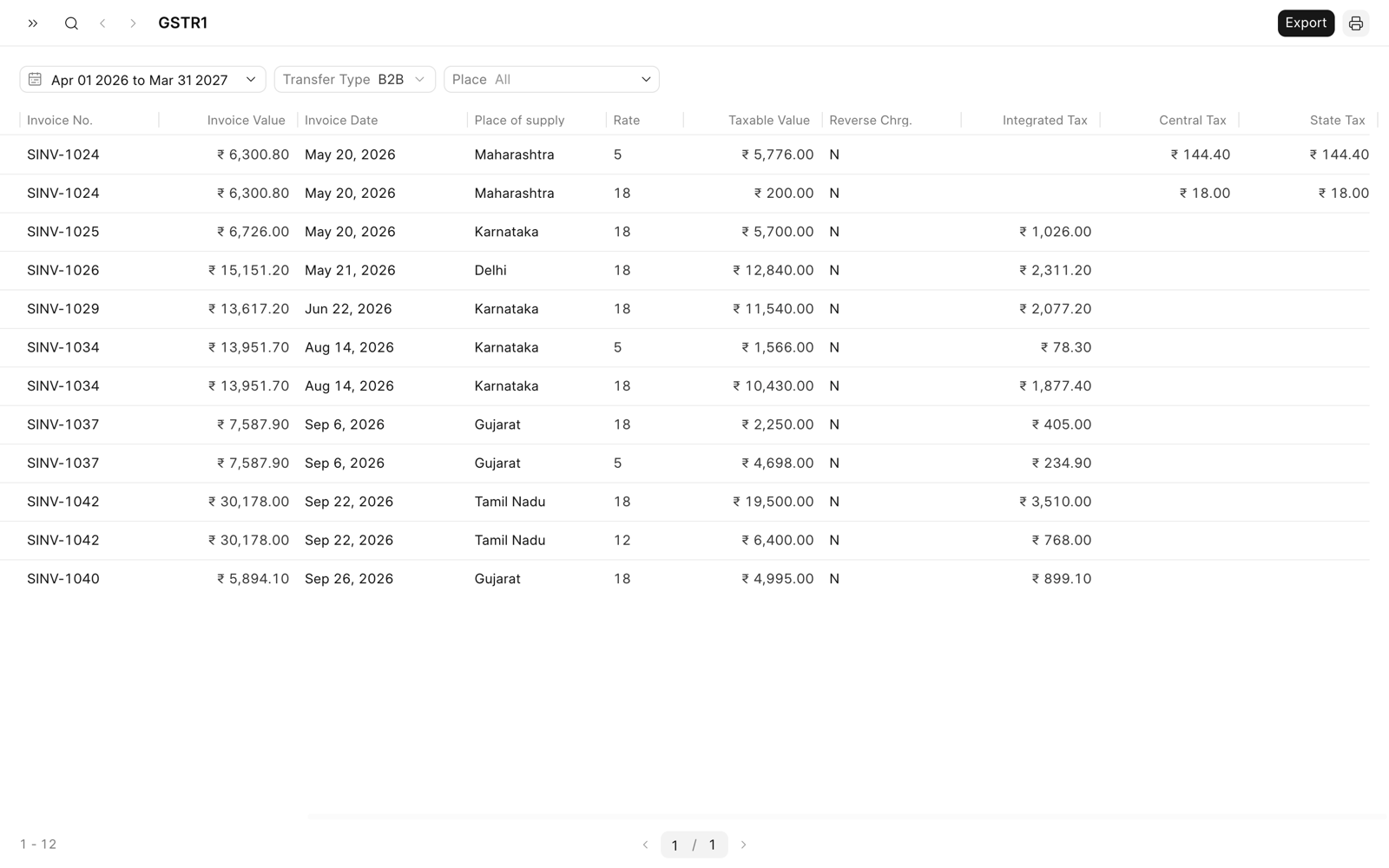
| Transfer Type | Shows |
|---|---|
| B2B | Sales to customers that have a GSTIN No. This is the default. |
| B2C-Large | Sales to a different state, to customers without a GSTIN No., with an invoice value of more than 1,00,000. For an invoice before 1 August 2024, the limit is 2,50,000. |
| B2C-Small | All other sales to customers without a GSTIN No., and the returns of these sales with negative amounts |
| Credit/Debit Notes (Registered) | Returns of sales to customers that have a GSTIN No. |
| Credit/Debit Notes (Unregistered) | Returns of B2C-Large invoices |
| Nil Rated, Exempted and Non GST supplies | Rows with a total tax rate of 0% |
A return is an invoice with Return Against. For more information, see Returns.
A row is a supply in your own state when its place of supply is the state of your GSTIN. A row with an IGST tax is always a supply to a different state. Each row shows in one list only. For example, a 0% sale to a registered customer shows only in Nil Rated, Exempted and Non GST supplies.
GSTR2
Click GST > GSTR2 in the sidebar. GSTR2 lists your submitted purchase invoices. It has these transfer types:
- B2B: Purchases from suppliers that have a GSTIN No. This is the default.
- Credit/Debit Notes (Registered): Returns of purchases from suppliers that have a GSTIN No.
- Nil Rated, Exempted and Non GST supplies: Rows with a total tax rate of 0%.
Filters and Columns
The default date range is the last three months, up to today. Transfer Type selects the list. Place is optional. It shows only the rows with this state as the place of supply.
| Column | Description |
|---|---|
| GSTIN No. | Shows only for B2B and Credit/Debit Notes (Registered). |
| Invoice Value | The grand total of the invoice. |
| Rate | The total rate of the tax template, in percent. An item without a tax template has the rate 0%. |
| Taxable Value | The total of the item amounts at this rate, after the item discount. |
| Reverse Chrg. | Always N. Frappe Books does not record reverse charge supplies. |
| Integrated Tax, Central Tax, State Tax | The IGST, CGST, and SGST amounts. |
In the two Credit/Debit Notes lists, the invoice columns are Note No., Note Value, and Note Date. All the amounts are in your company currency, at the exchange rate of the invoice.
When an invoice has Apply Discount After Tax selected, the Taxable Value is the item amount before the discount. For more information, see Discount Accounting.
Export a GST Report
- Set the filters.
- Click Export in the page header.
- Click CSV or JSON.
The CSV file has all the rows of the report, on all the pages. The JSON file has the format of the GST portal. It has your GSTIN, the filing period, and the invoices of the selected transfer type:
| Transfer Type | Invoices in the JSON File |
|---|---|
| B2B | Each invoice, grouped by the GSTIN of the party |
| B2C-Large | Each invoice, grouped by the place of supply |
| B2C-Small | The totals for each supply type, place of supply, and tax rate |
| Credit/Debit Notes (Registered) | Each return as a credit note, grouped by the GSTIN of the party |
| Credit/Debit Notes (Unregistered) | Each return as a credit note, with its place of supply |
The amounts of a credit note are positive in the JSON file. You cannot export Nil Rated, Exempted and Non GST supplies as JSON.
The filing period is the month of the last date of the date range. So set the date range to the month of the return.