


















Link Supplier and Customer with Common Party Accounting
Use Common Party Accounting when the same real-world organization is both your Customer and your Supplier and you intend to offset eligible receivables and payables between its two ERPNext party records.
ERPNext keeps Customer and Supplier as separate masters because their sales, purchase, pricing, tax, credit, and portal behavior differs. A Party Link tells ERPNext that the two records represent the same business party for this accounting workflow.
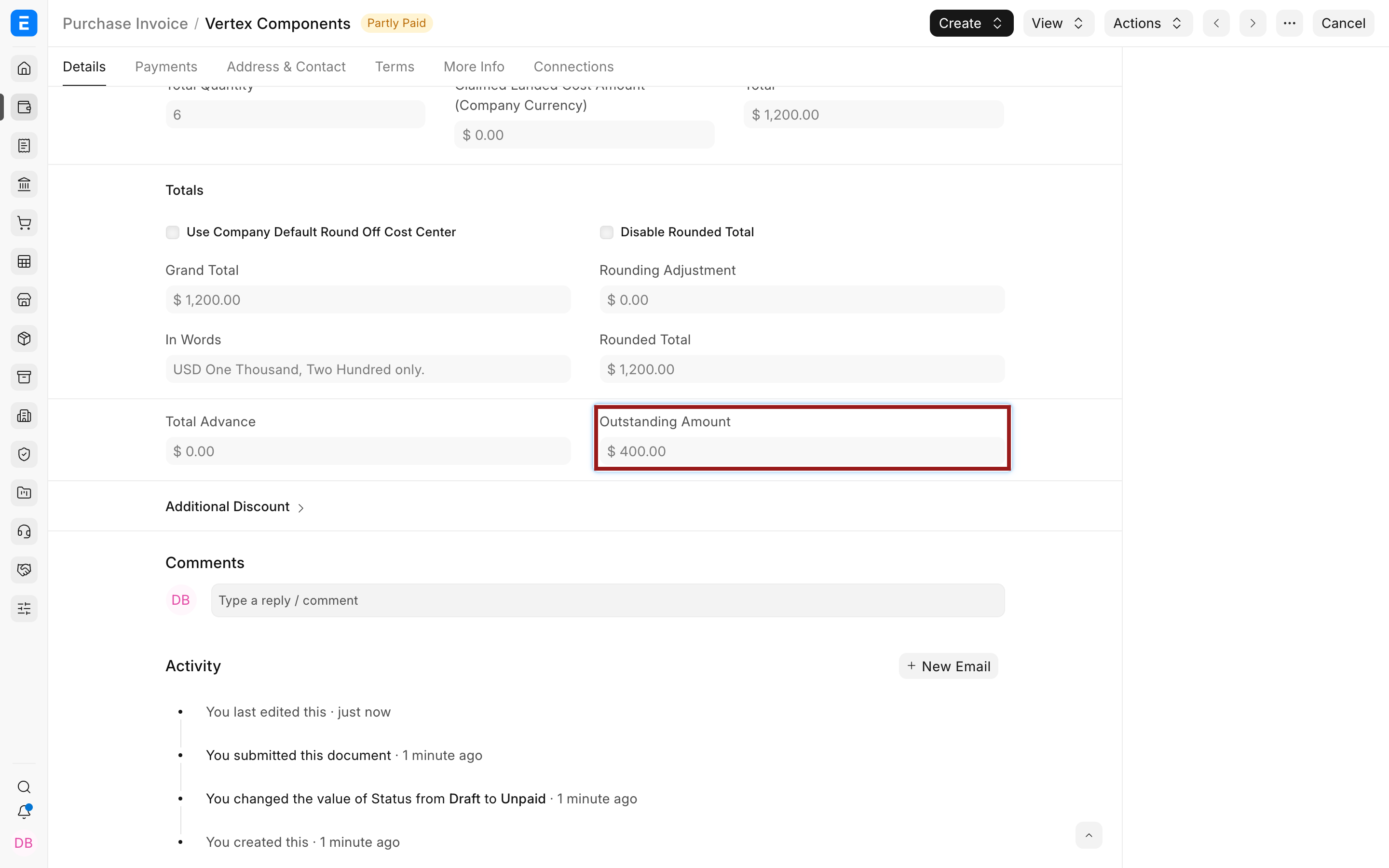
For example, Nova Electronics Trading buys services from Vertex Components and owes it $1,200. Vertex later buys $800 of device-setup services from Nova. When the records are linked with Supplier as the primary party and Customer as the secondary party, submitting the $800 Sales Invoice creates a system-generated Journal Entry. The Sales Invoice is settled and an $800 Supplier advance becomes available for reconciliation against the $1,200 Purchase Invoice, leaving $400 payable.
When to use it
Use Common Party Accounting when:
- the same legal or commercial party exists as both a Customer and a Supplier;
- your policy permits receivable and payable balances for that party to offset;
- you want ERPNext to create the cross-party accounting adjustment automatically when a qualifying secondary-party invoice is submitted;
- finance will review the generated Journal Entry and reconcile the resulting advance.
Do not enable it merely to show that two masters are related. The feature automates accounting. If invoices should normally remain independent, keep separate Customer and Supplier records, link their Contacts and Addresses for visibility, and make an intentional adjustment only when policy allows it.
Understand the workflow
flowchart LR
    A[Enable Common Party Accounting] --> B[Create Customer and Supplier]
    B --> C[Create Party Link]
    C --> D[Submit invoice for secondary party]
    D --> E[ERPNext creates Journal Entry]
    E --> F[Secondary-party invoice is settled]
    E --> G[Advance is created for primary party]
    G --> H[Reconcile advance with primary-party invoice]
The direction of the link matters:
| Primary role | Secondary role | Invoice submitted for secondary party | Automatic result |
|---|---|---|---|
| Supplier | Customer | Sales Invoice | Credits Customer receivables against the Sales Invoice and debits Supplier payables as an unallocated advance. |
| Customer | Supplier | Purchase Invoice | Creates the corresponding Customer-side advance while settling the linked Supplier invoice. |
Test the direction with controlled sample invoices before enabling the process for routine users.
Before you begin
Confirm that:
- both party records represent the same entity;
- the Company and party currencies are compatible with the intended adjustment;
- the correct receivable and payable Accounts are configured;
- the user can submit invoices and review the generated Journal Entry;
- finance has defined when cross-party offsets are permitted;
- an outstanding primary-party invoice exists if the new advance should be allocated immediately.
Enable Common Party Accounting
- Open Accounts Settings.
- Select Invoice and Billing.
- Enable Enable Common Party Accounting.
- Save Accounts Settings.
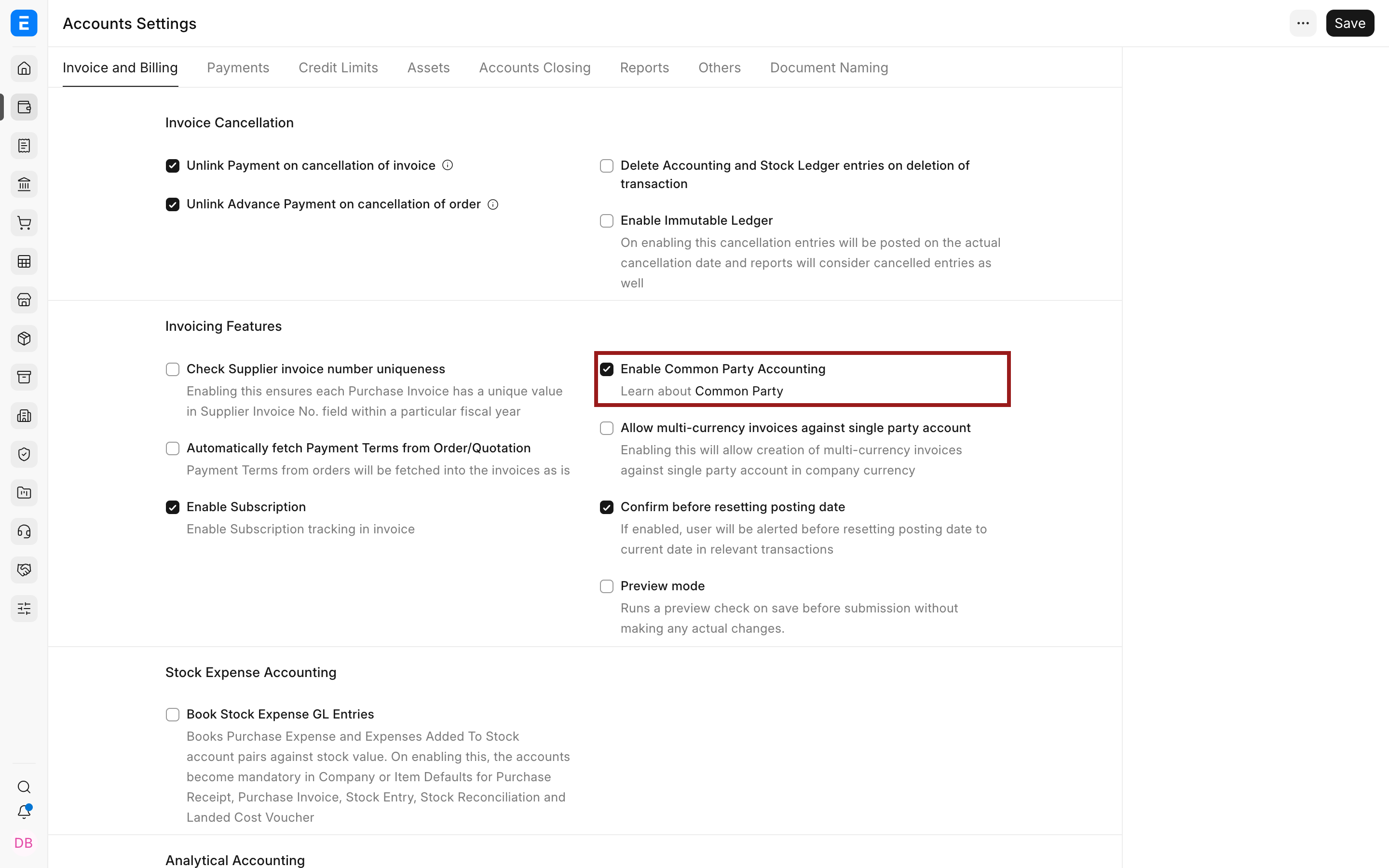
The setting applies to the site. There is no separate invoice-level switch to suppress the automatic adjustment while the feature is active. Enable it only after the policy and test results are approved.
Create or identify both party records
Create a Customer and Supplier using the normal master workflows. They may use the same name because they are different DocTypes. Keep each master’s tax details, currency, payment terms, credit controls, Contacts, Addresses, and Company defaults accurate.
Do not merge the masters or create a shared receivable-payable ledger. ERPNext continues to track the Customer on a receivable Account and the Supplier on a payable Account.
Link the Customer and Supplier
If the Supplier already exists:
- Open the Supplier.
- Select Actions > Link with Customer.
- Select or create the matching Customer.
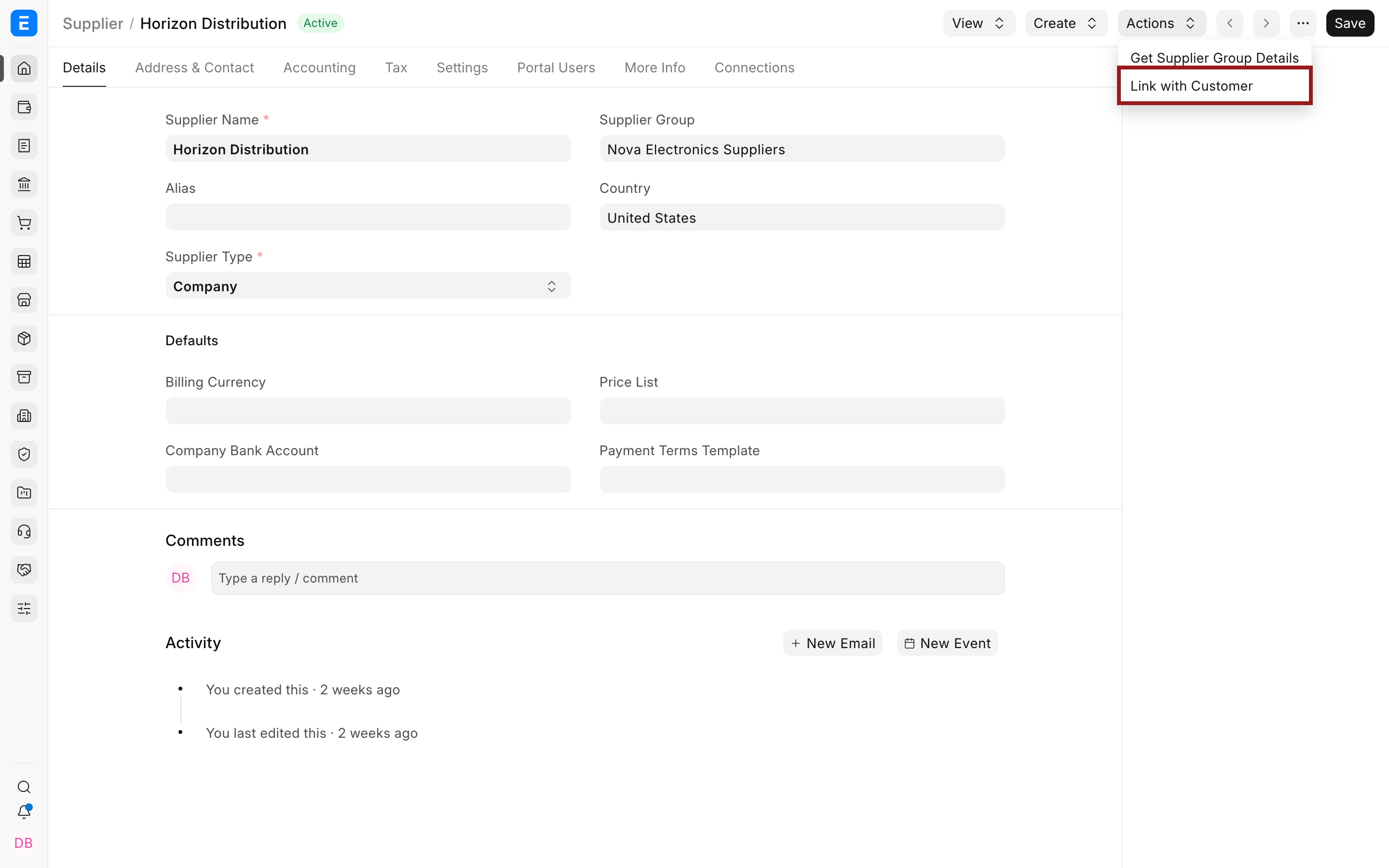
If the Customer already exists, open it and select Actions > Link with Supplier instead.
ERPNext creates a Party Link. Review the roles and parties carefully because the primary and secondary orientation determines which invoice triggers the automatic entry and where the advance is created.
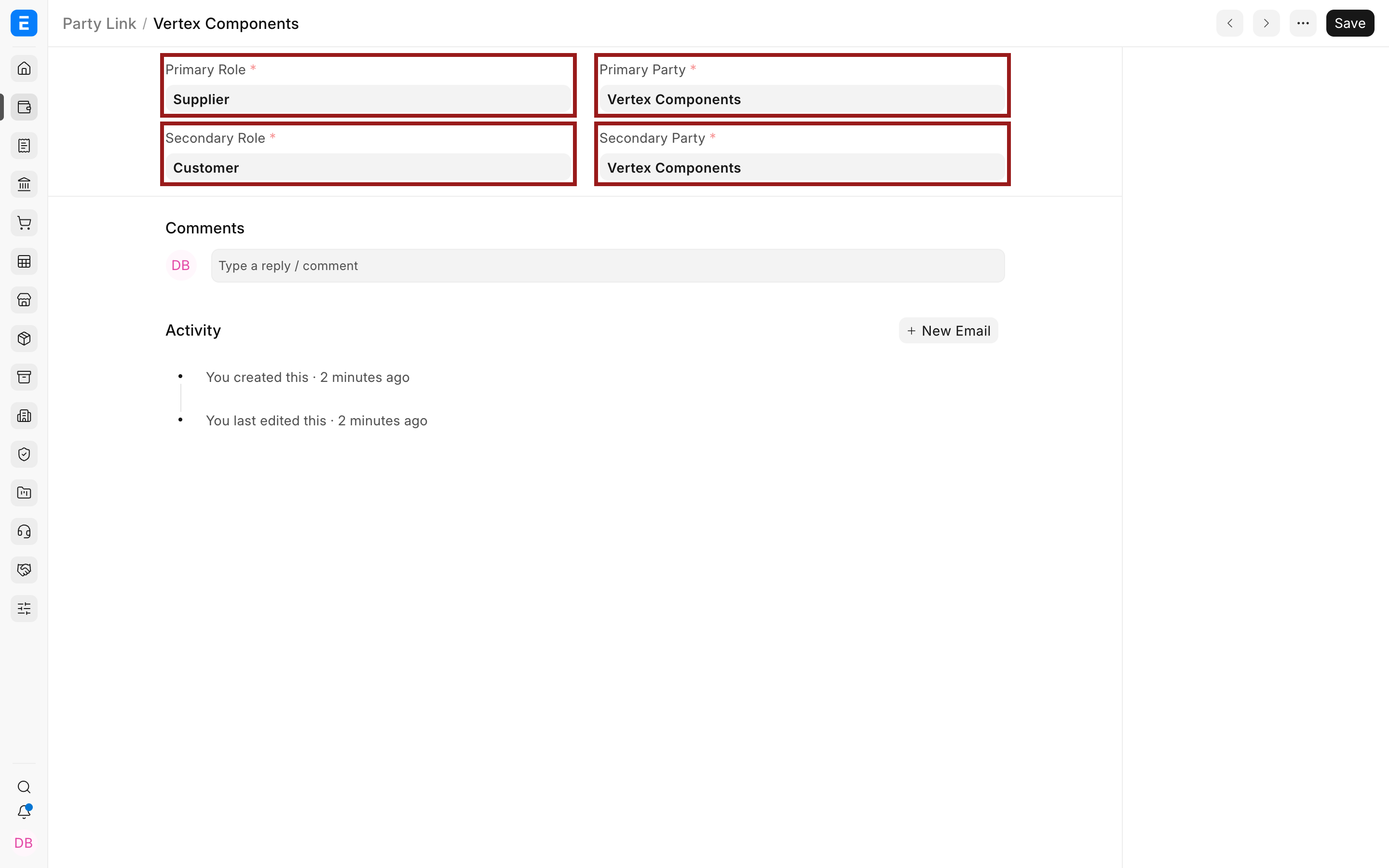
| Field | Meaning |
|---|---|
| Primary Role | Party role that receives the unallocated advance after the secondary-party invoice is settled. |
| Primary Party | Customer or Supplier record in the primary role. |
| Secondary Role | Opposite party role whose invoice triggers the automatic adjustment. |
| Secondary Party | Linked Customer or Supplier record in the secondary role. |
Submit the secondary-party invoice
Create and submit the invoice using the normal workflow. In this example, Vertex Components is the primary Supplier and secondary Customer, so the Sales Invoice is the triggering invoice.
After submission, the $800 Sales Invoice has an outstanding amount of $0 because the generated Journal Entry settles its receivable.
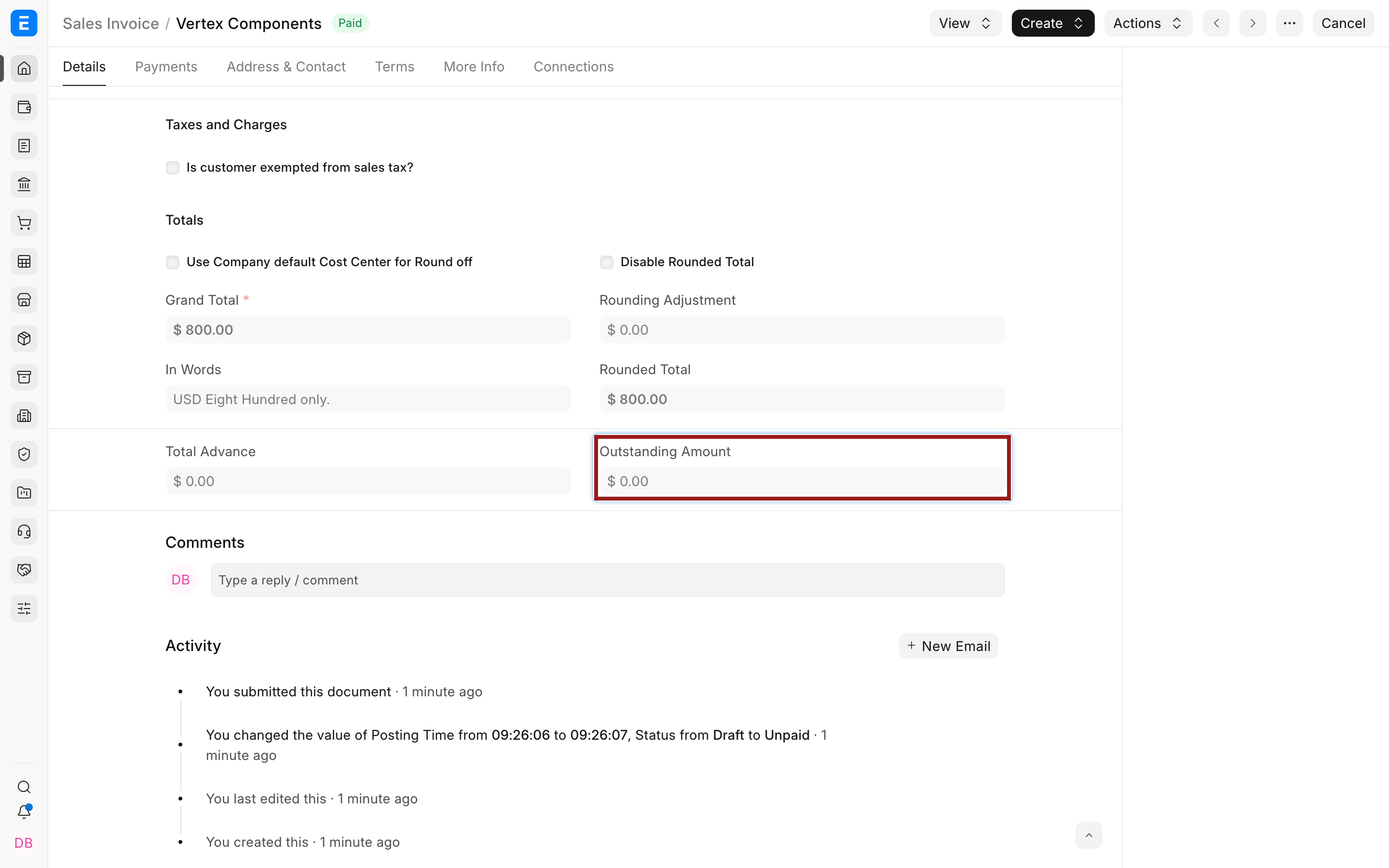
ERPNext creates and submits a system-generated Journal Entry:
| Account and party | Debit | Credit | Result |
|---|---|---|---|
| Debtors, Customer Vertex Components | $0 | $800 | Settles the Sales Invoice receivable. |
| Creditors, Supplier Vertex Components | $800 | $0 | Creates an unallocated Supplier advance. |
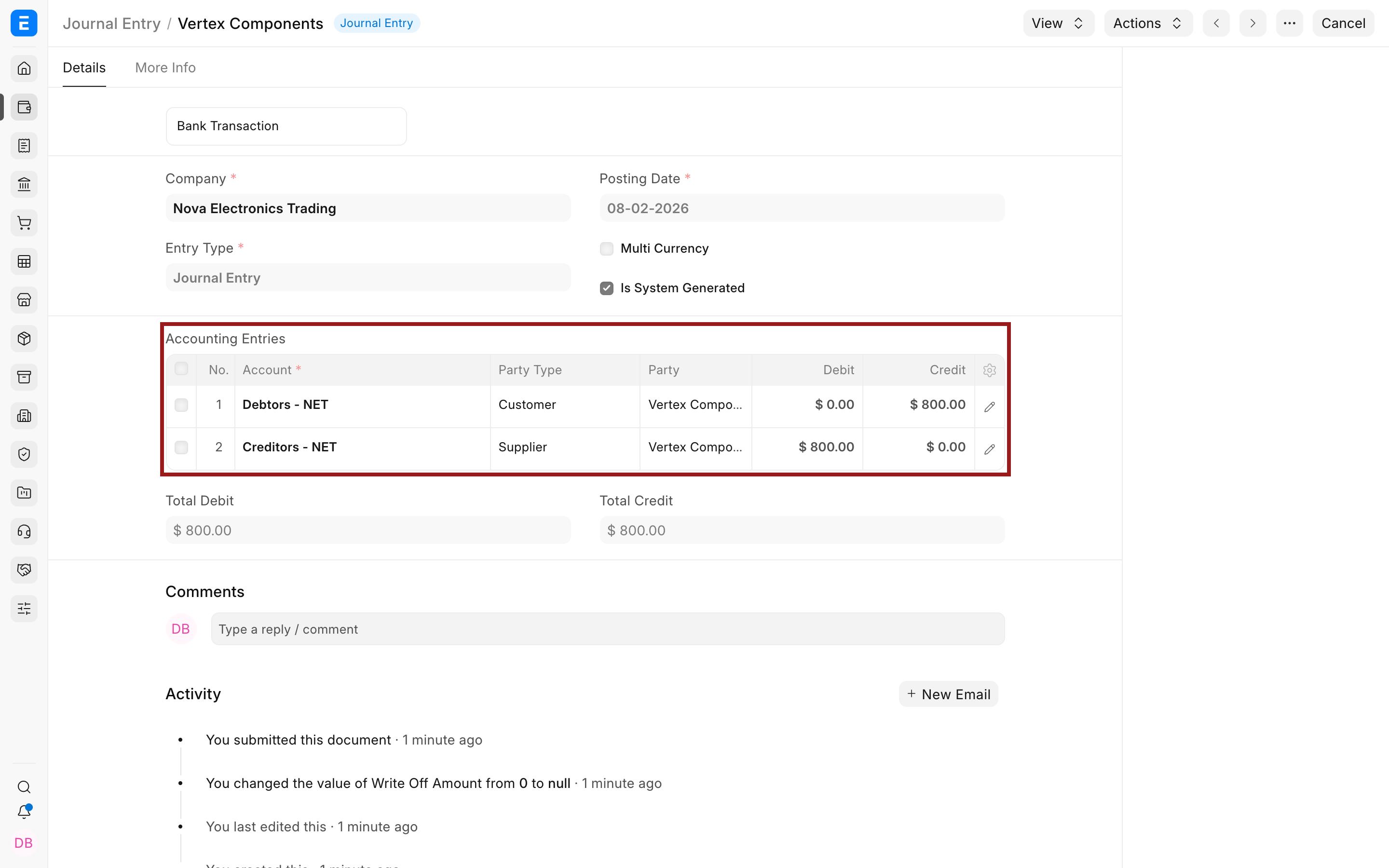
Review the generated entry before reconciliation. Confirm the Company, parties, Accounts, amounts, invoice reference, currencies, and posting date. The Journal Entry number may appear in the General Ledger because it is the voucher that performs the cross-party adjustment.
Reconcile the advance
The generated primary-party amount is an advance until it is allocated. Use Payment Reconciliation to match it with the outstanding invoice for that primary party.
- Open Payment Reconciliation.
- Select the Company, primary Party Type, and primary Party.
- Optionally filter to the invoice and generated Journal Entry.
- Select Get Unreconciled Entries.
- Select the invoice and Journal Entry rows.
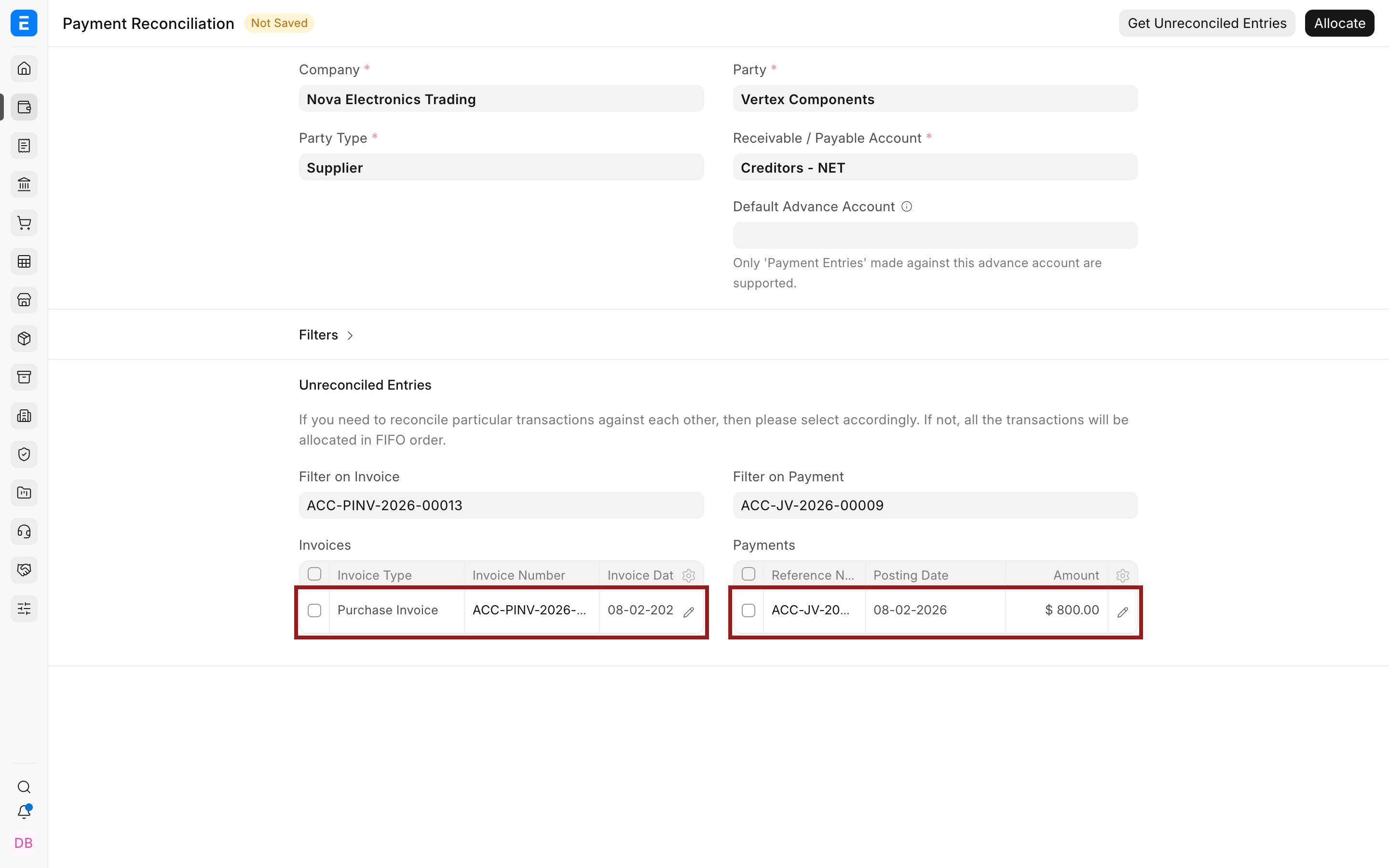
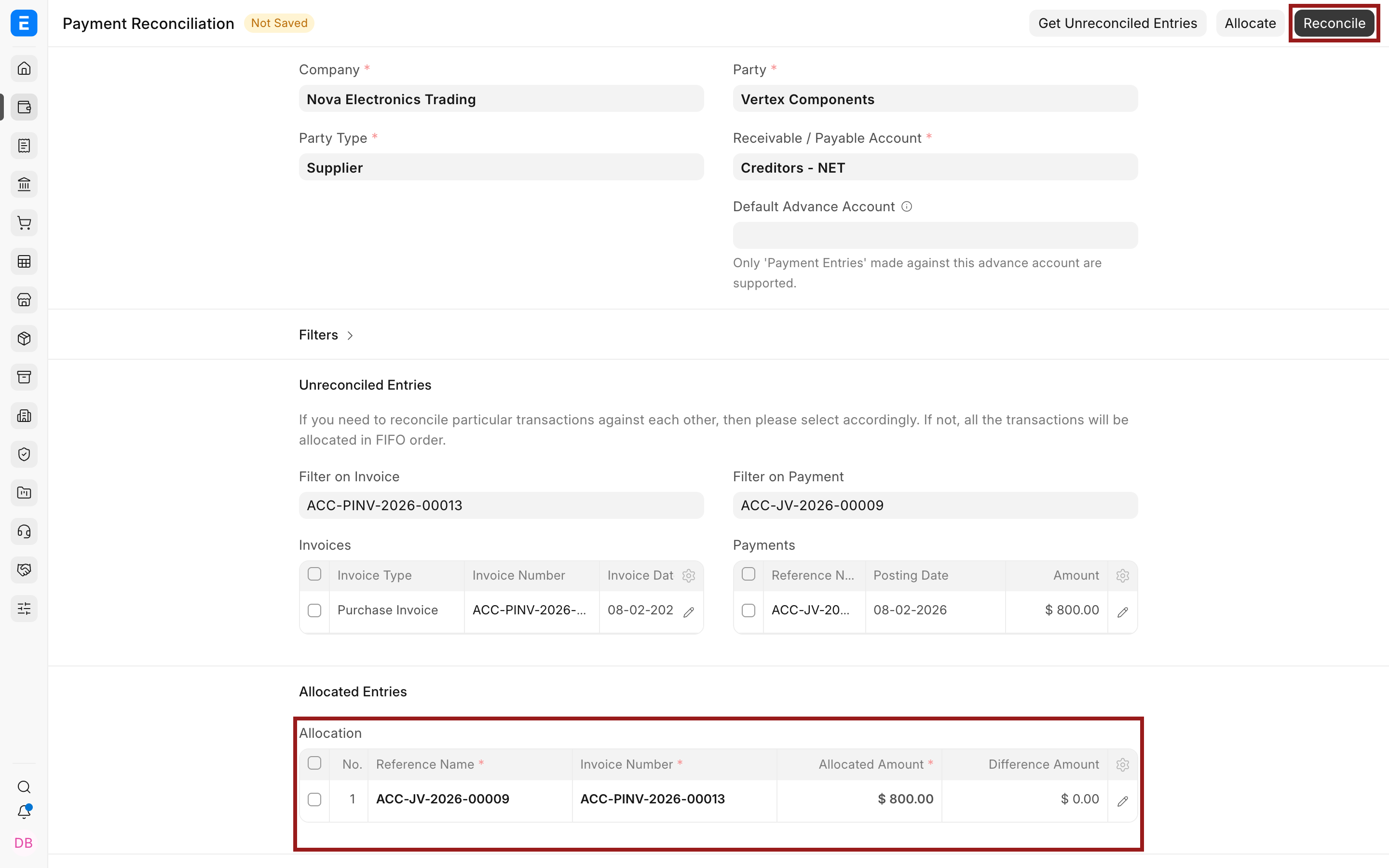
- Select Allocate.
- Review the allocation amount, then select Reconcile.
In the example, the $800 advance reduces the $1,200 Purchase Invoice to an outstanding amount of $400.
Important behavior
| Behavior | What to expect |
|---|---|
| Separate masters | Customer and Supplier remain separate records. |
| Automatic entry | A qualifying secondary-party invoice creates a submitted system-generated Journal Entry. |
| Triggering invoice | The automatic Journal Entry settles the secondary-party invoice. |
| Primary-party balance | The opposite side becomes an unallocated advance for the primary party. |
| Reconciliation | The advance is not tied to a primary-party invoice until it is reconciled. |
| Reporting | Review Customer and Supplier balances separately and trace the generated Journal Entry. |
| Returns and corrections | Review the resulting accounting carefully. Do not assume every later return or amendment will express the business intent automatically. |
Troubleshooting
| Issue | What to check |
|---|---|
| Link action is unavailable | Confirm Common Party Accounting is enabled and the party is not already linked. |
| No automatic Journal Entry is created | Confirm the invoice is submitted for the secondary party in the Party Link and the setting was enabled before submission. |
| The wrong side becomes an advance | Review which record is Primary Party and which is Secondary Party. |
| Advance does not appear in reconciliation | Select the primary Party Type and Party, correct payable or receivable Account, and the Journal Entry date range. |
| The General Ledger does not show a combined party balance | Customer and Supplier remain separate party types. Review each party view and the generated Journal Entry rather than expecting one merged ledger. |
Frequently asked questions
Does Party Link merge the Customer and Supplier?
No, It connects two separate masters for the accounting workflow. Their sales, purchase, tax, currency, and permission behavior remains separate.
Can I enable the link without automatic Journal Entries?
The current Common Party Accounting setting is designed to automate the cross-party entry for qualifying invoices. There is no separate native switch that retains this automation-oriented link while disabling its generated entries.
Why is the secondary-party invoice already paid?
The system-generated Journal Entry references and settles that invoice. Its opposite side becomes an advance for the primary party, which can then be reconciled.
Does ERPNext automatically choose the primary-party invoice?
No, The generated amount remains unallocated until you select the correct outstanding invoice in Payment Reconciliation.
Can I see Customer and Supplier transactions in one standard General Ledger party filter?
They are different party types. Review each side separately and use the Party Link and generated Journal Entry to trace the relationship. A custom combined report may be required if your organization needs a single presentation.