

















Serial and Batch Bundle
NOTE: Users must create a separate Serial and Batch Bundle for each stock transaction. They cannot use the same Serial and Batch Bundle across multiple stock transactions.
Allow Negative Stock has been removed for Serial / Batch Items from version 15. From version 15 onward, users cannot make negative stock transactions for serial / batch items, even if Allow Negative Stock is enabled in Stock Settings.
In version 15, we introduced the Serial and Batch Bundle. This feature is used to link Serial / Batch Nos in stock transactions.
Before version 15, the Serial No field was a Small Text field, which meant one column could hold more than one serial number. Because of this design, there were a lot of data integrity issues. To solve this, we changed the Serial No field from Small Text to a Link field in version 15. Since we can't add a child table inside a child table, we added a new DocType: Serial and Batch Bundle to pick/dispatch multiple Serial / Batch numbers.
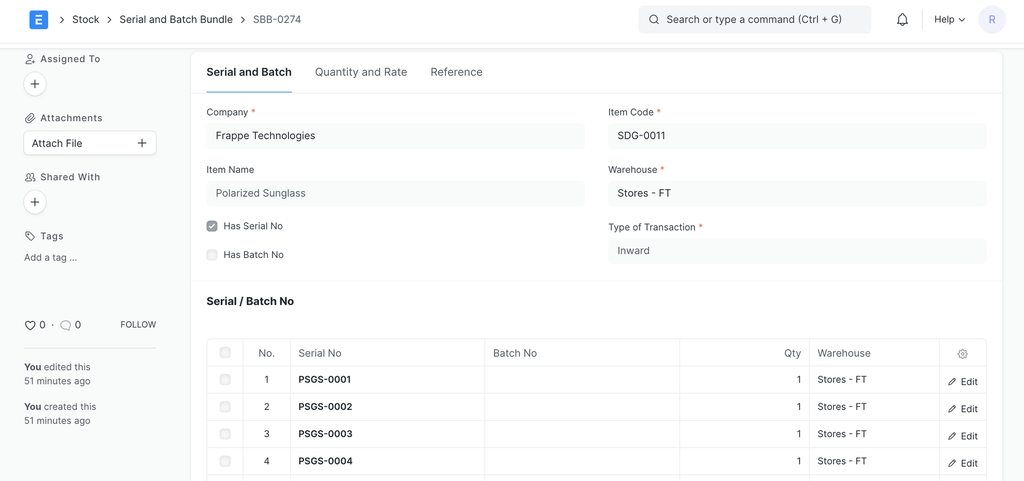
How does this work?
You need to create a Serial and Batch Bundle and link it to stock transactions whenever you deal with Serial / Batch numbers. Users must create a separate Serial and Batch Bundle for each transaction, and they can't link the same Serial and Batch Bundle to multiple transactions.
Auto Creation of Serial and Batch Bundle for Inward Entry
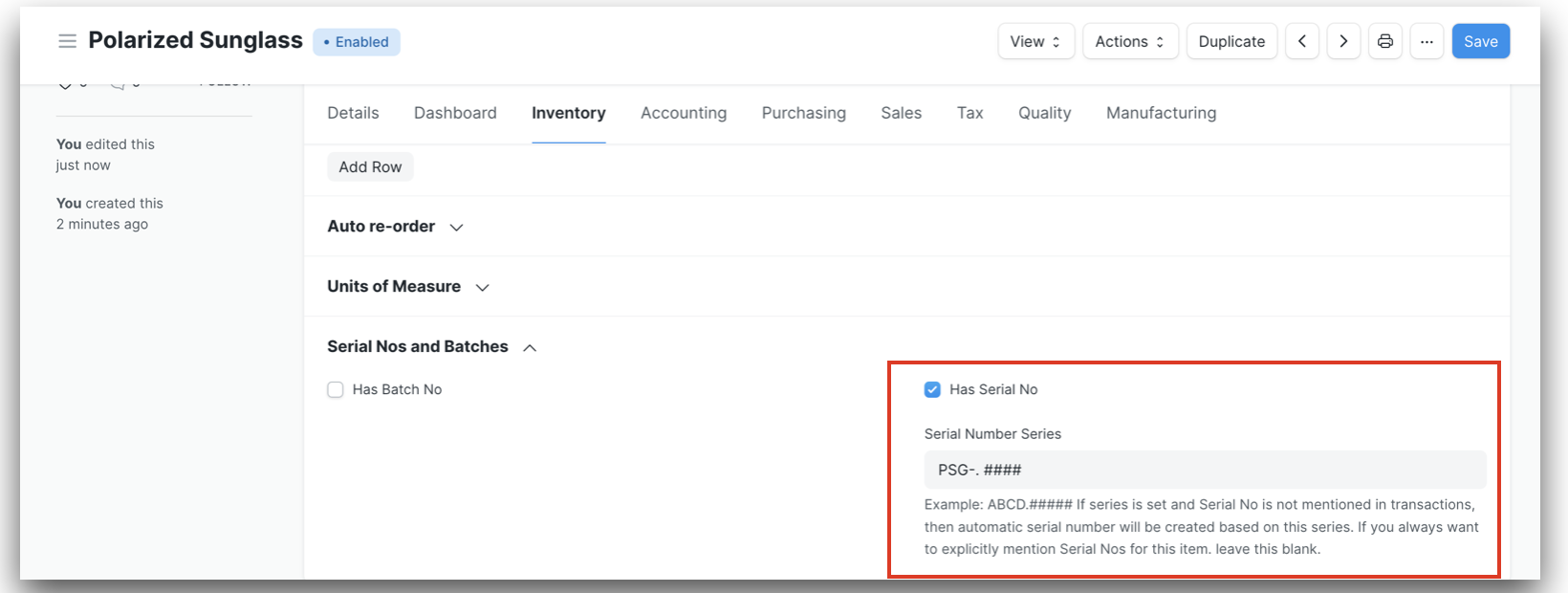
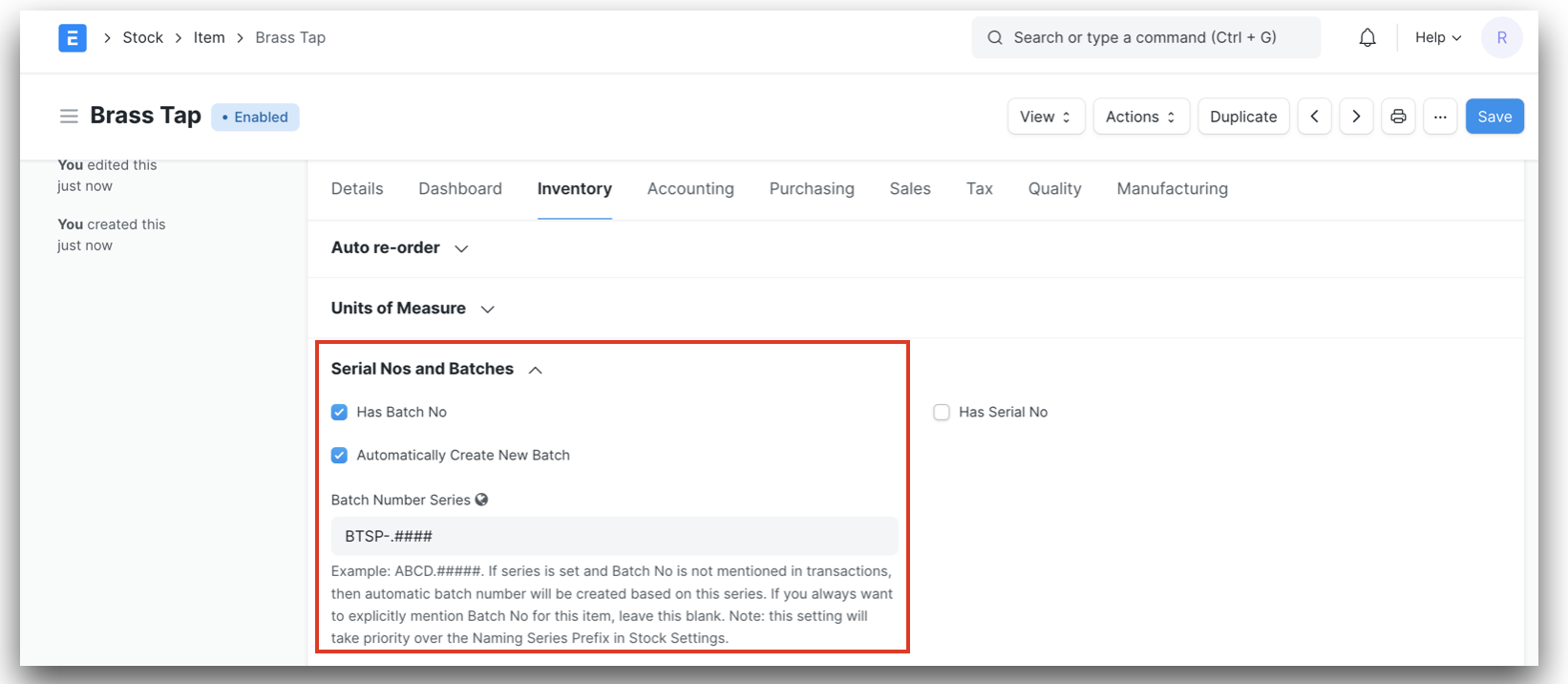
If the user wants to auto-create a Serial and Batch Bundle for an inward entry, they must ensure that Serial Number Series is set for the serial item and that the Automatically Create New Batch checkbox is enabled (with Batch Number Series set) for the batch item.
For Serial No
For Batch No
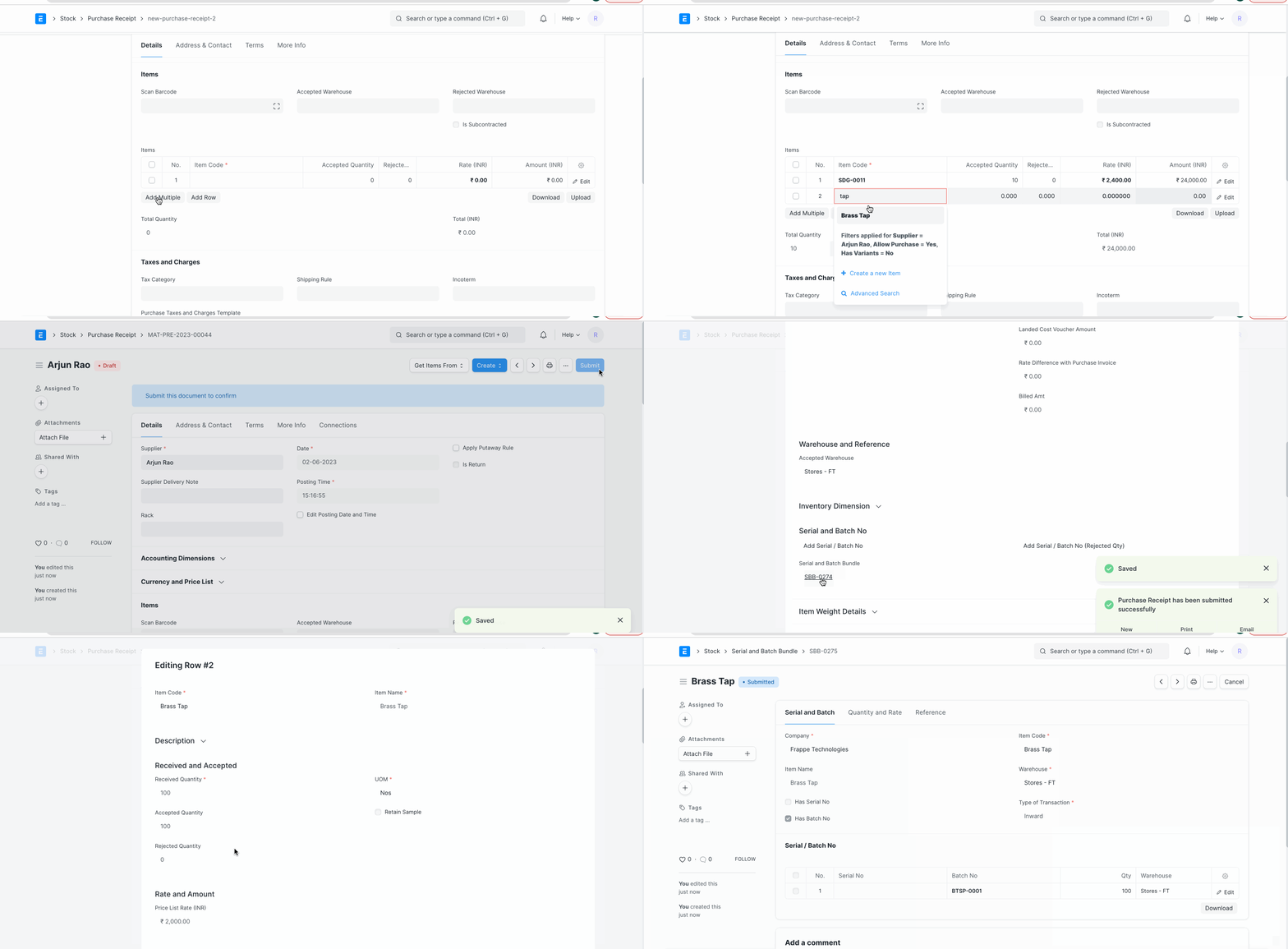
After the configuration, when the user creates a Purchase Receipt or a Stock Entry with the Type "Material Receipt", the system will automatically create the inward Serial and Batch Bundle on submission of the record.
Auto Creation of Serial and Batch Bundle for Outward Entry
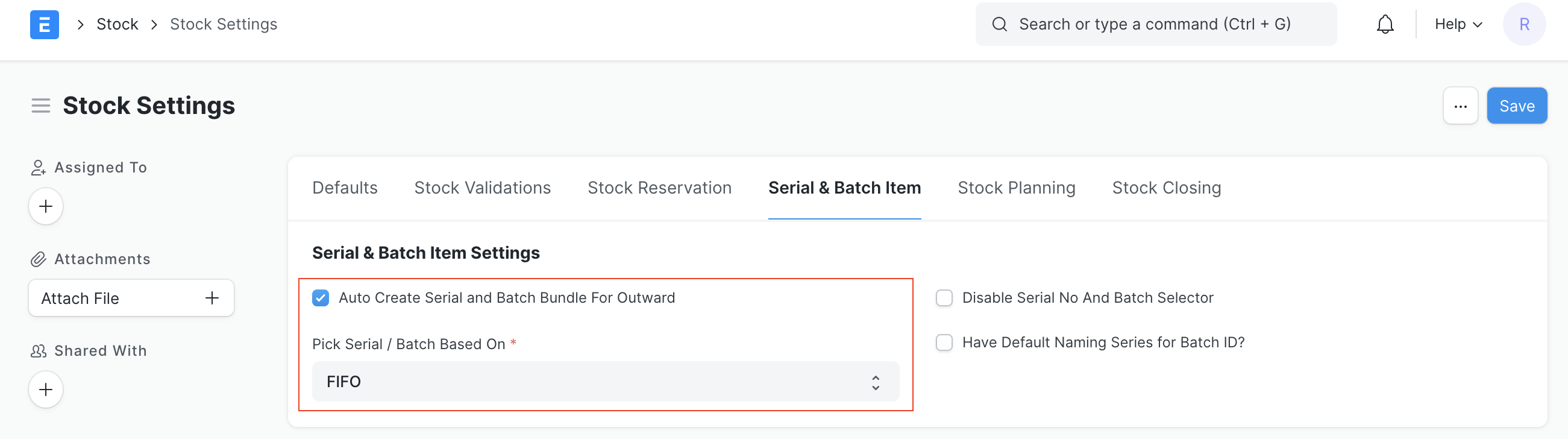
If the user wants to auto-create a Serial and Batch Bundle for an outward entry, they must enable the checkbox Auto Create Serial and Batch Bundle For Outward in Stock Settings. They can also set Pick Serial / Batch Based On to "FIFO / LIFO / Expiry" in Stock Settings.
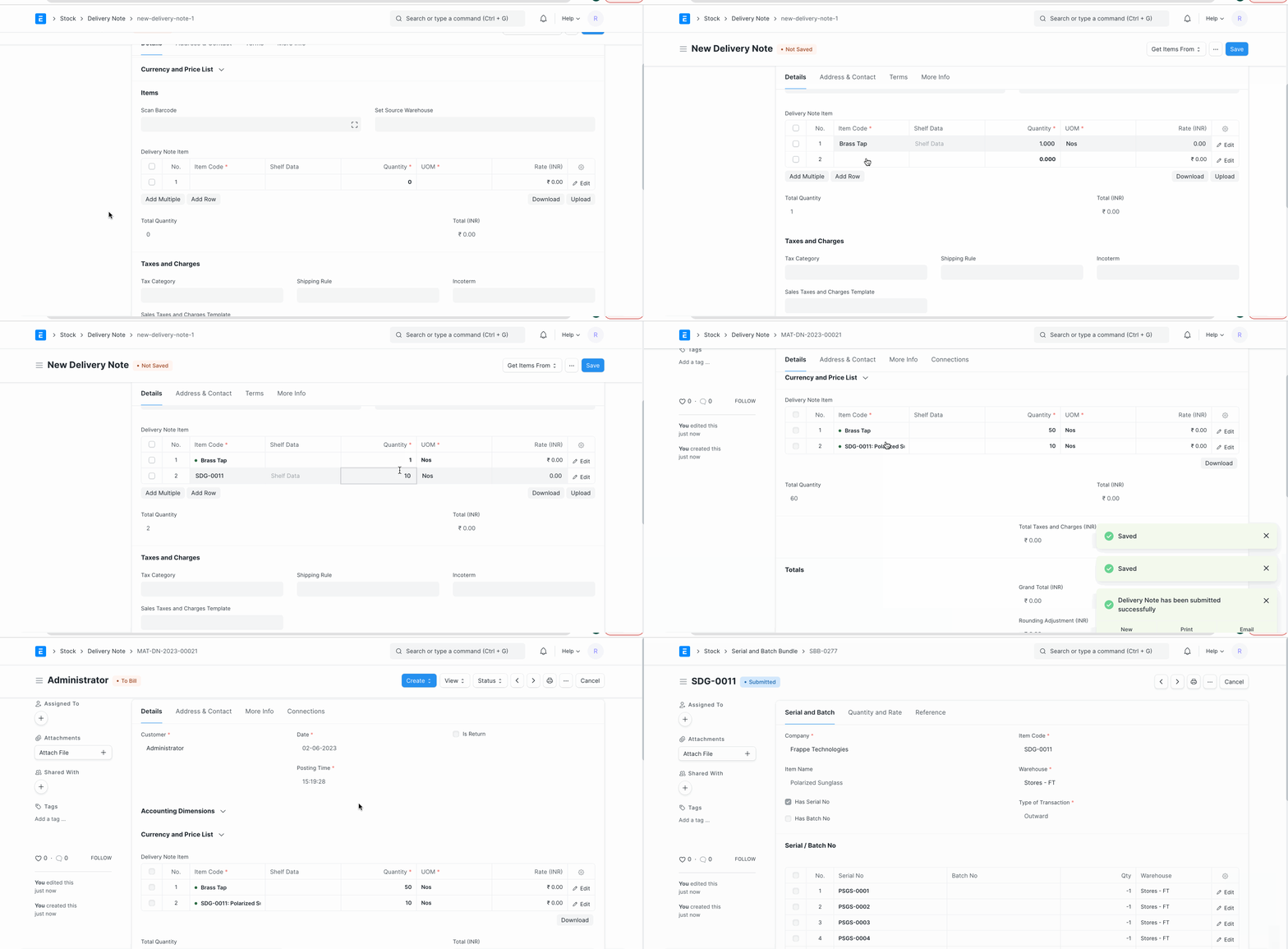
After the configuration, when the user creates a Delivery Note or a Stock Entry with the Type "Material Issue", the system will automatically create the outward Serial and Batch Bundle on submission of the record.
Manual Creation of Serial and Batch Bundle for Inward Entry
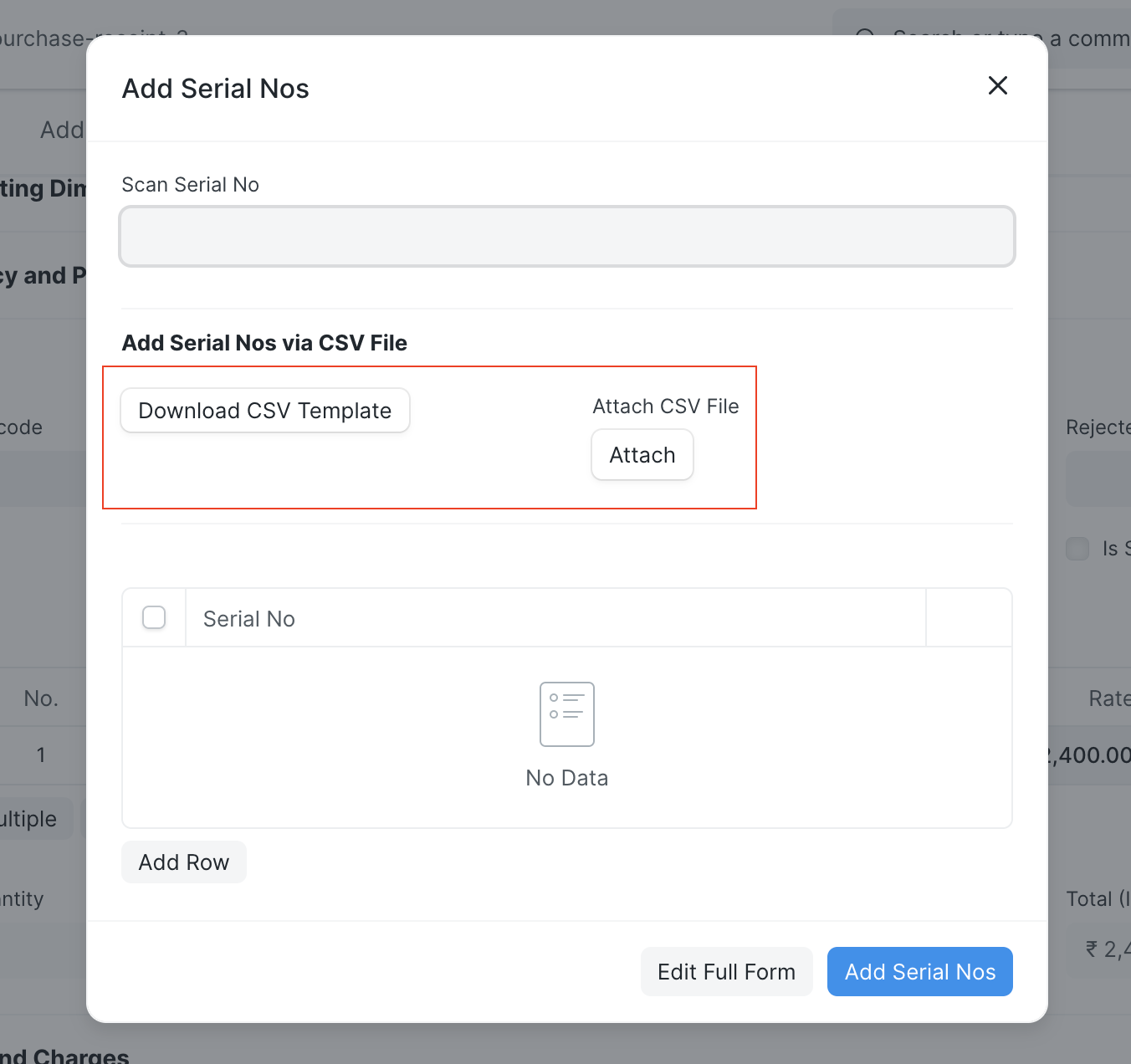
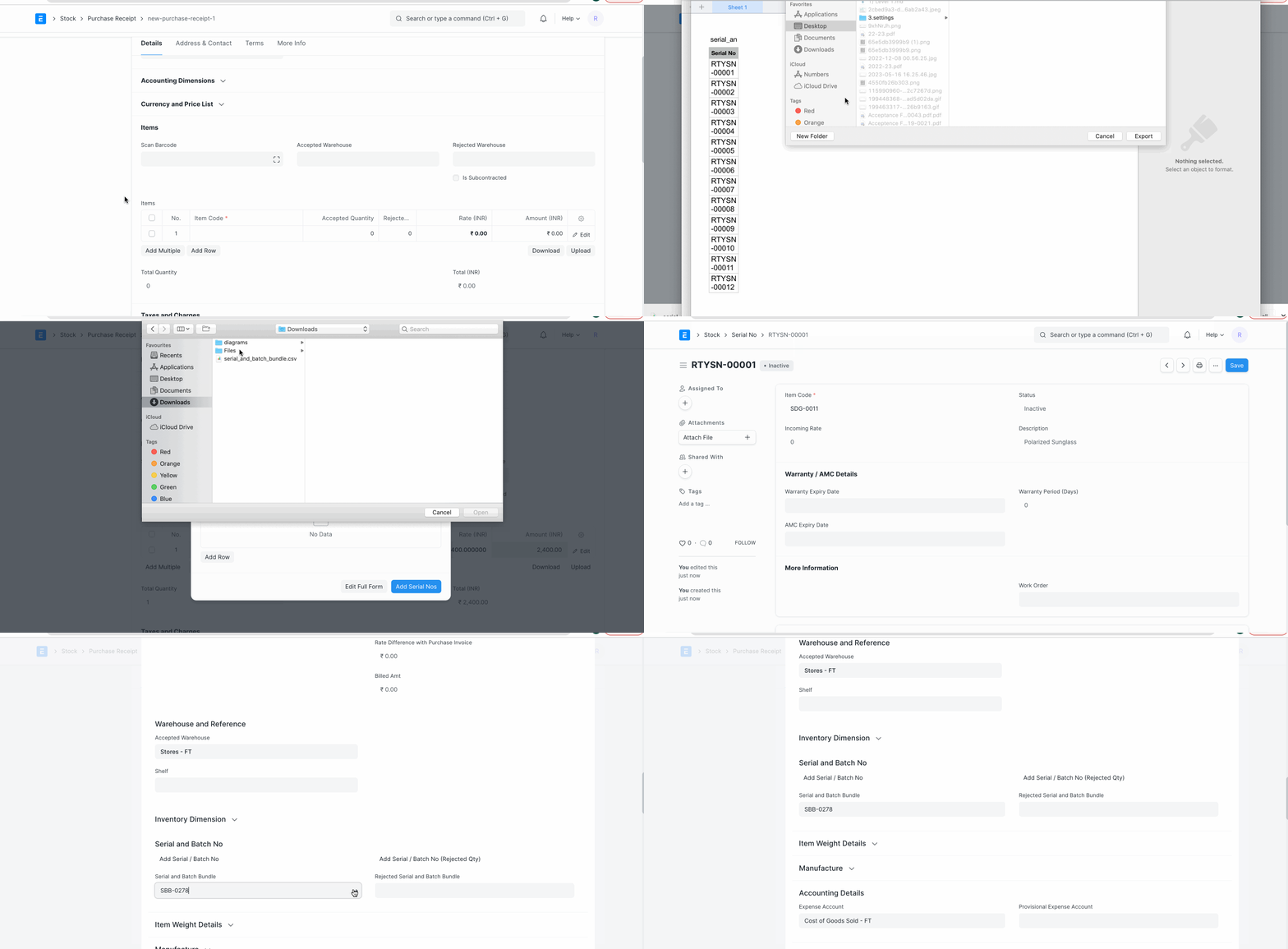
For the Serial and Batch Bundle, both Serial No and Batch records must already exist in the system. With the manual option, the user must first create the Serial No / Batch records in the system. Users can use the CSV import option to create Serial No / Batch records. The blank CSV template can be downloaded using the Serial and Batch Selector.
Complete GIF for manual creation of a Serial and Batch Bundle for an inward entry is as follows:
Manual Creation of Serial and Batch Bundle for Outward Entry
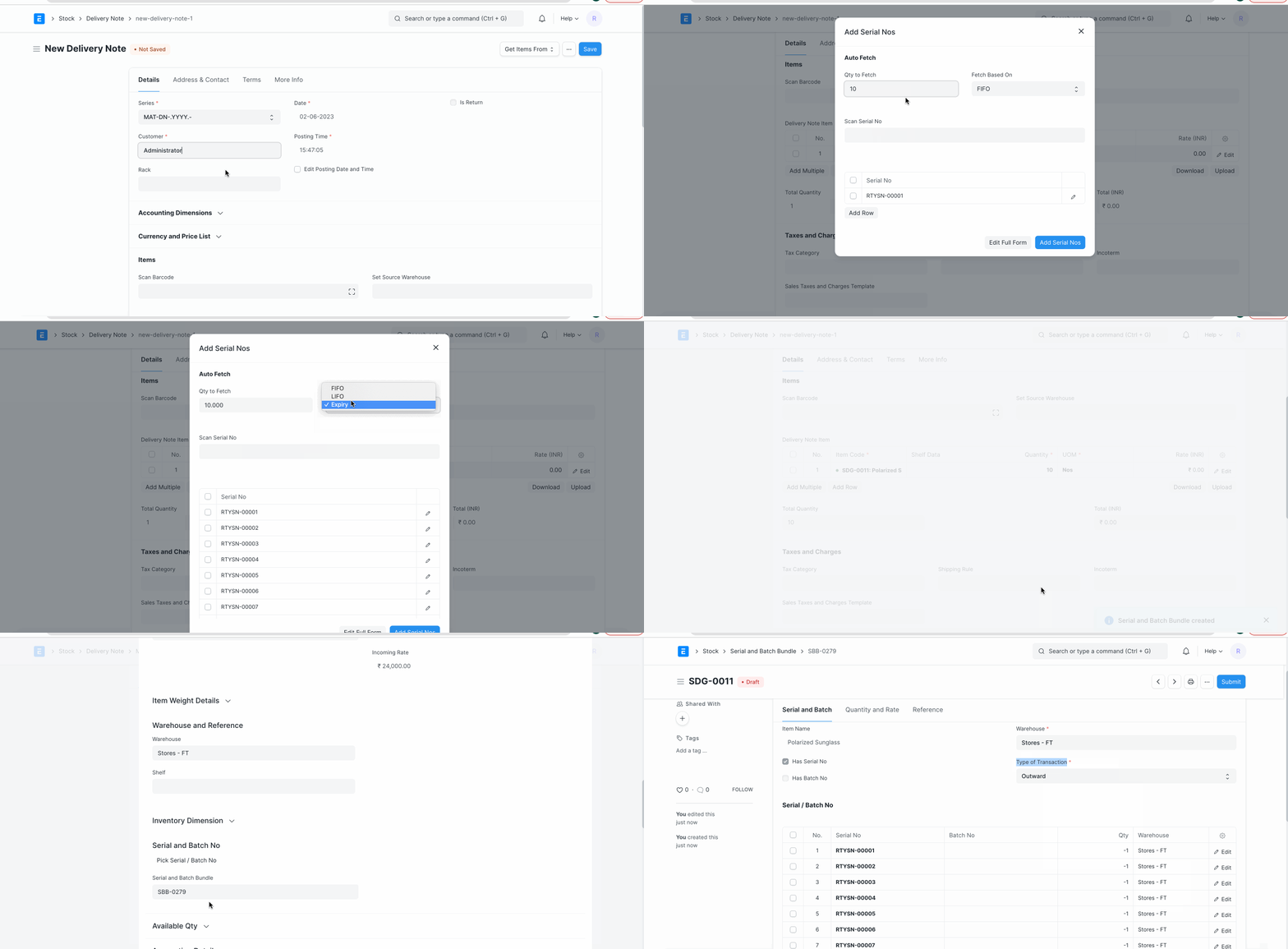
Using the Serial and Batch Selector, the user can pick the Serial / Batch Nos based on the "FIFO / LIFO / Expiry" method.
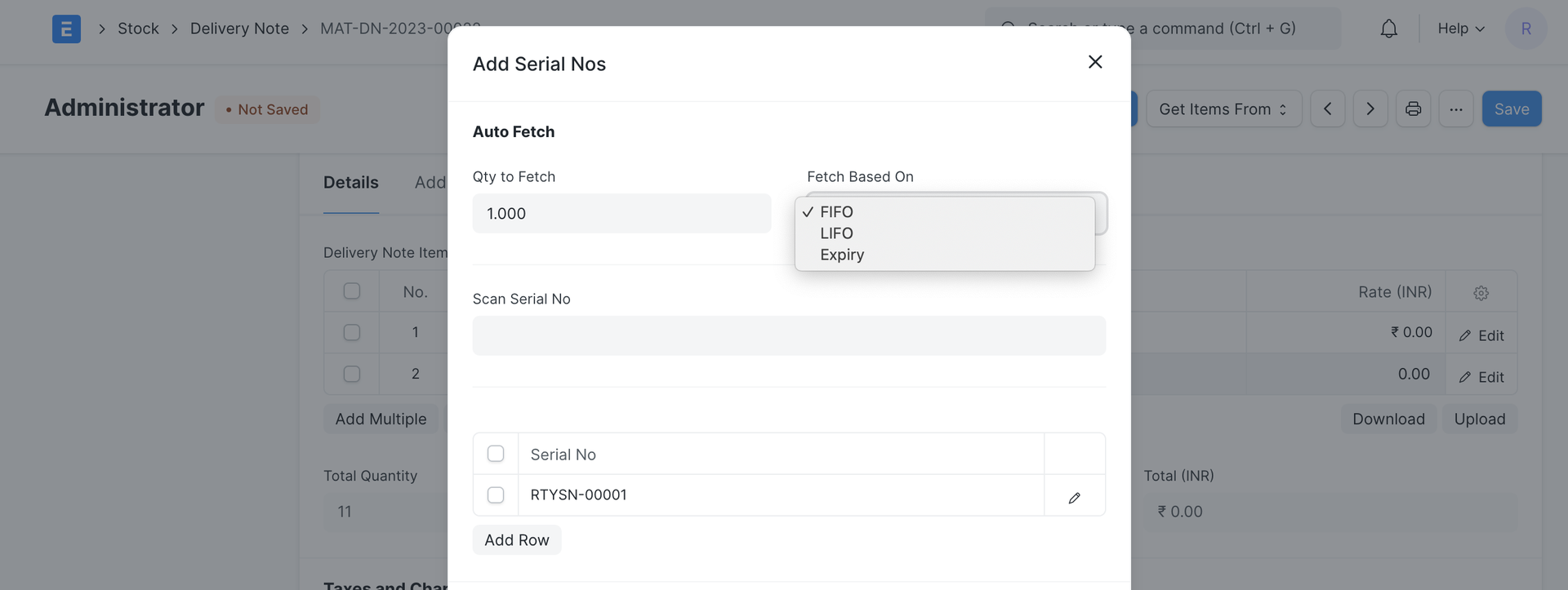
Complete GIF for manual creation of a Serial and Batch Bundle for an outward entry is as follows:
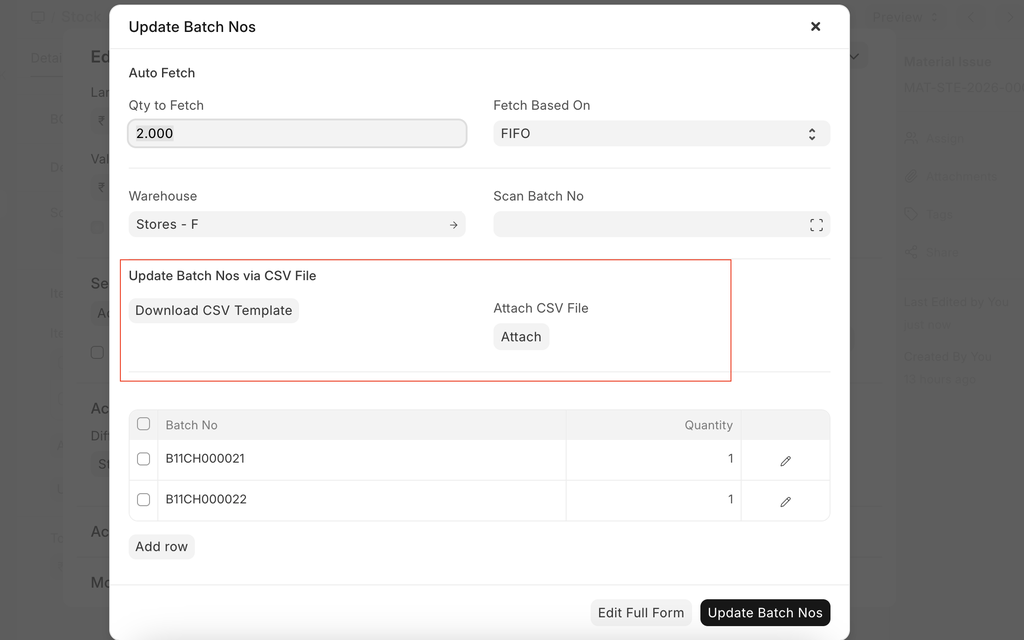
Serial and Batch Bundle Creation Using CSV for Outward Entry
Now users can create serial and batch bundles for outward entries by importing a CSV file.
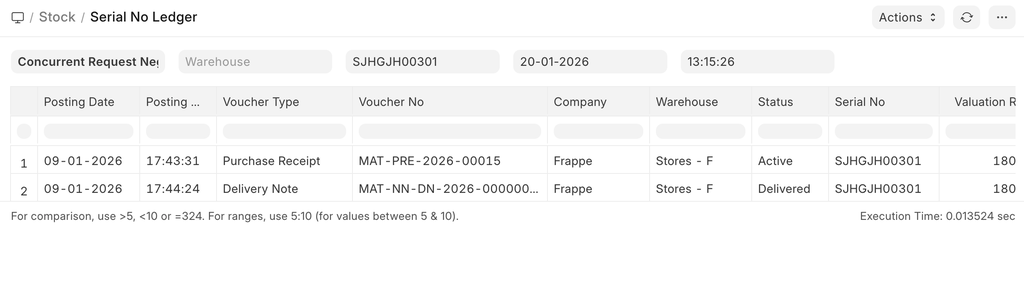
History of Serial Numbers
To check the history of serial numbers, see the report "Serial No Ledger".
Serial / Batch Selector
This is used to select Serial Nos / Batches manually. This popup is also used to create serial nos / batches automatically if they do not exist.
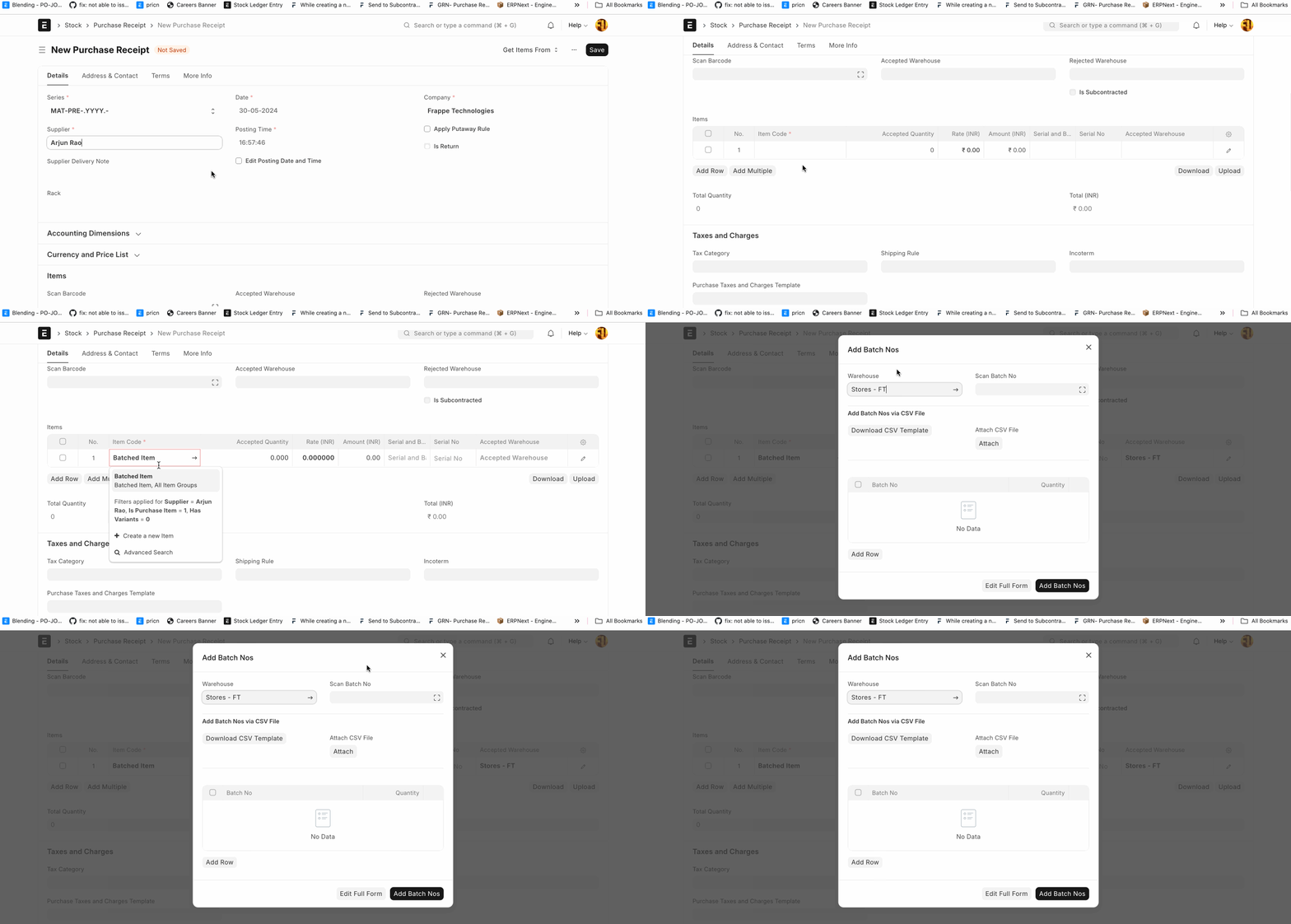
Disable Serial / Batch Selector
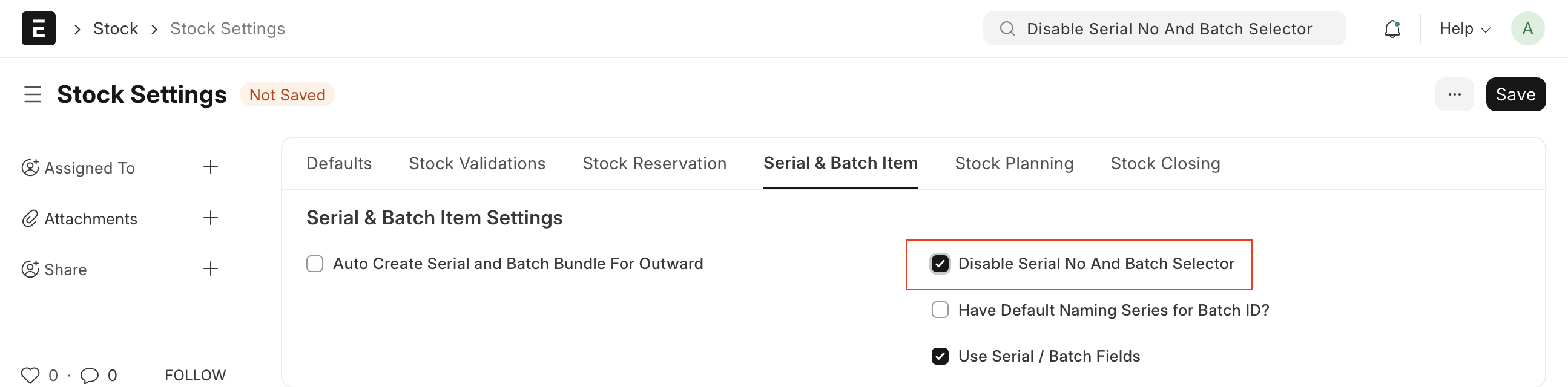
If users don't want to use the Serial and Batch Selector (popup), they can disable it through Stock Settings. To disable it, go to Stock Settings > Serial and Batch Item (TAB) > enable Disable Serial No And Batch Selector, then save.
Old Serial / Batch Fields
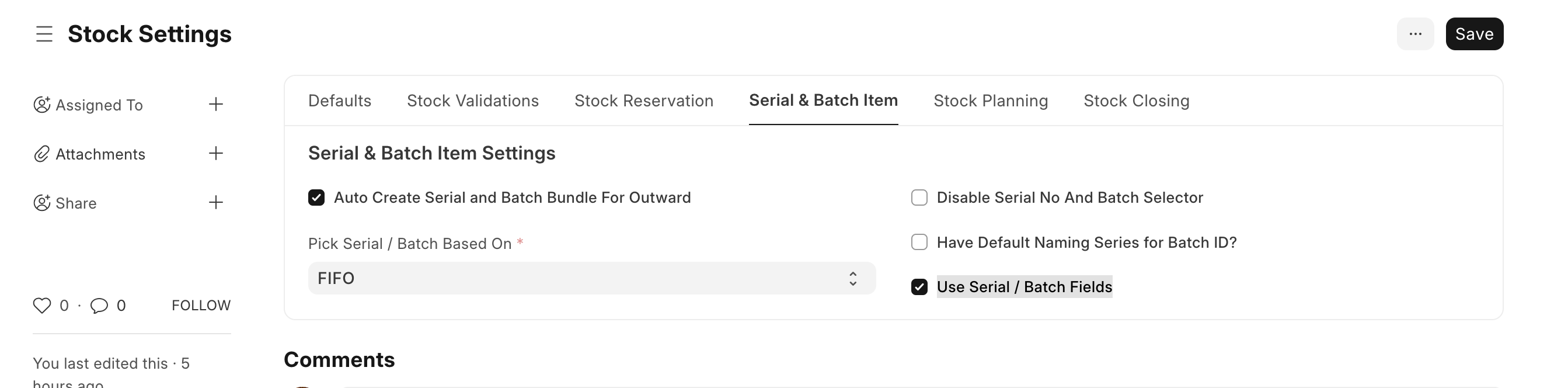
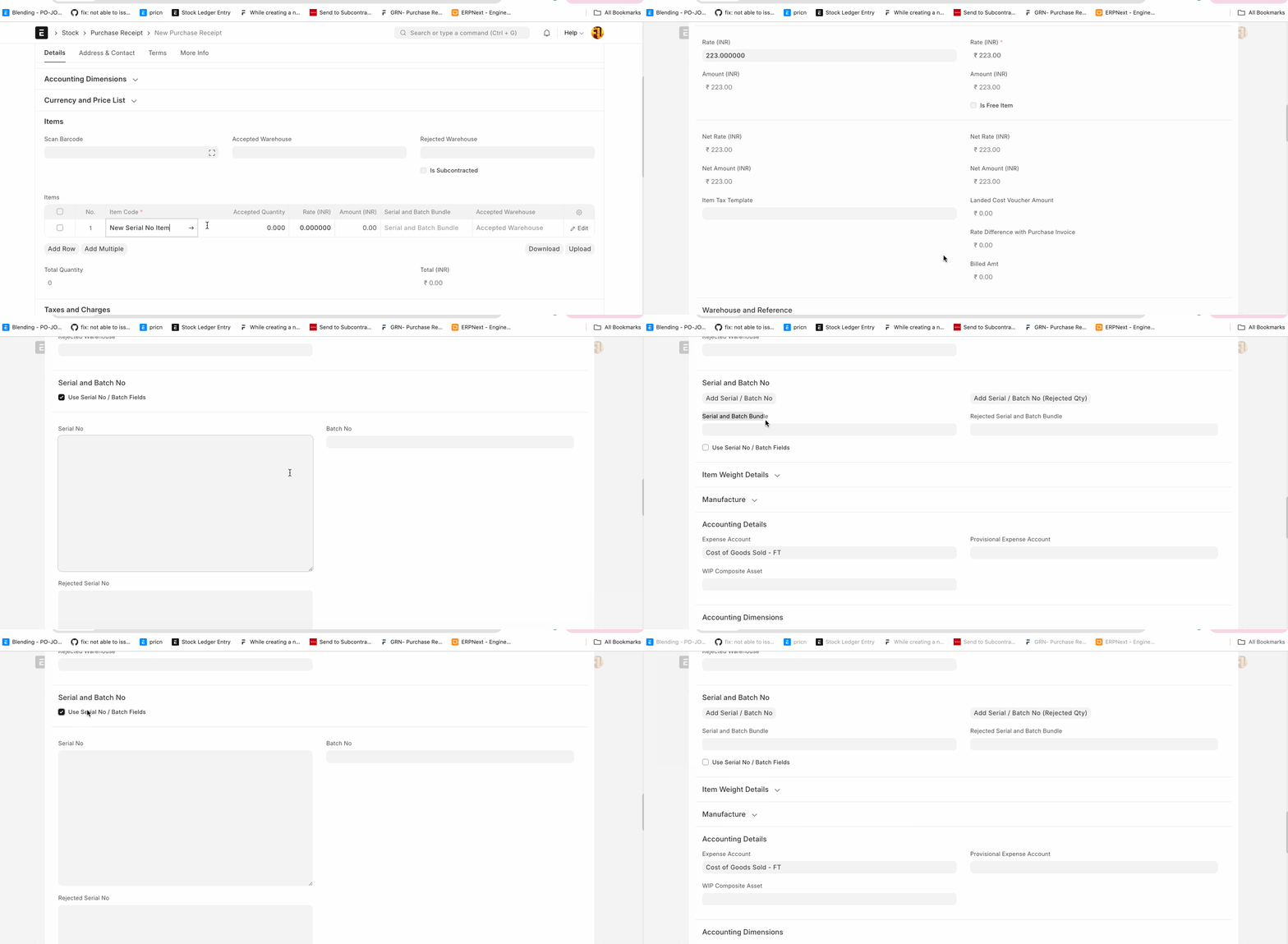
Many customers requested that we retain the old serial and batch fields to address UX issues. In response to this demand, we retained the old serial/batch fields. These fields are solely used for entering serial numbers and batches. The system will automatically create the Serial and Batch Bundle upon submission of the stock transaction. To enable this feature, users must navigate to Stock Settings and enable the Use Serial / Batch Fields option (see the image below).
After that, when the user creates a stock transaction (for example, a Delivery Note), the system will show the old Serial / Batch fields. For more details, see the GIF below.
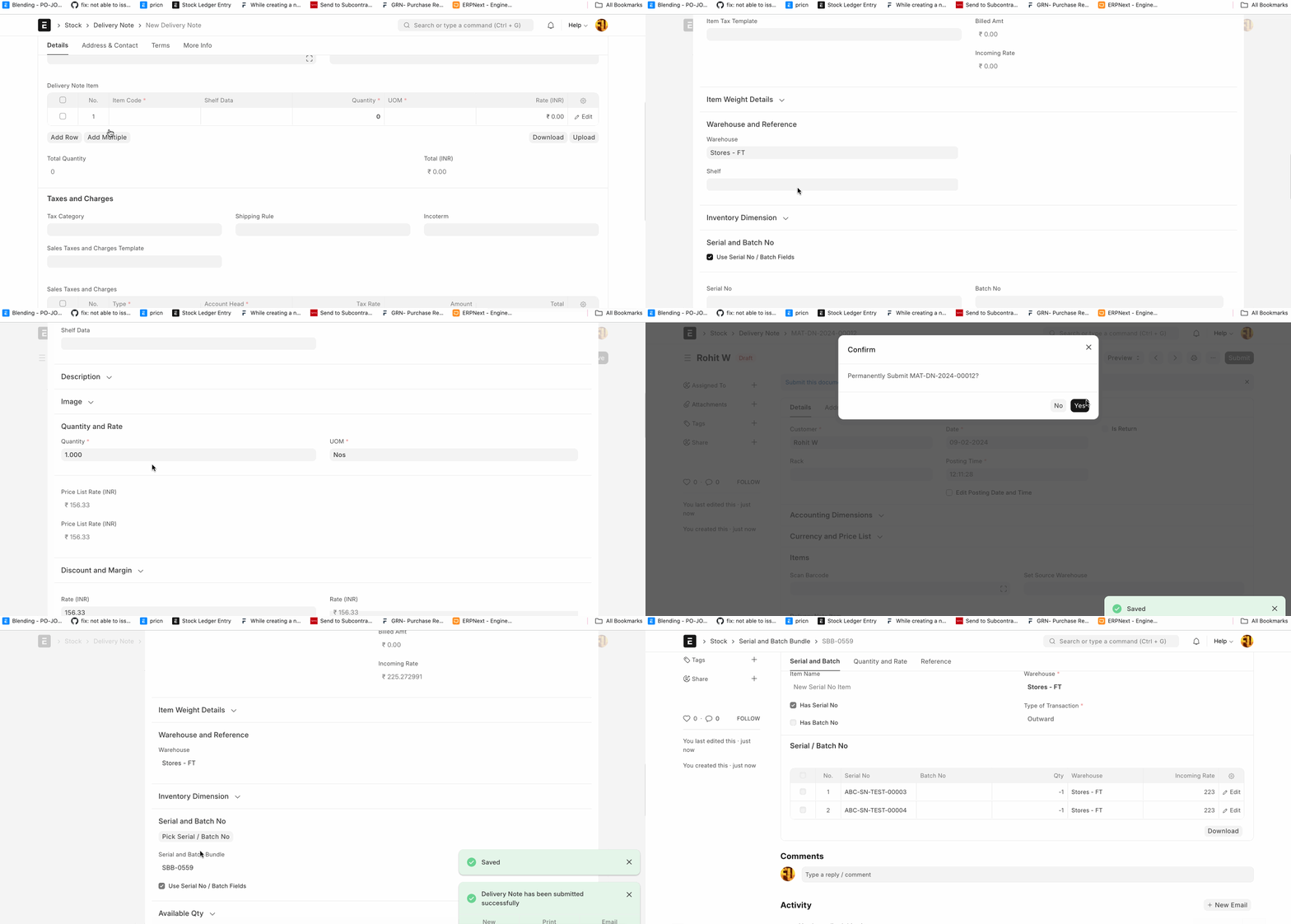
Users can disable the old serial / batch fields at the transaction level too.
Update Serial / Batch on Creation of Auto Bundle
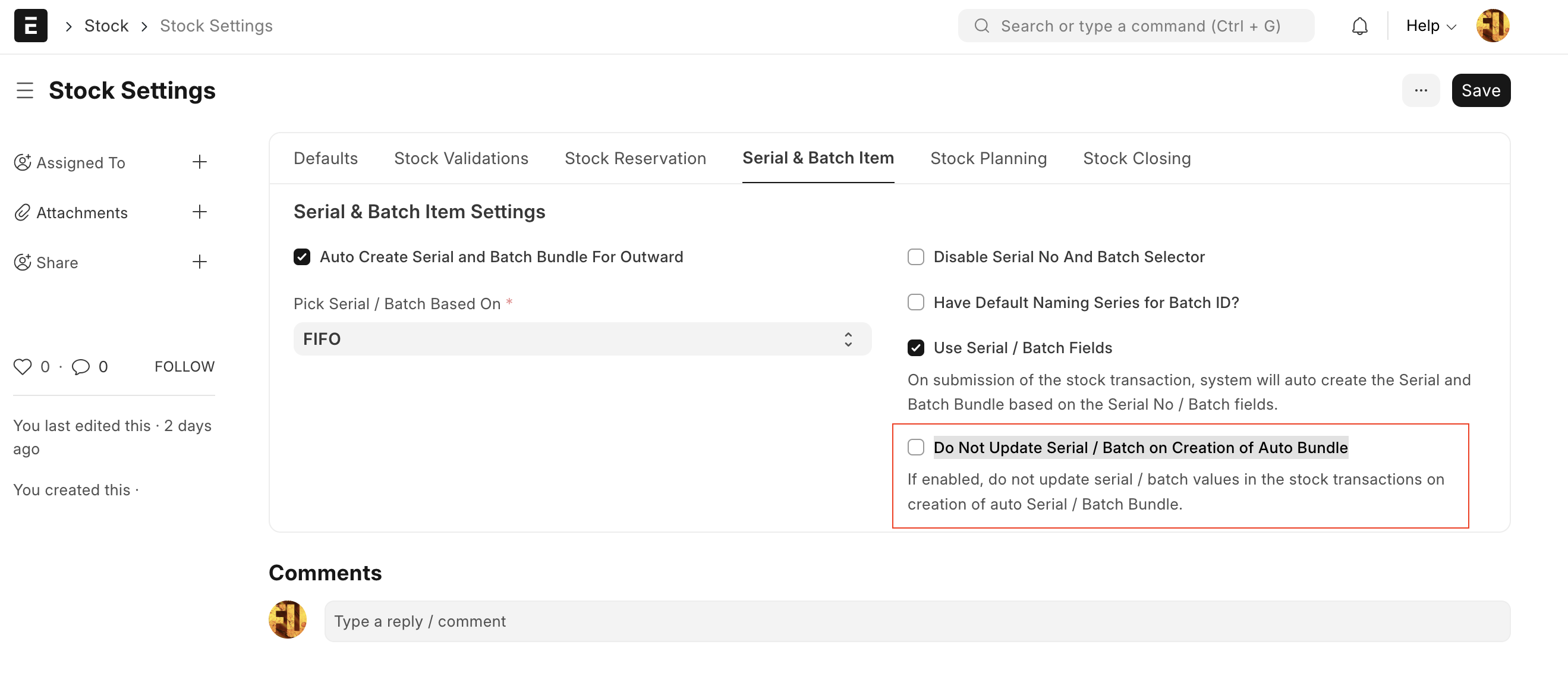
If the user wants to automatically update the Serial No / Batch in the Serial / Batch fields when a Serial and Batch Bundle is created, go to Stock Settings and disable Do Not Update Serial / Batch on Creation of Auto Bundle.
Case:
- User has enabled Use Serial / Batch Fields in Stock Settings
- User wants to create the Serial and Batch Bundle per single batch
- User has set the auto-create batch in the Item master.
- On submission of the Purchase Receipt, the system has created the auto Batch and Serial and Batch Bundle, and set the Batch and Serial and Batch Bundle fields on the Purchase Receipt line item.
- Updating the value of the batch takes time. If you want to skip this step, enable Do Not Update Serial / Batch on Creation of Auto Bundle in Stock Settings.
- With this, the batch column remains blank, but the Serial and Batch Bundle will have the value of the auto-created bundle.