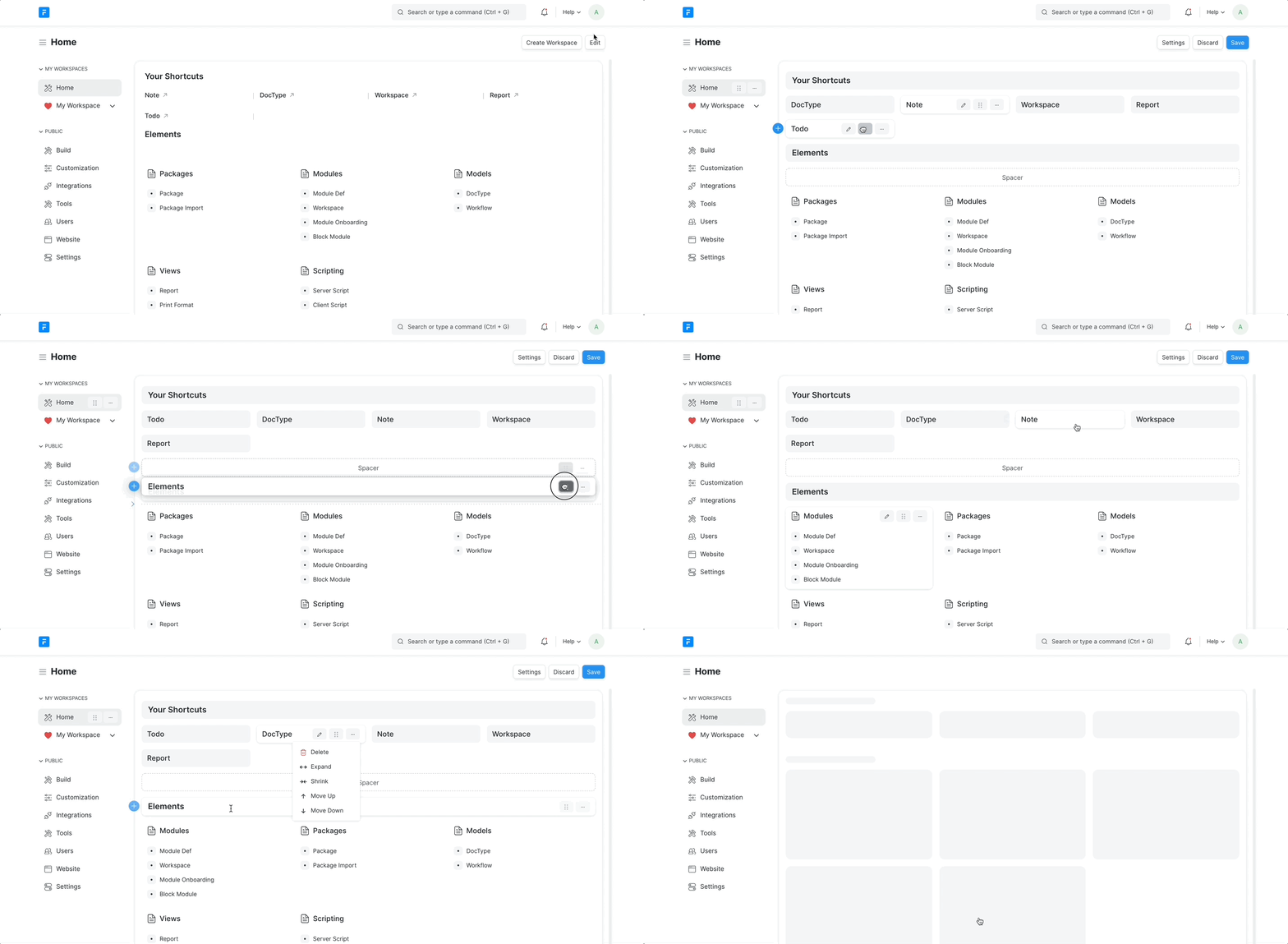
Workspace has two modes Read Only Mode and Edit Mode. You can start customizing your workspace by clicking on the Edit button.
Customizing Workspaces and Customizing Workspace Page are two different things.
##Customizing Workspaces
All customization done to the workspaces can be done through the sidebar except for creating a workspace.
Let's see what all customizations we can do:
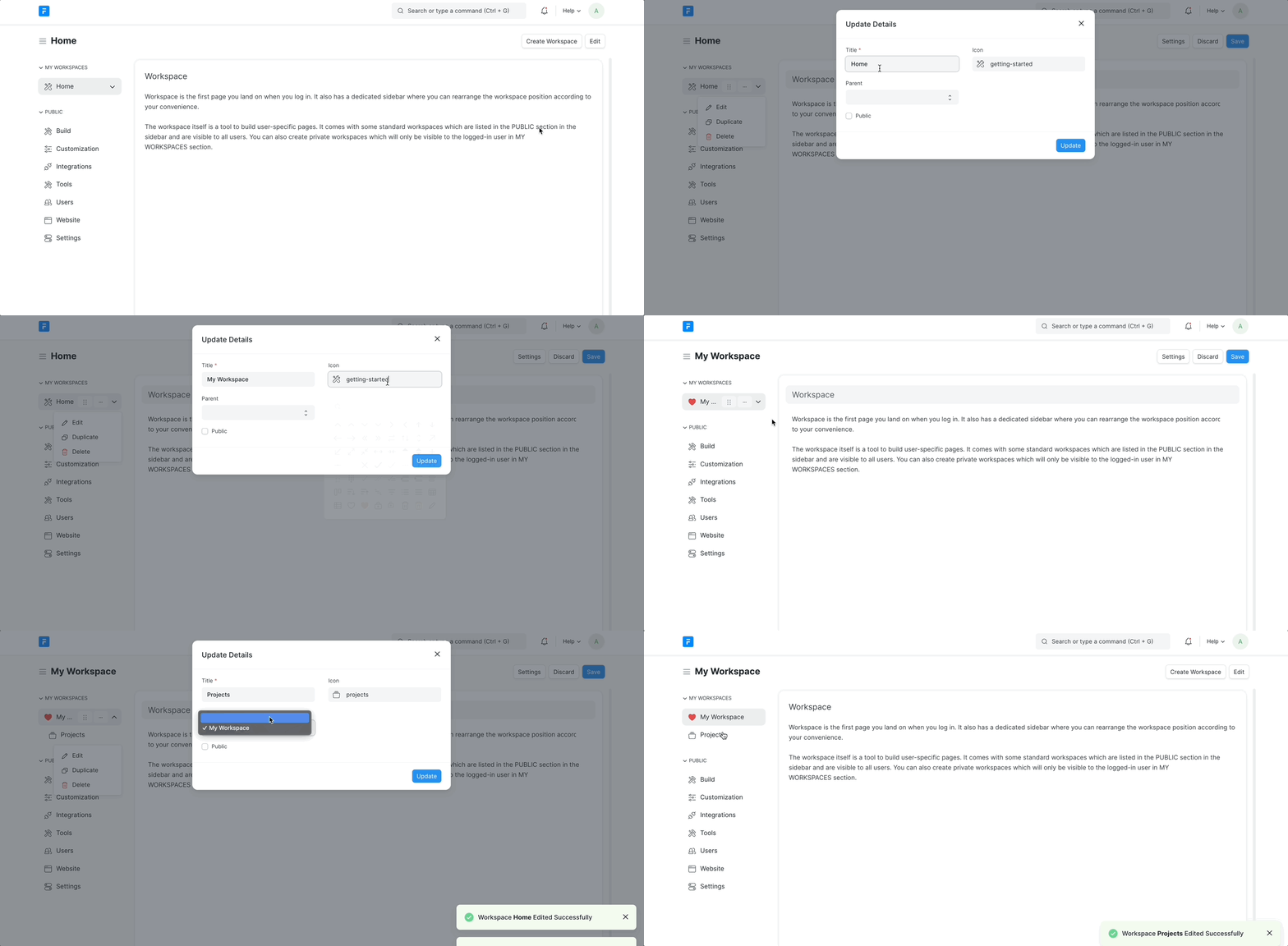
###Edit workspace details
You can update the title, and icon, make it parent or child and can make it public or private.
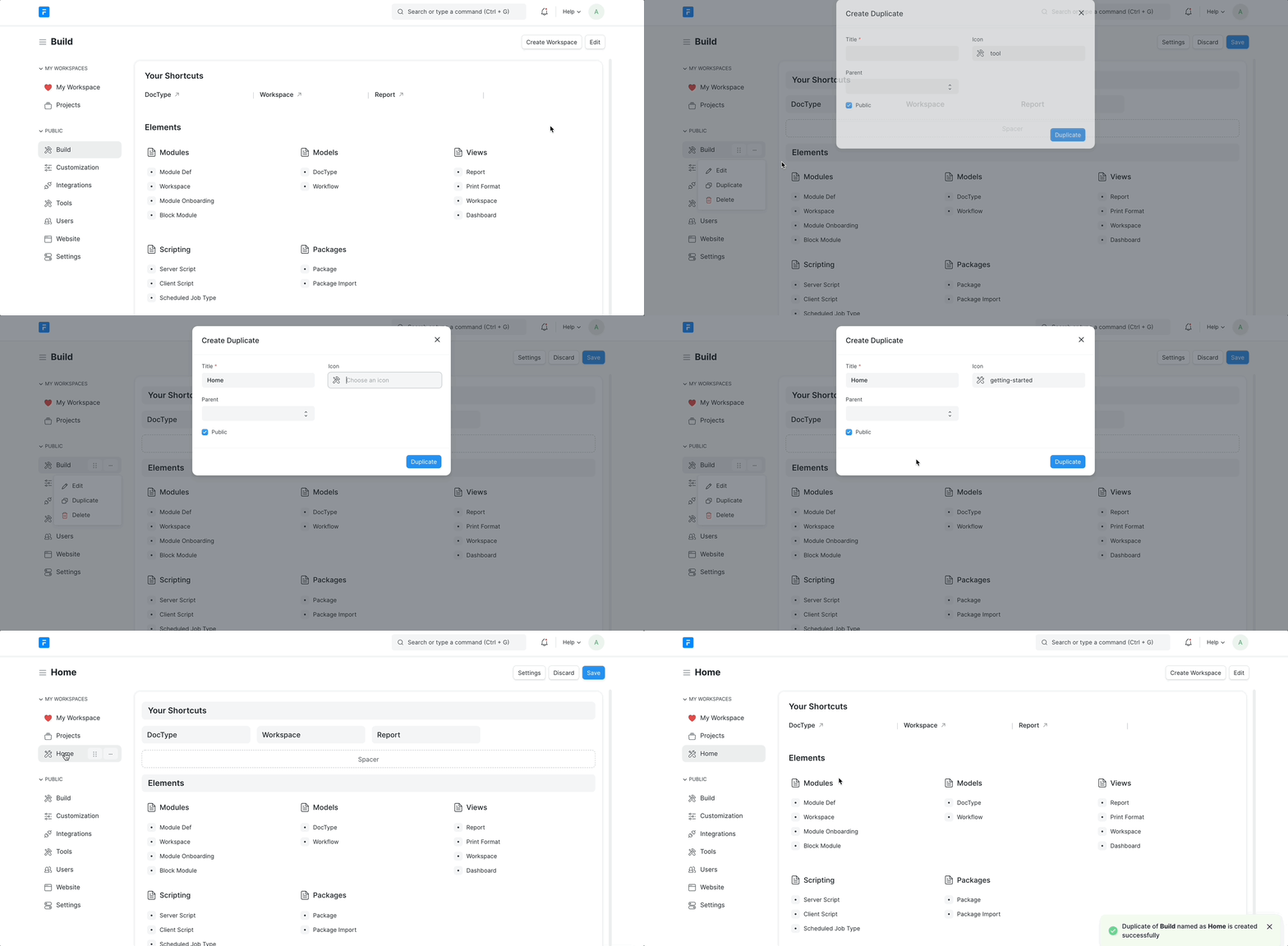
###Create Duplicate
You can create a duplicate of an existing workspace and can add or remove some blocks from it as per your need.
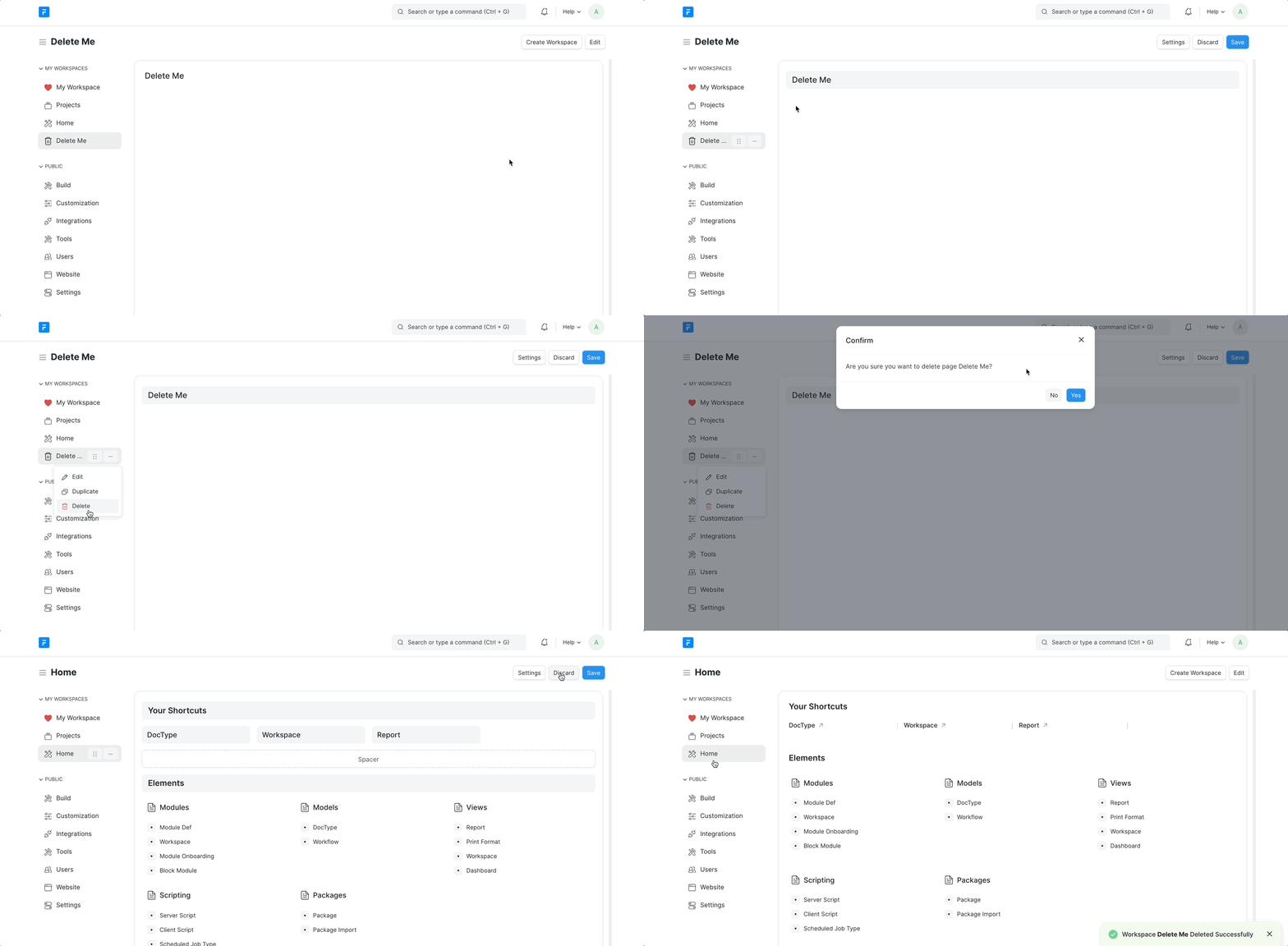
###Delete Workspace
Delete an existing workspace.
###Hide Workspace
Hide your private workspaces.
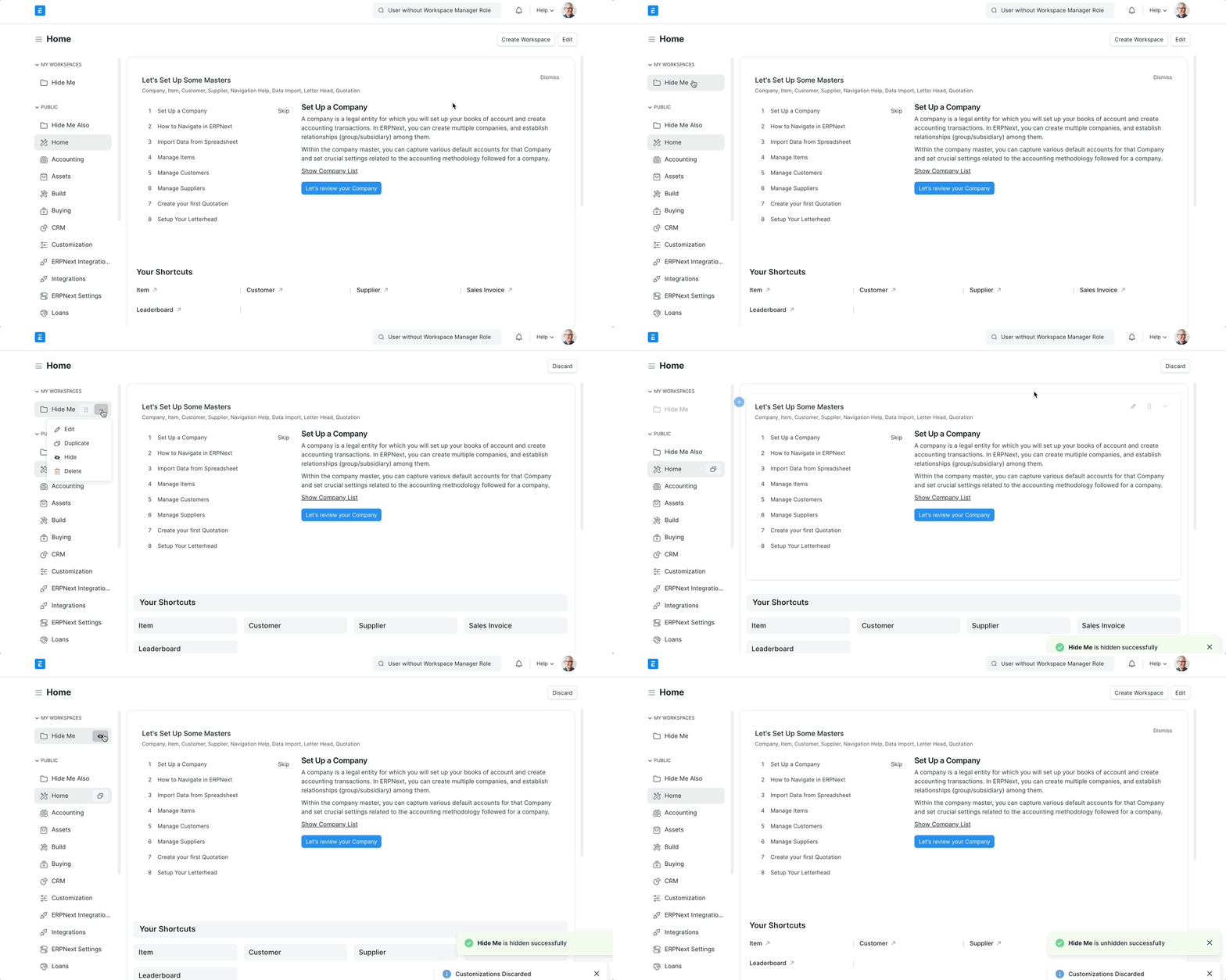
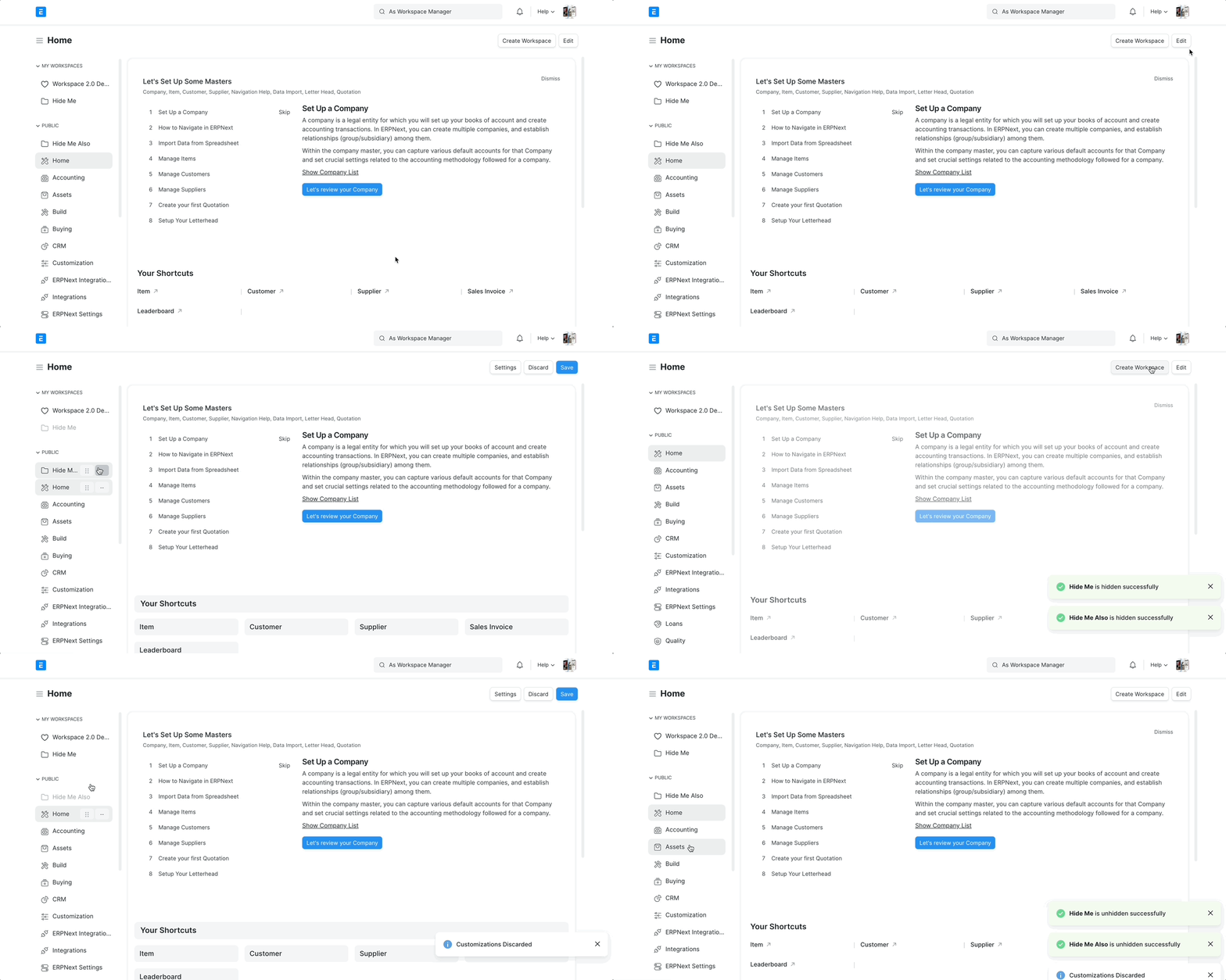
Only Workspace Manager can hide public workspaces.
###Rearrange Position:
You can drag & drop the workspace from the sidebar to change its position or make it a child/parent workspace.
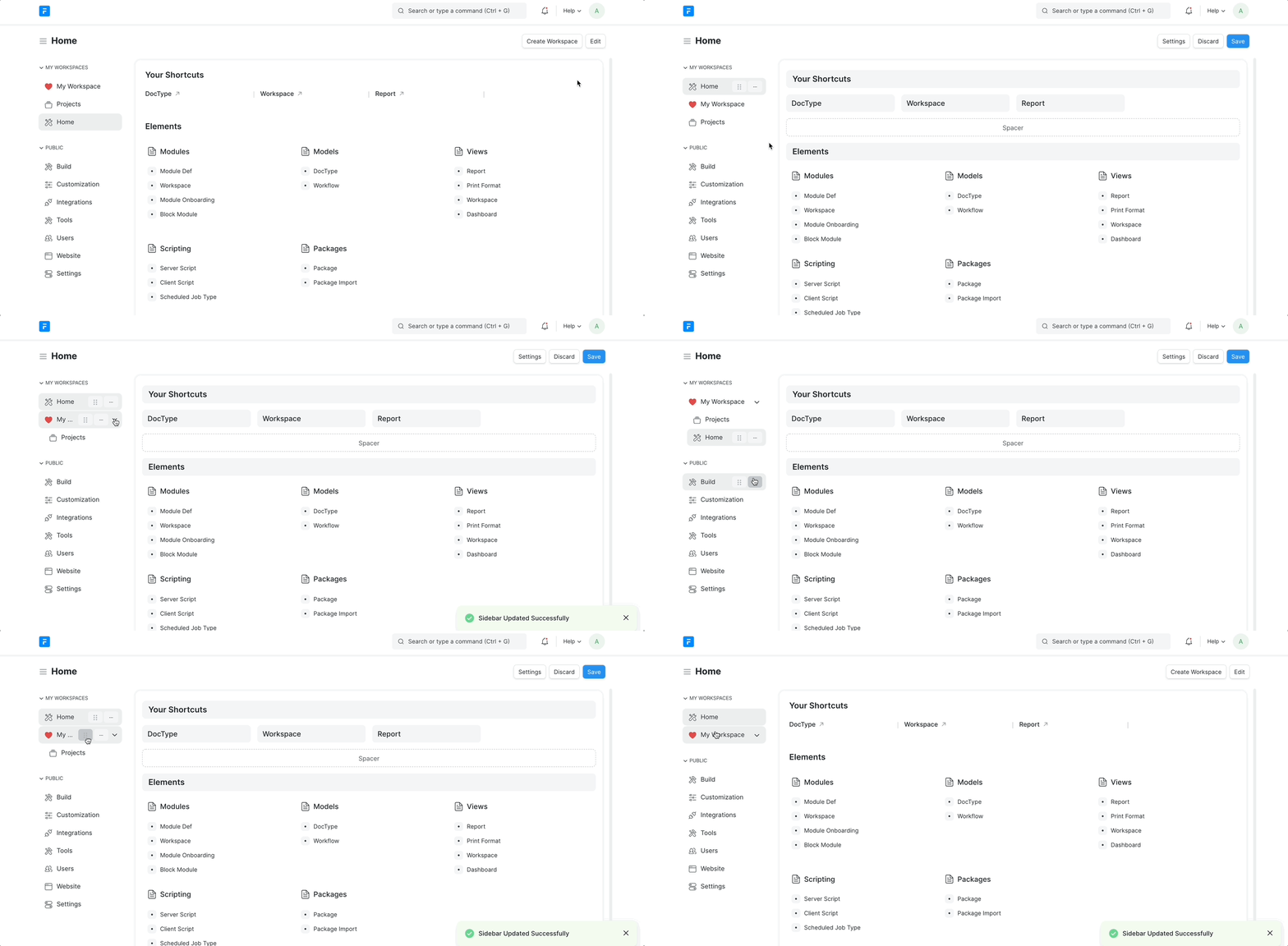
Save/Discard buttons are only used to save workspace page customizations. All workspace changes done from the sidebar get saved as you make them.
##Customizing Workspace Page
Customizing blocks in a particular workspace comes under this category.
Let's see what all customizations we can do:
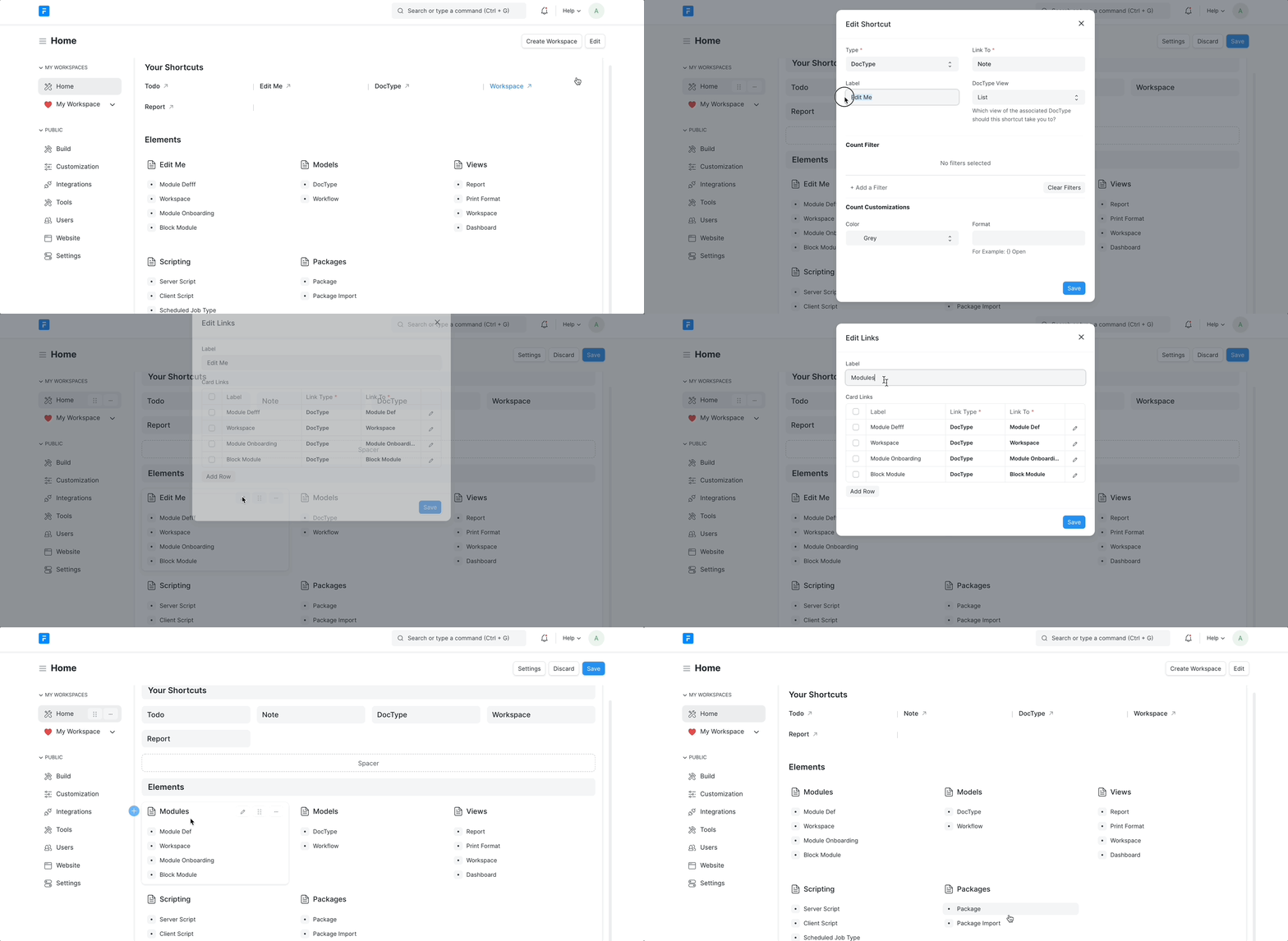
###Add a new block
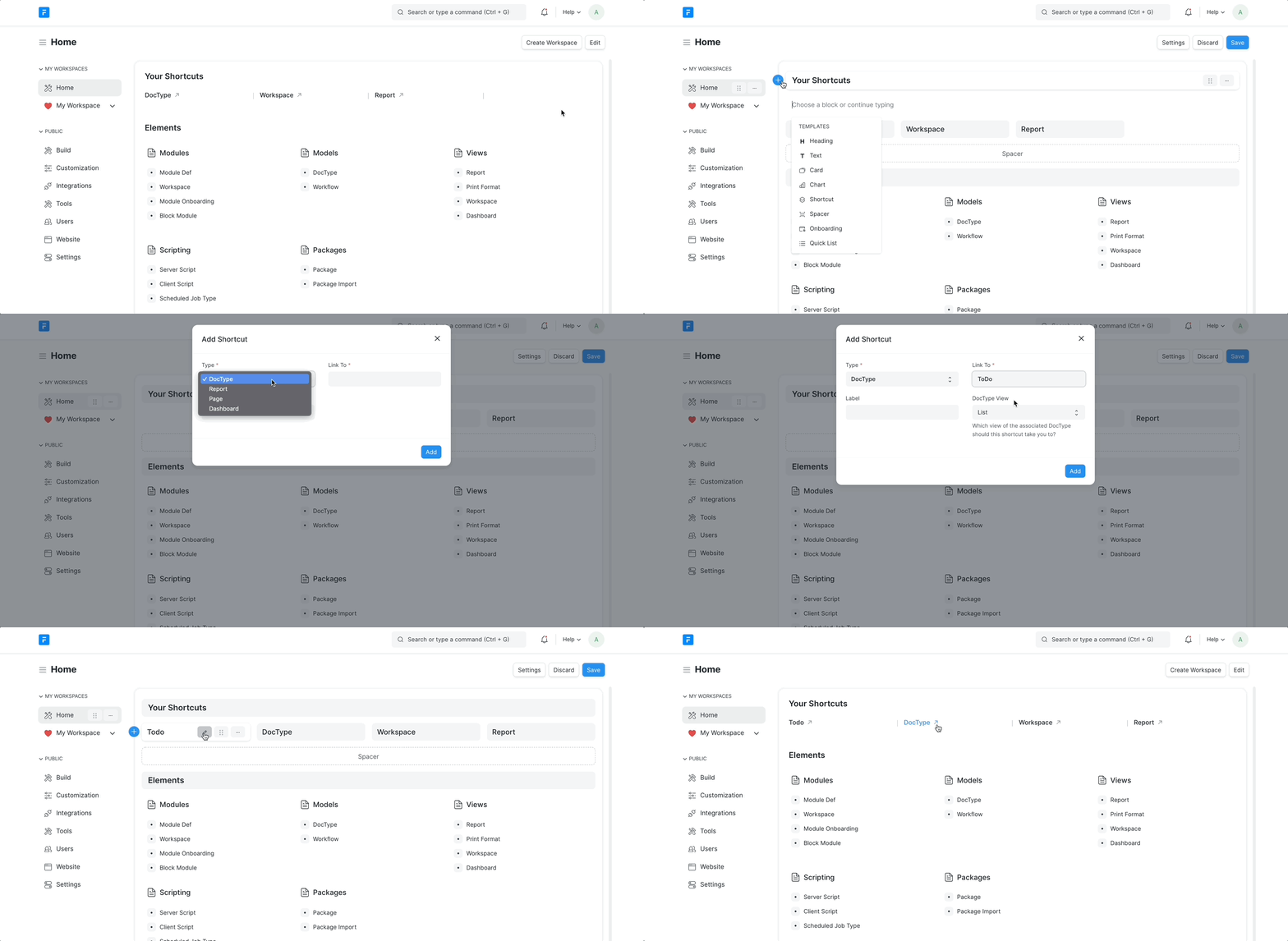
###Edit an existing block
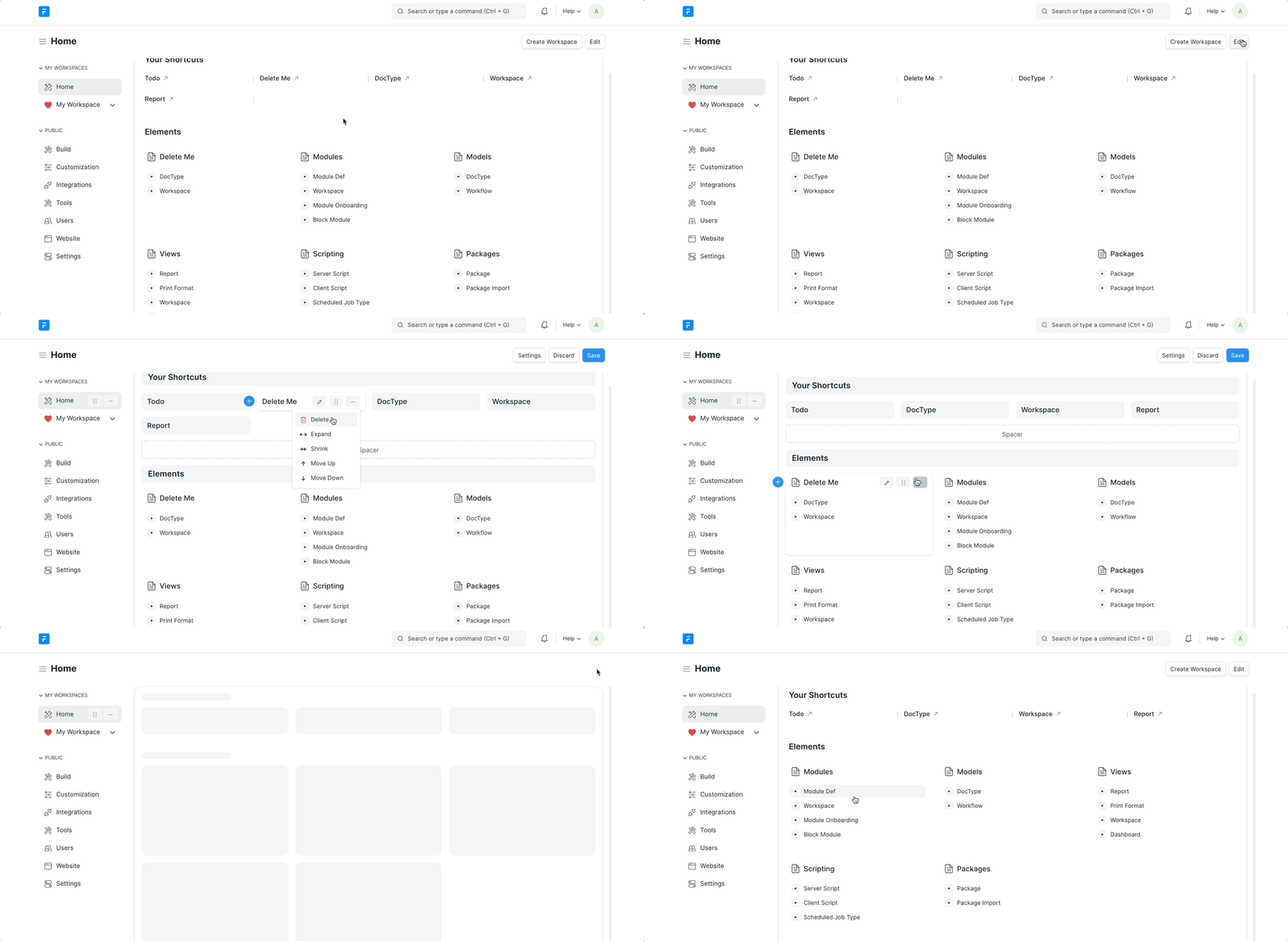
###Remove or delete an existing block
###Resize the width of a block
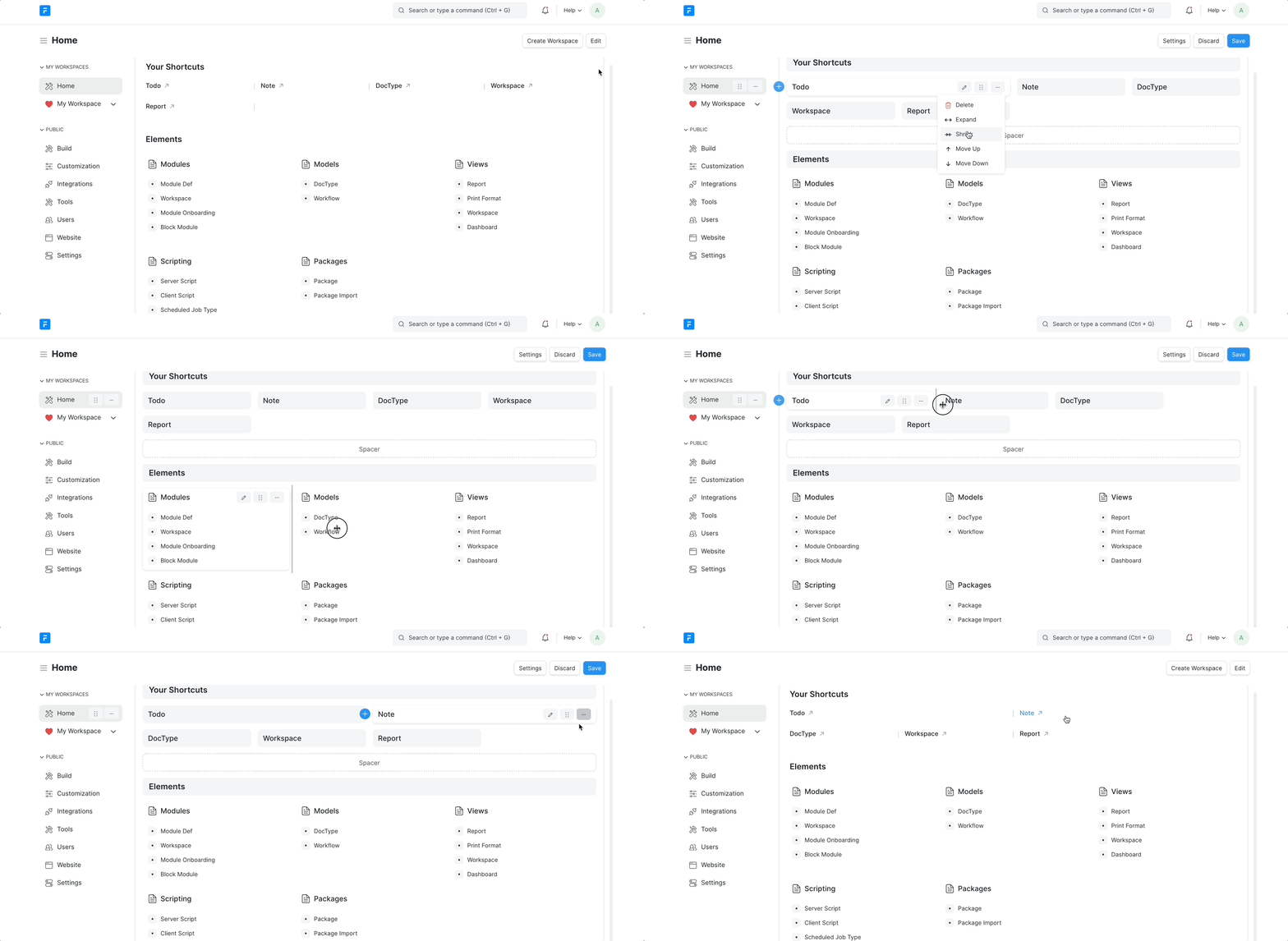
###Rearrange the position of a block