

















You can create tabulated reports using server side scripts by creating a new Report.
Note: You will need Administrator Permissions for this.
Since these reports give you unrestricted access via Python scripts, they can only be created by Administrators. The script part of the report becomes a part of the repository of the application. If you have not created an app, read this.
Note: You must be in Developer Mode to do this
1. Create a new Report
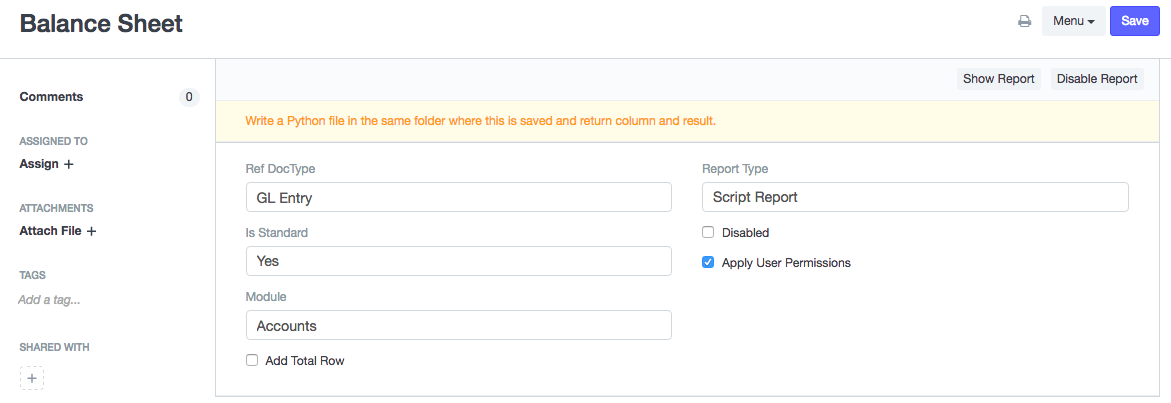
- Set Report Type as "Script Report"
- Set "Is Standard" as "Yes"
- Select the Module in which you want to add this report
- In the module folder (for example if it is Accounts in ERPnext the folder will be
erpnext/accounts/report/[report-name]) you will see that templates for the report files will be created. - In the
.jsfile, you can set filters for the reports - In the
.pyfile, you can write the script that will generate the report
2. Add Filters
You can add filters in the .js. See an example below:
frappe.query_reports["Accounts Receivable"] = {
    "filters": [
        {
            "fieldname":"company",
            "label": ("Company"),
            "fieldtype": "Link",
            "options": "Company",
            "default": frappe.defaults.getuserdefault("company")
        },
    ]
}
- These properties are the same as you would set in a DocField in a DocType
3. Add the Script
In the .py file you can add the script for generating the report.
- In the
executemethod, two listscolumnsanddataare returned - Columns must be a list of dictionaries containing fields like fieldname, label, fieldtype, options,width. For example:
[
	{
		"fieldname": "account",
		"label": _("Account"),
		"fieldtype": "Link",
		"options": "Account",
		"width": 300,
	},
	{
		"fieldname": "currency",
		"label": _("Currency"),
		"fieldtype": "Link",
		"options": "Currency",
	},
]
- You can use all server side modules to build your report.
- For example see existing reports. (Balance Sheet)
4. Add link for your report on the module page
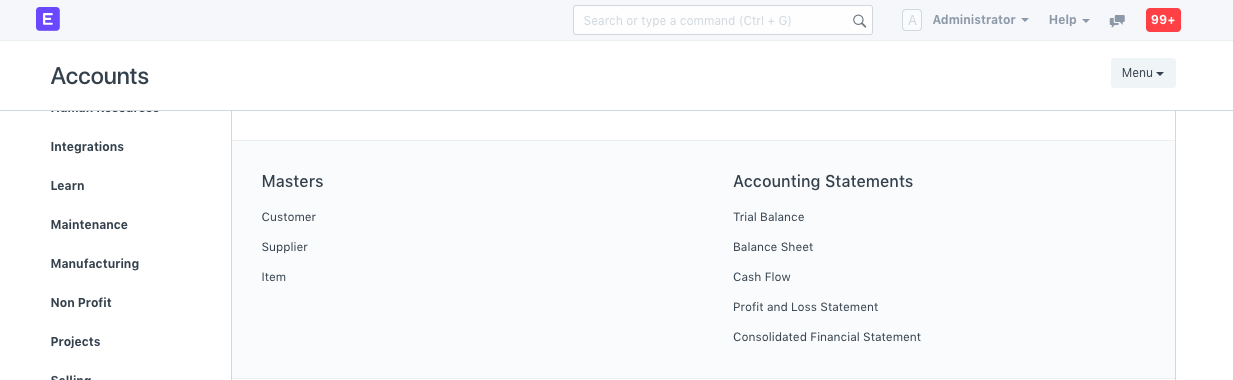
- In the module folder (for example if it is Accounts in ERPNext the folder will be
erpnext/config/accounts.py) you will see labels and items for various sections. The new report can be added in the item list as show in the example:
def get_data():
	return [
		{
			"label": _("Accounting Statements"),
			"items": [
				{
					"type": "report",
					"name": "Balance Sheet",
					"doctype": "GL Entry",
					"is_query_report": True,
				}
			],
		}
	]
Prepared Reports
Some script reports take too long to run in the browser. Prepared Report moves execution to a background job so users are not blocked while the report runs.
When Prepared Report is checked on a Report, each run is queued instead of executed synchronously. The user sees a progress indicator and gets a notification when the result is ready. Completed results are stored as Prepared Report documents and can be reopened later with the same filters.
Prepared Report also unlocks:
- Generate CSV — optionally produce a CSV attachment alongside the JSON result
- Timeout (In Seconds) — how long the background job may run before it is considered failed (default: 1500 seconds)
Prepared reports are intended for reports that are slow but stable. Users should expect to wait and come back for the result, not get an instant table in the browser.