


















Fields are the values of your document: the customer name, the posting date, the grand total. This page explains how to place them on the page and change how each one prints.
Applies to Frappe v16 and later.
Add a field
- Open the Fields tab in the left panel. It lists every field of the document, with its type on the right.
- Type in Search fields to find one. Press / anywhere in the editor to jump to this box.
- Drag the field into a column, or click it to add it below the selected field. With nothing selected, it goes into the last section.
To move a field, drag it to another place, or select it and press Alt+↑ or Alt+↓. To remove it, select it and press Delete.
You can select several fields at once: Shift+click selects a range, Ctrl+click (Cmd+click on a Mac) adds one field at a time.
Field settings
Select a field to see its settings in the right panel. Only the settings that make sense for that field appear, so a date field has a date format and a long text field can split across pages.
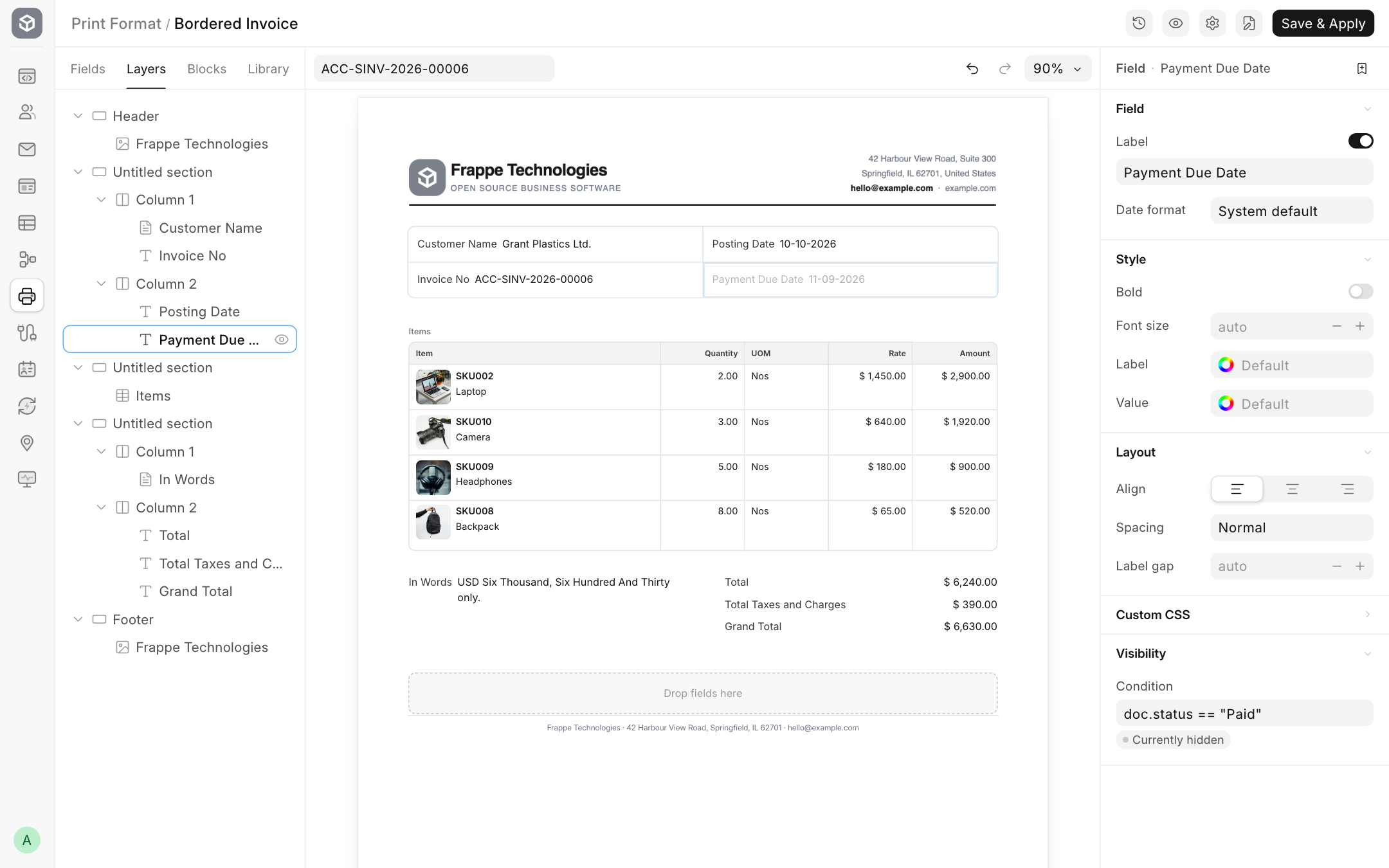
Field
| Setting | What it does |
|---|---|
| Label | The text printed next to the value. Change it here without changing the form, for example "Bill To" instead of "Customer Name". |
| Show label | Turn off to print only the value. |
| Date format | For date fields. Pick a format such as dd-mm-yyyy or d MMM yyyy. Each option shows today's date in that format. System default uses the format from System Settings. |
| Hide colon | Only shown when Colon after labels is on in the page settings. Removes the colon for this one field. |
Style
| Setting | What it does |
|---|---|
| Bold | Prints the value in bold. |
| Font size | Size of this field's text, in pixels. Leave empty to use the page font size. |
| Label and Value | Colours for the label and the value. Leave on Default to use the page colours. |
Layout
| Setting | Options | What it does |
|---|---|---|
| Align | left, center, right | Aligns the field in its column. |
| Spacing | Normal, Space Between, Space Evenly | Only when the section's Label side is Left. Space Between pushes the value to the right edge, which is handy for totals. |
| Label gap | pixels | Only when Label side is Left. Space between the label and the value. |
| Split across pages | on, off | For long text fields such as terms and notes. Lets a long value continue on the next page instead of jumping to it as one block. |
Custom CSS
CSS for this field only. It is applied to the field as an inline style, so write declarations without a selector:
border-top: 1px solid #e5e7eb;
padding-top: 6px;
Visibility
Print the field only when a condition is true. See Show or hide content.
Empty fields
A field with no value is left out of the printout, label and all. This keeps the page tidy, for example when an invoice has no PO number. On the page, an empty field is greyed out with a dash.
If you want the label to print even when there is no value, use a Linked Field block, which has a Print if empty setting.
Tips
- To show the label and value on one line, set the section's Label side to Left, not each field.
- To print a value from another document, such as the customer's tax ID, use a Linked Field block.
- To print fixed text such as "Thank you for your business", use a Text block.