


















Recover access to Frappe Cloud when you lose your 2FA device
If you turned on two-factor authentication (2FA) for your Frappe Cloud account and then lost the phone or app that generates your code, you do not need to raise a ticket first. You can get back in yourself with a recovery code.
Before you start
- You still need your account's email address and password. 2FA is a second step after that, not a replacement for it.
- You need one of the 9 recovery codes Frappe Cloud showed you when you first turned on 2FA. Each code is a 16-character mix of letters and numbers, for example
C6BD7F3DC3C5777D.
Steps
- Go to the Frappe Cloud login page and sign in with your email and password as usual.
- On the 2FA Code from your Authenticator App screen, click Reset 2FA below the Verify button.
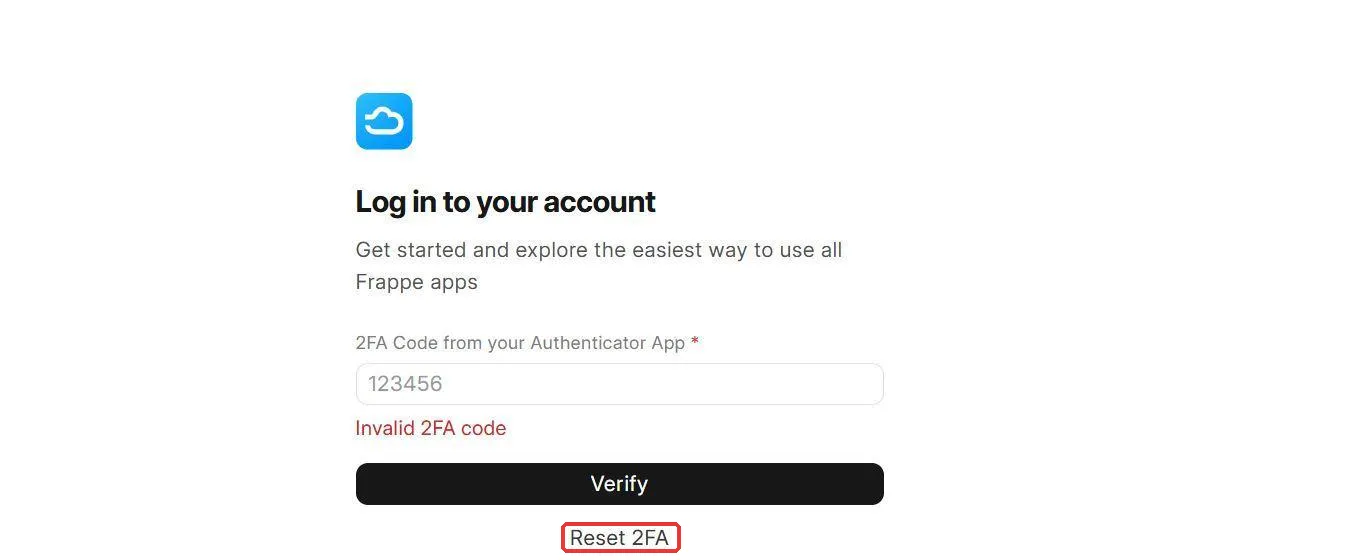
- In the Recovery Code field, enter one of your saved recovery codes, then click Reset.
- You see "2FA reset successfully. Please re-enable it as soon as possible!" and land back on the login page. 2FA is now off for your account.
- Log in again with just your email and password.
- Go to Settings → Profile and click Enable next to 2FA to turn it back on with a device you still have. Save the new set of recovery codes somewhere you will not lose with your phone, for example a password manager.
Using any one recovery code turns 2FA off entirely. It does not use up one code while leaving 2FA on, so step 6 matters: until you re-enable it, your account only needs a password to sign in.
If you do not have a recovery code either
There is no self-service option left at that point: the recovery code is the only way to reset 2FA yourself from the login screen. Raise a ticket from the support portal and ask to have 2FA disabled on your account.
Because this turns off a security control, support verifies you own the account before doing it. Expect to be asked to confirm the billing address and last 4 digits of the card on the account, or, if someone other than the account owner raised the ticket, to have the account owner reply with consent. If a teammate who is not the account owner loses access, the account owner has to raise or approve the ticket — support will not disable another user's 2FA on the teammate's request alone.
How to prevent this
- Save all 9 recovery codes when you first enable 2FA, in a password manager rather than a screenshot on the same phone as your authenticator app.
- Back up your authenticator app's vault, or use one that syncs to a second device.
- Frappe Cloud emails a monthly reminder to review your recovery codes until you turn it off (Settings → Profile → Recovery Code Reminders). When it arrives, go to Settings → Profile → View Recovery Codes → Show, verify the code sent to your email, and confirm you still have the codes saved — before you are ever locked out.