


















Agents
An agent is a model with its own instructions, tools and knowledge. Flow comes with one built-in agent that can do anything its user can do. Create your own when you want an agent for one kind of work, such as answering support questions.
Only a System Manager can create agents.
Create an agent
The quickest way is to ask Flow:
"Create an agent that answers customer questions about orders and returns."
Flow shows you the agent and saves it once you approve. To set one up by hand, go to Settings > Agents and click New agent.
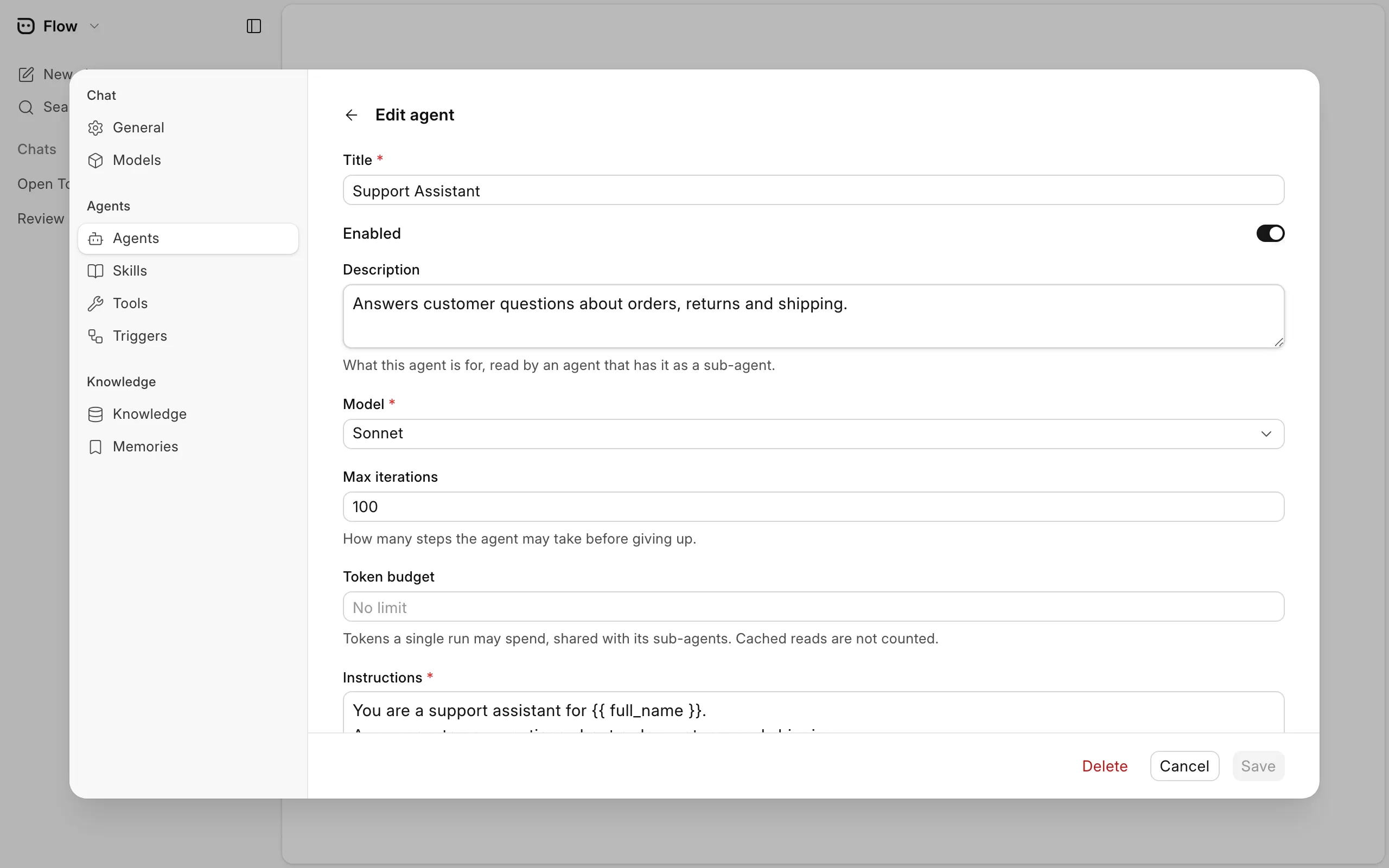
| Field | What it does |
|---|---|
| Instructions | The agent's role and the rules it follows. |
| Model | The model that runs the agent. |
| Tools | What the agent can do. Give it only the tools the work needs. |
| Skills | The skills the agent can load. |
| Knowledge Bases | Content the agent can search. See Knowledge. |
| Sub-agents | Other agents this one can hand a task to. |
| Roles | Who can use the agent. Leave it empty to allow every Flow user. |
| Max iterations | How many steps the agent may take in one run. See Limits. |
| Token budget | The most tokens one run may spend. Leave it empty for no limit. |
A chat keeps the tools its agent had when the chat started. After you change an agent's tools, start a new chat to use them.
Agents and tools that come with Frappe or an app are system generated. You can turn them on or off and switch an agent's model, but you can't edit, rename or delete them. Create your own agent if you need different instructions or tools.
Tools
A tool is a single action, such as reading records or running a report. Flow includes tools for the usual work on a site.
You can add your own as a Python script under Settings > Tools. Script tools need server scripts to be enabled on the bench. Apps can ship tools too. See Extending Flow.
Skills
A skill is a set of instructions for one kind of task, for example how your team writes a quotation. The agent loads a skill only when a task calls for it. Add skills under Settings > Skills.
Memory
An agent can remember short facts between chats, such as a preference you mentioned. You can see what agents remember under Settings > Memories.
Usage and cost
The top of a chat shows how much of the model's context is in use and what the chat has cost so far. Each run is also saved as a Flow Run with its token use and cost. To cap what one run can spend, set a Token budget on the agent.