


















Emails are stuck in the Email Queue or sent late: how do I retry them
You open Email Queue and see entries sitting in Not Sent or Sending for minutes, hours or days, or your recipients say mail is arriving 2 to 5 minutes after you send it. This happens because Frappe does not send mail the moment you create it — a background job picks up the Email Queue periodically, and several things can slow that down, pause it, or stop it.
The symptom
No single error text covers this: it shows as one of these statuses on the Email Queue list, or as a delay your recipient reports.
- Not Sent for longer than a few minutes, not moving to Sending or Sent.
- Sending, not moving to Sent for more than 15 minutes.
- Error, with a reason in the entry's Error field (a separate SMTP or connection problem — see SMTP timeout or connection error if the error names a port, TLS or timeout issue).
- No error at all — mail eventually arrives, just later than expected (commonly 2 to 5 minutes).
Why this happens
Frappe queues every outgoing email as an Email Queue entry, then a scheduled background job, frappe.email.queue.flush, picks up the entries waiting to be sent. By default this job runs every 4 minutes (the scheduler's all event, every scheduler_interval seconds, 240 by default) — not every minute, and not on demand. A freshly queued email also has to wait at least 10 seconds before the job will even pick it up. Put together, an email queued right after one run has to wait almost the full 4 minutes for the next one — this is the usual cause of a 2 to 5 minute delay, and it is normal, not a fault.
Three separate things can stop sending altogether, on top of that normal interval:
- Sending is switched off for everyone, with the Suspend Sending button on the Email Queue list.
- The site configuration mutes email (
mute_emails), usually left on from testing or a migration. - The background scheduler itself is not running for the site, so no job — not just the mail job — runs at all.
How to check and fix it
- Check if sending is suspended. Open Email Queue. If the button at the top right reads Resume Sending, sending is currently switched off for the whole site. Only Administrator and System Manager see this button.

Click Resume Sending to turn it back on. If you did not expect it to be off, ask whoever has Administrator access whether they turned it off deliberately (for example, before a bulk import) and forgot to turn it back on.
2. Check if the scheduler is running. If entries sit in Not Sent or Sending for hours, not minutes, nothing is processing the queue at all — not just mail. On a self-hosted bench, a developer can check with bench --site your-site.com scheduler status. On Frappe Cloud, check your site's scheduler or worker status in the Frappe Cloud dashboard, and turn it back on there if it shows as stopped. To check: the exact label and location of this control in the current Frappe Cloud dashboard were not re-verified live for this article.
3. Check if email sending is muted. This is a site configuration key (mute_emails), not something visible on the Email Queue list itself — it is usually left on from a staging copy or a migration, not switched on deliberately. Ask whoever manages your site's configuration to confirm mute_emails is not set to 1 in the site's configuration, and to remove it and redeploy or restart if it is.
4. Retry an email that failed with Error. Filter Email Queue by Status = Error, select the entries, open Actions, and click Retry Sending.
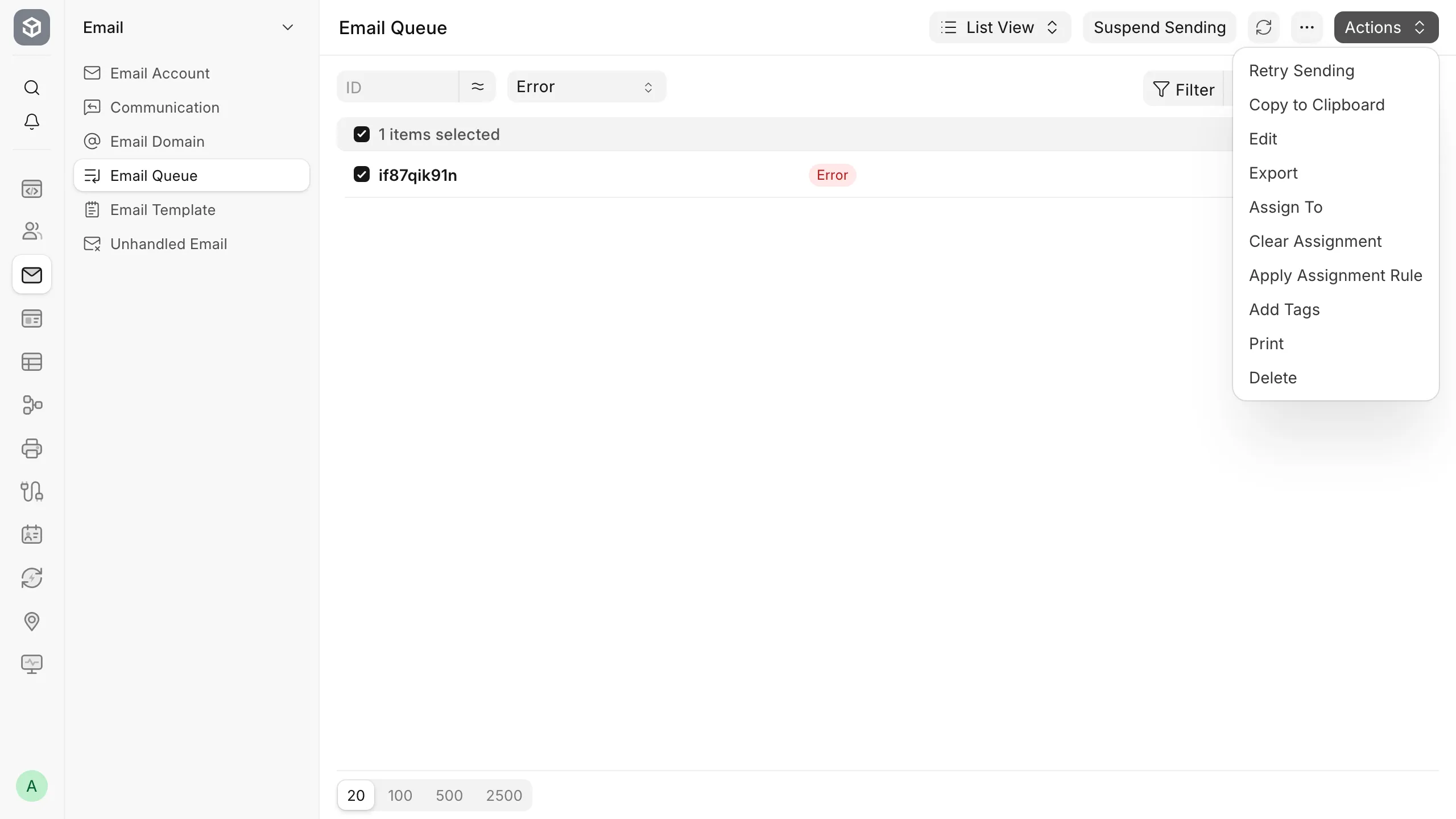
This sets the entries back to Not Sent so the next scheduled run picks them up. It only works on entries already marked Error — selecting a Sending entry and clicking this does nothing to it.
5. An entry stuck in Sending recovers on its own after 15 minutes — Frappe retries it automatically, up to the Email Retry Limit (System Settings → Email tab, default 3), then marks it Error so you can use step 4. If an entry has been in Sending for much longer than that with no change, the cause is the scheduler not running (step 2), not something to retry manually.
If this does not fix it
- If an entry's status is Error with a connection, port or TLS message rather than a generic failure, that is a separate problem — see SMTP timeout or connection error when saving an Email Domain or Email Account.
- If sending is on, the scheduler is running, and mail still does not go out, raise a support ticket with the entry's name, its exact status and error text (if any), and your site name.
How to prevent it
- Before relying on time-sensitive mail (an approval email, a password reset), account for the normal interval: a few minutes is expected, not a fault.
- If you suspend sending for a bulk operation, resume it afterward — the button stays off until someone turns it back on.
Related
- SMTP timeout or connection error when saving an Email Domain or Email Account
- I'm not receiving a password reset, login link, or two-factor authentication email
- Background Jobs