


















Change or reuse a User's email address
The Email field on a User record is disabled as soon as the User is saved. To change it, use Rename, not the field itself. This changes the user's login address immediately: it signs them out of every device, and the old address stops accepting sign-ins or password resets, though their password stays the same.
Why the Email field is disabled
A User's email is not just a field. It is also the User's unique ID (its document name) - Frappe sets name to the email address when the User is created. Every record that is written against a User, assignments, permissions, document ownership, the Created By and Modified By columns, is linked by that ID. Changing the field directly would break those links, so Frappe only allows the change through Rename, which updates the ID and every record that points to it in one operation.
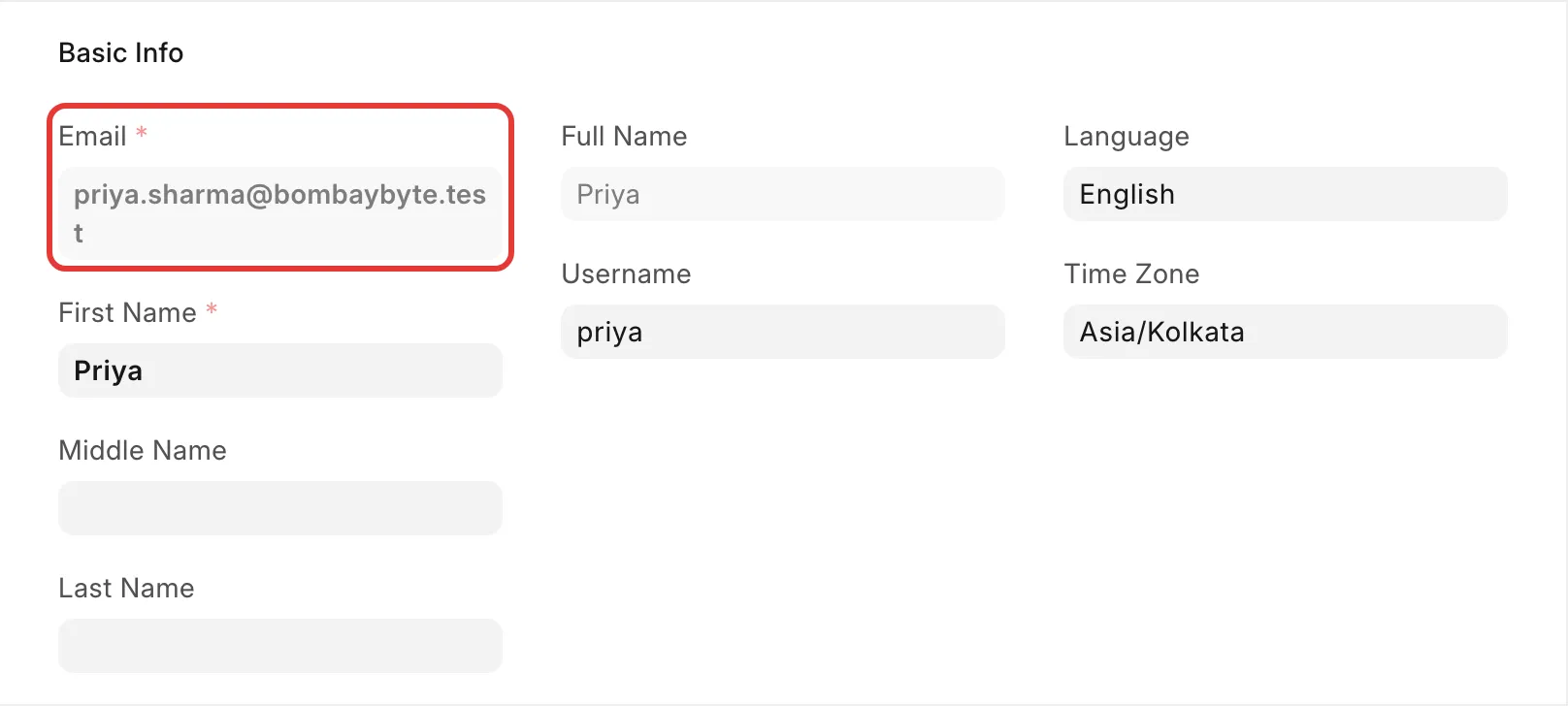
Change a user's email address
Before you start
- You need the System Manager role.
- You cannot rename the Administrator or Guest accounts - see If you renamed the only admin account by mistake.
Steps
- Go to User List and open the User whose email you want to change.
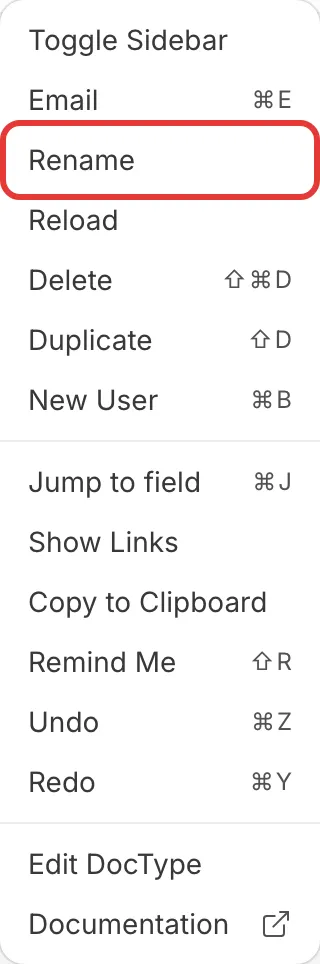
- Click the Menu (⋮) button at the top right of the form.
- Select Rename.
- In the New Name field, enter the new email address.
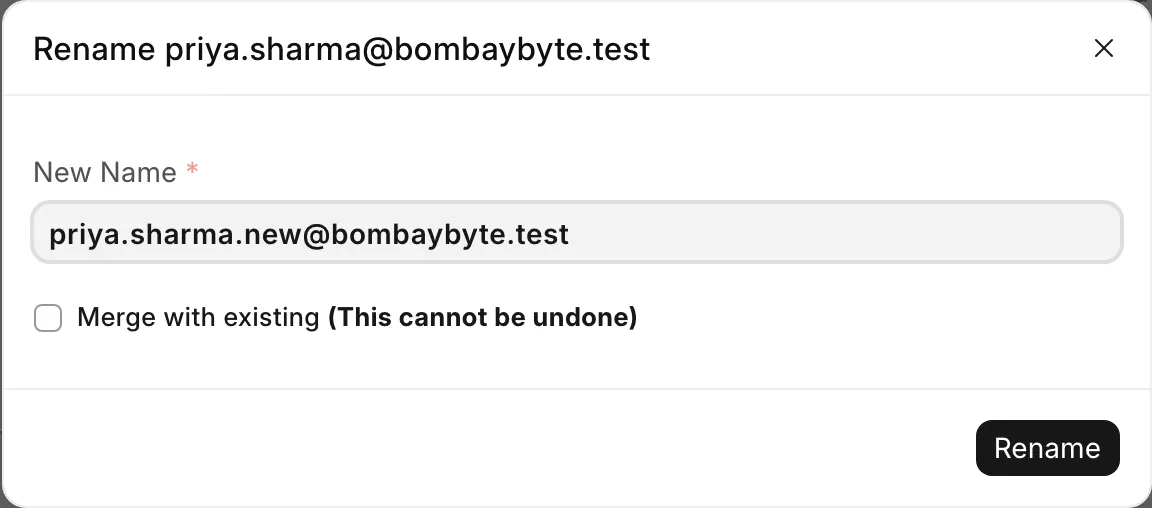
- Click Rename.
Frappe updates the User's ID and every linked record (assignments, permissions, document history) to the new address. This can take a few seconds on a user with a long history - do not close the tab while it runs.
What happens after the rename
- The user is signed out everywhere. Frappe ends every active session for that user, on every browser and device, the moment the rename finishes.
- The password does not change. The user logs back in with the new email and their existing password. There is no automatic password reset email.
- The old email stops working immediately, including for Forgot Password. If someone tries it, they see
User does not exist- this is expected, not an error, because that record no longer has that name. - Document history is preserved. Comments, assignments, and the
Created By/Modified Bytrail on existing documents still show the user correctly, under the new email.
Can two Users share one email address, or reuse a disabled user's?
- An email is the User's document ID, so it must be unique across every User, including disabled ones. Trying to create or rename a User to an email already in use, even a disabled user's, fails with a message that the ID already exists.
If several people need to read mail sent to one address, for example a shared sales@ inbox, give each person their own User with their own unique email, and point every one of those addresses at the shared inbox from your mail provider: a distinct alias for each person (sales-priya@, sales-arjun@), or a plus-addressed variant of the same address (sales+priya@) if your provider supports it. Each User still gets a real, unique login address, and all of them land in the same inbox.
As a last resort, if you cannot create more addresses, a System Manager can turn on Allow Login Using User Name in System Settings → Login. Users can then log in with their Username instead of their email, so the email itself can hold a placeholder value. This only changes how they log in - they still will not receive system email notifications sent to that placeholder address, and the email must still be unique per User.
If you renamed the only admin account by mistake
The literal Administrator account can never be renamed - Frappe blocks it outright. So "the admin account's email changed" always means a System Manager-level User was renamed or recreated, not the Administrator itself.
If you still have a working session or another System Manager account:
- Log in with the new email address and the same password the account had before - the rename did not reset it.
- If you do not know what the new email was changed to, ask another System Manager to open User List and find the record by name, phone number, or role, then share the current email with you.
If no one has access to any System Manager account:
- On Frappe Cloud, open your dashboard, go to Notification → Requests, and approve a site access request from Support so they can look up or reset the account from their end.
- With server access, a System Manager can reset the Administrator's own password directly:
bench --site [site-name] set-admin-password [new-password]. This resets Administrator's password, not a renamed user's - use it to get back in as Administrator and fix the renamed account from there.