


















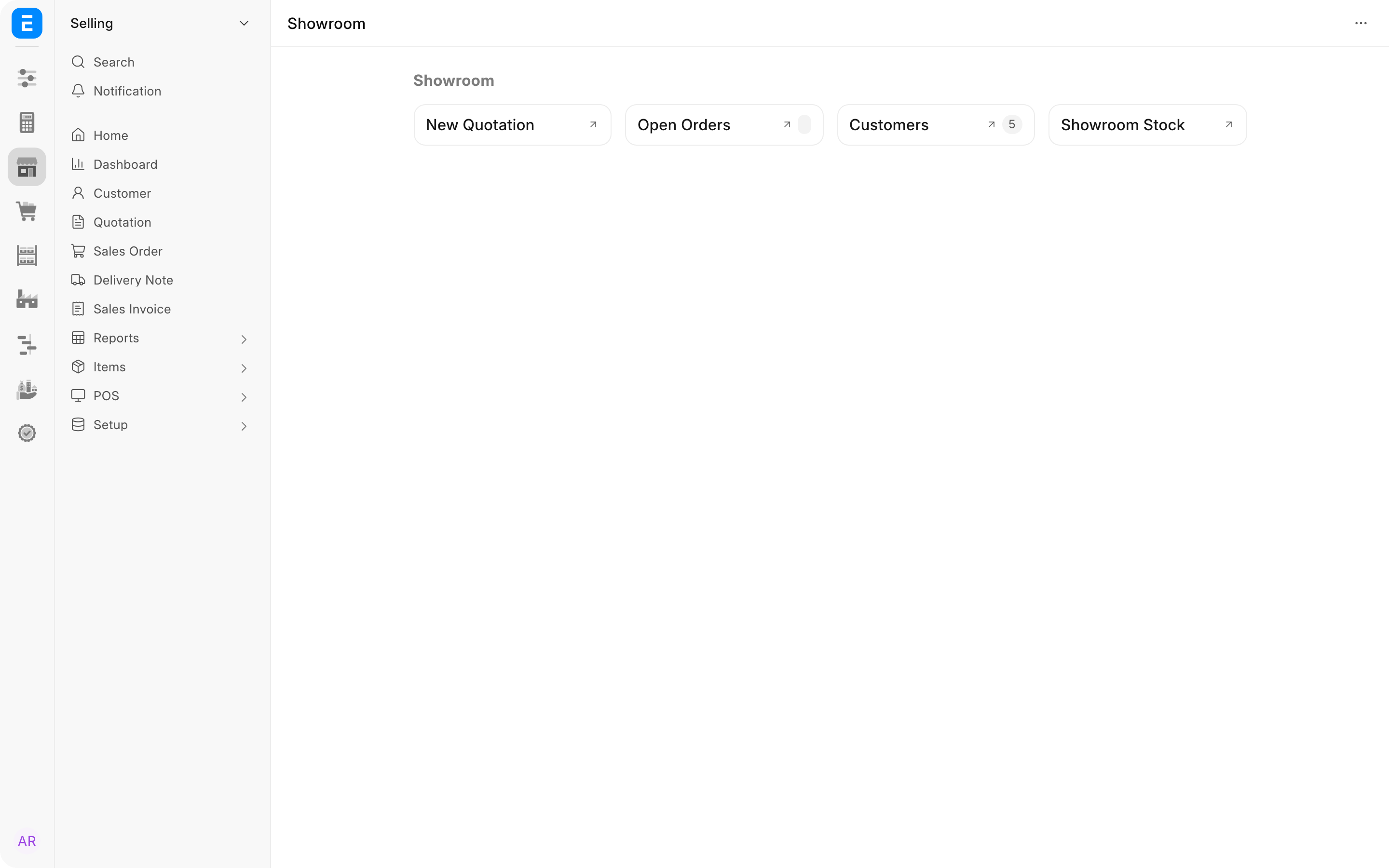
A workspace is a page that gathers what a team needs in one place: shortcuts to the lists they open every day, cards of links, charts, number cards and short lists of recent records. A sales team might have a Showroom workspace with buttons for a new quotation, open orders and customers.
Every workspace belongs to one module and appears as an entry in that module's sidebar. Most modules have one at the top of their sidebar, usually called Home. For how workspaces fit with the rest of the desk, see Desk navigation.
Before you begin
- Anyone allowed to create workspaces can make a private one that only they can see.
- Shared workspaces need the Workspace Manager role: creating, editing or deleting a workspace other people see, and moving other people's workspaces. A System Manager does not get this role automatically. See users and permissions.
- Workspaces an app ships are marked Standard. A site can change them, but its changes are stored separately so app updates keep arriving. See Standard workspaces.
The workspace menu
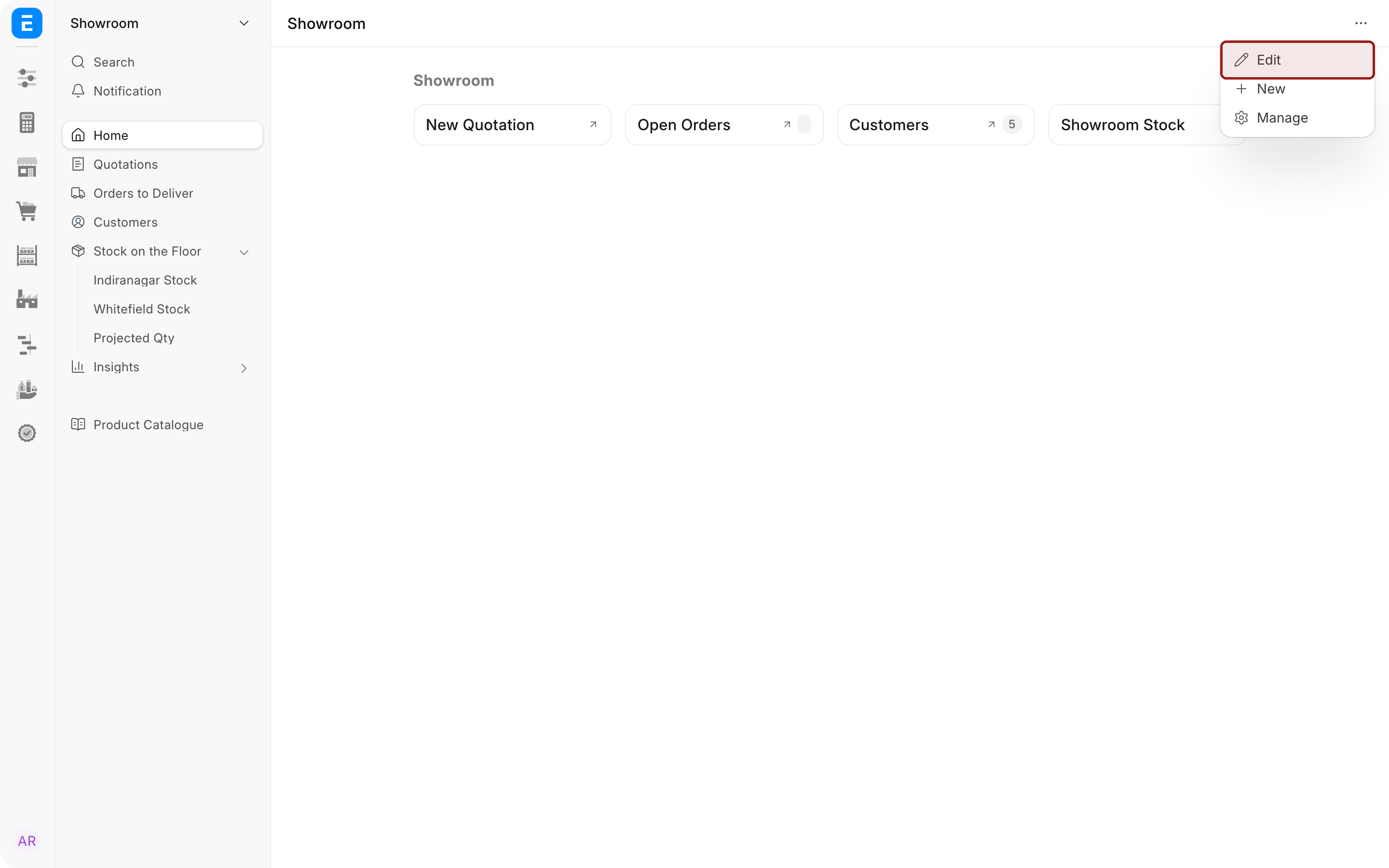
Every workspace has a menu behind the ... button in its top right corner:
- Edit switches the page to edit mode, where you add and arrange blocks.
- New creates another workspace.
- Manage opens Manage Workspaces, where you move, share and delete workspaces.
- Reset to Standard appears on a standard workspace this site has changed.
Create a workspace
- Open the module where the workspace should appear.
- Select ... in the top right corner of any workspace, then New.
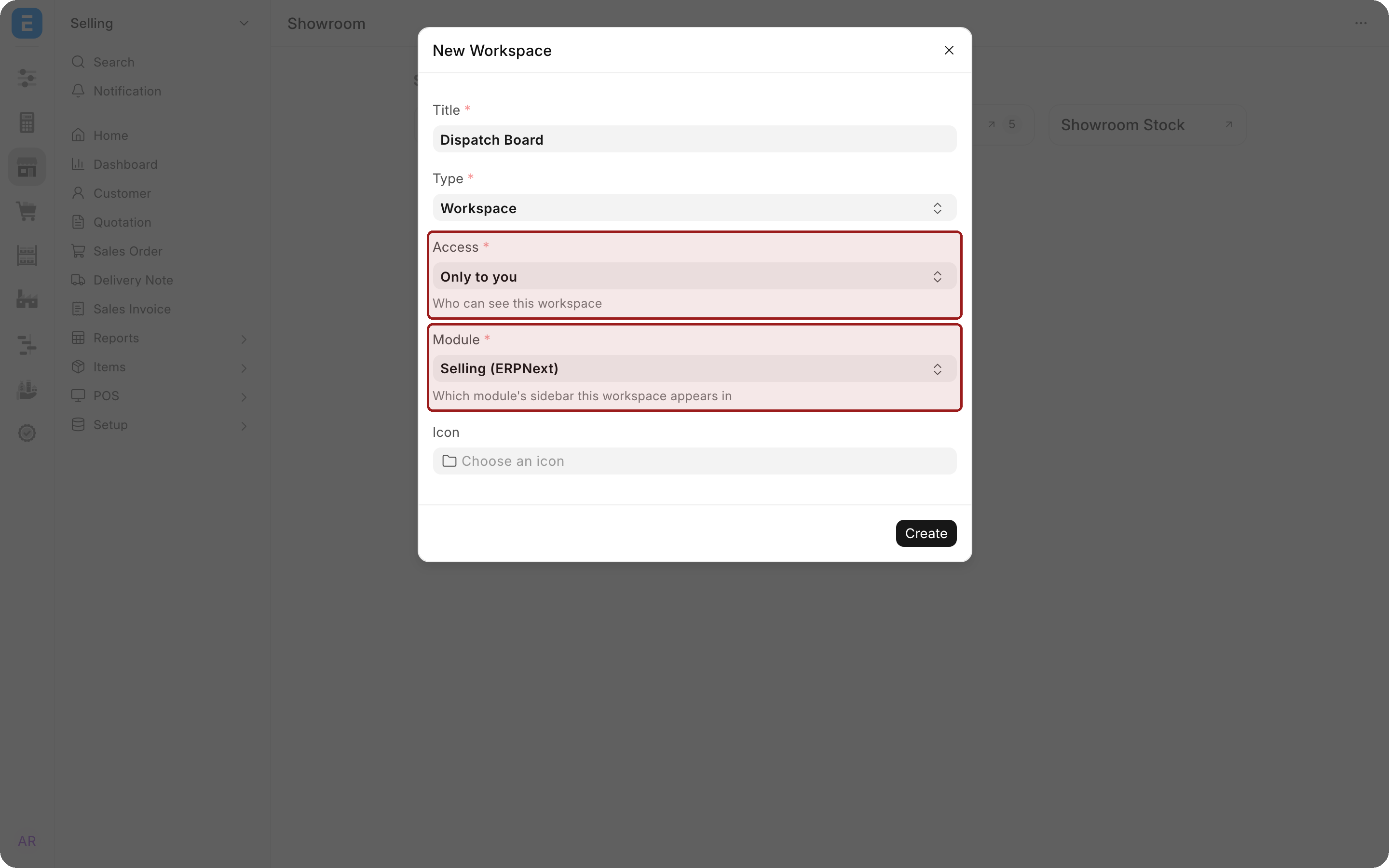
- Type a Title, for example Dispatch Board.
- Choose a Type:
- Workspace for a page of blocks (the usual choice);
- Link for a sidebar entry that opens a document list, page or report directly;
- URL for a sidebar entry that opens a website.
- Under Access, choose who can see it: Only to you, To a group of users (then pick the roles) or To everyone. Without the Workspace Manager role, only Only to you is offered.
- Check Module. It starts on the module you are in, and decides which sidebar the workspace appears in.
- Optionally choose an Icon, then select Create.
The new workspace opens with a short welcome message. Next, add blocks to it.
Edit a workspace
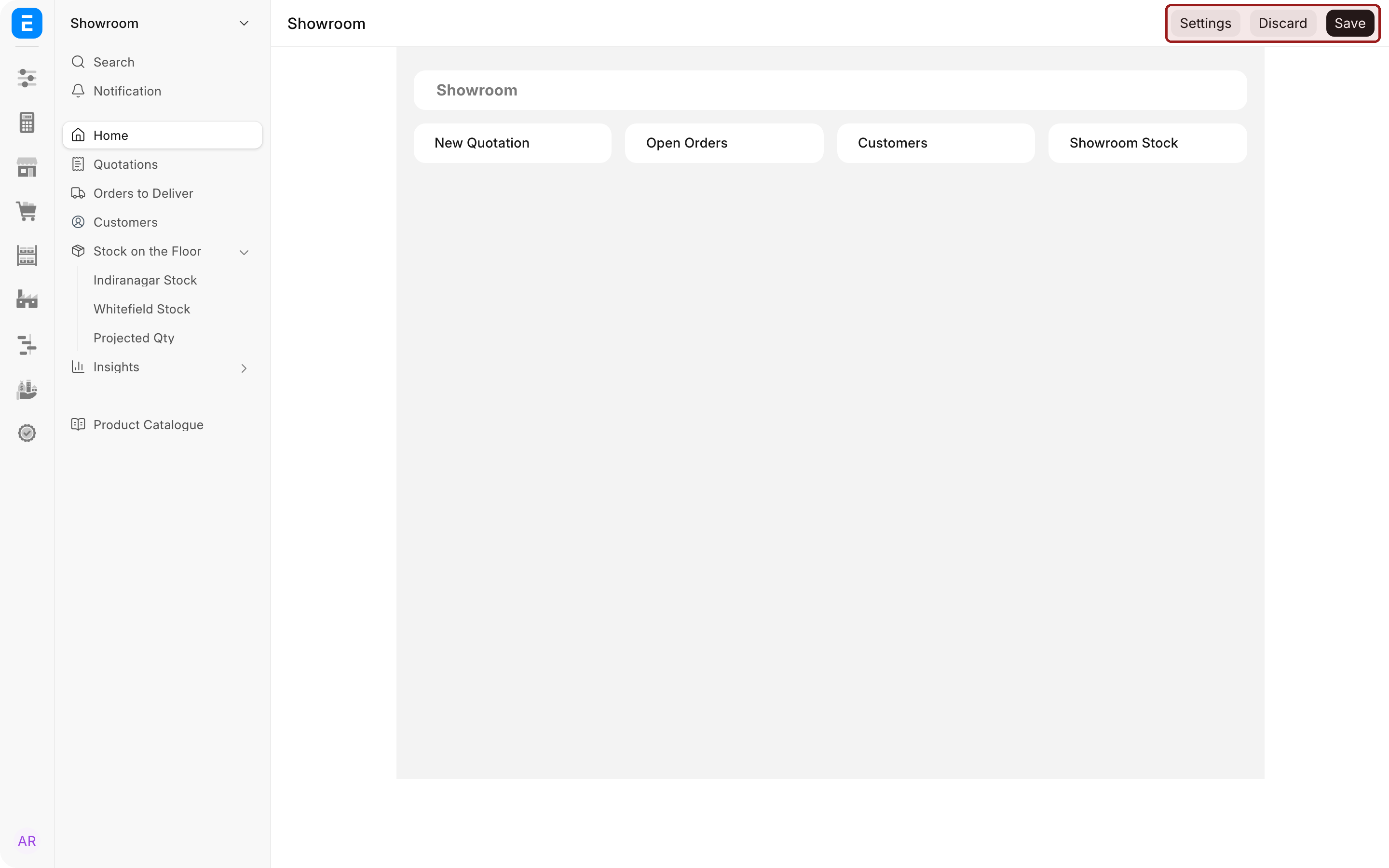
- Select ..., then Edit. The page switches to edit mode, with Settings, Discard and Save at the top.
- Add, change and arrange blocks as described below.
- Select Save to keep your changes, or Discard to throw them away.
Work with blocks
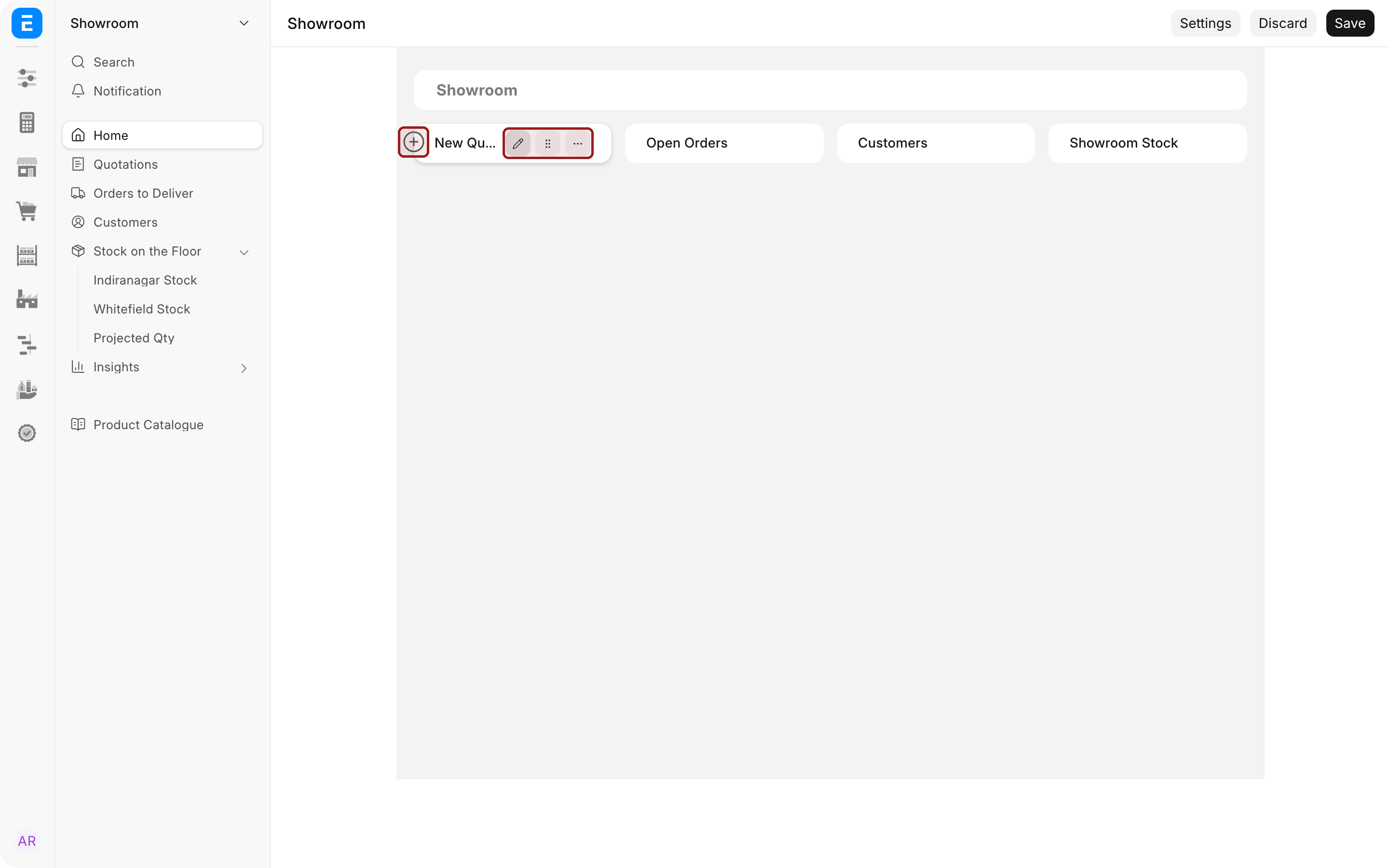
Point at a block to show its controls:
- + on its left adds a new block after it;
- the pencil changes the block's settings;
- the handle lets you drag the block to a new position;
- ... opens more actions.
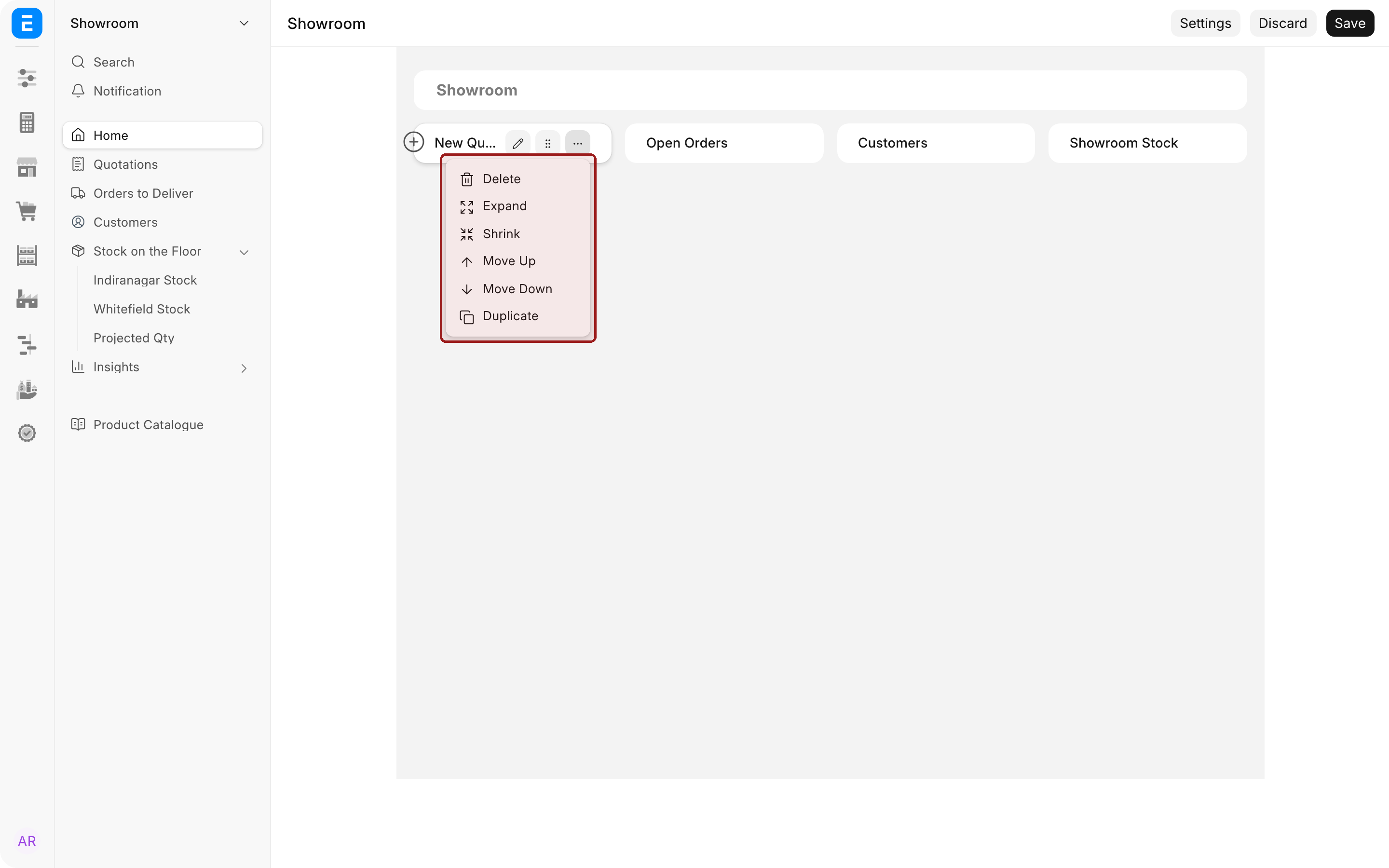
The ... menu offers Delete, Expand and Shrink (to make the block wider or narrower), Move Up, Move Down and Duplicate.
Add a block
Select + beside a block, then pick a block type from Templates. A block that needs settings, such as a shortcut or a chart, opens a dialog to fill them in.
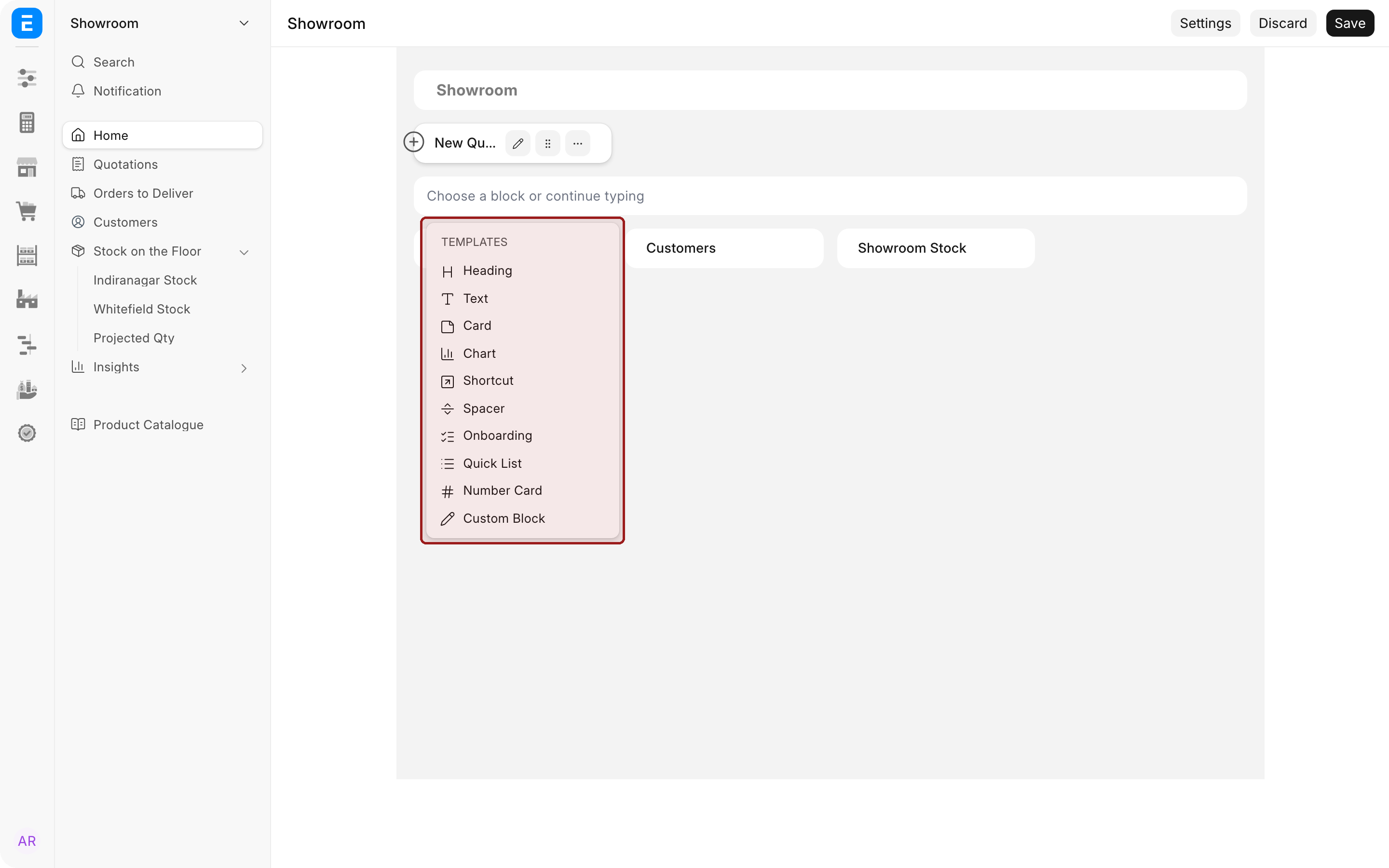
| Block | What it shows |
|---|---|
| Heading | A title for a section, in sizes from H1 to H6 |
| Text | A paragraph, with bold, italic and links |
| Card | A titled group of links to document types, reports or pages |
| Chart | A Dashboard Chart, picked from the charts on the site |
| Shortcut | A button that opens a document type, report, page, dashboard or URL, optionally with a live count |
| Spacer | Empty space, to separate blocks or push one along a row |
| Onboarding | A Module Onboarding checklist that walks new users through their first steps |
| Quick List | The most recently updated records of a document type, with optional filters. Users can refresh it, change its filters, create a record or open the full list from it |
| Number Card | A Number Card, picked from the cards on the site |
| Custom Block | A Custom HTML Block, for anything the other blocks do not cover |
Shortcut settings
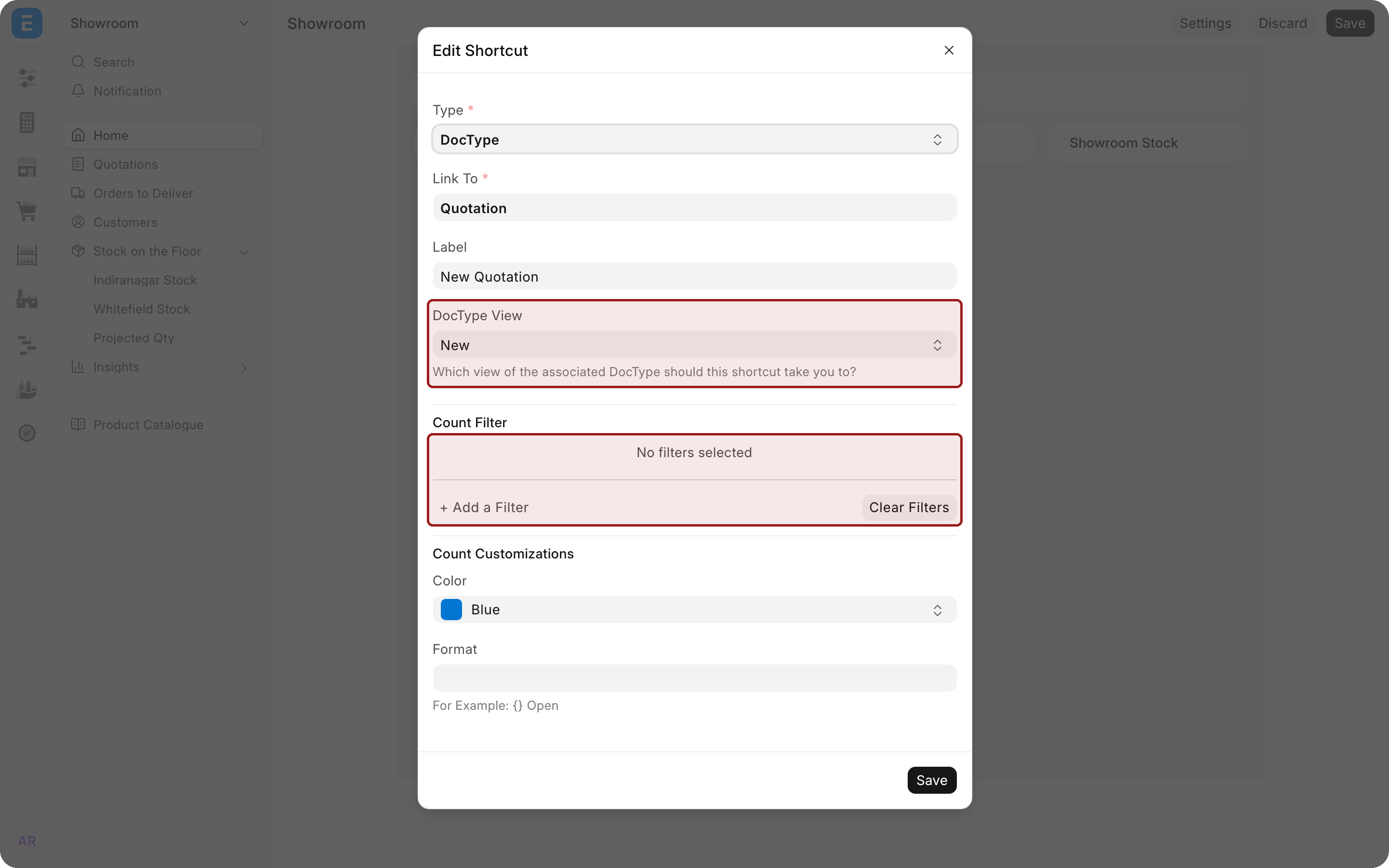
A shortcut can do more than open a list. Select its pencil to set:
- DocType View: whether it opens the List, Report Builder, Dashboard or a New record form;
- Count Filter: filters that both narrow the list it opens and drive a count shown on the shortcut;
- Color and Format for that count, for example
{} Open.
Workspace settings
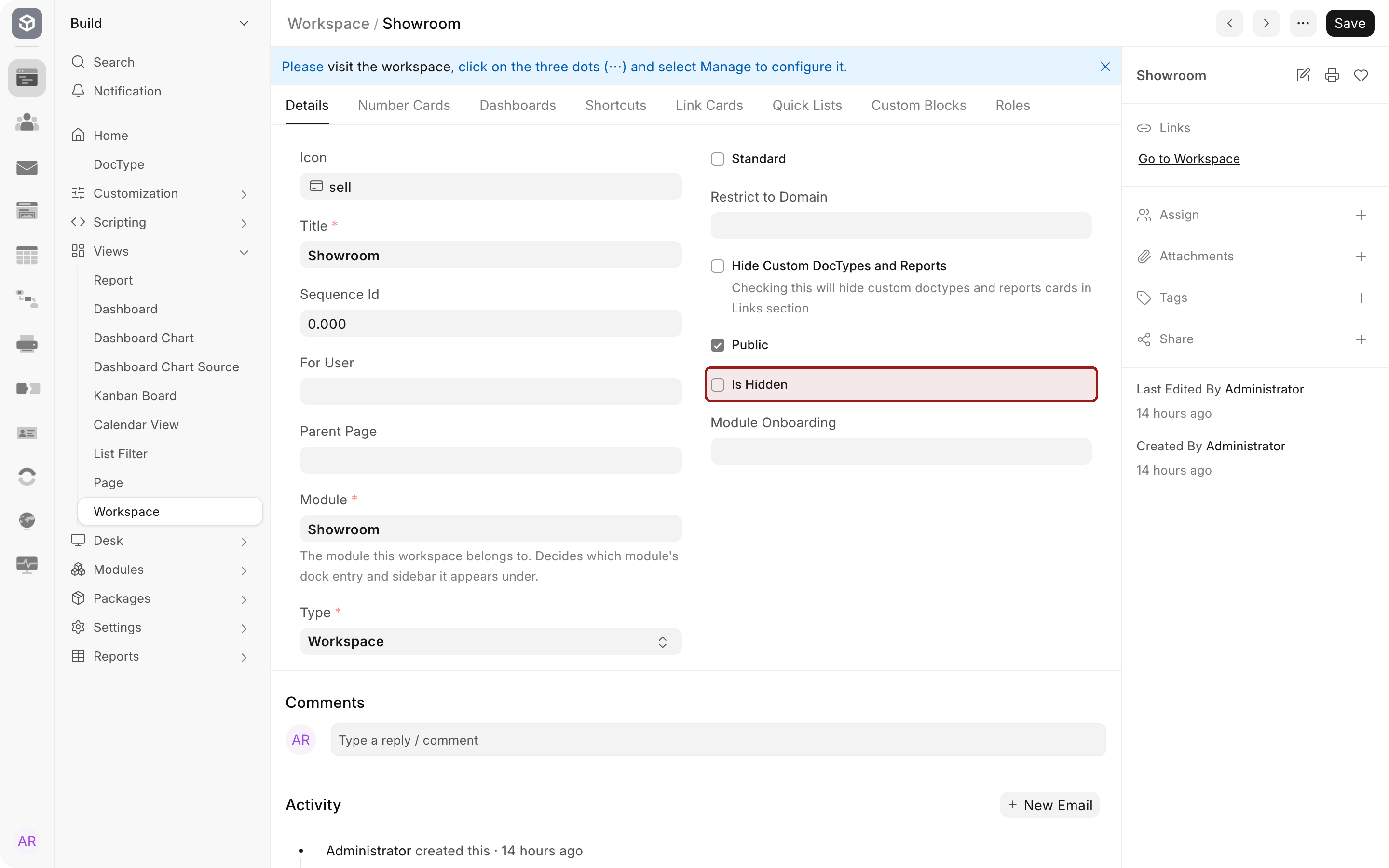
Settings in edit mode opens the workspace's own record. It lists every link card, shortcut, chart, number card, quick list and custom block on the page, and holds fields such as Is Hidden and Module Onboarding. Add and arrange blocks on the page itself, not from this record: the record does not know where on the page a new block should go.
Who can see a workspace
The desk checks these in order, and no arrangement can grant access they do not allow:
- Module. A user who cannot open anything in the workspace's module, or has the module under Block Modules on their user record, does not see the module's sidebar, so the workspace is not shown to them.
- Access. Only to you shows it to its owner alone. To a group of users shows it to anyone with one of its roles. To everyone shows it to everyone who reaches the module.
- Is Hidden. A Workspace Manager can tick Is Hidden on the workspace record to take it out of everyone else's sidebar. Workspace Managers still see it, with a note at the top explaining why.
Blocks follow the user's permissions too: a chart or number card a user cannot read is left out for them.
Move, share or delete a workspace
- Select ... on any workspace, then Manage.
- Select a module on the left. Its workspaces are listed on the right, with who can see each one.
- Select a workspace, then change its Title, Module, Icon, Access or Roles.
- Select Save. Delete removes the workspace after you confirm, and cannot be undone.
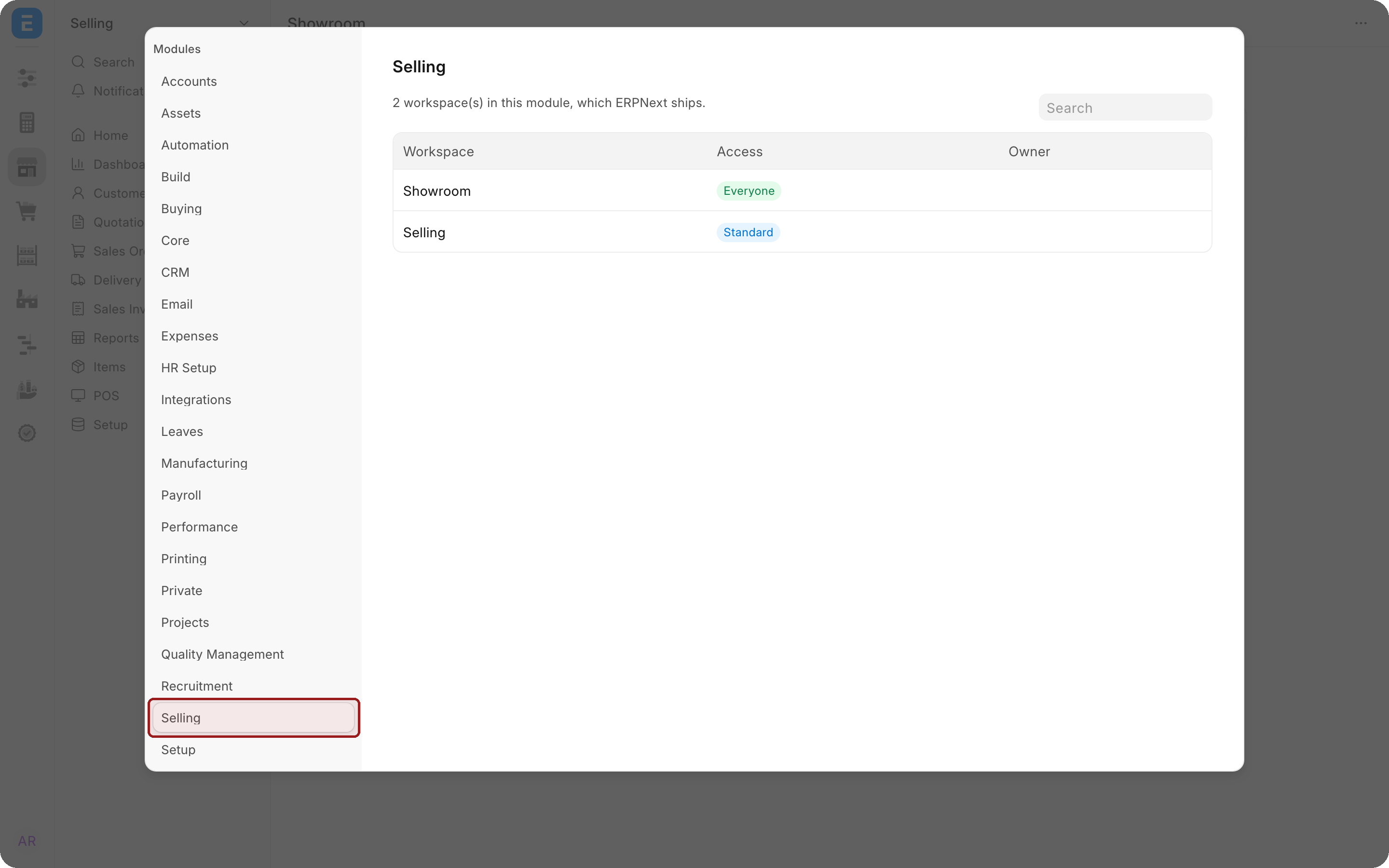
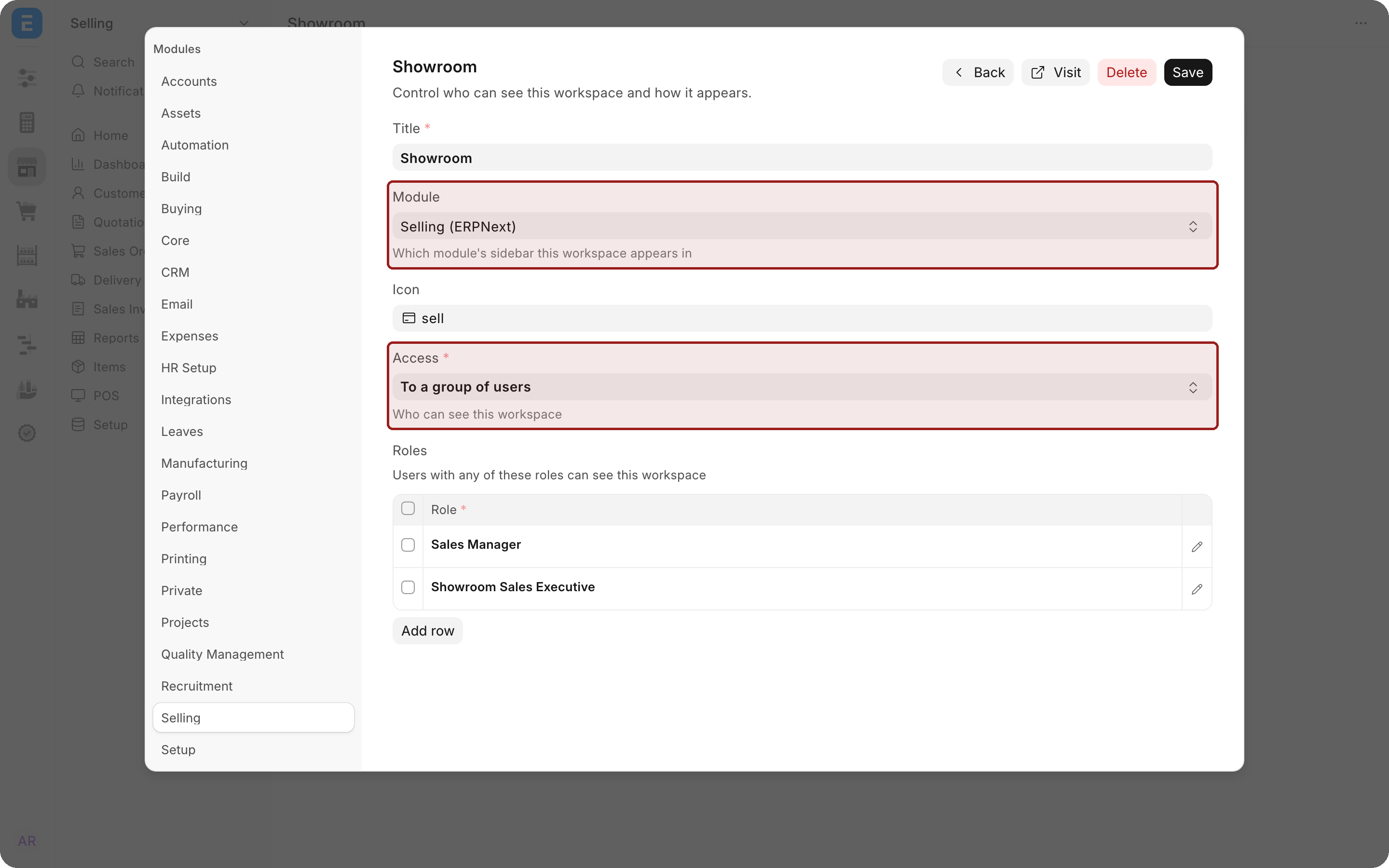
Workspace Managers see every workspace here, including other users' private ones, so they can tidy up a site. Everyone else sees only the workspaces they can manage. The Access column reads Standard, Everyone (including workspaces limited to roles), Private, or Shared for a workspace that is neither public nor owned by anyone.
Standard workspaces and Reset to Standard
A workspace an app ships is Standard. You can change its icon, who sees it, and its layout, but its title and module belong to the app.
Changes to a standard workspace are saved as a separate customization, not into the app's copy, so the app can keep updating it. Saving a new layout is the one change with a cost: the first time, the desk warns that the app's later layout changes will stop appearing on this site, and asks you to confirm with Save Layout. Its roles, icon and visibility keep following the app either way.
To undo every change and go back to what the app ships, select ... and then Reset to Standard. This needs the Workspace Manager role.
Private workspaces and My Space
A workspace with Only to you access is yours alone. It appears in the chosen module's sidebar, but only for you.
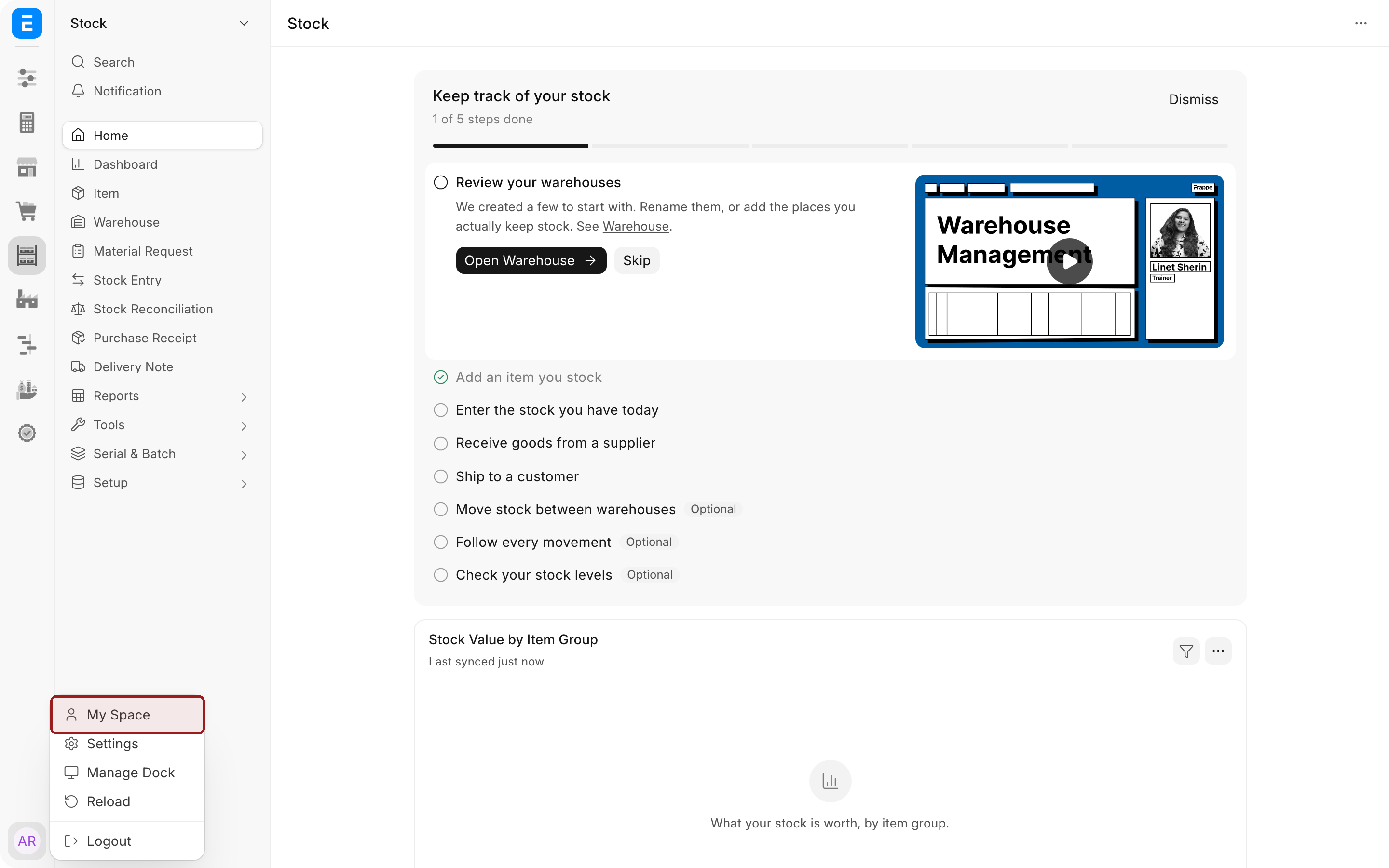
My Space gathers all your private workspaces into one sidebar, whatever module each is filed under:
-
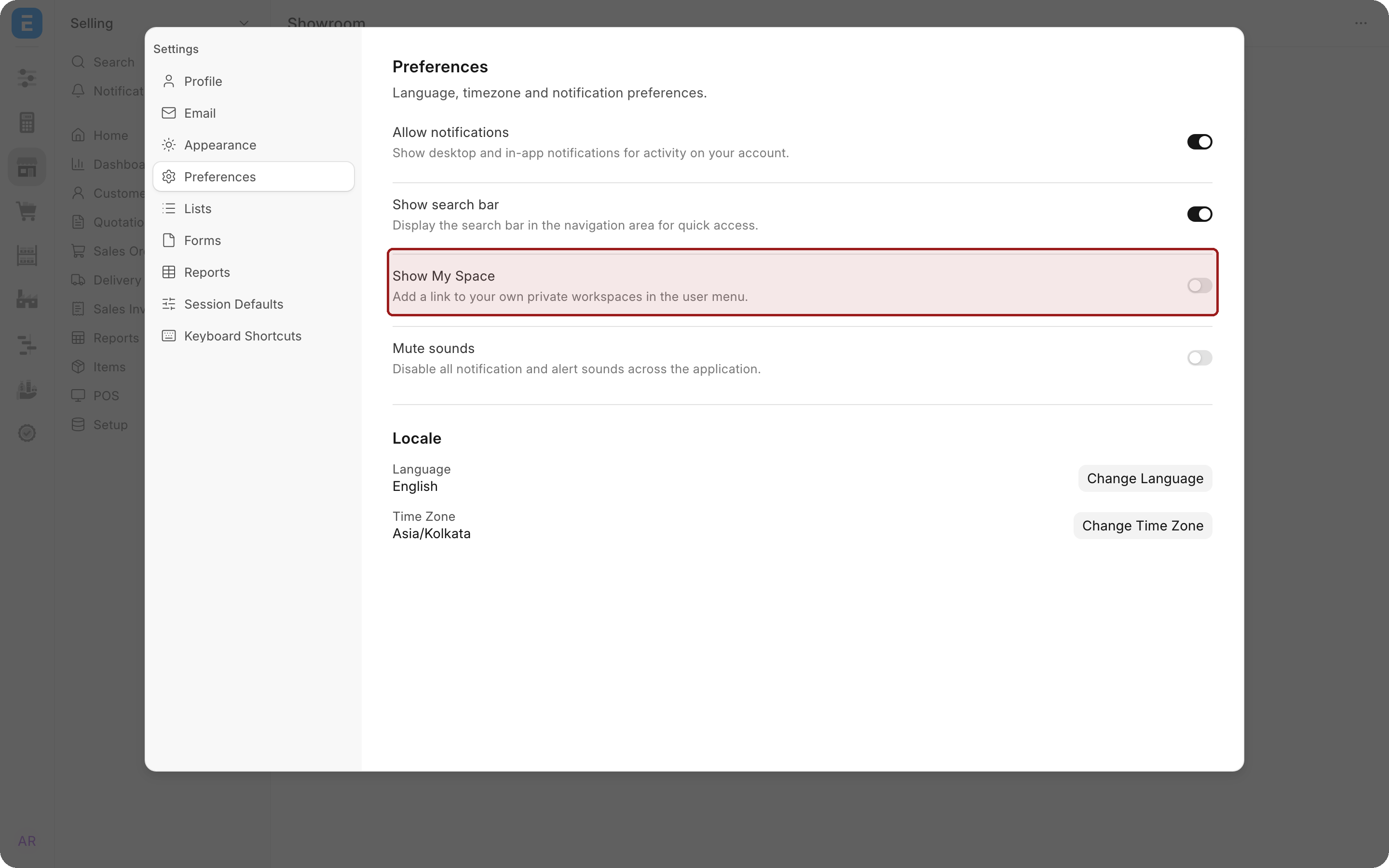
Select your profile picture, then Settings.
-
Under Preferences, turn on Show My Space.
-
Select My Space at the top of your user menu.
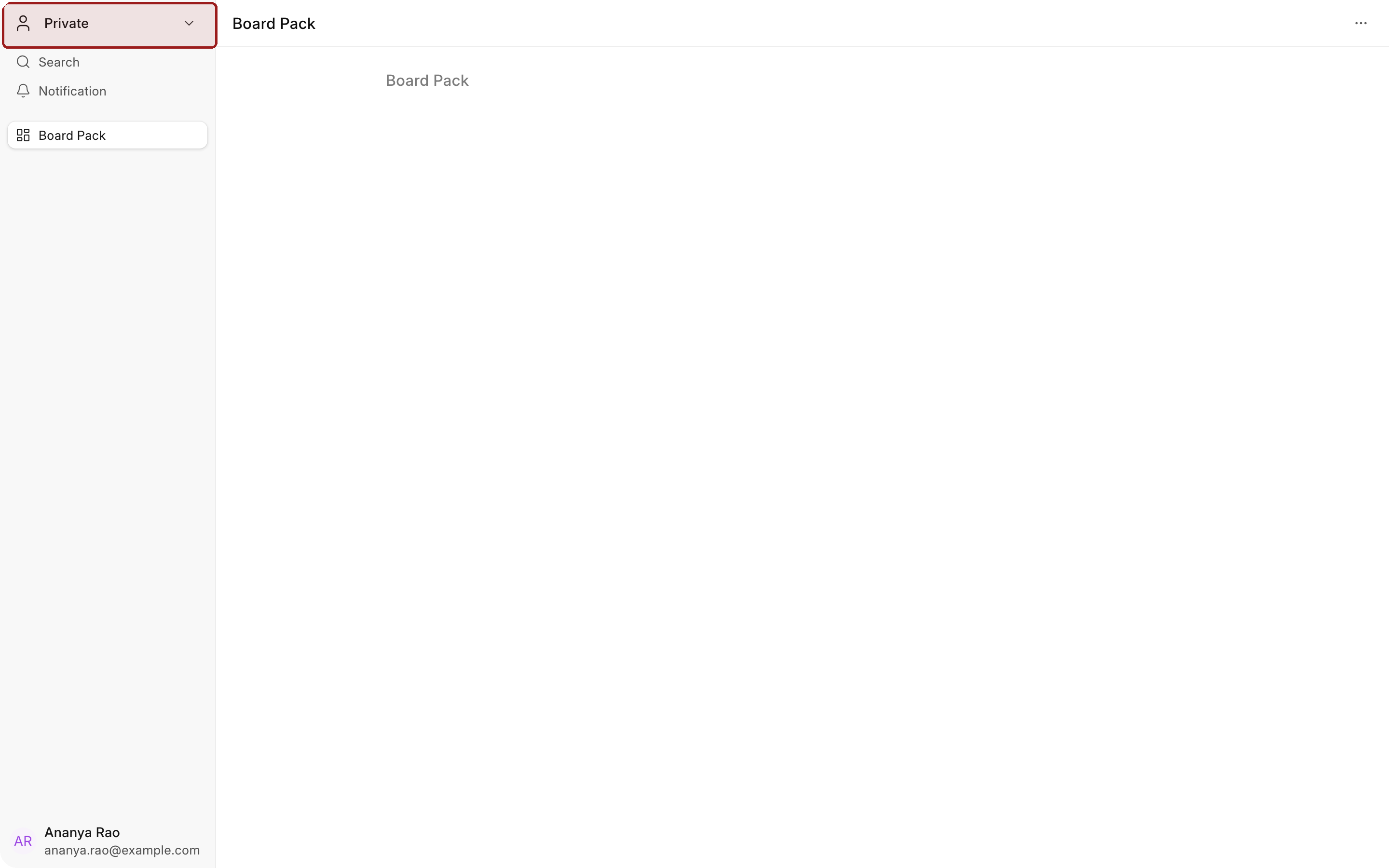
My Space has no dock, because your pages belong to no single app. Select All apps in its header menu to leave.
Default workspace
Default Workspace on a user's record decides which module's sidebar the desk falls back to when a link does not name one. Left empty, the desk picks the module holding most of what that user can open. It does not change what opens after login; that is Default App, on the Desktop page.
A workspace that belongs to no module
A workspace with no module has no sidebar to appear in, so it can only be found by search. This mostly happens to workspaces carried over from an older version. When someone opens one, the desk offers to Add it to a module if they can place it, and otherwise explains that it is not in any app. A Workspace Manager can also fix these in bulk from Manage Workspaces. See Migrating to the new navigation.
For developers: ship a workspace with your app
- Turn on developer mode on your development site (
developer_mode: 1in its site_config.json). - Create or open the workspace, set its Module to one of your app's modules, and tick Standard on its record.
- Build the page in edit mode and select Save.
In developer mode, saving a standard workspace edits the app's own copy and exports it as JSON into the module's folder in your app. Commit the file, and bench migrate installs or updates it on every site. To make the workspace an entry in your module's sidebar or a shortcut on your app's dock, see Ship your app's sidebars and Ship your app's dock.
What changed from earlier versions
If you used workspaces in Version 14 or 15:
- Workspaces no longer have their own PUBLIC and MY WORKSPACES sidebar sections. Each workspace is an entry in its module's sidebar, and your private ones are gathered in My Space.
- Child workspaces (a Parent page) are no longer offered. Use sections in Sidebar to group entries.
- Workspace details are changed in Manage Workspaces, not by dragging in Sidebar. Reorder workspaces with Edit Sidebar.
- There is a tenth block type, Custom Block, and blocks can be duplicated.
Troubleshooting
My new workspace is not in Sidebar I expected. Check its Module in Manage Workspaces.
Other people cannot see a workspace I shared. If its access is To a group of users, they need one of its roles. They also need to reach its module, and it must not be marked Is Hidden.
I cannot change a standard workspace's title or module. They belong to the app that ships it.
The app's new layout for a workspace does not appear on our site. Someone saved a layout for it here. Select ... and then Reset to Standard to follow the app again.
Only to you is the only option under Access. Sharing workspaces needs the Workspace Manager role.
A block I added from the workspace record does not show. Add blocks from edit mode on the page instead.
Frequently asked questions
Can a workspace appear in two sidebars?
A workspace belongs to one module. To reach it from another, add a link to it with Edit Sidebar, or pin it to Dock with Manage Dock.
Can Workspace Managers see my private workspaces?
They can see that they exist in Manage Workspaces. Nobody else sees them in their sidebar.
Do I need My Space to use private workspaces?
No. They always appear in their module's sidebar for you. My Space just collects them in one place.