


















Why can't I upload a file? File type, size limit and 413 errors
A file attachment can fail in a few different ways: the file is silently skipped, you see "File size exceeded…", or the browser shows a plain 413 or 502 page instead of the usual Frappe dialog. All four come from the same place — the file type and size limits Frappe enforces before it will store a file and each needs a different fix.
Allowed file types
You try to attach a file and either see a quick notice that it was skipped, or — from Data Import, an API call, or an integration — a dialog that names the file type directly.
The error
In most upload dialogs (File Manager, an Attach field):
File "statement.xlsx" was skipped because of invalid file type
From Data Import, a REST/API client, or anywhere else that reaches the server without the same check:
File type of XLSX is not allowed
Why this happens
System Settings has an Allowed File Extensions field (Files tab). Leave it blank and every file type is accepted. Add extensions to it — one per line, for example CSV, JPG, PNG — and only those are accepted, everywhere in the system, for every user.
Most upload dialogs read this list and skip a disallowed file immediately, before anything is sent to the server — that is the quick "was skipped" notice. But some upload paths carry their own, narrower file-type picker on top: Data Import's uploader accepts .csv, .xls and .xlsx by itself, regardless of what System Settings says. So a customer can pick an .xlsx file in Data Import, see no warning, and still have the upload rejected — because the file reaches the server, and the server checks the same System Settings list a second time. If XLSX is not on that list, the server rejects it with "File type of XLSX is not allowed", even though Data Import's own picker was happy to offer it.
How to fix it
- Open System Settings (Awesome Bar → System Settings) and go to the Files tab.
- Check Allowed File Extensions. If it lists file types and the one you need is missing, add it on its own line — for example add
XLSXto an existingCSV/JPG/PNGlist.
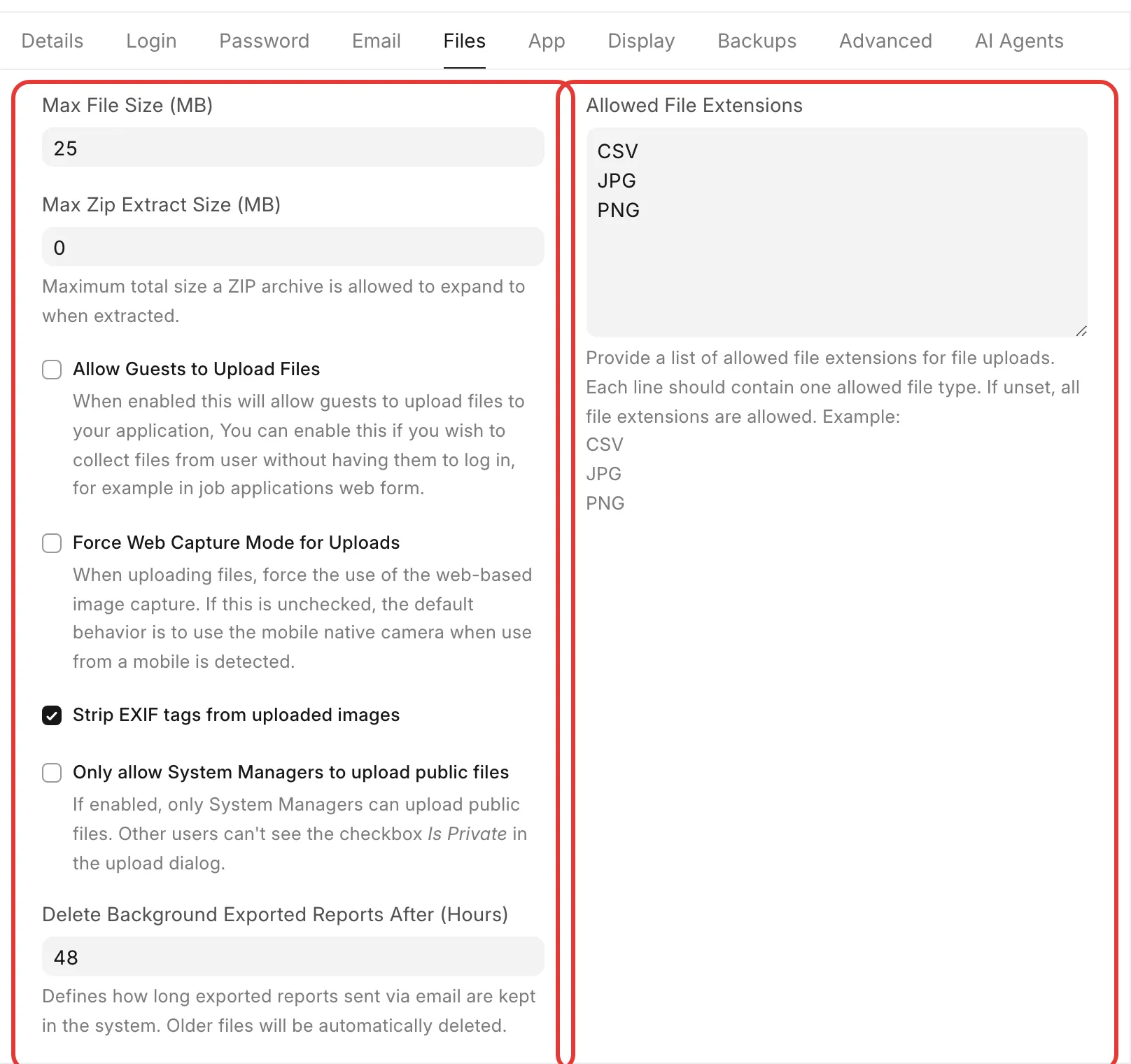
- To accept every file type again, clear the field completely and save. A blank field means "no restriction", not "block everything".
- Try the upload again.
Max file size
A file that is otherwise a type you are allowed to upload still gets rejected, naming a size limit you did not expect.
The error
File "stock-report-export.csv" was skipped because size exceeds 1 MB
or, from a path that reaches the server directly:
File size exceeded the maximum allowed size of 1 MB
Why this happens
The limit comes from System Settings → Files tab → Max File Size (MB). If that field is 0 (its default), Frappe falls back to max_file_size in the site's site_config.json, and if that is also unset, to a built-in default (25 MB on this version — check your own version if this matters, since it has changed between releases). 0 does not mean unlimited — it means "use whichever of these applies next" — so "System Settings says no limit" (as in one ticket) is a common misreading: the field was 0, and the real ceiling was still whatever site_config.json or the built-in default set.
How to fix it
- Open System Settings → Files tab.
- Set Max File Size (MB) to the size you need, in megabytes, and save.
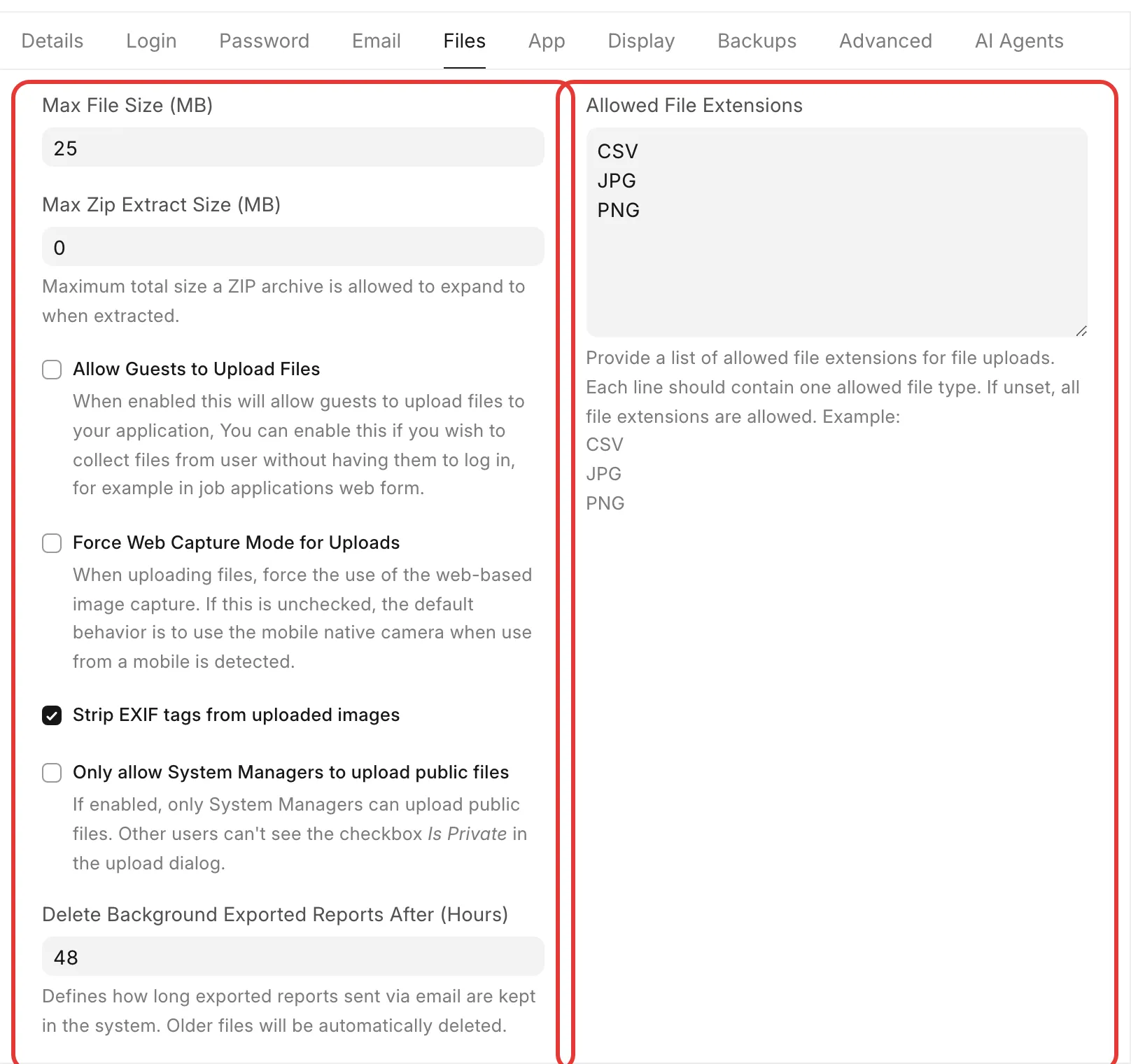
- On Frappe Cloud, you can also raise the equivalent Site Config value from the site's dashboard (default there is 10 MB) — but System Settings' own field takes priority whenever it is set to a non-zero value, so set it there first.
- Try the upload again.
If you manage the server yourself and raising this still gets rejected before Frappe's own message appears, your reverse proxy has its own, separate limit — see the next section.
413 Payload Too Large
The upload does not even reach Frappe's own "file too big" message. Instead the browser shows a plain, unstyled error page, or the Network tab shows a failed request with no response body.
The error
A bare page, with none of Frappe's own styling:
413 Request Entity Too Large
The data value transmitted exceeds the capacity limit.
Why this happens
This can come from either of two independent places, and you have to check both:
- Frappe itself. The same Max File Size value from the previous section is also set as the hard request-size limit for the upload endpoint. If the file is bigger than that limit, the request is rejected at this level — before Frappe's own code, or its usual dialog, ever runs. This is why you can get a bare
413instead of the friendlier "File size exceeded…" message: the friendlier message only appears once your code gets far enough to raise it, and this check happens earlier. - A reverse proxy in front of Frappe, if you have one. A self-hosted bench's own
nginx.conf(as generated bybench setup nginx) caps request size at 50 MB by default, independent of anything in System Settings orsite_config.json. On Frappe Cloud, a custom domain routed through Cloudflare with the orange-cloud proxy on is also capped by Cloudflare's own upload limit for your plan.
Raising only one of these does not help if the other is still the smaller limit — both have to allow the size you need.
How to fix it
- Raise Max File Size in System Settings (or
site_config.json'smax_file_size, in MB) to cover the file size you need — see the previous section. - If you run your own server and still get a
413, raise the proxy's own limit too:
- nginx: edit the generated config (
client_max_body_size 50m;) to the size you need, thensudo nginx -tto check it andsudo systemctl reload nginx(orsudo service nginx reload) to apply it. Re-runbench setup nginxfirst if you want the change to survive the next regeneration.
- On Frappe Cloud: raise Site Config's upload size limit from the site dashboard. If the site uses a custom domain through Cloudflare, open that domain's Domain Records and turn the orange-cloud proxy off, or raise your Cloudflare plan if you need the proxy on.
- Try the upload again, ideally with a file just over your old limit first, to confirm the new limit took effect before testing with the full-size file.
502 Bad Gateway on upload
Unlike a 413, the request is accepted and appears to be uploading, then fails with a 502 — or the upload bar finishes and the page never responds.
The error
502 Bad Gateway
Sometimes with no error text at all — the page just stops responding, or the browser reports a failed request with no server response.
Why this happens
A 413 is Frappe (or the proxy in front of it) actively refusing the request. A 502 is different: it means whatever is in front of Frappe (nginx, or Frappe Cloud's own gateway) got no valid response at all from the worker handling your request, because that worker crashed or was killed partway through. Two things usually cause this during a file upload:
- The file itself. A corrupted file, or one your Frappe install's content-type/metadata handling does not expect, can crash the worker while it is being processed (hashing, virus/image handling, writing to disk) — the request dies with the connection, and the proxy reports it as a 502. Re-exporting or re-saving the same file from its original application (not just renaming it) often produces a file that does not trigger this.
- A slow upload that runs past the worker's timeout. Each web worker has a timeout (
http_timeoutincommon_site_config.json, 120 seconds by default on a self-hosted bench) for the whole request. A very large file, or a slow connection, can take longer than that to finish uploading and processing, and the worker is stopped mid-request.
How to fix it
- Try the same upload again. If it fails the same way every time with the same file, suspect the file itself; if it is inconsistent, suspect size or your connection.
- Re-export or re-save the file from the application that created it (not just a rename), and try again.
- Try a smaller file of the same type. If a small file of that type works but a large one does not, the cause is the timeout, not the file.
- If you manage the server yourself, check the worker log (logs/worker.error.log in the bench directory) for a traceback around the time of the failed upload, and raise
http_timeoutincommon_site_config.jsonif large, legitimate uploads need more time — thenbench restart. - On Frappe Cloud, raise a support ticket with the exact file (or a copy that reproduces it) if step 2 does not resolve it — the team can check the worker logs you cannot see yourself.
Alternatives
- For a file that is only large because of its format (an uncompressed image, an unedited video), compress it before attaching it — a smaller file avoids every limit in this article at once.
- For a file already stored elsewhere (Google Drive, Dropbox, a shared drive), use the upload dialog's Link option instead of uploading the binary — it stores the URL, not the file.
- For bulk data (many rows of records) rather than a document to keep as an attachment, use Data Import instead of attaching a spreadsheet to a single record — it is built for exactly that, and its own size handling is more forgiving of large row counts than a single-file attachment.
If this does not fix it
Raise a support ticket with: the exact error text, the file's type and size, and whether it fails on every file of that size or only one specific file. If you can reproduce it, also note whether the same upload works from a different network (a mobile hotspot instead of office Wi-Fi) — a slow or restrictive office network can produce the same symptoms as a server-side limit.