


















Page settings and PDF renderer
Page settings apply to the whole print format: the font, colours, margins, letter head, page numbers and the engine that turns the format into a PDF. To see them, click an empty part of the canvas or press Esc until nothing is selected.
Applies to Frappe v16 and later.
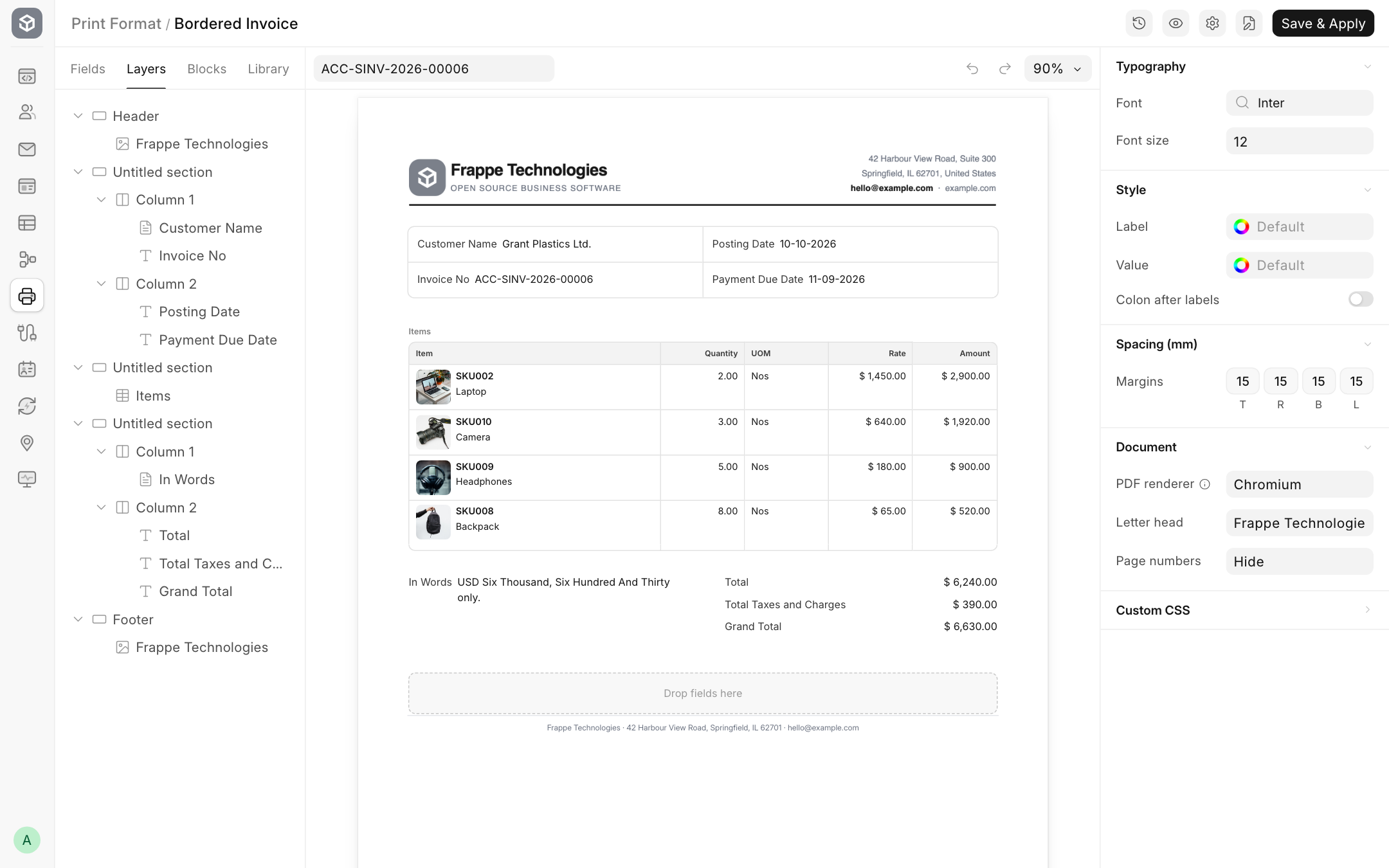
Typography
| Setting | What it does |
|---|---|
| Font | Any font from Google Fonts, for example Inter, Roboto or Lora. Start typing to search. Default uses the system font. |
| Font size | The base text size in pixels. Default 14. Fields and blocks can set their own size. |
Style
| Setting | What it does |
|---|---|
| Label | Colour of all field labels. |
| Value | Colour of all field values. |
| Colon after labels | Adds a colon after every label, as in Invoice No: ACC-SINV-0001. To remove it from one field, turn on that field's Hide colon. |
Colours must be hex codes such as #1f2937.
Spacing (mm)
Margins sets the space around the page, top, right, bottom and left, in millimetres. The default is 15 on every side. Make the top margin larger if a pre-printed letter head is on your paper.
Document
| Setting | What it does |
|---|---|
| PDF renderer | The engine that makes the PDF: Chromium or Typst (fast). See below. |
| Letter head | The letter head saved with this format. Leave it as No letter head to print without one. See Letter Head. |
| Page numbers | Where to print "1 of 3": Hide, Top Left, Top Center, Top Right, Bottom Left, Bottom Center or Bottom Right. |
Custom CSS
CSS for the whole format. Use it for rules that apply to many parts at once:
.print-format-doc .section-label {
	color: #1f4e79;
	text-transform: uppercase;
	letter-spacing: 0.05em;
}
Useful classes:
| Class | Element |
|---|---|
.print-format-doc |
The whole document |
.section |
A section |
.section-label |
A section title |
.field .label |
A field's label |
.field .value |
A field's value |
.child-table .table th |
Table header cells |
.child-table .table td |
Table cells |
Note: a format with Custom CSS here cannot use the Typst renderer.
Choosing a PDF renderer
Both renderers produce the same layout from the same design. The difference is speed and what they can handle.
| Chromium | Typst (fast) | |
|---|---|---|
| Speed | Normal | Much faster, useful for bulk printing |
| Custom HTML blocks | Yes | No, use a Typst block |
| Custom CSS | Yes | Only simple field styles |
| Barcodes | All formats | QR codes only |
| Images from a web address | Yes | No, upload them |
| Status | Default | Experimental |
Chromium is the default and handles everything the editor can do. Choose it unless you need the speed.
Typst (fast) is experimental. It is greyed out when the format uses something Typst cannot render. Hover over the info icon next to PDF renderer to see the list. You may see:
| Reason | What to do |
|---|---|
| Custom CSS in the Style box | Remove the page's Custom CSS. |
| HTML block | Remove Custom HTML blocks, or rewrite them as a Typst block. |
| Barcode that is not a QR code | Change the barcode's Format to QR, or remove it. |
| Image loaded from a web address | Upload the image instead of using a URL. |
| Letterhead with HTML content | Use an image letter head. |
| Letterhead footer with HTML content | Use an image footer, or none. |
| Letterhead with custom CSS | Remove the CSS from the letter head. |
| Colours that are not hex codes | Change the listed colours to codes such as #1f2937. |
| Custom CSS on fields | Remove the Custom CSS from the listed fields. Typst supports only a few simple styles there, such as bold and top or bottom borders. |
| Field Template block | Remove the block. |
If you add something Typst cannot render while Typst is selected, the editor switches back to Chromium and tells you why.
With Typst, also check your page breaks and empty fields in the PDF preview, since Typst does not yet handle every layout setting the same way.