


















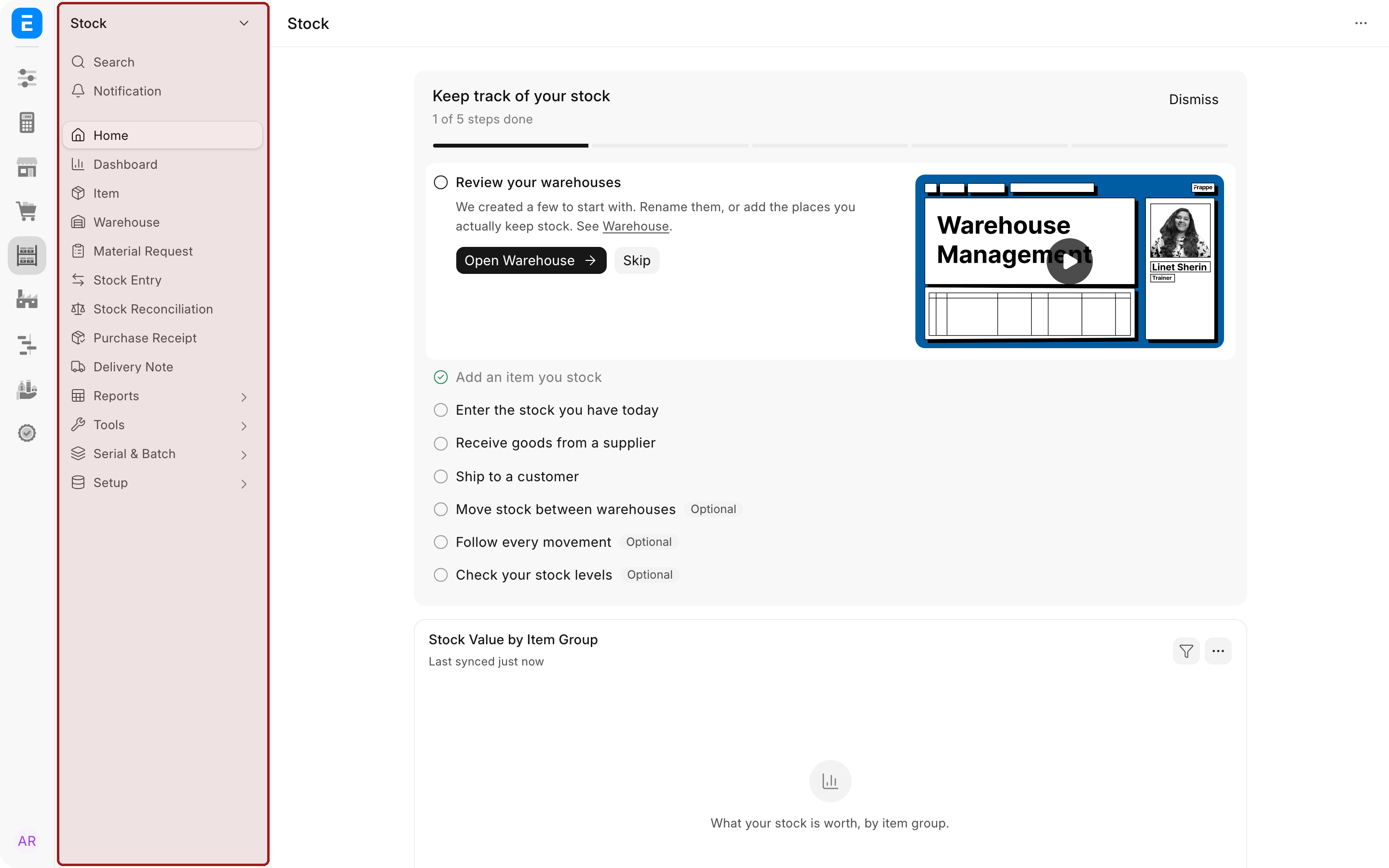
Sidebar is the wider column next to the dock. It lists everything in the module you are in: its workspaces, the document lists you use there, its reports and dashboards. Every module has one, and Sidebar changes whenever you move to another module.
This page covers using Sidebar, customizing it for yourself or your whole site, how workspaces appear in it, and how an app ships its sidebars. For how Sidebar fits with the rest of the desk, see Desk navigation.
Before you begin
- Anyone can customize their own sidebar. Nobody else sees those changes.
- Changing it for everyone needs the Workspace Manager role. A System Manager does not get this role automatically. See users and permissions.
- Sidebar never grants access. Entries you have no permission to open are left out, and hiding an entry does not take anyone's permission away.
Use Sidebar
Select an entry to open it in the main part of the screen.
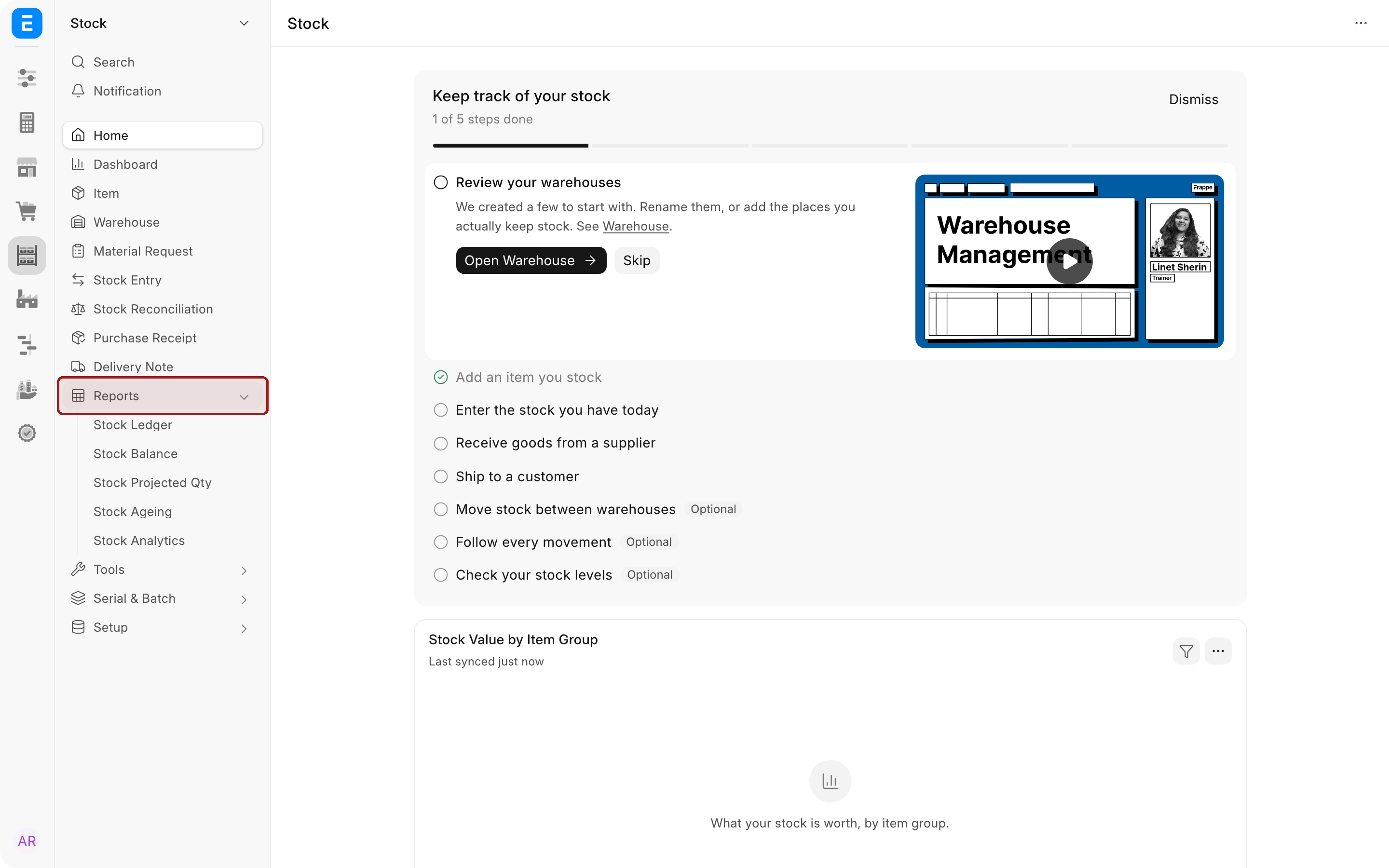
- Sections. An entry with an arrow, such as Reports, is a section. Select it to show or hide the entries inside it.
- Search and Notification. These entries at the top open the search bar and your notifications. To hide Search, turn off Show search bar under Settings > Preferences.
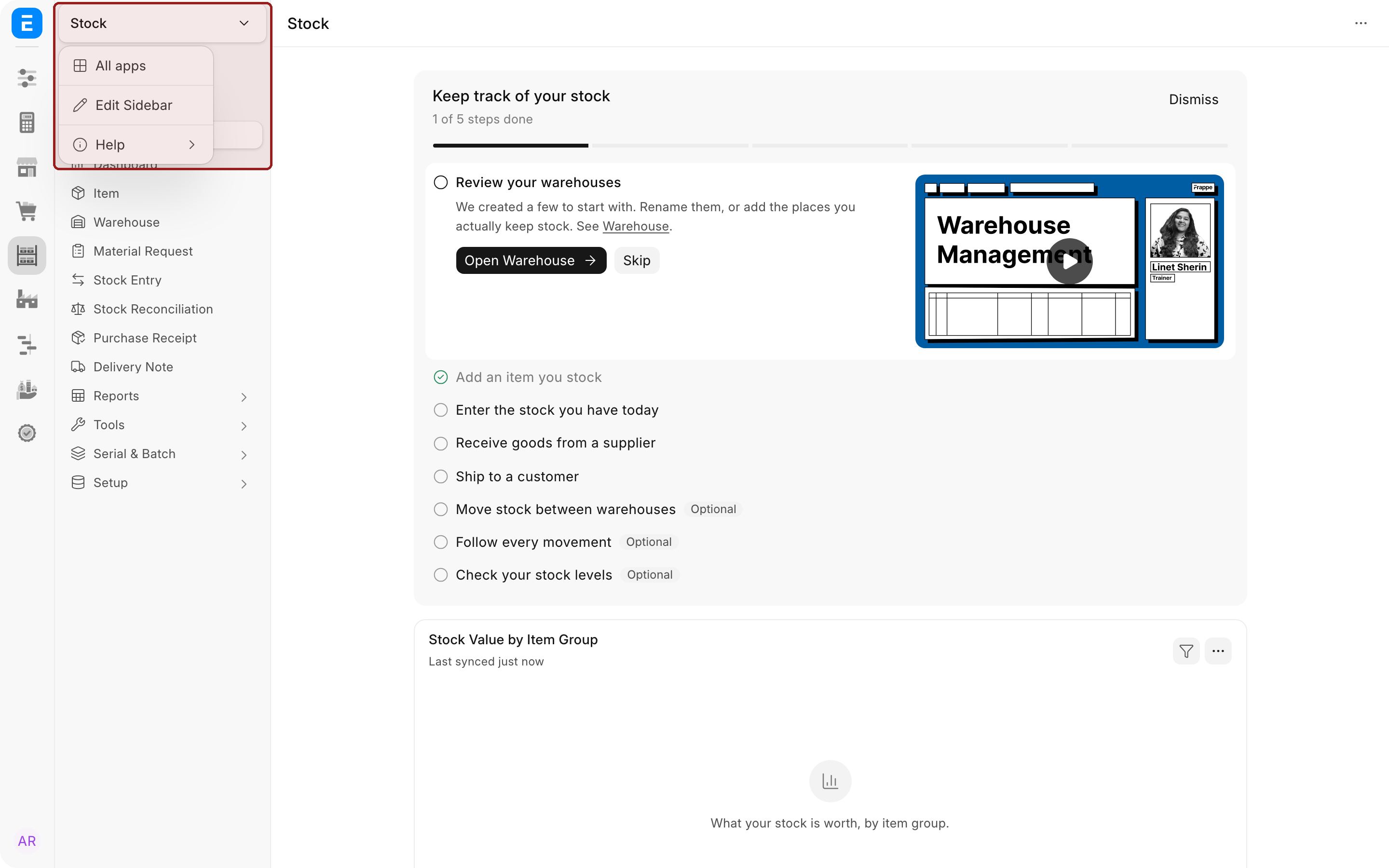
- The header menu. Select the module name at the top of Sidebar to open a menu with All apps (back to the desktop), Edit Sidebar and Help.
A module always opens on the first entry in its sidebar. There is no separate "home page" setting: if you want Selling to open on Sales Order instead of its workspace, move Sales Order to the top.
Customize Sidebar
How your changes combine with everyone else's
A sidebar is built in three layers, each laid over the one before:
- What the app ships. ERPNext, Frappe HR and other apps come with a sidebar for each of their modules. A module no app ships one for gets a sidebar worked out from what it contains.
- For everyone. A Workspace Manager's changes, seen by every user on the site.
- Just for me. Your own changes, seen only by you.
Each layer only changes what it mentions. If your Workspace Manager hides POS for everyone and you move Sales Invoice to the top for yourself, you see both changes. When an app update adds a new entry, it still appears on your sidebar, even if you rearranged it earlier.
Open the sidebar editor
- Go to the module you want to change, for example Stock.
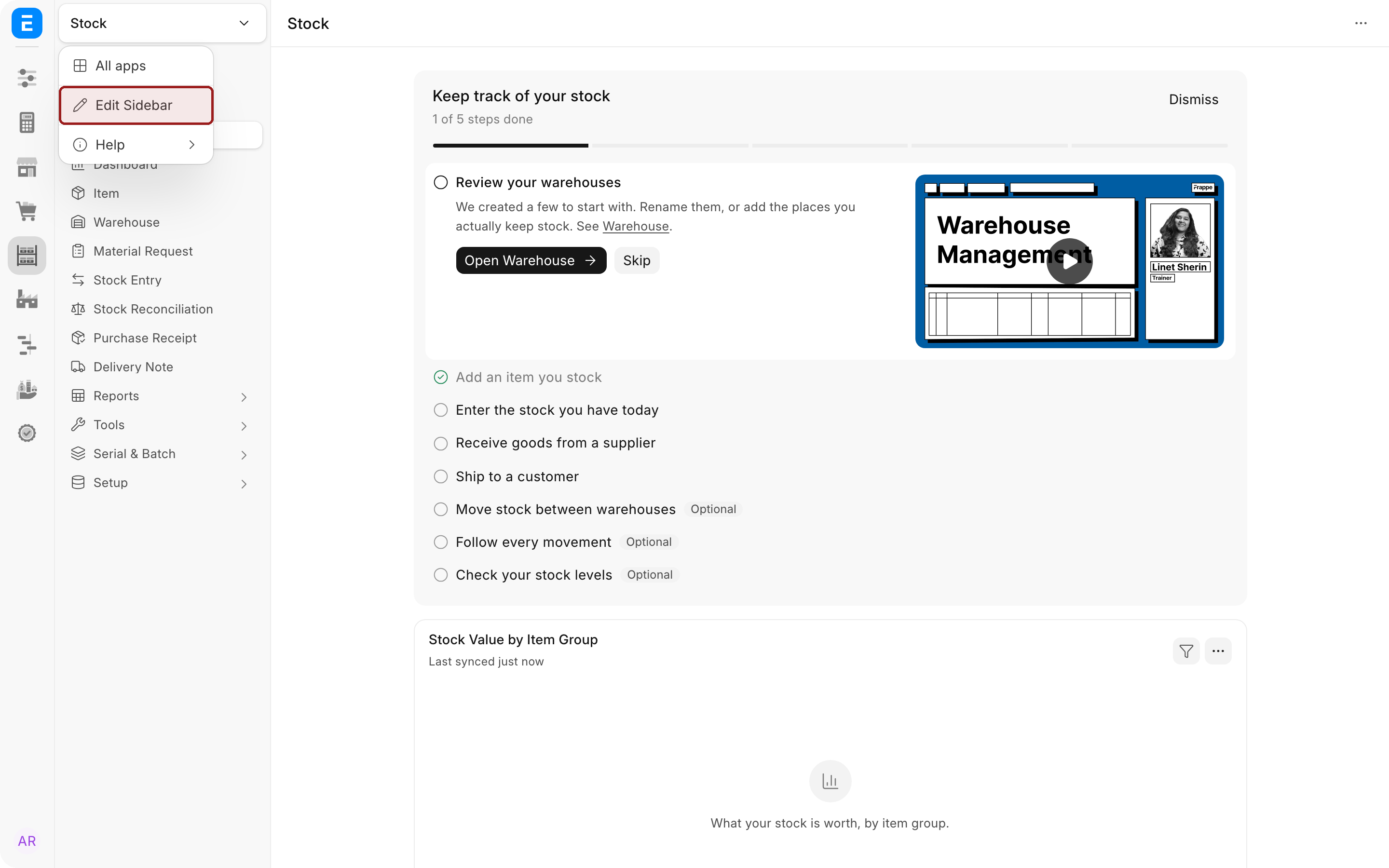
- Select the module name at the top of Sidebar, then Edit Sidebar.
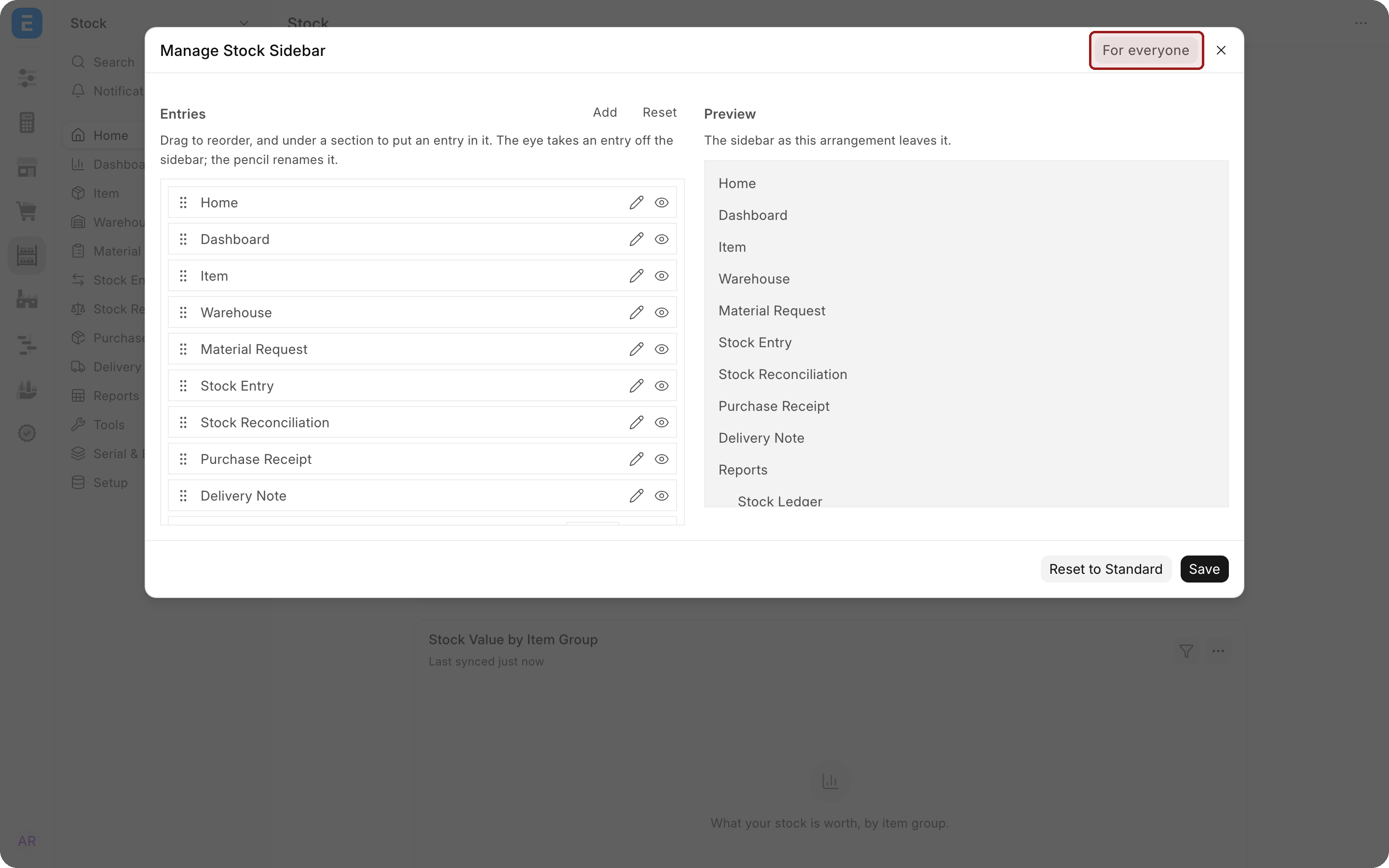
The Manage Stock Sidebar window opens. Your entries are on the left, under Entries. Preview on the right shows how Sidebar will look. Nothing changes until you select Save.
If you are a Workspace Manager, a switch in the top right corner says who you are arranging it for: For everyone (the default for Workspace Managers) or Just for me. Without the role there is no switch, and every change is just for you.
Rearrange and hide entries
Each row has a handle on the left, and a pencil and an eye on the right.
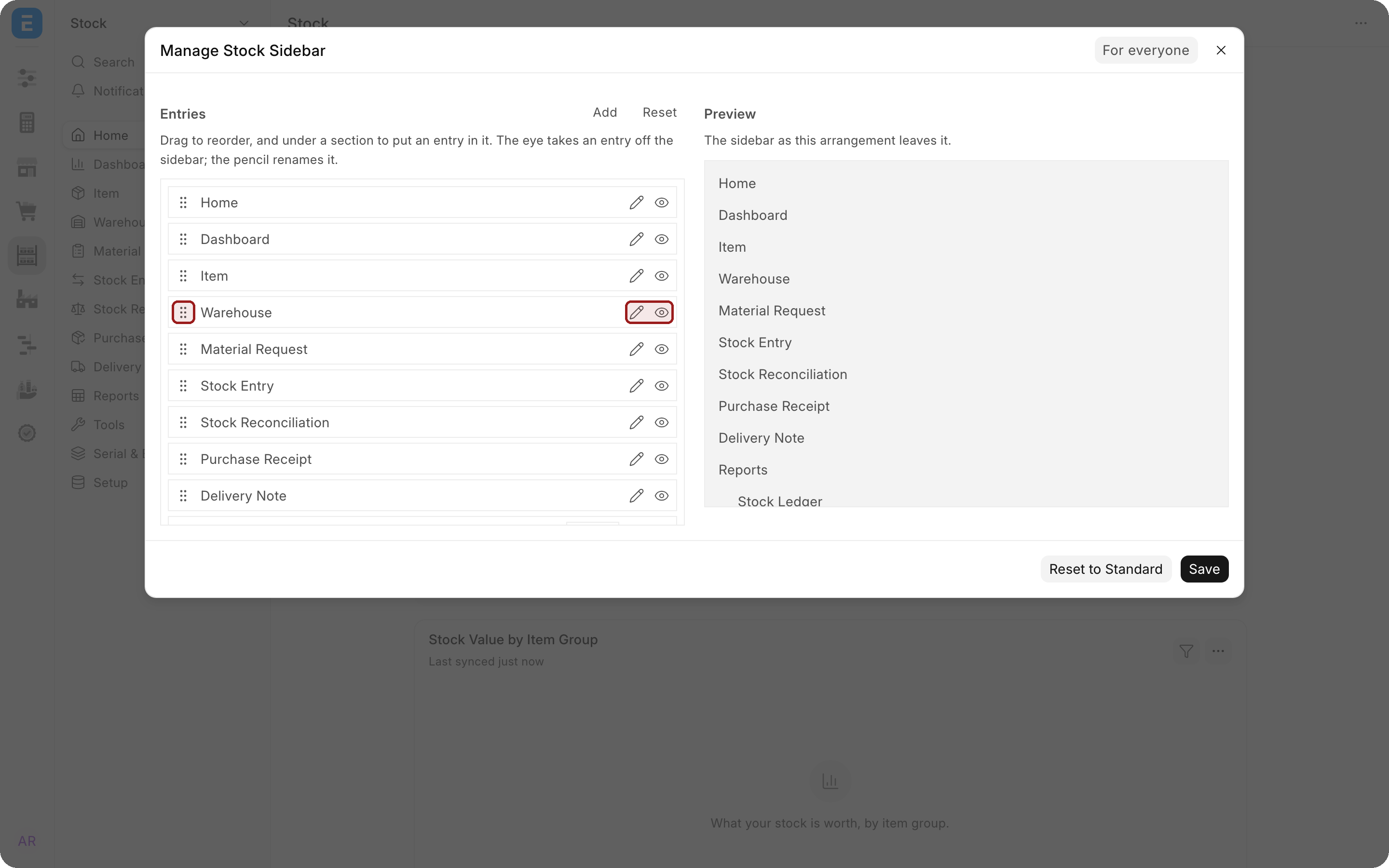
- Reorder. Drag a row by its handle. Whatever you drag to the top becomes the module's landing page.
- Move into a section. Drag a row under a section heading such as Reports. It is indented to show it belongs there. Drag it back out to the left to take it out.
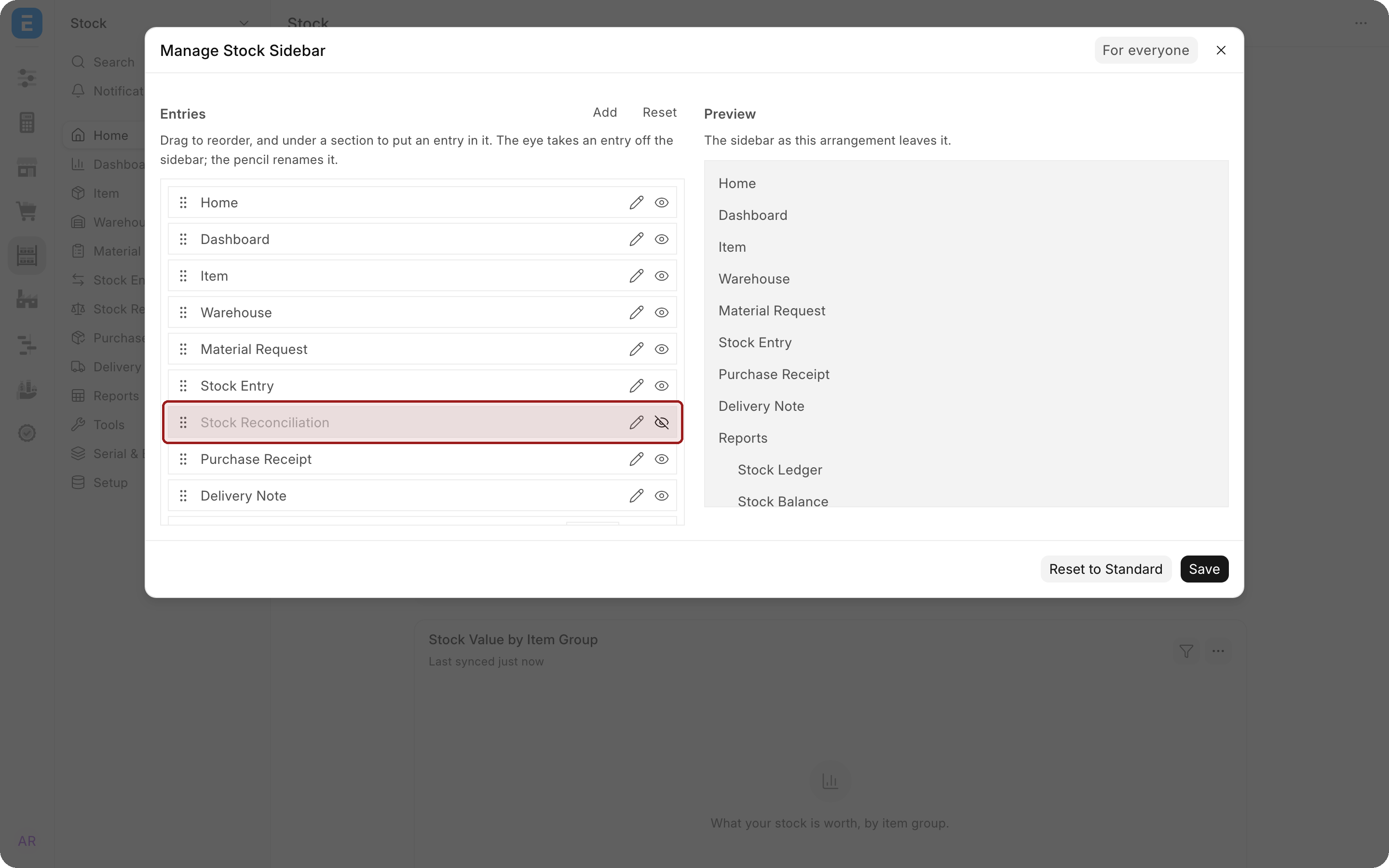
- Hide. Select the eye. The row is grayed out and leaves the preview, but keeps its place in the list so you can bring it back with the eye.
Rename an entry or change its icon
- Select the pencil on the row.
- In Rename Entry, type a new Label, and optionally choose an Icon. Leave Icon empty to keep the current one.
- Select Done.
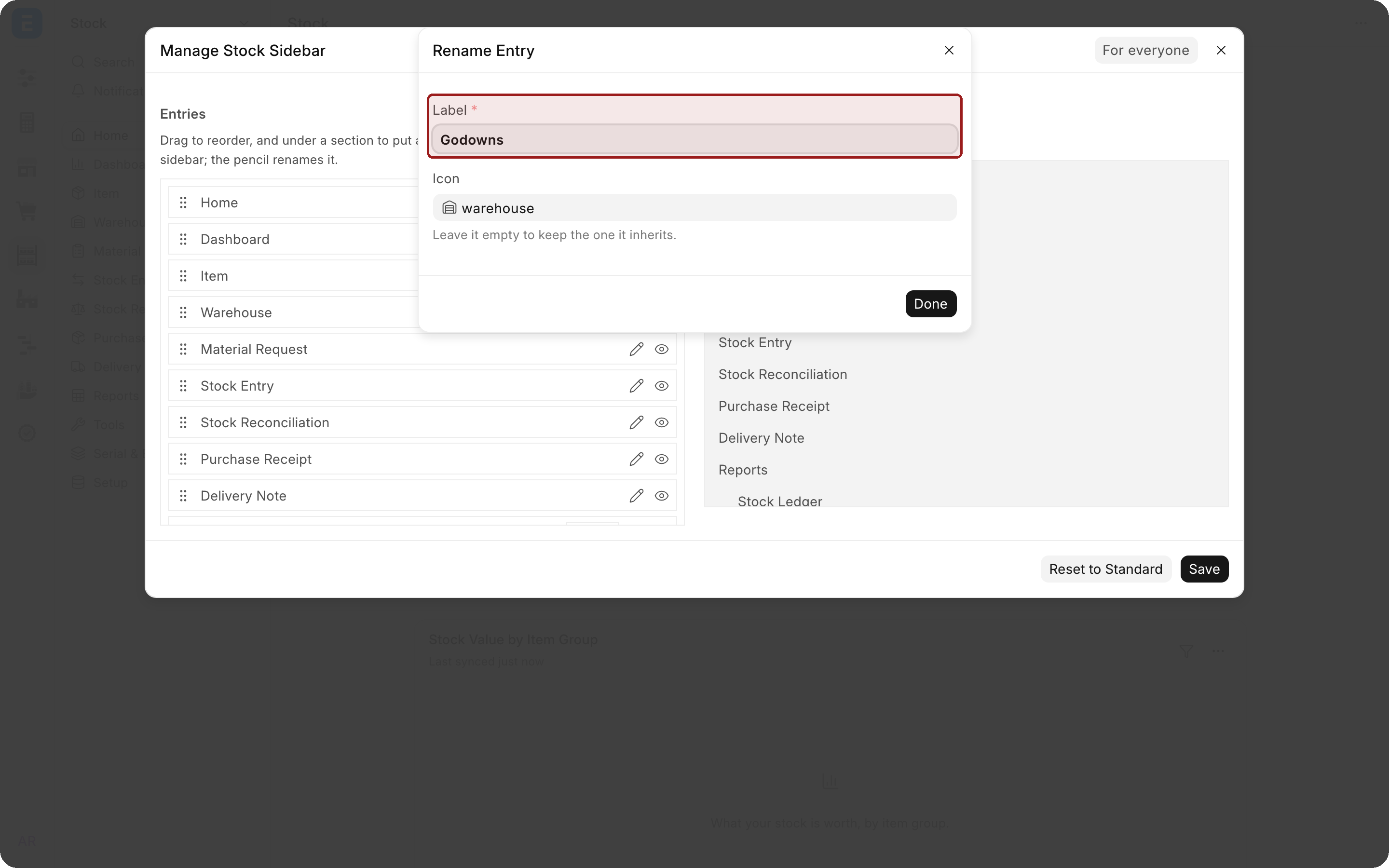
Renaming only changes how the entry reads. It still opens the same list, report or page, and if the app later changes where that link goes, your renamed entry follows.
Add an entry or a section
- Select Add above the list.
- Under Kind, choose Link to add something to open, or Section to add a heading.
- For a link, choose what it opens under Links To: DocType (a document list), Page, Report, Workspace, Dashboard or URL.
- Choose the item. The Label fills in for you; change it if you like.
- Optionally choose an Icon, then select Add.
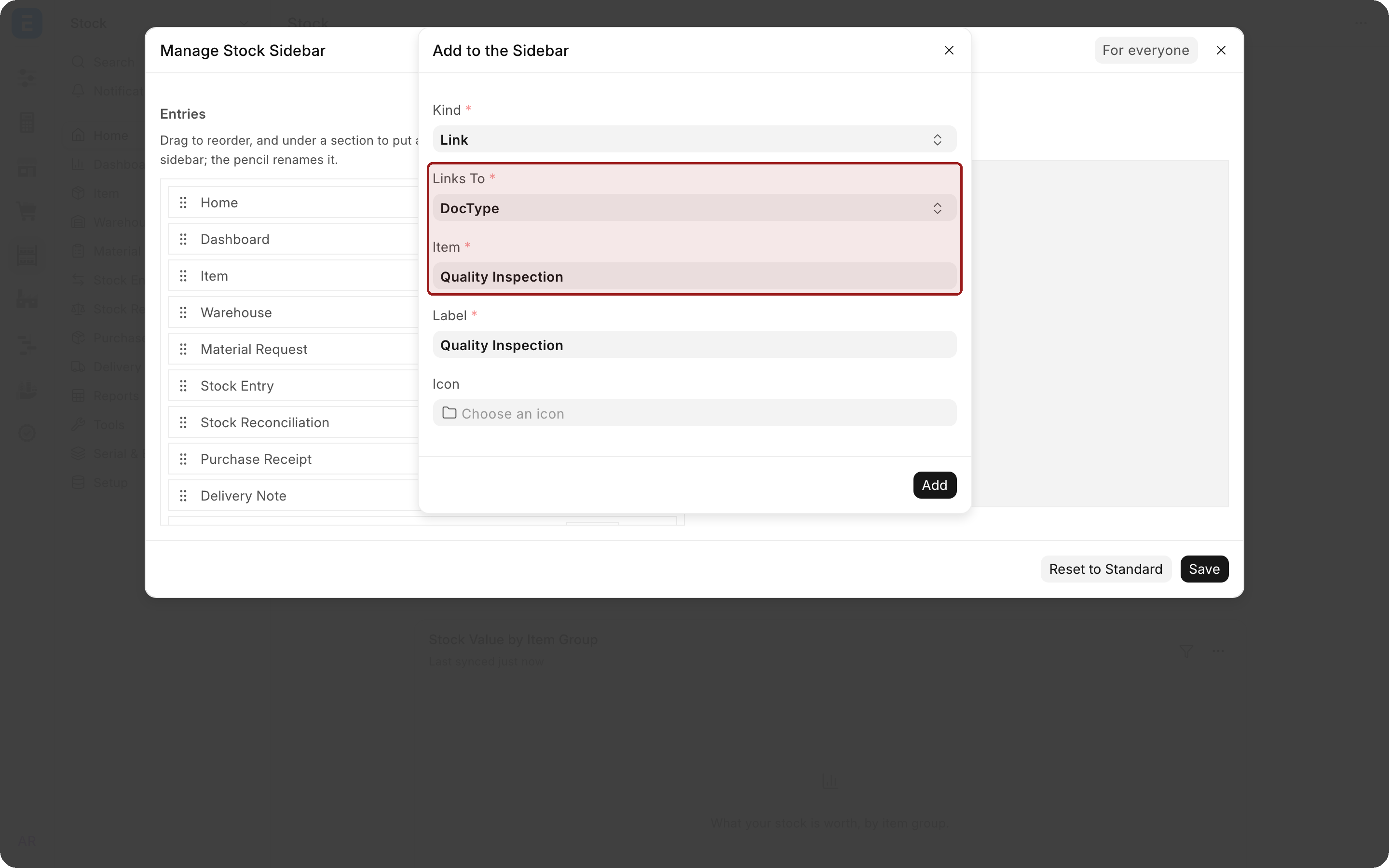
New entries go to the bottom of the list. To build a group, add the section first, then its entries: each one lands under the section you just added. Select the pencil on a section to open Edit Section, where you can rename it and turn on Collapsible, Start Closed or Show Arrow. Adding something that is already on Sidebar but hidden simply shows it again.
Save or undo
Select Save. A message confirms whether you saved for yourself (Sidebar updated) or for everyone (Sidebar updated for everyone).
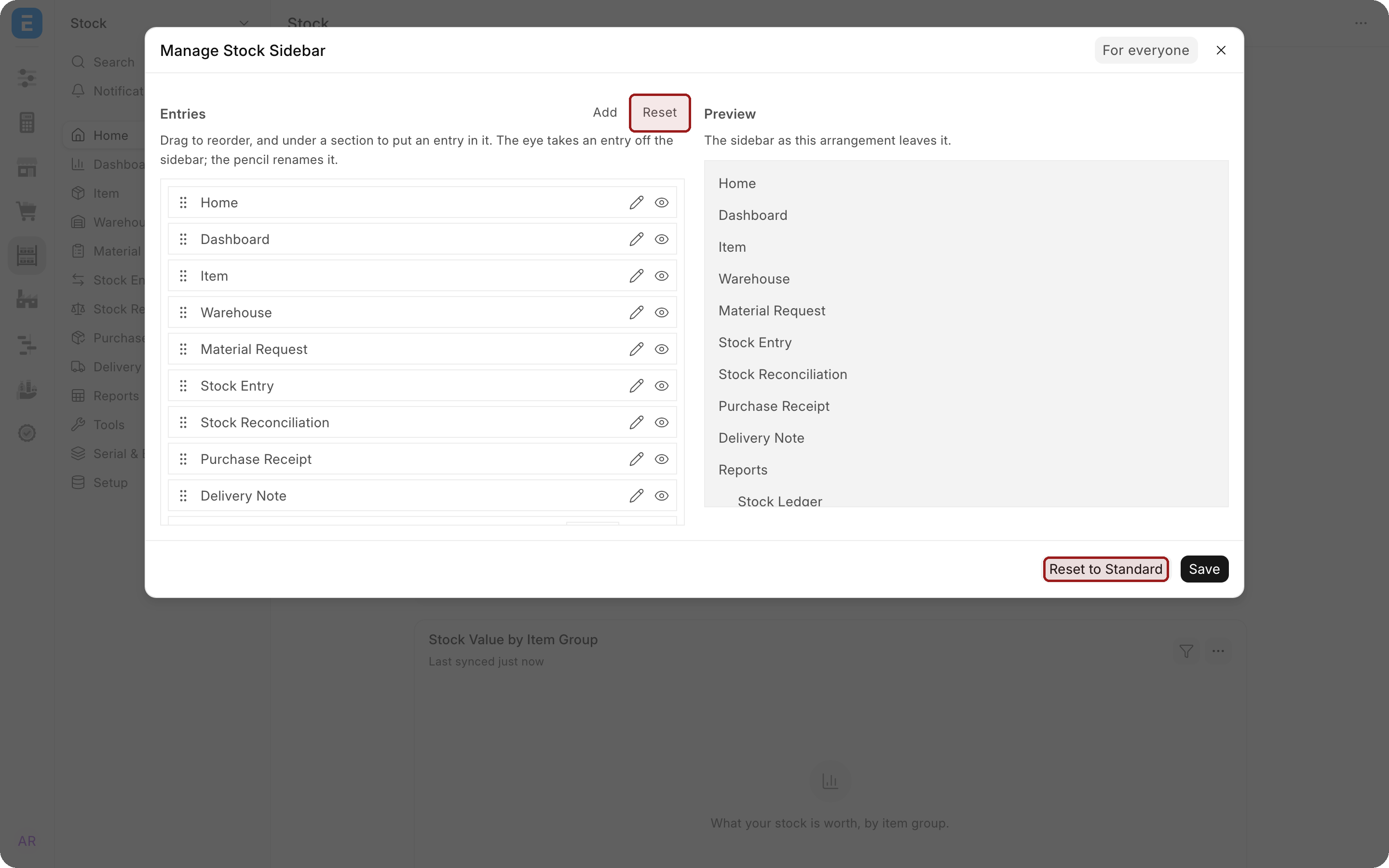
- Reset, above the list, removes the arrangement you are editing, after you confirm. On Just for me you go back to what everyone sees. On For everyone the site goes back to what the app ships, but users keep their own changes.
- Reset to Standard, at the bottom, is for Workspace Managers. It removes the site's changes and every user's own changes to this module's sidebar, so everyone is back on what the app ships. It asks you to confirm and cannot be undone.
Workspaces in Sidebar
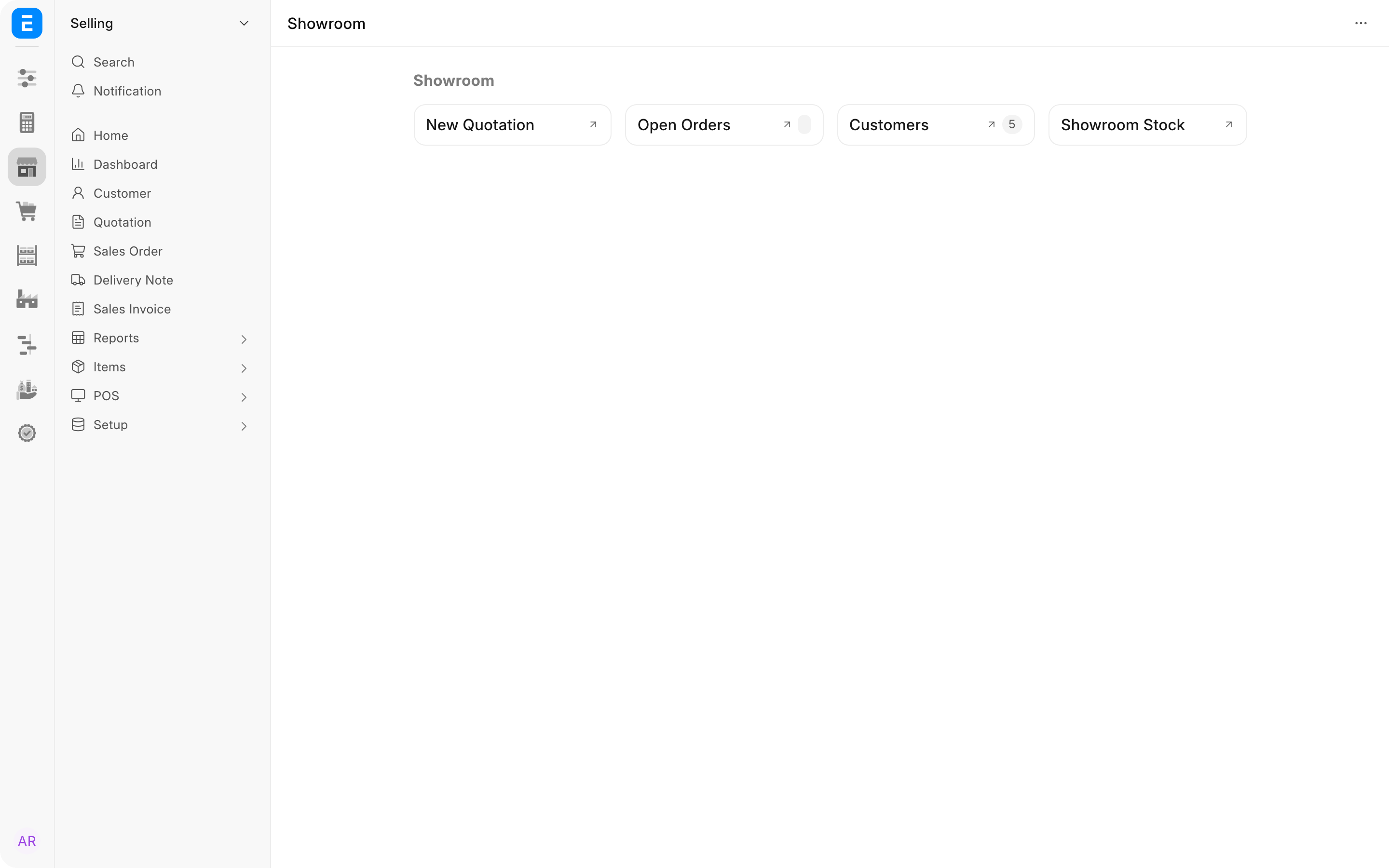
A workspace is a page of shortcuts, cards, charts, number cards and quick lists. Every workspace belongs to one module and appears as an entry in that module's sidebar, usually at the top as Home.
- A new workspace appears in the sidebar of whichever module you choose when you create it.
- Your private workspaces appear only in your own sidebar, and My Space gathers them into one sidebar of your own.
- To move a workspace to another module's sidebar, change its Module in Manage Workspaces.
- To reorder or hide a workspace's entry, use Edit Sidebar like any other entry.
Creating, editing and sharing workspaces, and My Space, are covered on the workspace page.
For developers: ship your app's sidebars
You arrange a sidebar on a development site with the same editor, then save it into your app.
- Turn on developer mode on the development site (
developer_mode: 1in its site_config.json). - Open the module, then Edit Sidebar.
- In the switch, choose For Your App. This option only appears in developer mode.
- Arrange Sidebar, then select Save. The message Sidebar saved to its app confirms it.
Each sidebar is written to <app>/<module>/sidebar/<name>/<name>.json. Commit it with your app, and bench migrate imports it on every site that installs or updates the app.
- A module you ship no sidebar for still gets one, generated from its workspaces, document types, reports, pages and dashboards. The editor starts from that generated sidebar.
- An entry you hide on the app's layer ships hidden. Sites and users can still show it.
- Reset on For Your App stops shipping that sidebar: it deletes the record and the file, and the module goes back to a generated sidebar.
- A sidebar is named by its title, which becomes part of the page address (
/desk/selling/customer). A title cannot contain/,?,#,%or\, and cannot be another module's sidebar name.
Sites and users keep their changes in separate layers, so your updates never overwrite them, and entries you add later still reach users who rearranged.
Modules that hold only code
If a module exists to hold code while people navigate a different split, list it under code_only_modules in hooks.py, with the modules that took over its navigation:
code_only_modules = {
    "My Core": ["Orders", "Settings"],
}
The code-only module stays off Dock but keeps all its document types, reports and pages. When the desk decides which sidebar one of its entities opens in, it looks in the listed modules instead. Order matters: the first listed module wins a tie, and an entity none of them lists opens in the first one the user can see.
Old sidebar files
Apps used to ship sidebars in <app>/workspace_sidebar/. Those files are no longer read, and bench migrate names apps that still have them. Convert them with convert-sidebar-fixtures; see For app developers.
Troubleshooting
An entry I expected is missing. You may not have permission to open it. If you have, it may be hidden: open Edit Sidebar and look for it with its eye crossed out.
The module opens on the wrong page. A module opens on its first entry. Drag the one you want to the top and save.
My changes disappeared. A Workspace Manager may have used Reset to Standard, which removes everyone's own changes.
A renamed entry went back to its old name. If the entry was changed to point somewhere else, it counts as a new entry. Rename it again.
The For everyone or For Your App option is missing. For everyone needs the Workspace Manager role; For Your App needs developer mode.
A module's sidebar looks generated rather than curated. Its app does not ship a sidebar for it, or still ships the old format.
Frequently asked questions
Will I miss entries an app adds after I customize my sidebar?
No. They still appear, after the entries you arranged.
Can I hide a whole module?
Not from Sidebar. Take it off Dock in Manage Dock, or ask your administrator to block the module (Block Modules) on your user record.
Can a workspace appear in two sidebars?
A workspace belongs to one module. To reach it from another, add a link to it with Edit Sidebar, or put it on Dock.