


















Frappe lets you export records to Excel or CSV from almost all documents. If you cannot find the Export action, do not see the doctype you need in the Data Export tool, or export a file that opens with column headers and no rows, this is almost always caused by a missing permission or an active filter, not a bug. This applies whether you are exporting a Customer list from the Selling workspace, a Purchase Invoice list from Accounts, or any other doctype, on which User Permission is applied.
Where to find Export
There are two ways to export data. Both give you a choice of CSV or Excel.
From a list or report view
- Open the list, for example Customer.
- Select one or more records with the checkboxes (or select all with the checkbox in the header row).
- Click Actions → Export
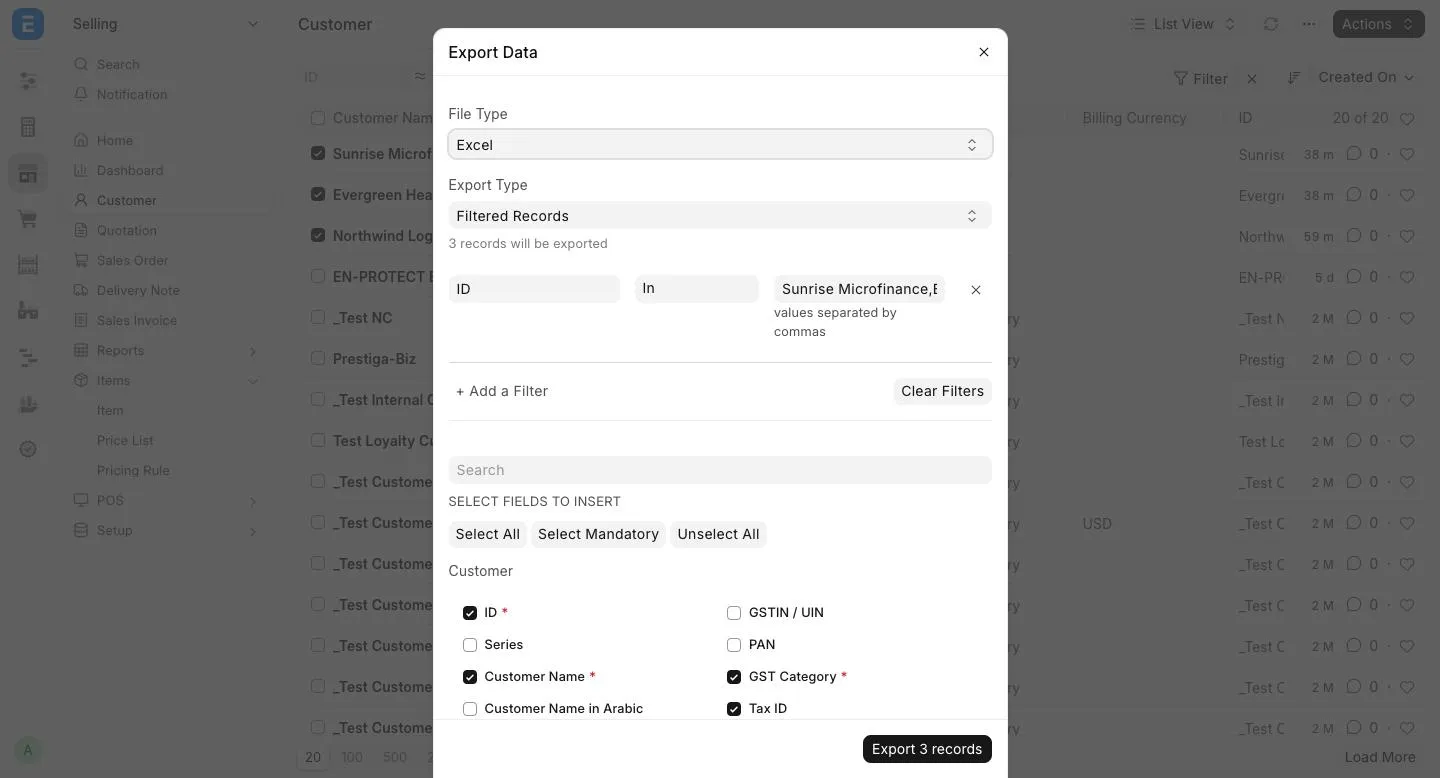
- In the Export Data dialog, set File Type to CSV or Excel, choose which fields to include, and click Export.
From the Data Export tool
- Go to Data Export (use the search bar, or Data → Data Export from the module sidebar).
- In Select Doctype, choose the doctype to export.
- Choose CSV or Excel as the File Type.
- Select the fields to export, add filters if needed, and click Export.
Why you might not see Export, or not see a doctype
Both export routes check the same role permission: Export. A role needs Read on the doctype to access its records at all, and Export to download them. If no role assigned to you has Export permission on a doctype:
- The Export option in Actions still shows, but exporting fails with a permission error.
- The doctype does not appear in the Select Doctype field of the Data Export tool at all. That field only lists doctypes you have Export permission on.
If you try to export without permission, you see:
You are not allowed to export <Doctype> doctype
To export from the Report View of a list, your role also needs Report permission on the doctype. Without it, the Report View itself is not available, so there is nothing to export from.
How to fix it
A System Manager can grant the permission:
- Go to Role Permissions Manager.
- Select the Document Type, for example Customer.
- Find the row for the role the user has, for example Sales User.
- Tick Export. Tick Read and Report too if they are not already checked.
- Ask the user to refresh the page and try again.
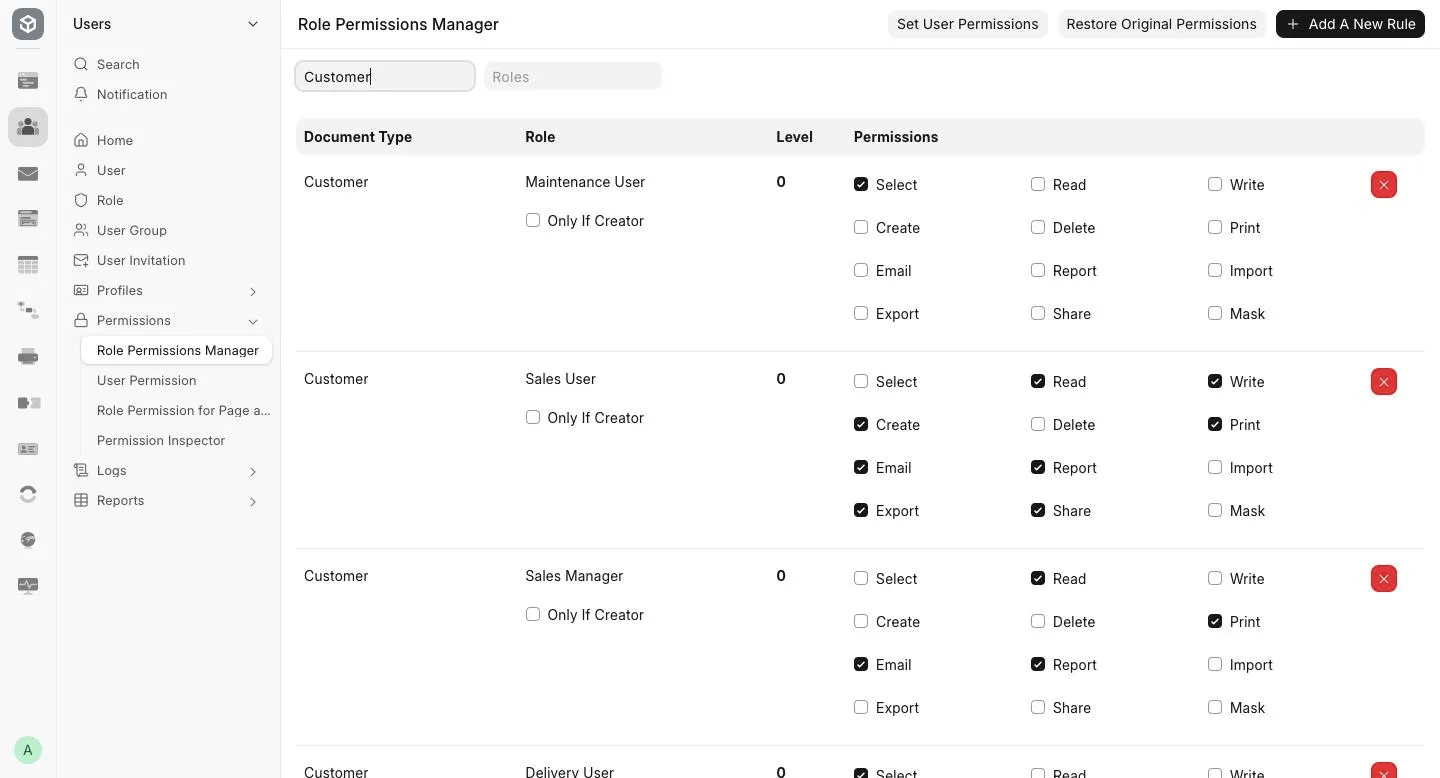
If "Only If Creator" is ticked for that role, the user can only export records they created themselves. Untick it if they also need to export records created by others.
Why an export has only column headers and no data
If the downloaded file opens with just a header row and no records, the export ran but matched zero rows. This happens when:
- A filter on the list or in the Export Data dialog excludes every record. The dialog's Export Type can be set to Filtered Records, which exports only what the list's current filters match. If those filters are too narrow, or point at values that do not exist, nothing matches.
- User Permissions restrict the records further than what you expect. A User Permission on a linked field (for example, restricting a user to one Company) applies to the export the same way it applies to the list. A record can appear in the list and still be excluded from the export if the restriction changed, or if "Only If Creator" limits you to records you did not create.
For example, if you filter the Customer list to a Territory that has no customers and export with Filtered Records, the file downloads with the ID column header and no rows.
To fix it:
- Clear the filters in the list, or switch Export Type to All Records, then export again.
- If records are visible in the list but still missing from the export, check Role Permissions Manager for "Only If Creator" on your role, and check User Permission for any restriction on your user.
How to prevent it
- Before exporting a large list, clear filters you do not need, or confirm the applied filters still match the records you expect.
- When setting up a new role, grant Read, Report and Export together on each doctype it needs to export, so the role does not end up with some records visible but not exportable.