


















Add a shortcut to a workspace, with a count or a filter
You can add a shortcut to any Workspace — a quick link to a DocType, Report or Page, optionally with a number on it showing how many records match a condition you choose. Shortcuts are added from the workspace's Edit mode, not from the New button next to it, which creates a separate workspace instead.
Before you start
- To edit a Public workspace (one every user can see, listed under PUBLIC in the sidebar), you need the Workspace Manager role. Anyone can edit their own Private workspace.
- Decide what the shortcut should link to: a DocType (for example Task), a Report, or a Page.
Steps
- Open the workspace you want to add the shortcut to (for example Home).
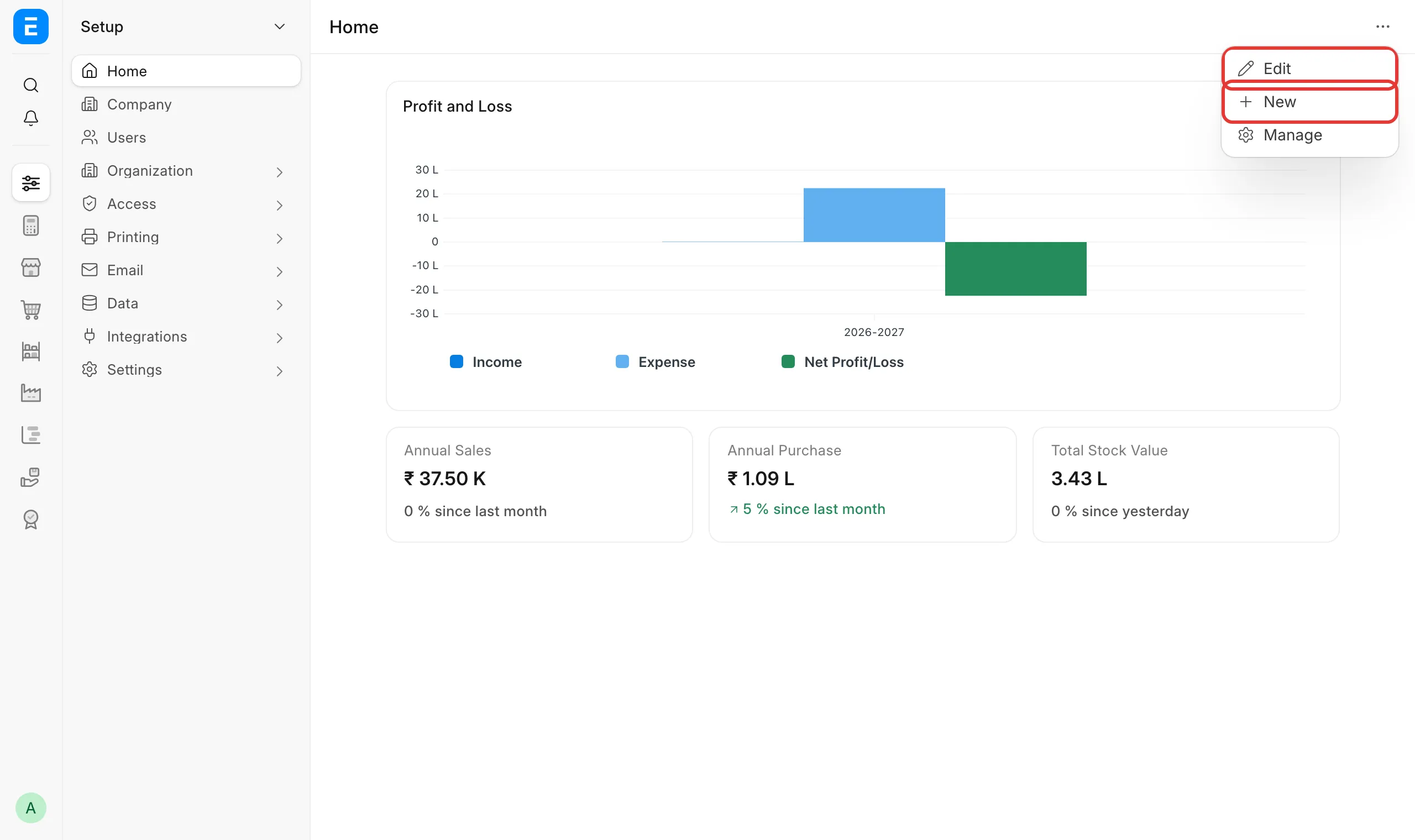
- Click the ··· menu next to the page title. It has three options: Edit, New and Manage. Click Edit. New creates a different, empty workspace — it has no option to add a shortcut to the one you already have open.
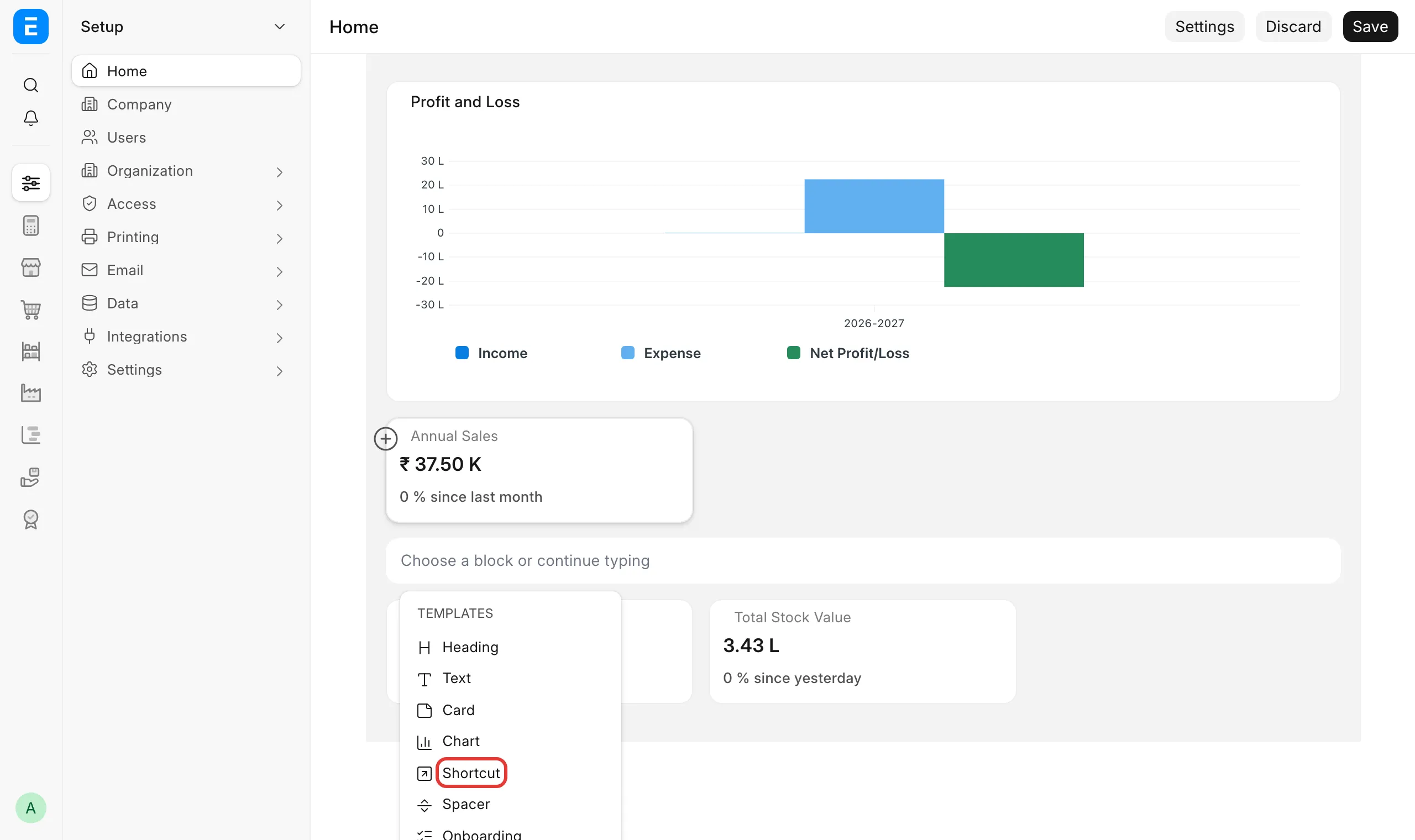
- Click any existing block (for example a number card) to select it. A small + appears to its left. Click the +, then choose Shortcut from the list of blocks (or type "Shortcut" to filter the list).
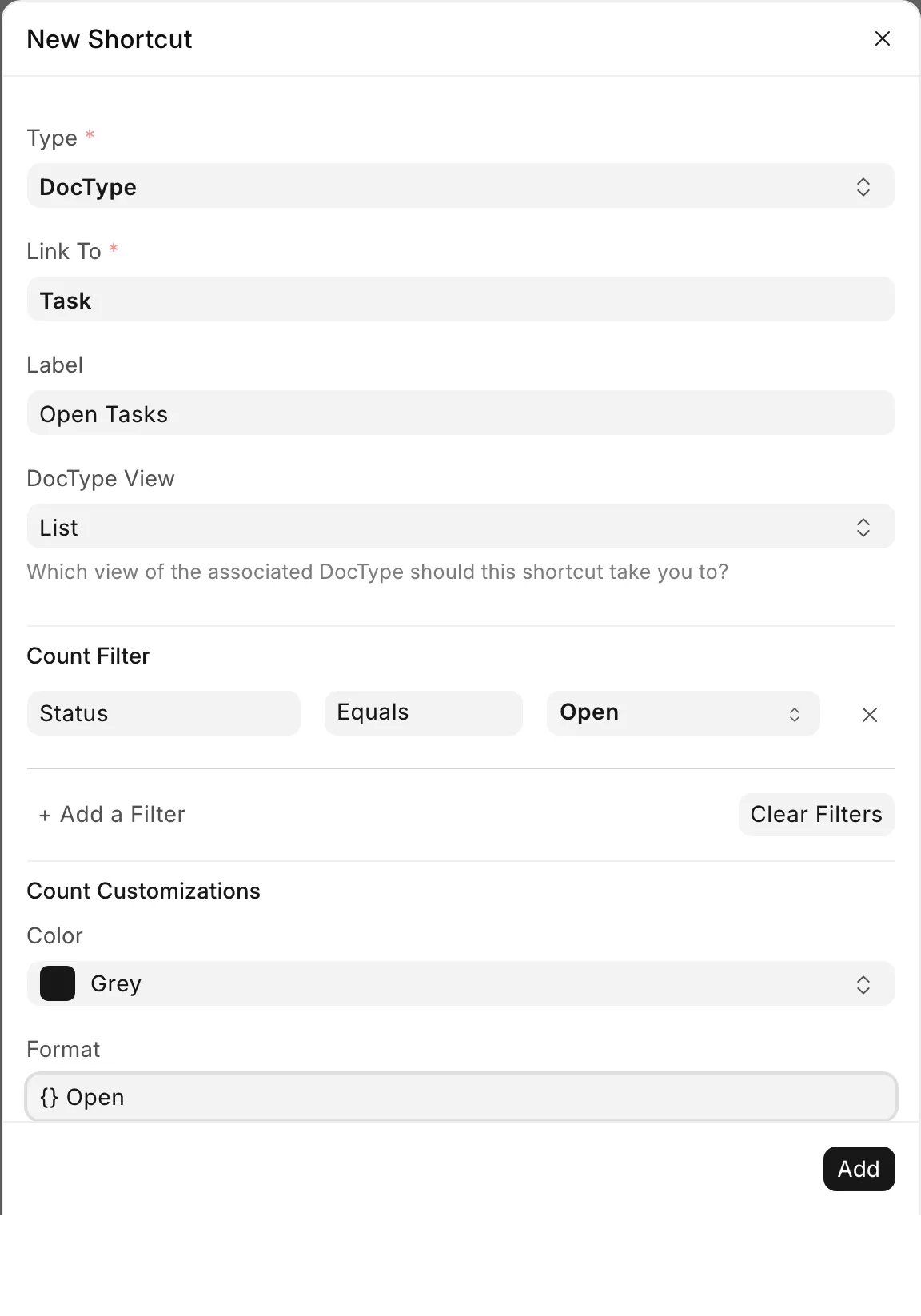
- In the New Shortcut dialog, set Type to DocType, Report or Page, then fill Link To with the one you want. Add a Label if you want the shortcut to show different text from the linked name.
- If you want a number on the shortcut (for example how many Tasks are still open), add a Count Filter: click + Add a Filter, choose the field (for example Status), keep or change the condition (Equals by default), and choose the value (for example Open). Under Count Customizations, set a Format such as
{} Open— the{}is replaced with the count. Leave Format blank to show only the number.
- Click Add, then click Save at the top of the page.
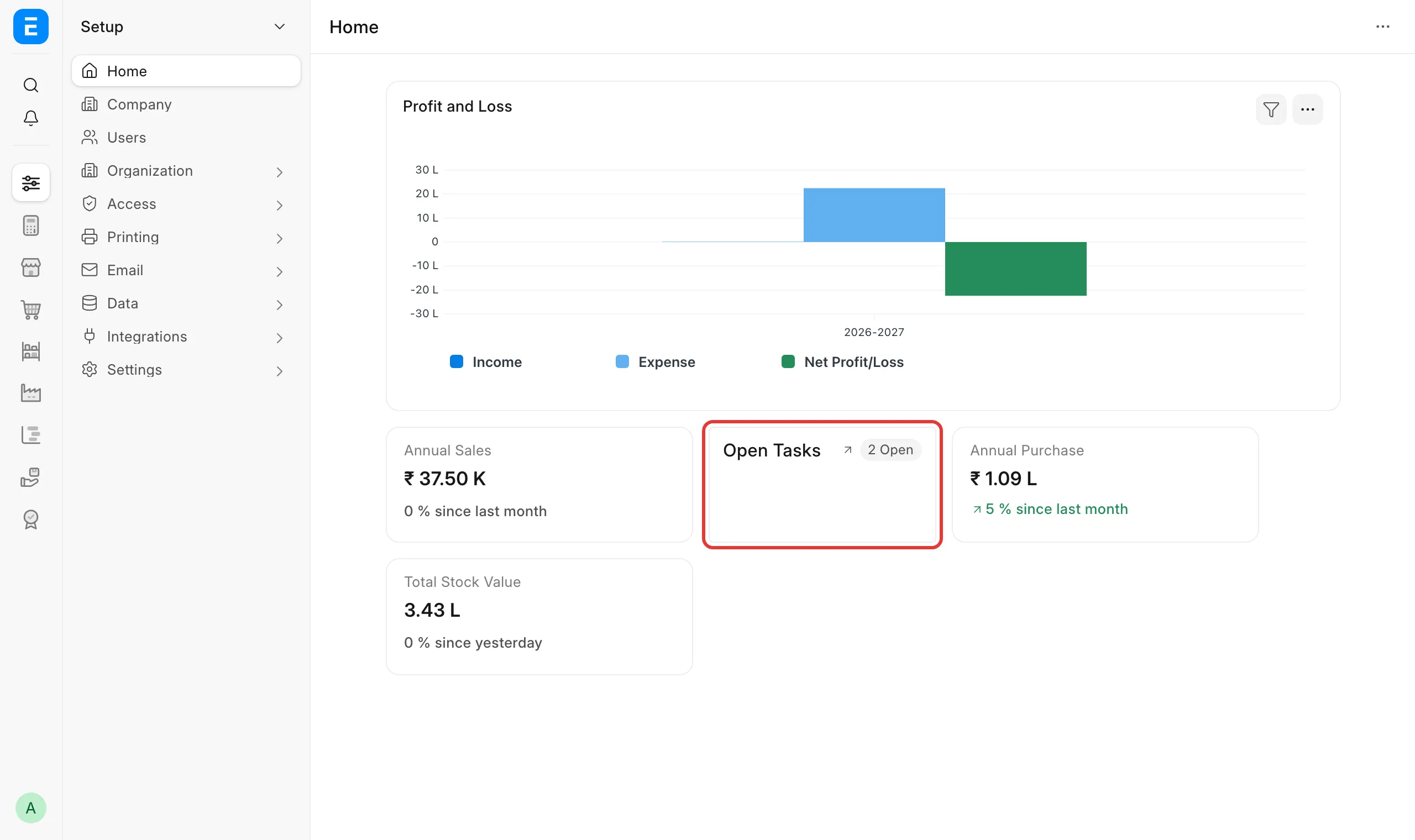
The shortcut now shows its label and, if you set a Count Filter, a pill with the matching count.
The Format text is not a filter
The Format field (step 5) only changes what the pill says — {} Open, {} Pending, or any text with {} in it. It does not filter anything by itself. What decides both the number on the pill and which records open when you click the shortcut is the Count Filter you add in the same step.
If you type Format text that implies a status ({} Pending) but never add a matching Count Filter row, the pill counts every record of that DocType, and clicking the shortcut opens the full, unfiltered list — not only the ones the Format text names. Add the Count Filter that matches what the Format text says, or remove the implication from the Format text, so the two agree.
Limits
A Count Filter compares a field to a fixed value you choose when you set it up (for example Status Equals Open). It cannot filter by "the record assigned to whoever is logged in" — there is no current-user token for it, unlike some newer screens (CRM, Helpdesk) that support a %@me%-style filter. Asking for this on a standard Workspace shortcut is an open feature request (frappe/erpnext#51360); it does not work today.