


















A user sees employees outside their department, or an unexpected "Reports To"
If you restrict what an Employee-role user can see with a User Permission, they can end up seeing employee records that have nothing to do with them — in the Permitted Documents for User report, in their own Employee list, or as unexpected names and counts in the Organizational Chart. This happens for two different reasons, and they need two different fixes.
Why this happens
Most often: the User Permission is on Company, not on the Employee. The Employee role by itself does not restrict users by department — anyone with it can read every Employee of their company. If the only User Permission on that user is for Company, they see every employee of that company, across every department. This is expected behaviour, not a bug, even if it looks like a department mix-up.
Less often, but confusing when it happens: the Employee hierarchy (the "tree") is out of sync with Reports To. Employee is a tree doctype — Frappe builds a hierarchy from the Reports To field, the same one the Organizational Chart uses. If a user's only User Permission is on their own Employee record (the normal result of the "Create User Permission" checkbox), Frappe automatically extends that permission to everyone below them in that hierarchy, so a manager can see their team without a separate permission for each person.
To do this quickly, Frappe does not walk the Reports To chain every time. It keeps a separate index on each Employee record (internally called lft/rgt) that marks its position in the hierarchy, and permission checks compare that index instead. Normally the index updates automatically whenever you save an Employee with a changed Reports To. But some changes skip that step — a Data Import that sets Reports To in bulk, a direct data fix, or a merged/renamed employee — and the index is left pointing at the old structure, even though Reports To on the record itself is correct. A user permission then expands against that stale index and returns the wrong set of employees: people who used to be under this employee, or never were, instead of their actual team. The Organizational Chart's connection counts and expand/collapse are built from the same index, which is usually what reads as "Reports To shows someone they don't actually report to" — Reports To on the record is fine; what is wrong is the chart's and the permission's idea of the hierarchy.
How to tell which one you have
- Open User Permission and filter by the affected User.
- Check the Allow column.
- If it says Company (or any doctype other than Employee): this is the expected, by-design behaviour above. Go to Narrow it to one employee's team below.
- If it says Employee: continue to the next section — this is the stale-hierarchy case, and the fix is to rebuild the Employee tree.
Rebuild the Employee tree
- Go to the Employee list and switch to Tree View (
/app/employee/view/tree). - Select the affected Company from the filter at the top, if you have more than one.
- Click the ··· menu at the top right.
- Select Rebuild Tree.
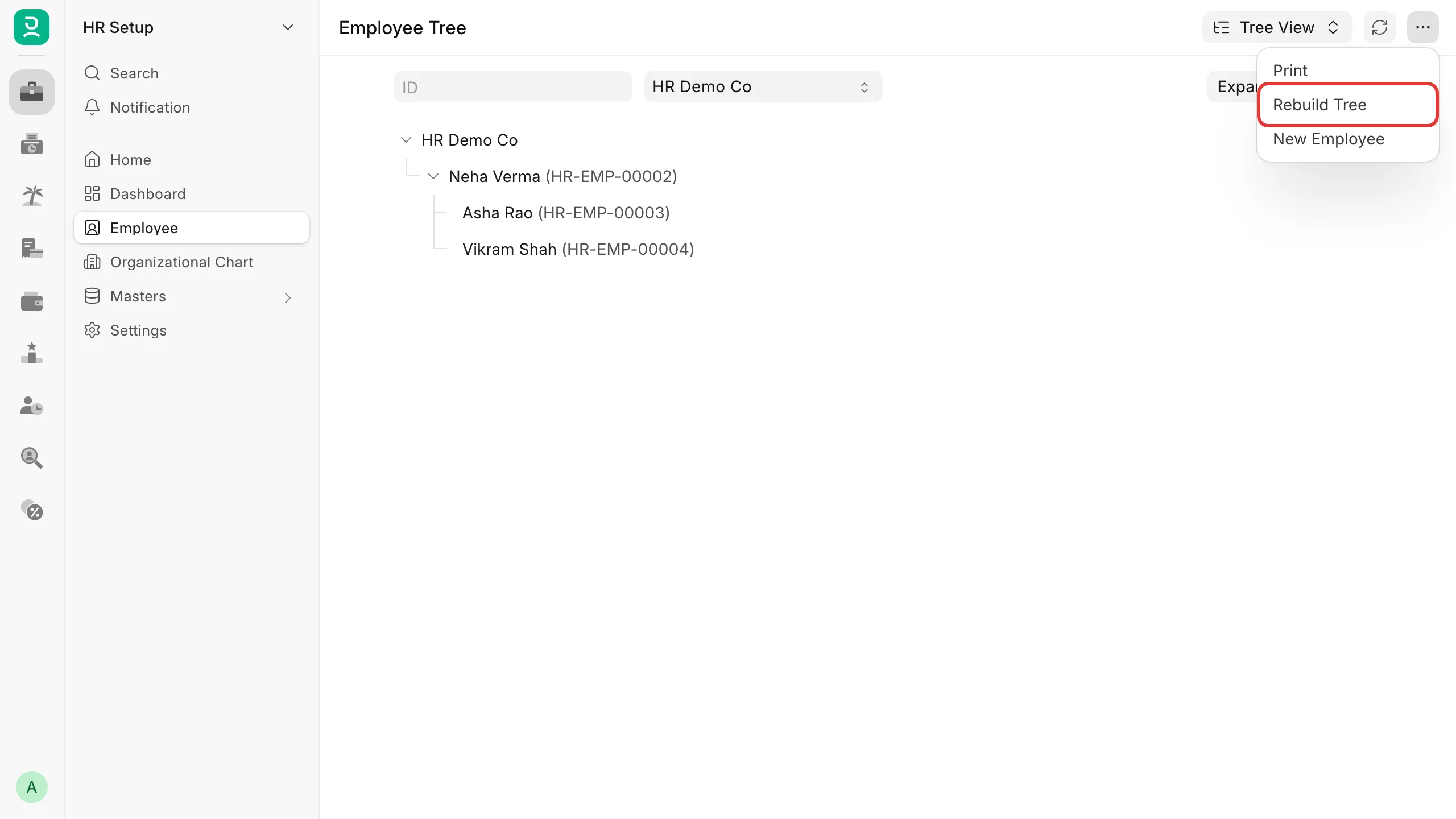
Frappe walks every Employee from the top down, following each one's Reports To field, and rewrites the internal hierarchy index to match. It does not change any Employee's Reports To, department, or any other field — only the index permission checks and the Organizational Chart use internally. This needs the System Manager role.
Re-open the Permitted Documents for User report for the affected user afterward and confirm the list now matches their real team.
How to prevent it
- After any bulk change to Reports To that does not go through opening and saving each Employee one at a time — a Data Import, a script, a direct data fix — run Rebuild Tree on the Employee list as a routine last step.
- After merging or renaming an Employee record, check the Organizational Chart and the Permitted Documents for User report for anyone whose permission depends on that employee's position in the hierarchy.
Narrow it to one employee's team
If the real cause is a Company-level permission and you want the user to see only their own record, or only their own team, replace it with a permission on Employee instead:
- Open the user's own Employee record.
- Tick Create User Permission, then save. This creates a User Permission for Employee = this record, which (per the mechanism above) also covers everyone reporting to them.
- If you want it to cover only that one record, with nobody reporting to them included, open the new User Permission and tick Hide Descendants.
There is no built-in setting for "this department only" visibility that is not also based on Reports To — that needs a custom Permission Query Condition script, which is outside what support can set up on your behalf.
If this does not fix it
If the list is still wrong after a rebuild and the permission really is on Employee, check the Reports To field on a few of the unexpected employees directly — if it genuinely points to the wrong manager, that is normal record data to correct on the Employee form, unrelated to the tree index. If you are still unsure which of the two causes applies, raise a support ticket with the affected user's name, the User Permission list for that user, and a screenshot of the Permitted Documents for User report.