


















SMTP timeout or connection error when saving an Email Domain or Email Account
You enter your mail server's host, port and encryption settings into an Email Domain or Email Account and click Save, and instead of saving, you get a timeout or connection error straight away. This happens because ERPNext tests the connection the moment you save — it does not store untested settings — so the error always points to something concrete: a wrong port/encryption combination, or a connection that cannot reach the server at all within 15 seconds.
The error
You will see one of these, either as a pop-up on Save or in the Email Queue entry's Error field if the account saved but mail later fails to send:
Invalid Outgoing Mail Server or Port: STARTTLS extension not supported by server.
Invalid Outgoing Mail Server or Port: Connection unexpectedly closed: timed out
Incoming email account not correct. Error connecting via IMAP/POP3: timed out
TimeoutError: timed out
If instead you see 421 ... too many failed logins or 535 ... User has been restricted, skip to Provider rejects the connection or account — that is a different cause with the same generic error title.
Why this happens
Saving an Email Domain or an Email Account does not just store your settings. ERPNext opens a real connection to the mail server there and then — an IMAP/POP3 connection for incoming, an SMTP connection for outgoing — and gives it 15 seconds. If the server answers but refuses the specific port/encryption combination you sent, or the connection never reaches anything in that time, the save fails immediately with one of the errors above.
These split into two different problems that look similar:
-
Wrong port/encryption combination. Mail providers expect one specific pairing of port and encryption method, and mixing them up produces exactly the STARTTLS and "connection unexpectedly closed" errors above:
Port Setting to check What it does 465 Use SSL checked, Use TLS unchecked Implicit SSL/TLS — the connection is encrypted from the very first byte. 587 Use TLS checked, Use SSL unchecked Starts as a plain connection, then upgrades to encrypted with STARTTLS. This is what the Use TLS checkbox actually does for outgoing mail — not implicit TLS. 25 Rarely used for authenticated sending Most providers block authenticated submission on this port; use 465 or 587 instead. Checking Use SSL while pointed at port 587, or Use TLS while pointed at port 465, is the most common version of this: the server expects one encryption method on that port and gets the other.
-
The connection never reaches the server at all. The host name is misspelled, the provider's firewall does not allow connections from outside their own network, or — specifically on Frappe Cloud — the mail provider has not allowed Frappe Cloud's current outbound IP address to connect. Frappe Cloud does not block any outbound SMTP, IMAP or POP3 ports — if the connection times out or the OS reports "network unreachable", the restriction is almost always on the receiving mail server's side, not Frappe Cloud's.
How to fix it
- Read the exact error text — the two problems above need different fixes, and the error tells you which one you have. A STARTTLS or "unexpectedly closed" error is a port/encryption mismatch (step 2). A plain timeout or "network unreachable" is a connection that never got through (step 3).
- Port/encryption mismatch: open the Email Domain (or the Email Account, if it is not linked to a domain) and match the Port to the right encryption checkbox from the table above. Most providers publish both options; use whichever your host and port combination in the table matches.
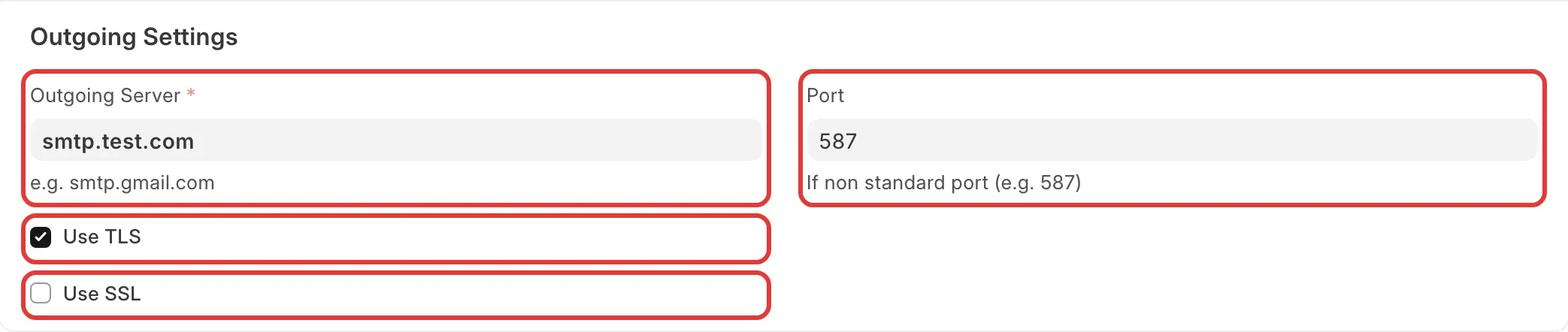
This example (a test Email Domain's Outgoing Settings) shows the 587 + Use TLS pairing — the right combination for a provider that expects STARTTLS on 587. If your provider instead publishes port 465, check Use SSL here instead and leave Use TLS unchecked.
3. Connection never reaches the server: first confirm the host and port are typed correctly, then check whether the block is on the provider's side. Since Frappe Cloud does not block outbound connections:
- Find your site's current outbound IP address (Site → Overview, on the Frappe Cloud dashboard), and confirm your mail provider's firewall or IP allow-list includes it. To check: this field's exact label and location were not re-verified live on a Frappe Cloud dashboard this session.
- If your provider only allows a fixed set of IPs and your site's outbound IP changes (for example after a server resize), either re-add the new IP to the provider's allow-list, or move the site to a dedicated server with a static IP so this does not recur. A static IP is a paid add-on on a dedicated server, not available on shared hosting.
- If the same settings work from another server but not from this site, that difference is the proof the block is provider-side, not a Frappe Cloud limitation — raise it with your mail provider rather than support.
- Provider rejects the connection or account: a
421 ... too many failed loginsor similar "too many attempts" error usually means wrong credentials were retried enough times that the provider temporarily blocked the connecting IP — fix the password first, then wait or ask the provider to lift the block. A535 ... User has been restricted(or similarly worded) error is an account-level restriction set by your mail provider, not a connection problem — contact your provider's support to lift it. - Provider-specific cases:
- Microsoft 365 / Outlook.com / Exchange Online: Microsoft requires OAuth for these mailboxes; a plain SMTP password will usually fail regardless of port and encryption settings. Follow Microsoft Office365 Email OAuth instead of troubleshooting the port.
- Gmail / Google Workspace: use
imap.gmail.comport 993 with Use SSL, andsmtp.gmail.comport 587 with Use TLS (ERPNext's built-in GMail service preset on the Email Account uses exactly these). To check: Google Workspace accounts with 2-Step Verification typically need an App Password instead of the regular account password — general Google account policy, not something specific to Frappe, and not confirmed against a ticket in this topic. - PEC (Italian certified email): use the exact host, port and encryption your PEC provider publishes — PEC providers are usually strict about rejecting anything else. To check: no ticket in this topic's sample involved PEC; this is general guidance, not a verified pattern.
If this does not fix it
- If your mail provider confirms the port is open and the connection still fails only from Frappe Cloud, raise a support ticket with the exact error text, the site name, and the Email Domain/Account's settings (without the password).
- If the error is about SSL certificate validation rather than a timeout or STARTTLS mismatch, that is a certificate problem on the mail server's side, outside the scope of this article.
How to prevent it
- As a fallback when a business domain's own SMTP keeps failing on Frappe Cloud, use the built-in Email Delivery Service instead of configuring your own Email Account for outgoing mail — see Upgrade the Email Delivery Service plan. To check: whether it is used automatically whenever no Email Account is marked Default Outgoing, or needs an explicit step, was not confirmed this session.
- If your mail provider strictly allow-lists IPs, request a static IP once, rather than re-adding Frappe Cloud's outbound IP every time it changes.