


















Desk is where you do your daily work: create sales orders, check stock, approve leave. This page introduces how it is organized: apps on Desktop, each app's modules on Dock, and each module's contents on its Sidebar.
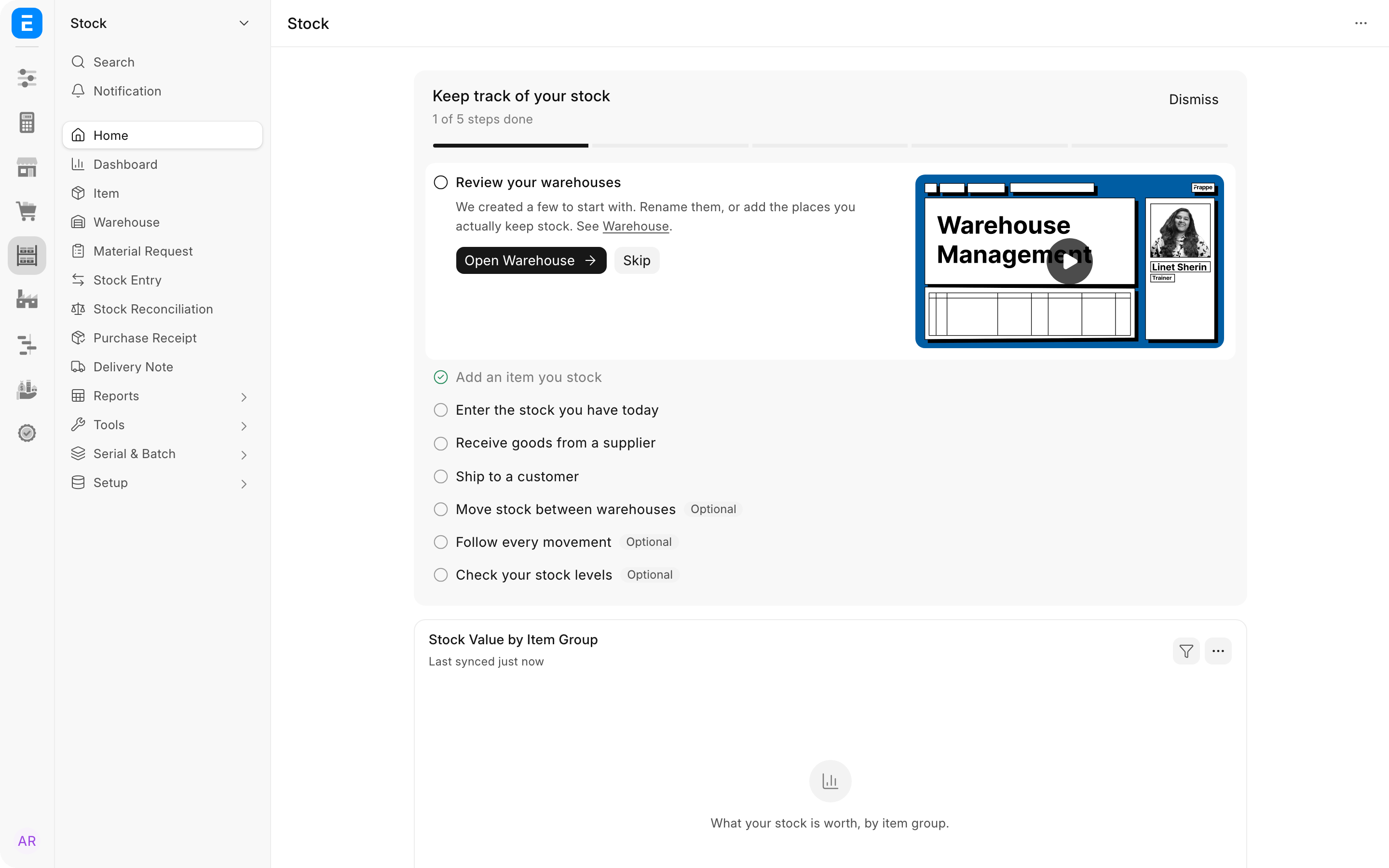
From left to right: Dock, Sidebar for the module you are in, and the page you opened from it.
Apps and modules
Frappe Framework is organized into apps and modules. An app, such as ERPNext or Frappe HR, is made up of modules, such as Selling, Stock or Buying.
Desktop
Desktop is the first screen you see after logging in. It shows one icon for each app you can use, and selecting one opens that app with its Dock.
See Desktop.
Dock
Dock is the narrow column of icons at the far left of the screen. Each icon is one module of the app you are in: in ERPNext you see Setup, Accounts, Selling, Buying, Stock and so on. Select an icon to move to that module. The app logo at the top takes you back to Desktop, and your profile picture at the bottom opens your user menu.
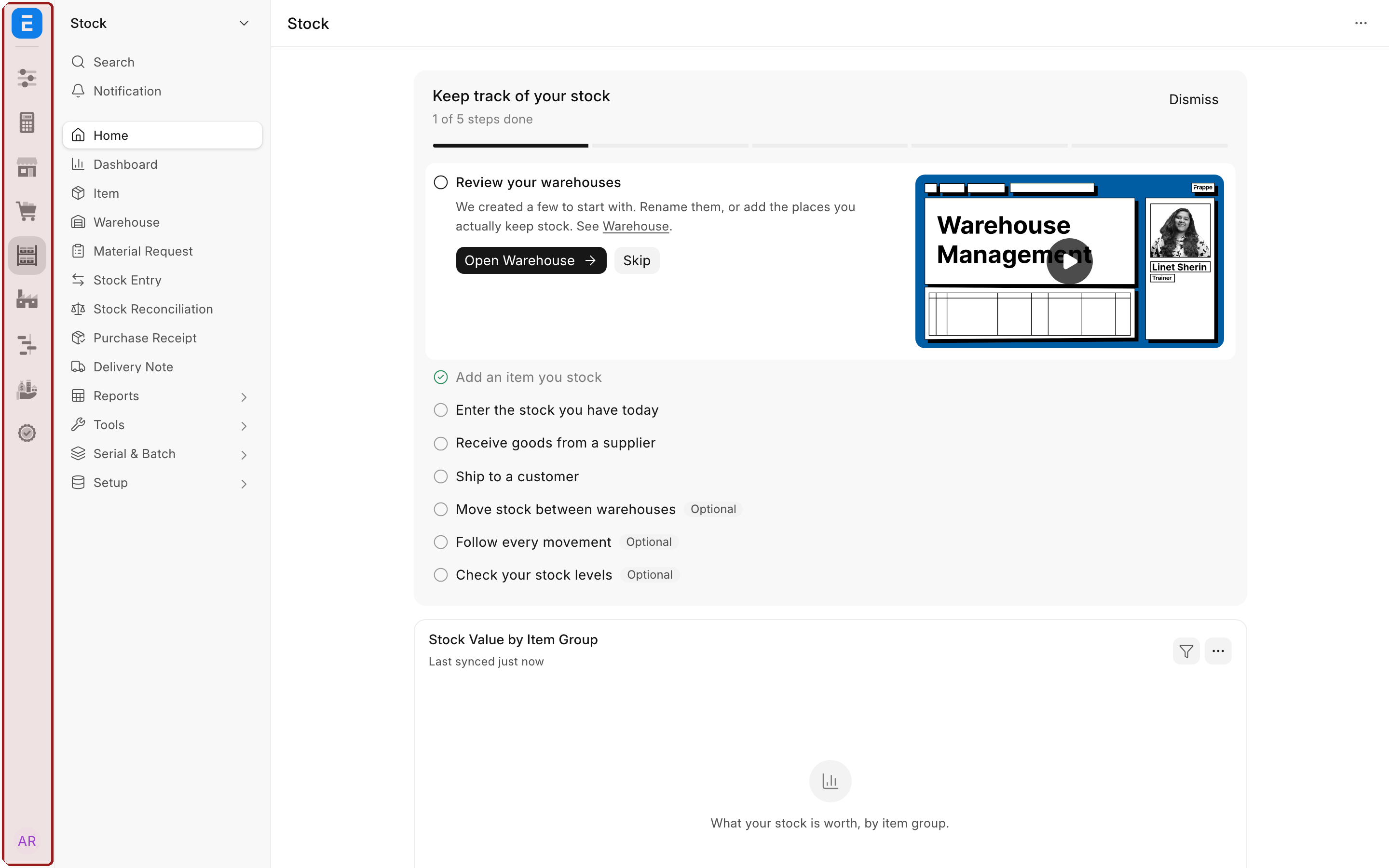
Dock, highlighted: one icon per module of the app you are in.
Each app has its own Dock. When you open Frappe HR, Dock changes to Frappe HR's modules.
See Dock.
Sidebar
Sidebar is the wider column next to Dock. It lists everything in the module you chose on Dock: its workspace, document lists you use there (such as Item, Warehouse or Stock Entry), and sections like Reports that group related entries. Select an entry to open it in the main part of the screen.
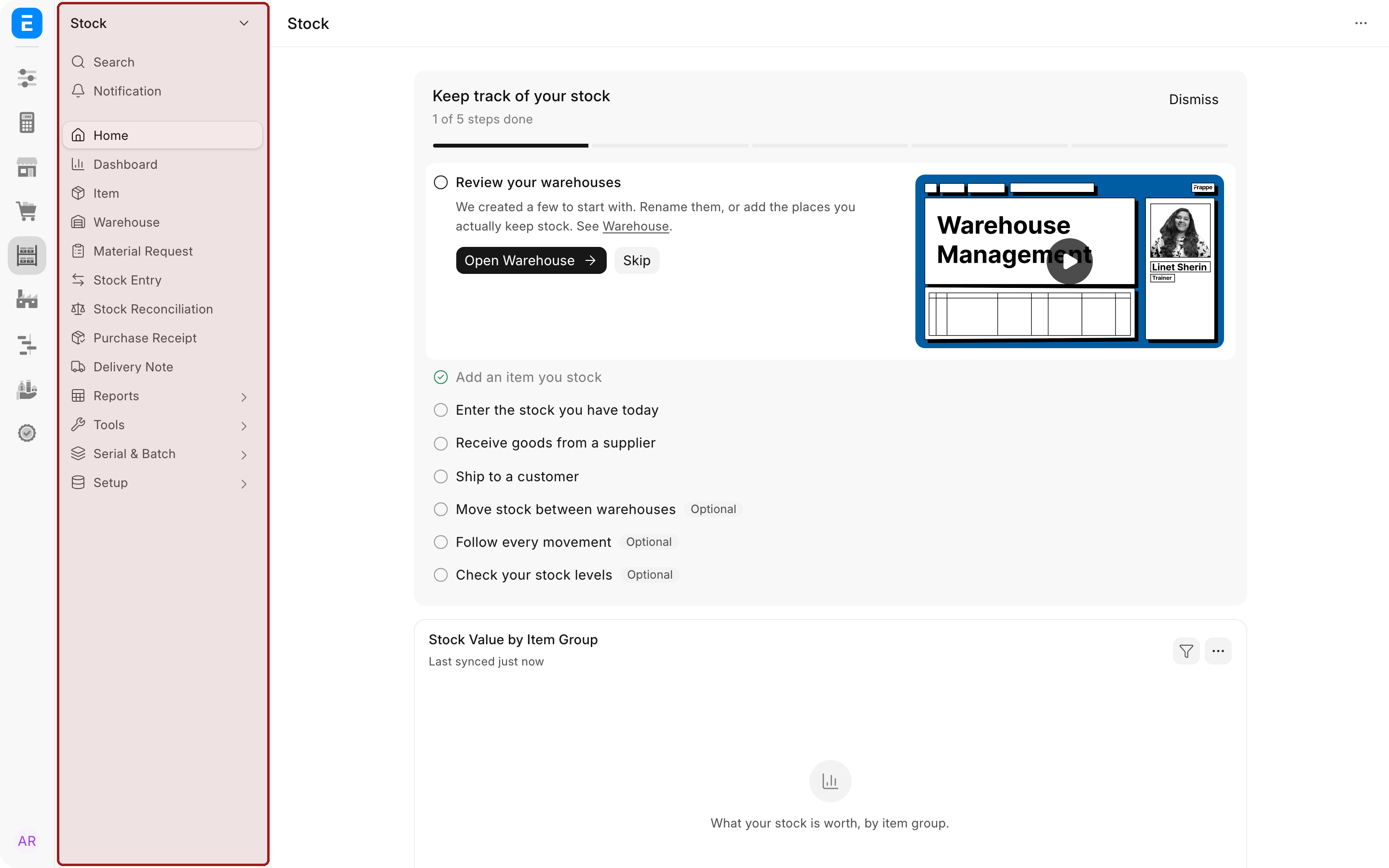
Sidebar, highlighted: everything inside the module you are in.
Sidebar changes whenever you change module. Select Selling on Dock and Sidebar lists Customer, Quotation, Sales Order and the rest of Selling.
See Sidebar.
Upgrading from an existing Version 16 site
Upgrading converts your old sidebars into module sidebars. Your desktop icon grid stays as a fallback until an administrator moves the site to the apps screen. See Migrating to the new navigation.