


















The Export button or dialog on the list view does not open: what to check
You select one or more records in a list view, open Actions → Export, and something is wrong: Export is not in the menu at all, the Export Data dialog never opens, or it opens but says fewer records will be exported than you selected. Each of these has a different, specific cause — go through them in order.
How export normally works
Select one or more records in any list view, open Actions, and click Export. The Export Data dialog opens, where you choose a file type (CSV or Excel), what to export (all records, only the filtered or selected ones, or a blank template), and which fields to include, then click Export to download the file.
Export is missing from the Actions menu
You open Actions on a list view and there is no Export option at all — not greyed out, not there. Other options like Edit, Assign To and Print are present.
Why this happens
Export only appears in the Actions menu if the current user's role has the Export permission for that DocType. Unlike Read or Write, this does not come from a single "can view this list" permission — it is its own checkbox, separate from Read, in Role Permissions Manager, and it is easy to leave off when a role is first set up. A System Manager always sees Export, regardless of this setting, which is why testing as the Administrator account will not reproduce this — you have to check as, or for, the role the affected user actually has.
How to fix it
- Open Role Permissions Manager (Awesome Bar → Role Permissions Manager).
- Select the Document Type the user needs to export, and their Role.
- Check the Export column, next to Read and Report.
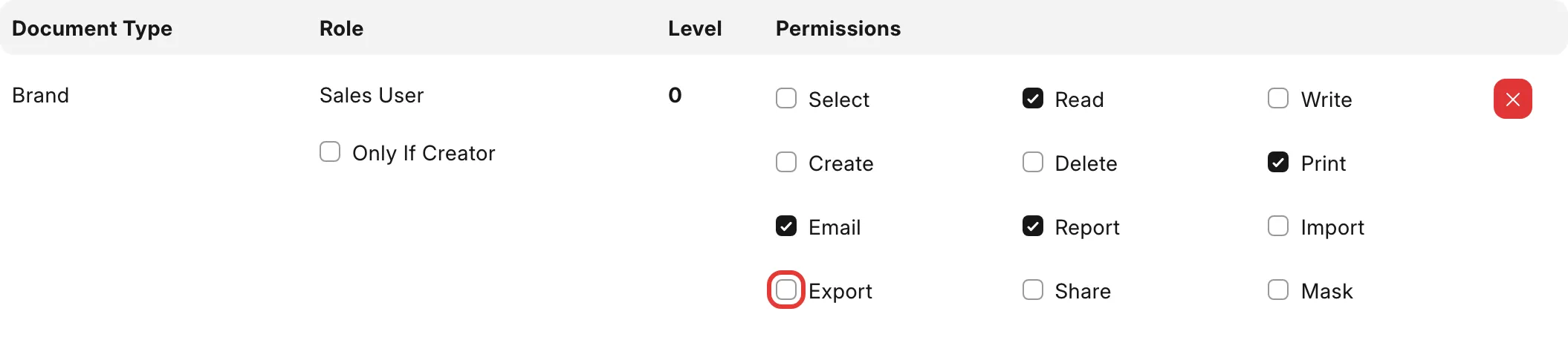
- If Export is not checked, check it and the change applies immediately — no save button, no need to ask the user to log out.
- Ask the user to refresh the list view. Export now appears in Actions.
If the role should also only export records it owns, leave Export checked but check Only If Creator, visible once you expand the role's row.
Export does nothing, or the dialog never opens
Actions → Export is there, you click it, and nothing visibly happens — no dialog, no error message on screen.
The error
Open the browser's developer console (F12, or right-click → Inspect → Console) right after clicking Export, and look for:
TypeError: {(intermediate value)(intermediate value)...}[e] is not a function
`at frappe.data_import.DataExporter.update_record_count_message`
The exact wording of (intermediate value) varies slightly by browser, but the second line — DataExporter.update_record_count_message — is the part that identifies this specific issue.
Why this happens
This was a regression in the Export Data dialog's own JavaScript: the code that calculates and shows "N records will be exported" threw an error the moment the dialog tried to render, which stopped the whole dialog from opening. It affected sites on a narrow range of releases and was fixed and shipped within about a week of being reported. If you see this exact error, your site (or the cached frontend assets your browser is holding) is on one of the affected versions.
How to fix it
- Update to the latest patch version of Frappe Framework for your branch. Self-hosted, run
bench update. On Frappe Cloud, trigger a bench update from the dashboard, or wait for the next scheduled one. - Self-hosted, after the update: rebuild assets and clear the cache so the browser is not still served the old, broken JavaScript —
bench build --app frappe
bench clear-cache
3. Hard-refresh the browser (Ctrl+Shift+R / Cmd+Shift+R) rather than a normal refresh, since a normal refresh can still serve a cached copy of the old file.
4. Try Actions → Export again.
If you do not see this specific console error, the cause is something else — check the next two sections, or raise a support ticket with whatever error text (if any) does appear in the console.
Fewer records are exported than you selected
You select, say, 5 records, open Actions → Export, and the dialog says fewer than 5 "will be exported" — sometimes 0 — and the downloaded file is missing rows that were definitely selected.
Why this happens
When you export selected records (rather than all, or filtered, records), the dialog builds one filter behind the scenes: the record's ID is one of the names you selected. On some versions, that list of selected names is combined into a single comma-separated value for display and parsing. If one of the selected records has a comma in its own ID — a Bill of Materials name like BOM -- Flexible Cable 1,5mm² 1 core black for DC & Panel Works. Local-rev-002 is a real example — that comma gets read as another separator, splitting one valid name into pieces that match nothing. The dialog's own record count (shown directly above the filter) tells you right away if this has happened: it will not match the number you selected.
How to fix it
- Before clicking the final Export button, check the "N records will be exported" line against how many you actually selected. If they do not match, do not download the file — it will be missing rows.
- Work around it by exporting with a filter on a field other than ID, instead of selecting rows by checkbox. For example, filter the list by Item Group, Company, or a date range first, then use Actions → Export with Export Type set to Filtered Records (not a row selection). This never builds a comma-joined list of names, so it is unaffected either way.
- If you specifically need the exact rows you selected and the count still does not match after trying step 2, export in smaller batches that do not mix a comma-containing ID with other records, and check the count for each batch before downloading.
- Where you control the naming, avoid commas in a field that becomes the record's ID (for example, an Item's name or a custom autoname field) — this avoids the issue at the source, for any export.
If you are exporting a very large number of records
Exporting a very large selection in one go (hundreds or more, depending on field count) can fail outright, with an error ending in:
sqlparse.exceptions.SQLParseError: Maximum number of tokens exceeded (10000)
This is a limit in the query Frappe builds internally to fetch the records you selected — it is not related to file size or disk space. Export in smaller batches instead of all at once — for example, filter by a field like Item Group or a date range and export each group separately, rather than selecting every record in the list.
If this does not fix it
Raise a support ticket with: the exact error text (if any) from the browser console, the DocType and number of records you tried to export, and whether you were exporting selected rows or using a filter. If the dialog opens but the count is wrong, include the number you selected and the number the dialog shows.