


















Desktop is the first screen you see after logging in. It shows one icon for each app you can use, such as ERPNext, Frappe HR and Framework. Selecting an app opens it.
Desktop is the top of the desk's navigation, which runs in three steps:
- Apps, on Desktop. Pick the app you want to work in.
- Modules, on the dock. Pick the area of that app.
- Everything in the module, on the sidebar. Pick what to open.
Sites upgraded from an earlier Version 16 release may still show the older desktop icon grid instead. That grid is kept only as a fallback while those sites move over; see Desktop icon grid.
For how Desktop fits with the rest of the desk, see Desk navigation.
Before you begin
- Everyone sees Desktop. It only shows apps you have permission to use.
Open an app
- Log in. Desktop opens.
- Select an app. It opens on the page the app chooses, usually its first module.
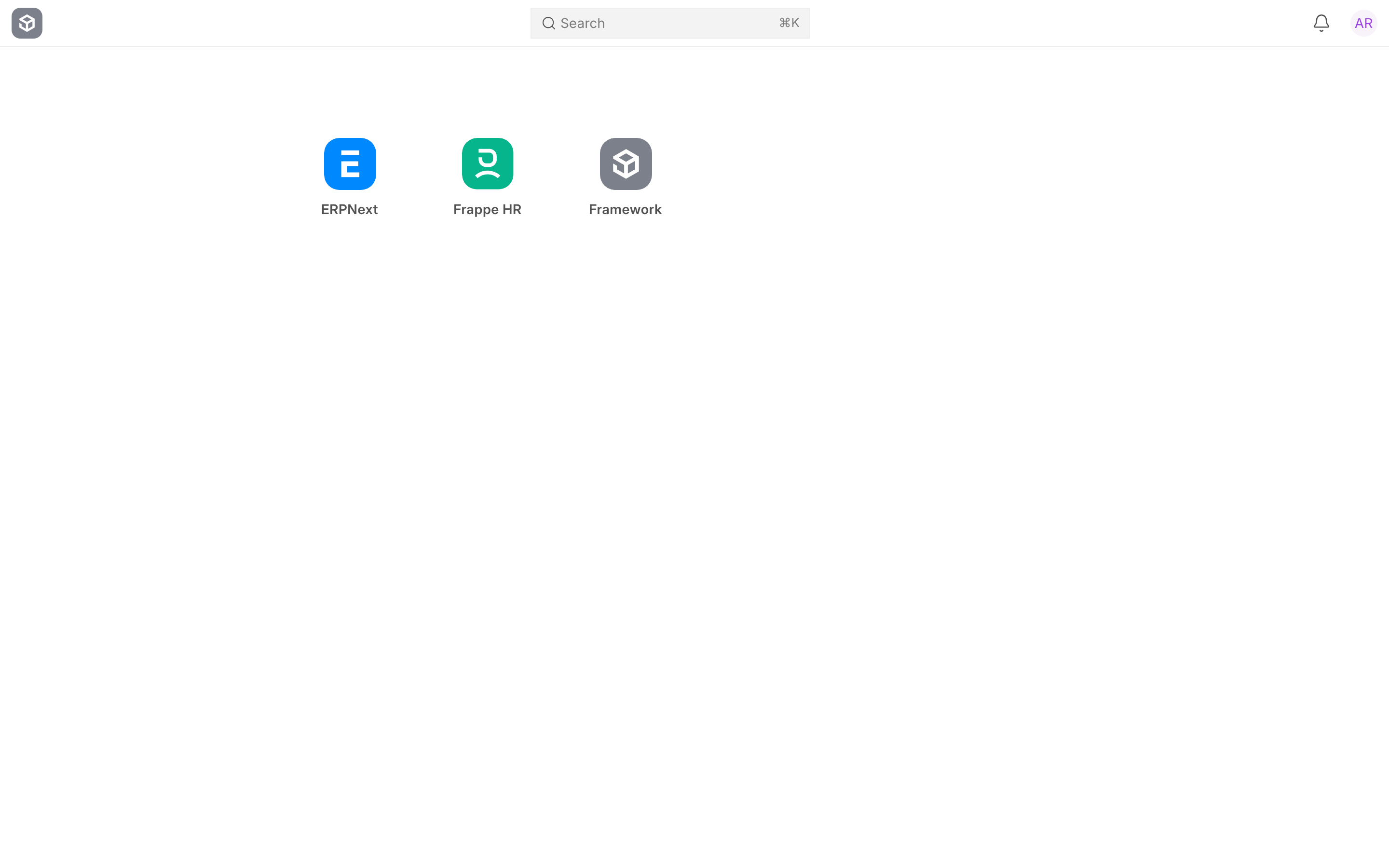
The search bar at the top searches the whole site, and the bell and your profile picture open notifications and your user menu.
Go back to Desktop
From anywhere in the desk, either:
- select the app logo at the top of Dock (its tooltip says All apps); or
- select the module name at the top of Sidebar, then All apps.
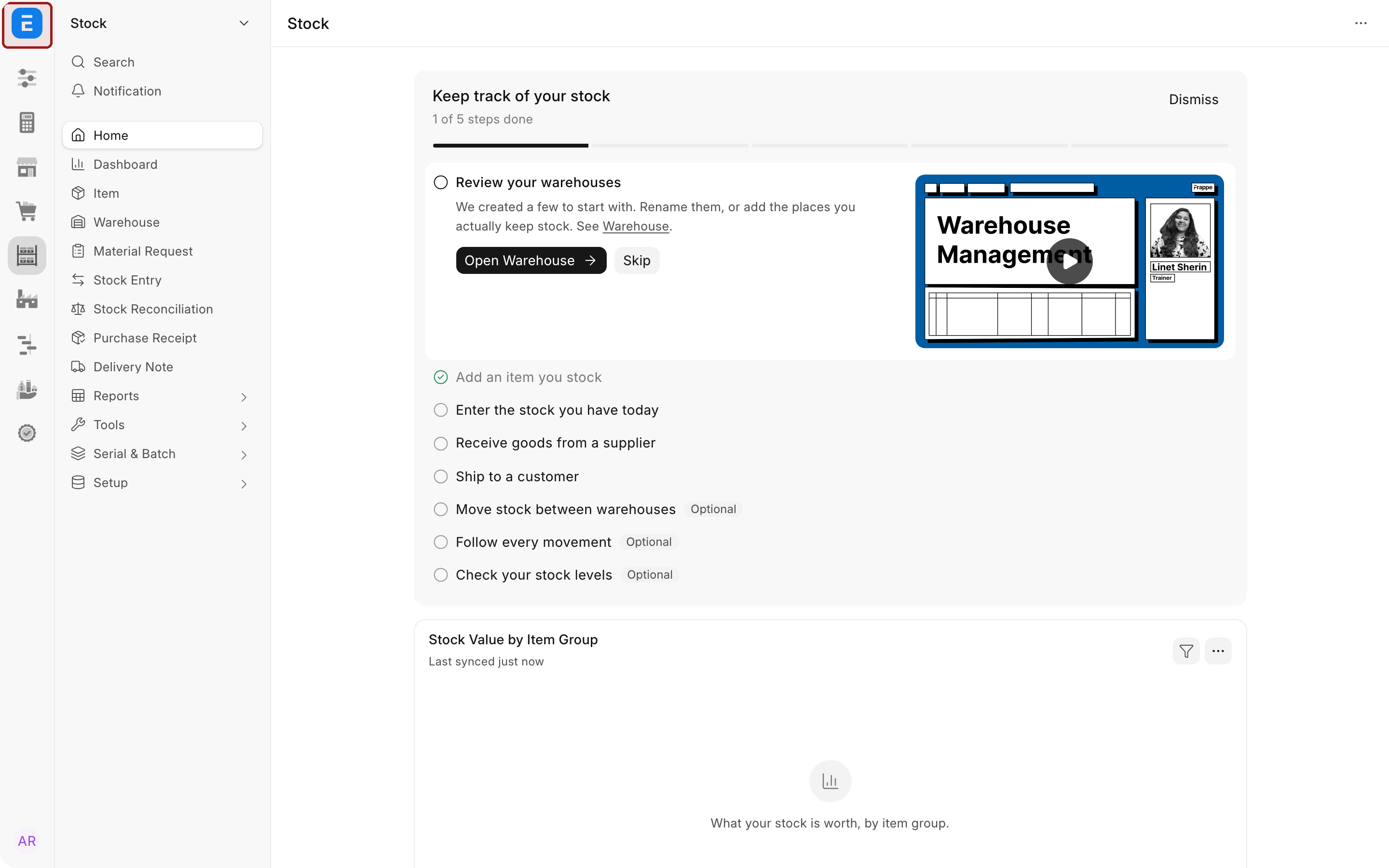
The app logo at the top of Dock, highlighted, goes back to Desktop.
Skip Desktop after login
If you always work in one app, you can open it straight after logging in. Set Default App on your user record. A System Manager can set Default App in System Settings for everyone who has not chosen one.
Which apps appear
An app appears on the apps screen when:
- it declares itself for the apps screen (see For developers);
- you pass the app's own permission check, if it has one; and
- the app's setup is complete, unless you are a System Manager.
A companion app, one that adds its modules to another app's dock, does not get an icon of its own. Its modules appear on the host app's dock instead. See Companion apps.
Apps are ordered by the number each one declares, lowest first, with Framework always last.
Desktop icon grid
Earlier Version 16 releases opened on a grid of desktop icons, which could point at workspaces, sidebars or links and be arranged into folders. The grid is now a fallback, kept so that an upgraded site's home screen does not change underneath its users. A new site never uses it, and it will be removed in a future release once most sites have moved to the apps screen.
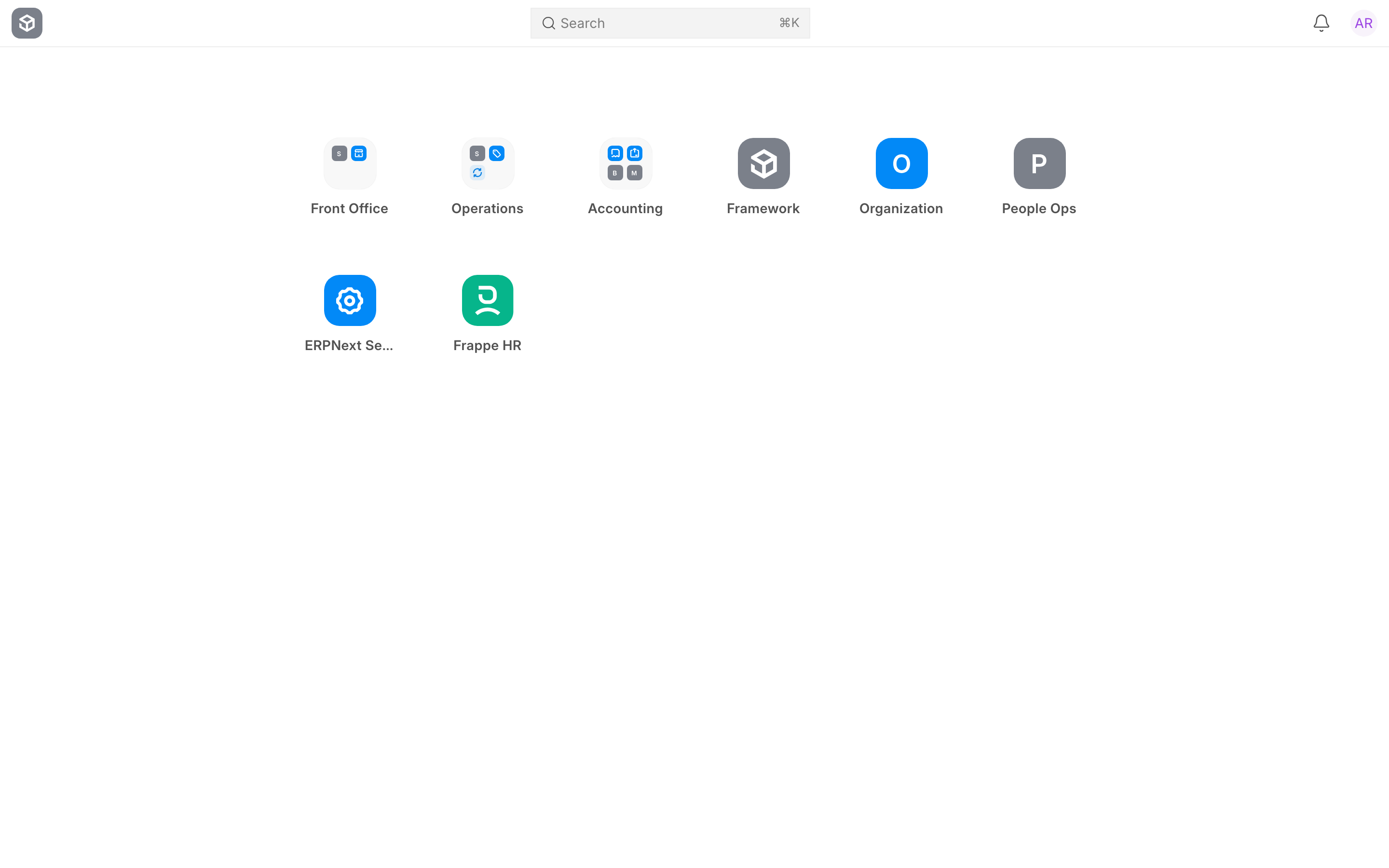
Desktop icon grid on a site upgraded from an earlier Version 16 release.
On an upgraded site, System Managers and Workspace Managers are invited once to try the apps screen. A System Manager can also move the site over at any time:
- Search for Desktop Settings in the search bar and open it.
- Set Desktop Page to Apps.
- Save.
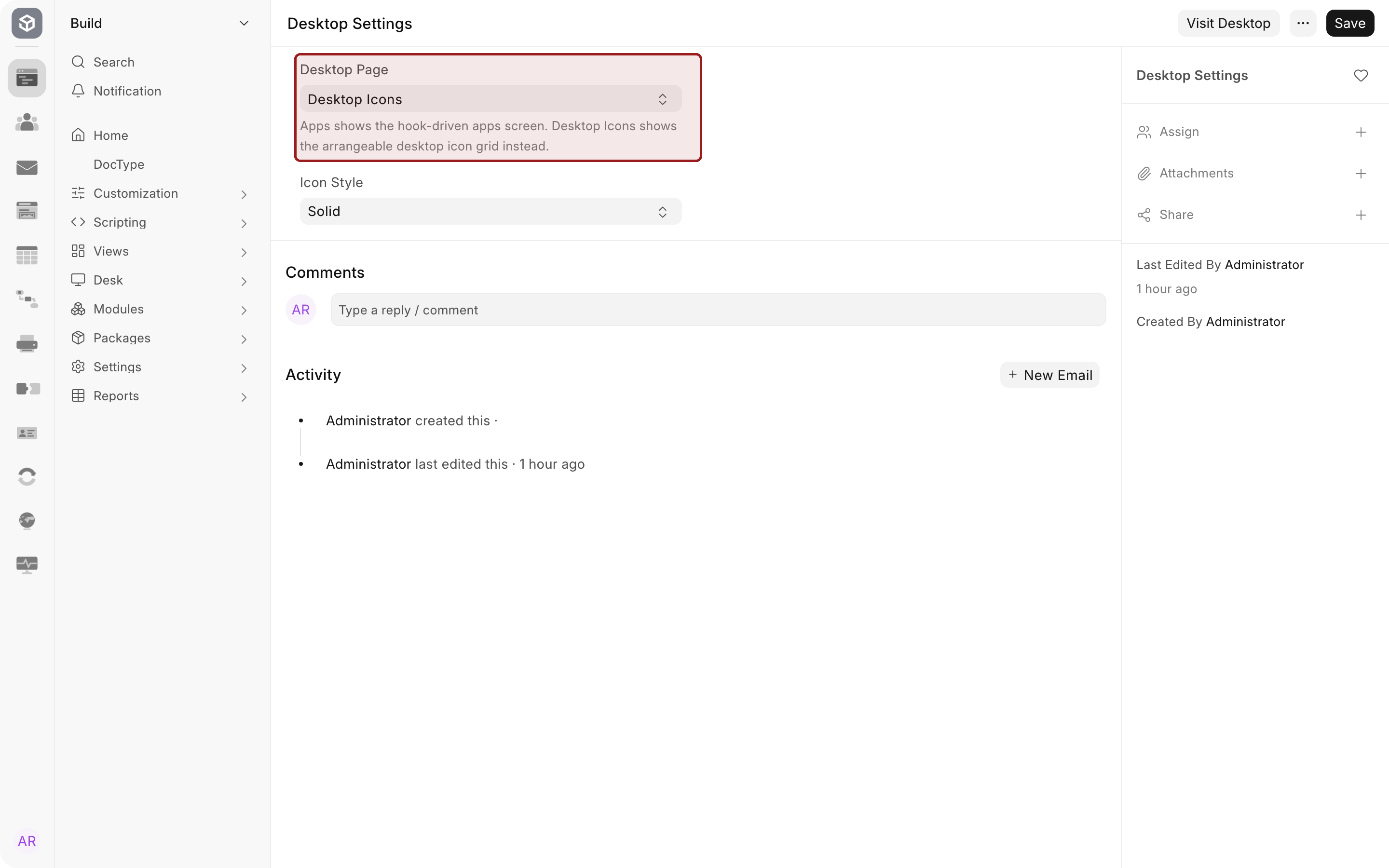
This changes Desktop for everyone on the site the next time they load the desk. Nothing is deleted: the icons and their arrangement are kept, so the site can return to Desktop Icons while it finishes moving over. Only Desktop changes; Dock and Sidebar work the same either way. See Migrating to the new navigation.
For developers: put your app on Desktop
Declare add_to_apps_screen in your app's hooks.py. See hooks for how hooks work.
add_to_apps_screen = [
    {
        "name": "my_app",
        "logo": "/assets/my_app/images/logo.svg",
        "title": "My App",
        "route": "/desk/my-module",
        "has_permission": "my_app.utils.check_app_permission",
        "sequence_id": 50,
    }
]
| Key | What it does |
|---|---|
name |
The app's name, as in hooks.py |
logo |
The icon shown on the apps screen and at the top of the app's dock |
title |
The name shown under the icon |
route |
Where the icon takes the user, usually the app's first module |
has_permission |
Optional. A function that returns whether the current user may use the app. Users who fail it see neither the icon nor the app's dock |
sequence_id |
Optional. The app's position on the apps screen; lower comes first. Apps without one get 100, and Framework is pinned last at 1000 |
An app that fails has_permission for a user is still known to the desk by name, so anything that refers to it can be labelled properly.
To give your app a dock of modules once it is open, ship a dock with it. See For developers: ship your app's dock.
Troubleshooting
An app is missing from the apps screen. You may not pass its permission check, its setup may be unfinished, or it may be a companion app whose modules live on another app's dock. A developer can check that the app declares add_to_apps_screen.
I see an icon grid, not app icons. The site was upgraded and is still on the fallback grid. A System Manager can move it to the apps screen in Desktop Settings.
Some icons disappeared from the icon grid after an upgrade. An icon that opened a sidebar with no workspace of its own may no longer appear. See Known issues.
Logging in opens an app instead of Desktop. A Default App is set on your user record or in System Settings.
Frequently asked questions
Should a new site use the icon grid?
No. The apps screen is the intended desktop, and the grid is kept only for upgraded sites while they move over.
Can each user choose their own desktop?
No. Desktop Page applies to the whole site. Each user can set their own Default App to skip Desktop.
Why is Framework always last?
Framework declares the number 1000, so it sorts after the apps you work in day to day.