


















Show or hide content
One print format often has to work for many situations: paid and unpaid invoices, local and export orders, customers with and without a tax ID. Instead of making a format for each, add a condition to the parts that should only print sometimes.
Applies to Frappe v16 and later.
Where you can add a condition
| What | Setting | Prints when |
|---|---|---|
| A section | Visibility > Condition | the condition is true |
| A field or block | Visibility > Condition | the condition is true |
| A table | Visibility > Condition | the condition is true |
| Rows of a table | Visibility > Show row when | the condition is true for that row |
| A table column | Column settings > Show column when | the condition is true for the document |
Leave a condition empty to always print.
Writing a condition
A condition is a short Python expression. Use doc for the document you are printing, and doc.fieldname for its fields:
doc.status == "Paid"
The field names are the ones in the Fields tab, not the labels. For example the "Customer Name" field is doc.customer_name.
You can use comparisons (==, !=, >, <, >=, <=), and, or, not, in, and the functions int, float and round. Other Python functions are not available in conditions.
Examples
doc.status == "Paid"                       # only on paid invoices
doc.status != "Paid"                       # only on unpaid invoices
doc.discount_amount > 0                    # only when there is a discount
doc.currency != "USD"                      # only for foreign currency
doc.customer_group == "Export"             # only for export customers
doc.tax_id                                 # only when a tax ID is filled in
not doc.is_return                          # hide on credit notes
doc.status in ("Overdue", "Unpaid")        # one of several values
doc.grand_total >= 10000 and doc.po_no     # both must be true
doc.total_qty > 100                        # only large orders
Table rows
In Show row when, use row for the row being printed:
row.qty > 0                    # skip zero quantity rows
row.item_group == "Products"   # only products
not row.is_free_item           # hide free items
Table columns
Show column when is checked once for the whole document, not per row, so use doc:
doc.discount_amount            # show the discount column only when there is a discount
doc.currency != "USD"          # show an exchange rate column for foreign currency
Print Settings
print_settings holds the site's Print Settings, so a condition can follow a site-wide switch:
print_settings.print_taxes_with_zero_amount or doc.total_taxes_and_charges
See it live
With a document picked for the preview, the editor checks the condition as you type and shows one of these under it:
| Badge | Meaning |
|---|---|
| Currently visible | The condition is true for this document. It will print. |
| Currently hidden | The condition is false. It will not print for this document. |
| Can't check this condition | The condition has an error. Hover over the badge to see it. |
| Load a document to see live status | No preview document is picked. |
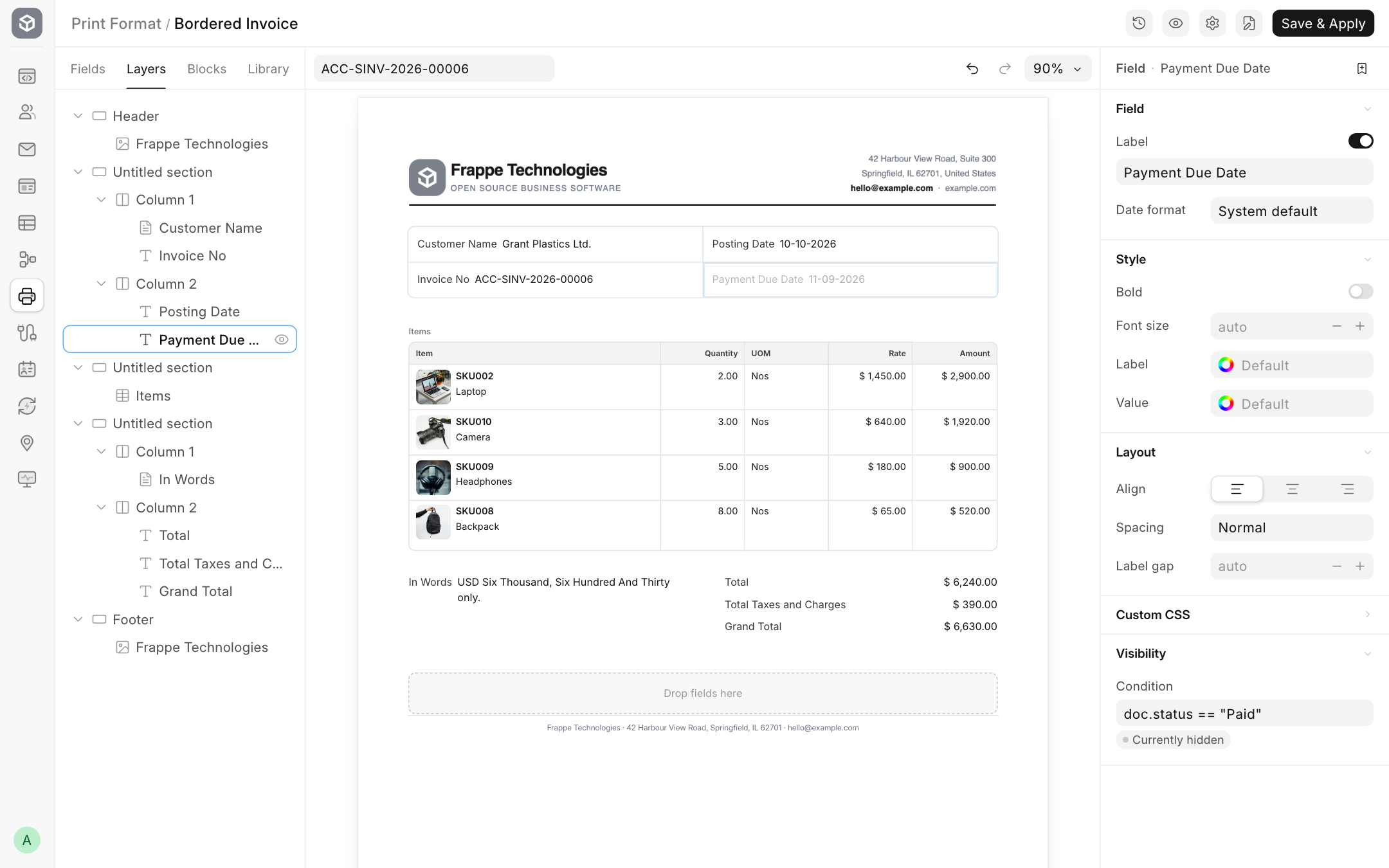
On the page, hidden parts are greyed out. In the Layers tab, anything with a condition has an eye icon, and hovering over it shows the condition.
When a condition has a mistake
- If the condition is not valid Python, for example a missing quote, Save & Apply stops and shows which condition is wrong.
- If the condition is valid but fails while printing, for example it uses a field that does not exist, the part is printed anyway so no information is lost. The error is recorded once in the Error Log, titled "Print format condition failed" with the format's name.