


















Versions, snippets and shortcuts
This page covers three things that make day-to-day work in the Print Format Editor faster and safer: version history, reusable snippets, and keyboard shortcuts.
Applies to Frappe v16 and later.
Version history
Every format keeps a history, so you can try changes without worrying about losing a design that works.
Open it with the clock button in the toolbar.
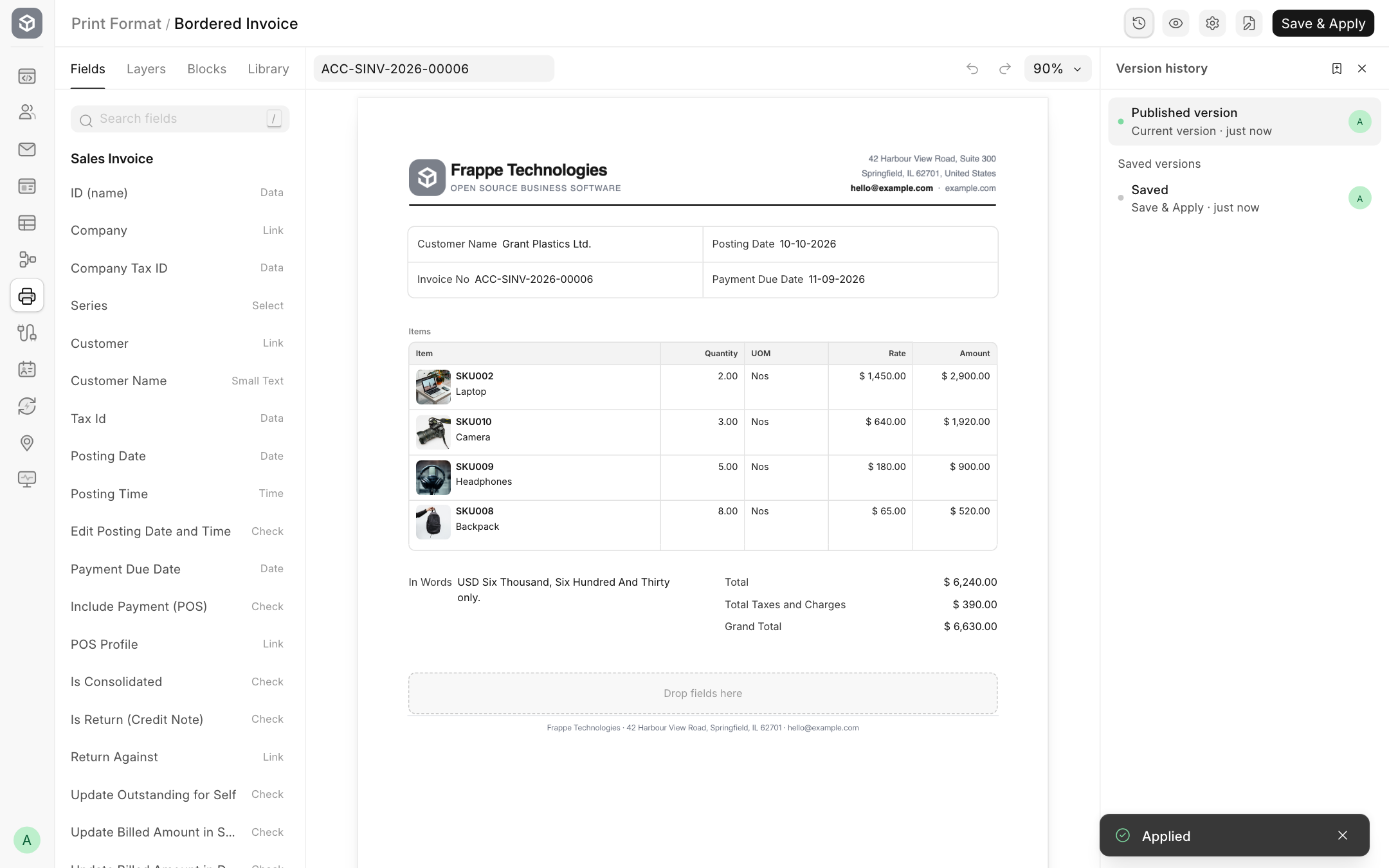
The panel lists:
| Entry | What it is |
|---|---|
| Current version | What you are editing now. It says Working draft · not applied yet when you have changes that are not applied, or Same as what prints when there are none. |
| Published version | What prints today. |
| Saved versions | Copies saved earlier, newest first. A copy is saved automatically each time you click Save & Apply, and these are marked Save & Apply. Copies you save yourself carry the name you gave them. |
Save a version
Before a big change, keep a copy of the current design:
- Open Version History.
- Click the bookmark button at the top of the panel (Save a named version).
- Enter a Version name, for example "Before new tax layout", and click Save.
Look at an older version
Click any entry to see it on the page. A banner tells you that you are viewing an old version, and editing is paused. Click Current version to go back to your draft.
Go back to an older version
- Hover over a saved version and click Restore this version as your draft. It replaces your draft. Nothing prints differently until you click Save & Apply.
- To throw away your draft and start again from what prints now, use the button on Published version.
- To remove a saved version, hover over it and click Delete this version.
Snippets
A snippet is a section or a field that you saved to reuse later, with all its settings. Use snippets for parts you put on many formats: a bank details box, a signature block, a terms section.
Save a snippet
- Select the section or field.
- Click the bookmark button at the top of the right panel (Save as snippet), or right-click it and choose Save as snippet.
- Enter a Snippet name and click Save.
Saving with the name of an existing snippet replaces that snippet.
Use a snippet
Open the Library tab. Under Saved Snippets, sections are listed first, then fields. Drag a snippet onto the page, or click it to add it below the selection.
The Library shows snippets made for the same document type, plus snippets that work with any document type. To delete a snippet, click the trash button on it.
Keyboard shortcuts
On a Mac, use Cmd instead of Ctrl.
Editing
| Keys | Action |
|---|---|
| Ctrl+S | Save & Apply |
| Ctrl+Z | Undo |
| Ctrl+Shift+Z or Ctrl+Y | Redo |
| Ctrl+C | Copy the selected section or field |
| Ctrl+V | Paste |
| Ctrl+D | Duplicate the selection |
| Delete or Backspace | Remove the selection |
| Alt+↑ / Alt+↓ | Move the selection up or down |
Moving around
| Keys | Action |
|---|---|
| ↑ / ↓ | Select the previous or next item |
| ← | On a section, collapse it. On a field, select its section. |
| → | On a section, expand it or select its first item |
| Esc | Select the parent, then nothing. With nothing selected, the right panel shows the page settings. |
| / | Jump to Search fields |
| Shift+click | Select a range of fields |
| Ctrl+click | Add a field to the selection |
Zoom
| Keys | Action |
|---|---|
| Ctrl+= | Zoom in |
| Ctrl+- | Zoom out |
| Ctrl+0 | Reset to 100% |
Shortcuts do not run while you are typing in a box, while the preview is open, or while you are viewing an old version.