


















Sync incoming emails from your mailbox into ERPNext
You can receive the emails of a mailbox, for example sales@yourcompany.com, in ERPNext. ERPNext saves each email as a Communication and can create a Lead, Opportunity or Issue from it. This page shows how to set up the sync, what each option does, and how to control which old emails ERPNext imports.
Before you start
- You need the System Manager role.
- Your email provider must allow IMAP access. For Gmail and Outlook, you usually need an app password or OAuth. See Email Account.
- Know the IMAP server name and port of your provider, for example
imap.gmail.comand993. - Know which mailbox folders you want to sync. Look at the folder names in your email client.
How the sync works
ERPNext does not keep a live connection to your mailbox. A scheduled job connects to the mail server every 10 minutes, reads the folders that you selected, and imports the new emails. Each run imports a maximum of 100 emails from each folder. If there are more, the next run continues.
The first time ERPNext reads a folder, it does an initial sync. It does not import the full folder. It imports only the most recent emails, up to the Initial Sync Count. After the initial sync, ERPNext imports only the emails that arrive after that point. The Email Sync Option controls which of these emails it takes.
ERPNext checks the Message-ID of each email. If the same email was already received through the same Email Account, ERPNext does not create a second Communication.
Set up the sync
- Go to Settings → Email Account and open your Email Account, or click Add Email Account.
- On the Details tab, enter the Email Address, and select the Domain or the Service (GMail, Outlook.com, Yahoo Mail).
- Under Authentication, enter the Password or set up OAuth.
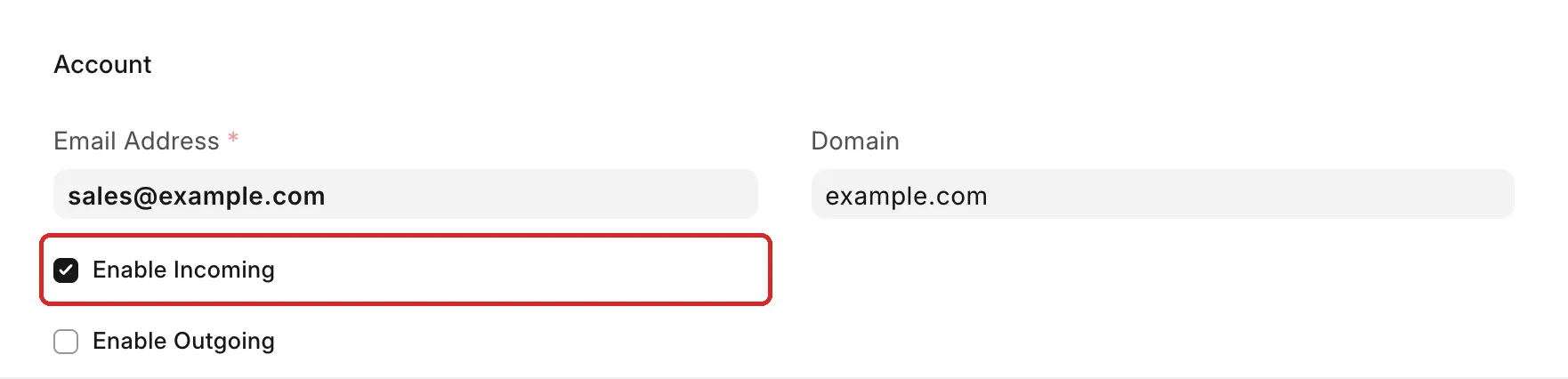
- Select Enable Incoming. The Incoming tab appears.
- Open the Incoming tab.
- Select Use IMAP. If you selected a Service or a Domain, ERPNext fills Incoming Server, Port and Use SSL for you.
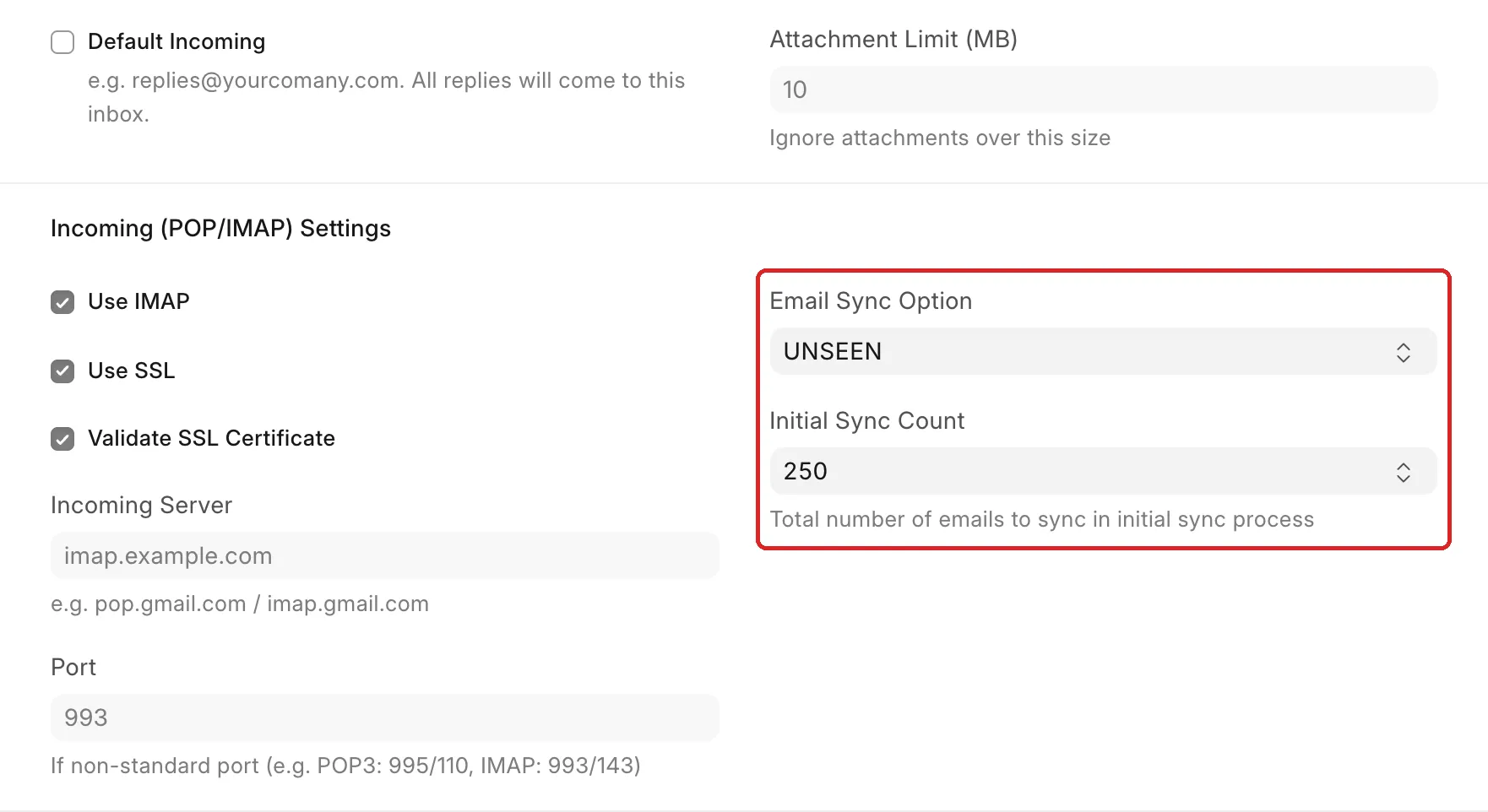
- Select the Email Sync Option and the Initial Sync Count. See Options on the Incoming tab to decide.
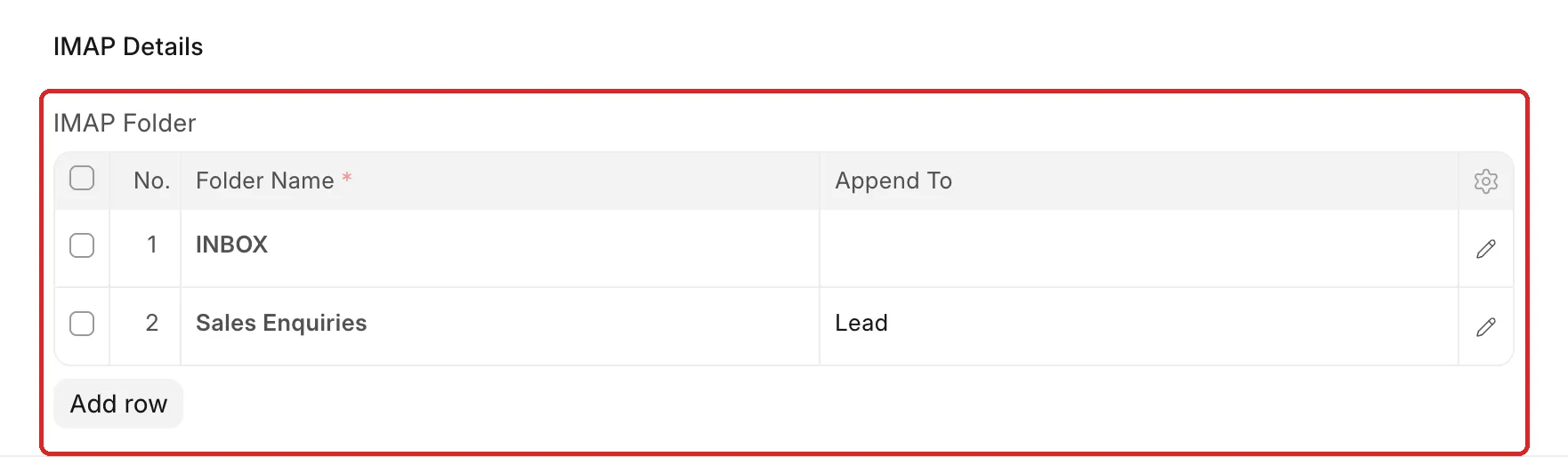
- In the IMAP Folder table, add one row for each mailbox folder to sync. Type the Folder Name exactly as it is in the mailbox, for example
INBOX. - Optional: in Append To, select the document type that ERPNext creates for each new email in that folder, for example Lead.
- Click Save. ERPNext connects to the mail server to check the settings. If the login or the server is wrong, you see an error and the account is not saved.
Check that emails arrive
- On the saved Email Account, click Pull Emails to start a sync now. You do not have to wait for the scheduled job.

- Go to Communication and filter by Email Account and Sent or Received = Received. The imported emails show here.
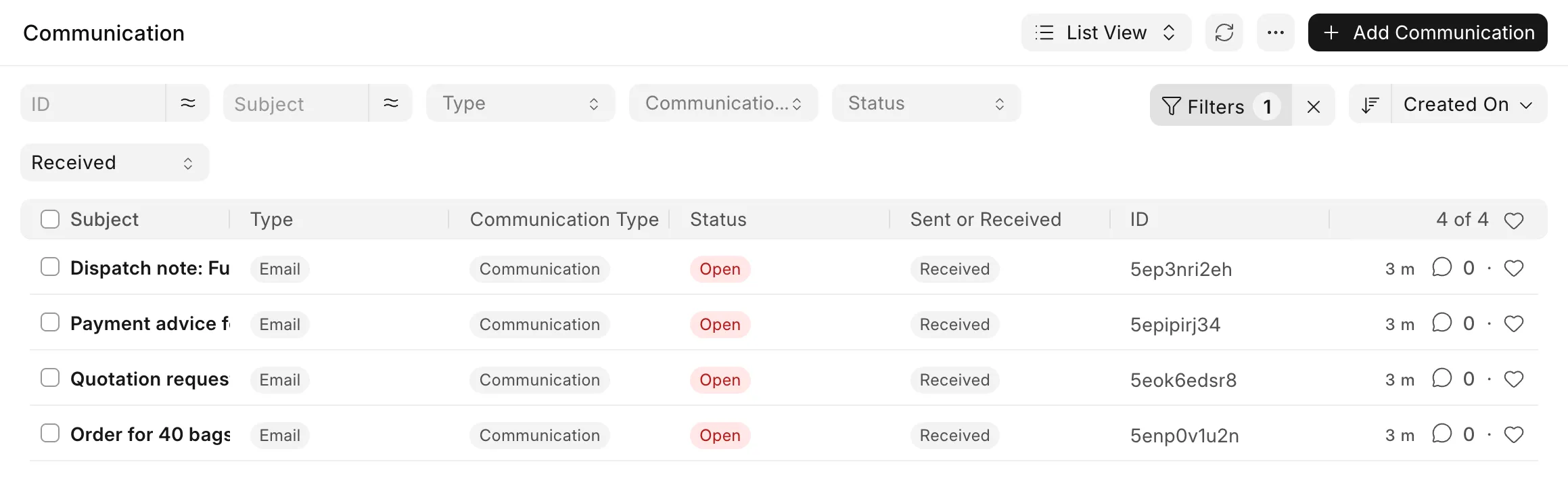
If you set Append To, the email also shows in the timeline of the document that ERPNext created, for example the Lead.
If an email cannot be imported, ERPNext saves it in Unhandled Email with the reason.
Options on the Incoming tab
Mailbox and connection
| Option | What it does |
|---|---|
| Default Incoming | Makes this the account that receives replies to emails sent from ERPNext. Only one account can be the default. Use it for a shared address such as replies@yourcompany.com. |
| Attachment Limit (MB) | ERPNext does not save attachments larger than this size. The email is still imported. Leave it empty for no limit. |
| Use IMAP | Reads the mailbox with IMAP. Keep this on. IMAP lets you select folders and leaves the emails on the server. Without IMAP, ERPNext uses POP3, reads only the inbox, and deletes each email from the server after it imports it. |
| Use SSL | Uses an encrypted connection. Most providers need it on port 993. |
| Validate SSL Certificate | Checks the server certificate. Turn it off only for a private mail server with a self-signed certificate. |
| Use STARTTLS | Shows when Use SSL is off. Starts encryption on a plain connection, usually on port 143. |
| Incoming Server | The IMAP server name, for example imap.gmail.com. |
| Port | Leave it empty for the standard port. Enter it only if your provider uses a different port. |
Email Sync Option
This option controls which emails ERPNext takes from each folder after the initial sync.
| Value | What ERPNext imports | What happens in your mailbox |
|---|---|---|
| UNSEEN (default) | Only unread emails. During the initial sync, only the unread emails among the most recent ones. | ERPNext marks each imported email as read. |
| ALL | Read and unread emails that arrive after the last imported email. During the initial sync, all of the most recent emails, read or unread. | No change. Read and unread status stays as it is. |
Use ALL if people also read this mailbox in Gmail, Outlook or a phone. With UNSEEN, an email that someone opens in the mail client before the next sync is never imported.
With UNSEEN, ERPNext also imports old unread emails, of any date, that are still in the folder. If the folder has many old unread emails, mark them as read before you enable the sync.
ALL applies only to the folders in the IMAP Folder table. It does not sync every folder in the mailbox.
Initial Sync Count
The number of most recent emails that ERPNext imports from each folder the first time it reads the folder: 100, 250 or 500. Older emails in the folder are not imported.
For example, the folder has 1,200 emails and you select 250. ERPNext imports the 250 most recent emails and then only new ones.
ERPNext does the initial sync again for a folder if the mail server resets the folder (the server changes the folder's UIDVALIDITY value). In that case, it imports the last 100 emails of that folder.
IMAP Folder
| Column | What it does |
|---|---|
| Folder Name | The mailbox folder to read, for example INBOX, Sales Enquiries or [Gmail]/All Mail. It must match the name on the mail server, with the same capital letters. |
| Append To | The document type to create from each new email in this folder, for example Lead, Opportunity or Issue. ERPNext creates one document per new email thread and adds replies to the same document. Leave it empty to save only the Communication. |
You can add many rows. ERPNext reads each folder on its own, with its own initial sync.
Document Linking

| Option | What it does |
|---|---|
| Create Contacts from Incoming Emails | Creates a Contact for each sender that is not in ERPNext yet. On by default. |
| Enable Automatic Linking in Documents | Links an email to a document when the address has the document in it, for example sales+Quotation+SAL-QTN-2026-00012@yourcompany.com. Only one Email Account can have this on. Your provider must support "plus" addresses. |
| Notify if unreplied | Sends a notification if an email is not replied to in the given time. Works only for folders with Append To set, and only while the document status is Open. Enter the time in Notify if unreplied for (in mins) and the recipients in Send Notification to. |
Can I sync only emails from a specific date?
Not directly. Email Account has no date filter. UNSEEN means "not read", not "newer than a date", and Initial Sync Count counts emails, not days.
To start from a date:
- In your email provider, create a folder, for example
ERPNext Sync. - Move the emails from your chosen date onward into that folder.
- Add a rule (filter) in the email provider that puts new incoming emails in that folder.
- In the Email Account, add only that folder in the IMAP Folder table.
- Set Email Sync Option to ALL, so that ERPNext also imports emails that someone already read.
- Set Initial Sync Count to a value that is larger than the number of emails in the folder, if possible.
Or keep INBOX, and move the older emails out of it into an archive folder before you enable the sync.
How to prevent problems
- Decide the folders, Email Sync Option and Initial Sync Count before you save the account for the first time. The initial sync starts at the first sync.
- Do not add the same mailbox in two Email Accounts. The duplicate check works only within one Email Account, so you get each email twice.
- If emails stop arriving, open Error Log and look for "Error while connecting to email account". The usual cause is a changed or expired password.