


















Migrating to the new navigation
Later releases of Frappe Framework Version 16 replace the way the desk is organized. Instead of a free-form sidebar attached to each workspace, every module now has one sidebar, and every app has a dock of its modules on the far left. This page is for the person upgrading an existing site. It explains what the upgrade does to your desktop, workspaces and sidebars, what it leaves alone, how to switch your users over, and what to check afterwards.
Nothing is deleted by the upgrade, and your users are not moved to the new navigation until you choose to switch. To learn the new navigation itself, see Finding your way around the desk.
What changes
| Before the upgrade | After the upgrade | |
|---|---|---|
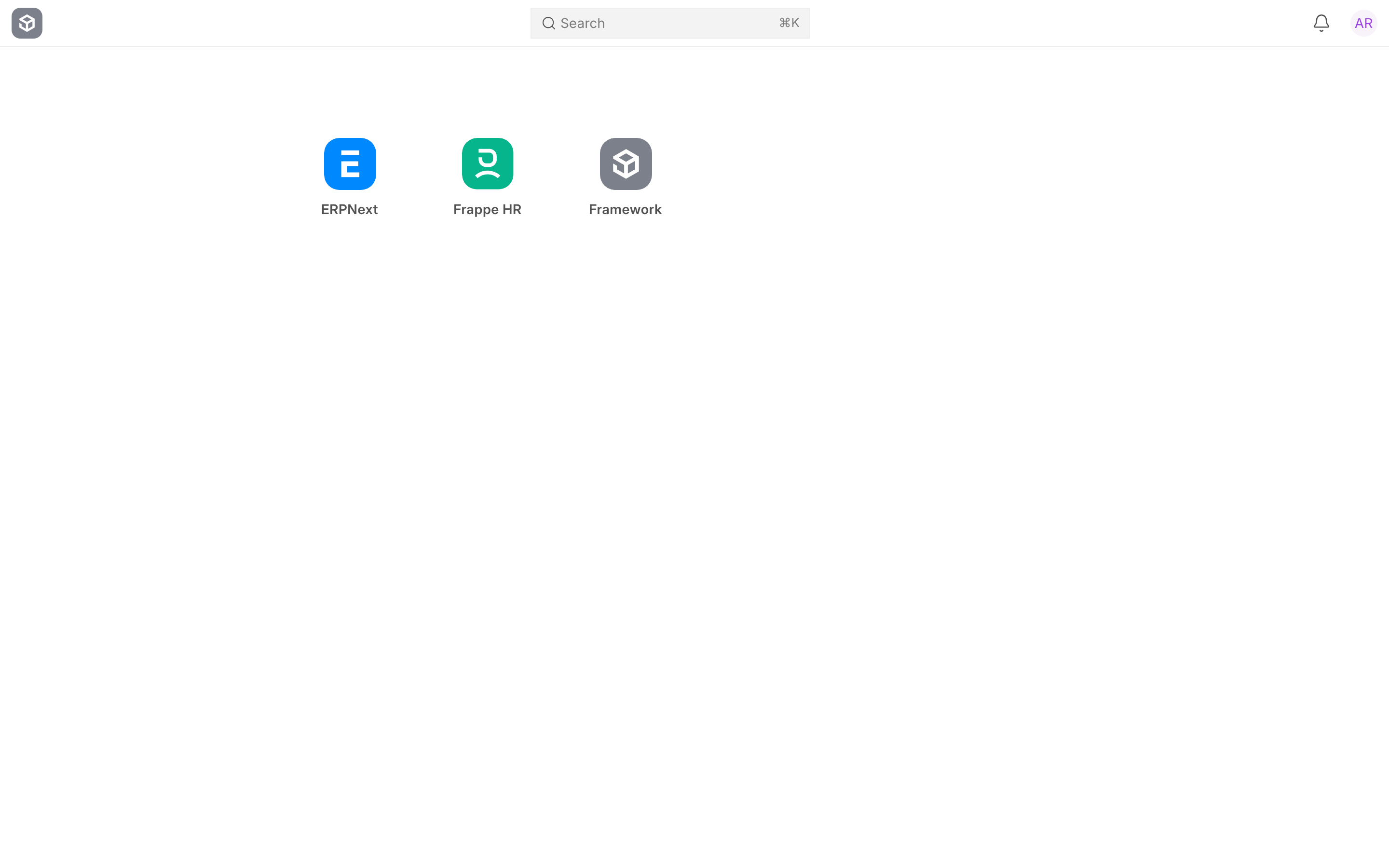
| Home screen | A grid of desktop icons | The apps screen, one icon per app. Your icon grid stays as a fallback until you switch |
| Moving between areas | Desktop icons and workspace sidebars | A dock of modules for each app, beside Sidebar |
| Sidebars | Any number of sidebars, each with its own name | One sidebar per module, which apps ship and you customize |
| Personal sidebar copies | A user's own copy of a sidebar | That user's Just for me arrangement of the module's sidebar |
| Workspaces | Could belong to no module | Every workspace belongs to a module, which decides its sidebar |
| Changing navigation for everyone | Edit the shared sidebar record | Edit Sidebar and Manage Dock with the Workspace Manager role |
Before you upgrade
- Take a backup. Run
bench --site <your-site> backup(see bench commands). The upgrade deletes nothing, but a backup is the only way to put a site back exactly as it was. - Update all your apps together. Frappe Framework, ERPNext, Frappe HR and any other apps should be on matching releases, because each app ships its own sidebars and dock for the new navigation.
- Write down your custom sidebars. Take a screenshot or list the entries of every sidebar your site added or edited. Some site changes are not carried over yet (see Known issues), and a list makes them quick to rebuild.
- Decide who will manage navigation. After the upgrade, only users with the Workspace Manager role can change Sidebar or dock for everyone. A System Manager does not get it automatically. Grant it to whoever looked after your sidebars before. See users and permissions.
- Check with your app developers. If you use a custom app that ships its own sidebars, ask whether it has a release for the new navigation. See For app developers.
Run the upgrade
Upgrade as you normally would, with bench update or by switching branches and running bench migrate. There is no separate step for navigation: it is converted while the site migrates.
Watch the output. It tells you what was converted:
- Sidebars: n module(s) carried over, n personal arrangement(s) kept. How many of your site's sidebars became module sidebars, and how many users' personal copies were kept.
- Module 'name': merged ... Where a module had several sidebars, they were combined into one. Each merge is named.
- A list of apps that still ship sidebars in the old format. Those apps' modules use a generated sidebar until the app is updated.
What the upgrade does
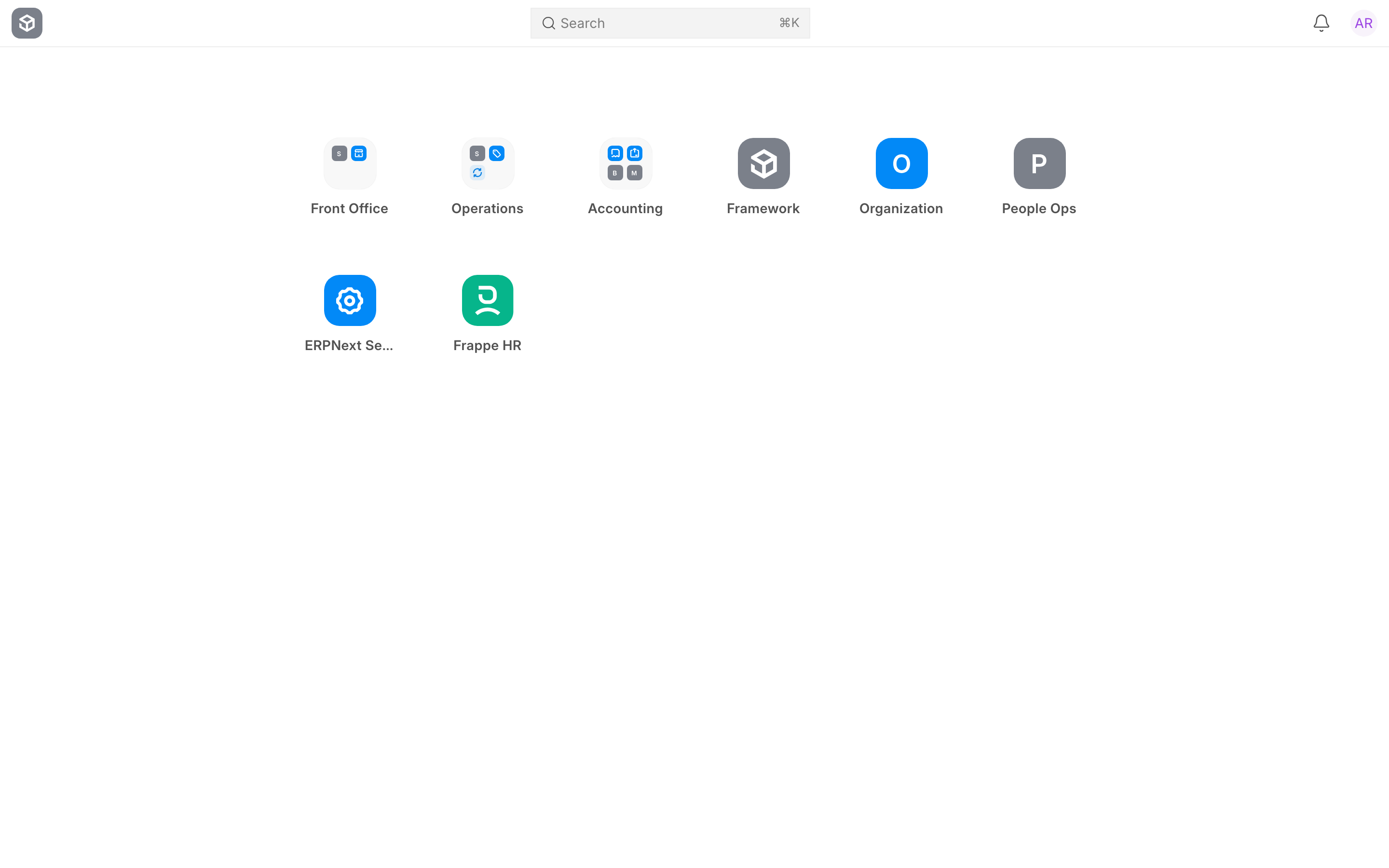
Your desktop stays on the icon grid for now
The new navigation runs from apps on the apps screen, to each app's modules on Dock, to each module's sidebar. The icon grid has no place in that hierarchy, but it is kept as a fallback so that your users do not find a different home screen the morning after an upgrade.
If your site uses the grid of desktop icons, it keeps using it after the upgrade, with every icon and its arrangement intact. Plan to move to the apps screen: the grid is retiring, and it will be removed in a future release once most sites have moved. A brand new site starts on the apps screen and never has the grid.
Inside a module, your users do see the new dock and sidebar straight away.
Workspaces are filed into modules
Every workspace now belongs to a module, because the module decides which sidebar it appears in. Workspaces that already had a module keep it. For the rest, the upgrade does not guess:
- a workspace that belongs to one user is filed under Private, and still appears for that user;
- any other workspace is filed under Custom Workspaces.
Treat Custom Workspaces as a to-do list. Open Manage Workspaces, select Custom Workspaces, and move each workspace to the module it belongs in. See Move or share a workspace.
Sidebars become module sidebars
Your old sidebars are copied into the new module sidebars. The originals are not changed or deleted.
- Sidebars shipped by an app are replaced by the app's new sidebar for each module.
- Sidebars your site created or edited become the module's sidebar, where the app does not ship one for that module. If a module had several, they are merged into one, and the output names each merge. Sidebar names that cannot be used in a web address, such as
Buying / Selling, are adjusted automatically. - A user's personal copy becomes that user's Just for me arrangement of the module's sidebar. If one person had several copies in one module, they are combined.
- The "My Workspaces" sidebar is not copied. Private workspaces now appear on their own, for their owner only.
- Links to things that no longer exist are copied as they are, so one dead link cannot stop the upgrade. Remove them afterwards in Edit Sidebar.
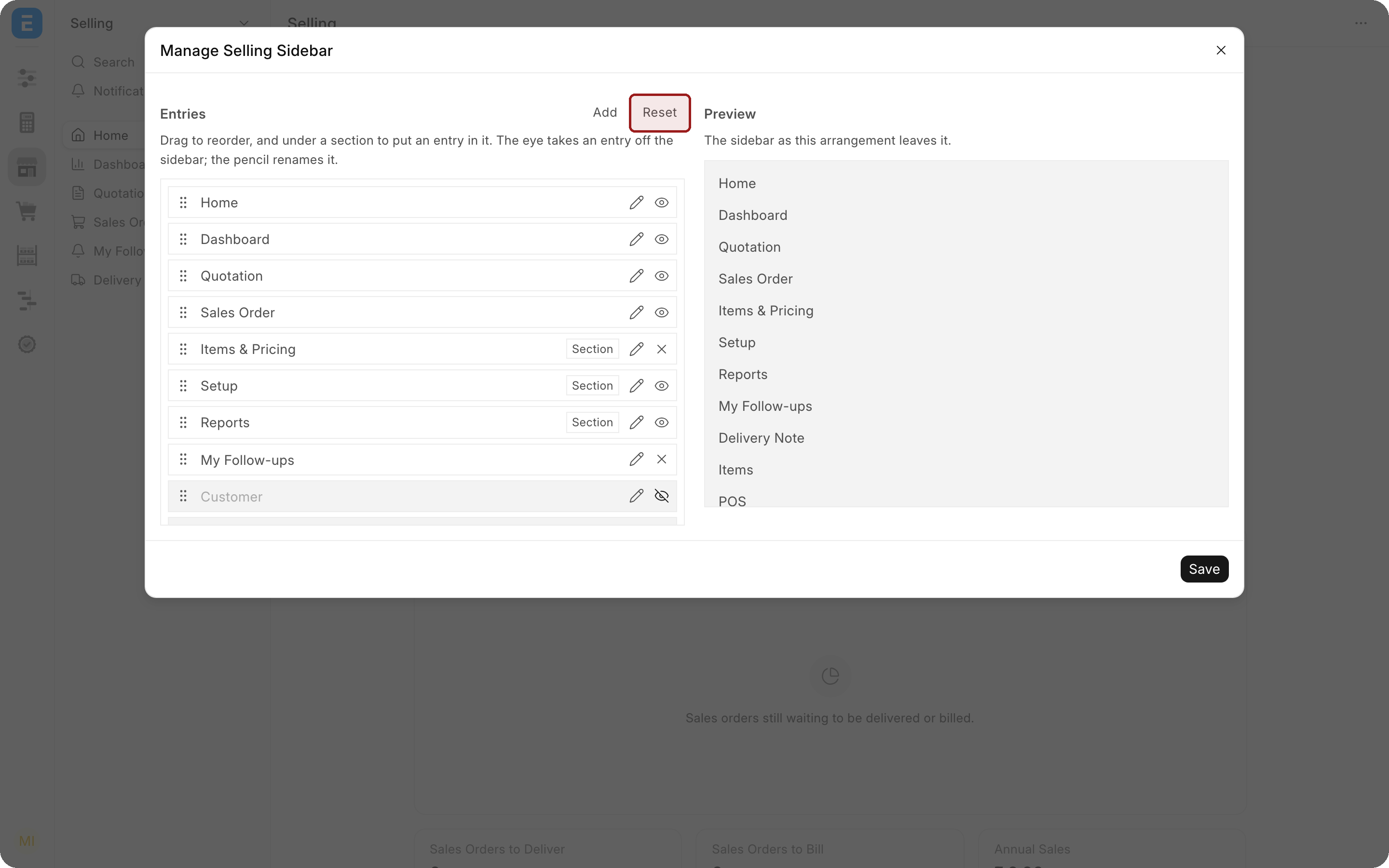
A user's personal sidebar copy, carried over as their own arrangement.
The old records are kept, read-only
The old sidebar records stay on the site as an archive. Nothing reads them any more, and trying to edit one shows a message that it is an archive of the previous navigation. They are kept so the conversion can be repeated if something went wrong.
Your links keep working
Bookmarks and links to /desk/... and /app/... pages still open. Addresses now also include the module you are in, such as /desk/selling/customer, and an old address is corrected to the new form when it opens.
Switch to the new navigation
When you are ready, move the site's home screen from the fallback icon grid to the apps screen. Nothing is lost, and while the fallback exists you can return to it if you need more time.
Accept the invitation
After the upgrade, users with the System Manager or Workspace Manager role are invited once, when they next open the desk, to try the new navigation.
- Try it switches the whole site to the apps screen and reloads the page.
- Keep the icon grid leaves everything as it is.
Either answer stops the invitation for everyone on the site. Neither deletes anything: the icons and every user's arrangement stay, ready for you to switch back.
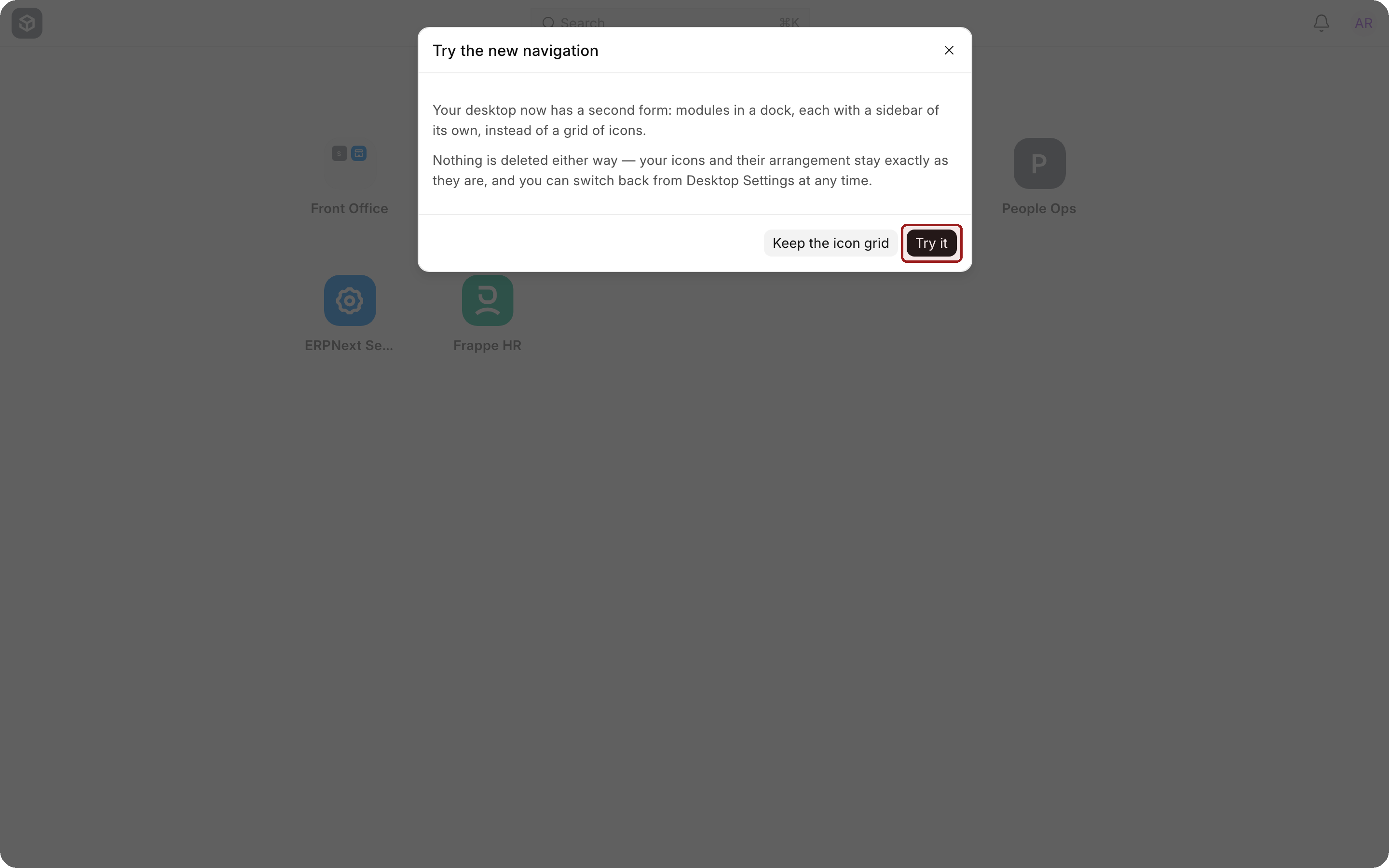
Move to the apps screen
You can also switch yourself at any time, whether or not you answered the invitation:
- Search for Desktop Settings in the search bar and open it.
- Set Desktop Page to Apps. (Desktop Icons is the fallback grid.)
- Save.
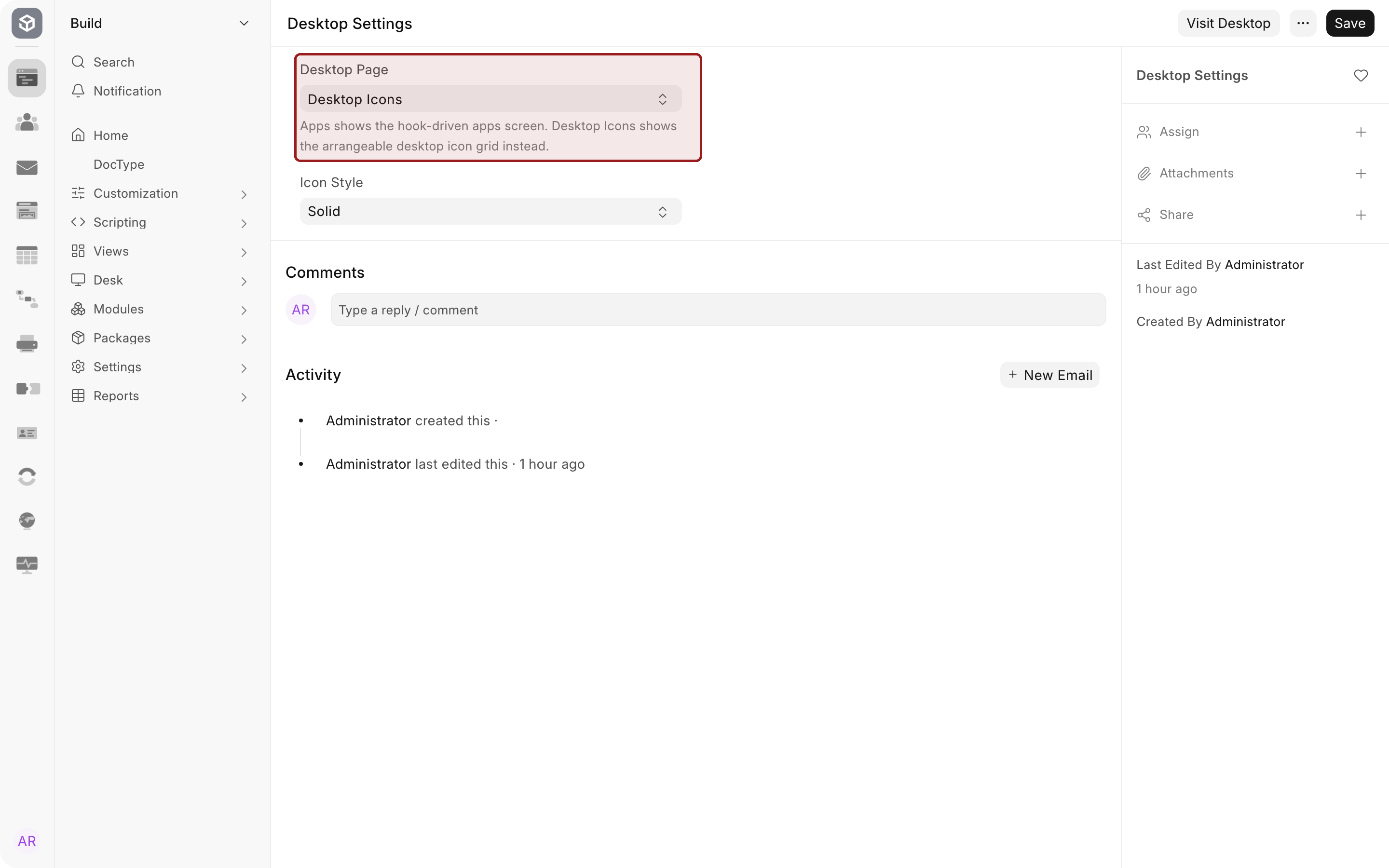
This changes the home screen for everyone on the site.
After the upgrade
Work through this list once the migrate has finished:
- Read the migrate output and note any merged modules or apps named as still using the old format.
- Log in as an ordinary user, not as Administrator, and check that their dock lists the modules they need and their sidebars hold what they use.
- Empty Custom Workspaces. Move each workspace in it to its real module in Manage Workspaces.
- Rebuild what was not carried over. Compare your sidebars with the list you made before upgrading. Open Edit Sidebar, choose For everyone, and add back what is missing. See Customizing Sidebar.
- Arrange Dock for everyone if your users need a different order.
- Grant the Workspace Manager role to the people who will look after navigation from now on.
Known issues
These were found while upgrading a fully customized test site, and are open as of October 2026. Check your release's notes for fixes.
- Site changes in modules that an app ships a sidebar for are not carried over. If your site created its own sidebar in, or edited the sidebar of, a module such as Selling, Stock, Manufacturing or Accounts, those changes do not appear after the upgrade, because the app's new sidebar for that module takes their place. Personal copies are not affected, and neither are site sidebars in modules where no app ships one. The old entries are still in the archive, so a fix can recover them. Until then, rebuild them with Edit Sidebar on For everyone.
- Some desktop icons are hidden. On the icon grid, an icon that opened a sidebar with no workspace of its own may no longer appear, because it cannot find a module sidebar to open. Switching to the apps screen avoids this. Otherwise, recreate the icon pointing at the module's workspace.
Undo the switch or the upgrade
-
To return to the icon grid for now, set Desktop Page to Desktop Icons in Desktop Settings. Your icons are exactly as you left them. Treat this as temporary: the grid will be removed in a future release.
-
To undo the whole upgrade, restore the backup you took before upgrading, together with the earlier releases of your apps. This is the only full rollback.
-
To repeat Sidebar conversion, for example after a fix is released, ask your system administrator to run:
bench --site <your-site> execute frappe.patches.v16_0.convert_sidebars.executeIt skips any module that already has a sidebar, so remove the module sidebar you want replaced first.
For app developers
Apps used to ship sidebars in a single workspace_sidebar folder. Those files are no longer read. Until an app is updated, its modules use a sidebar generated from their contents, which works but loses the app's curated order. The migrate output names every app in this state.
To convert an app's sidebars, run this on a development site and commit the new files:
bench --site <your-site> convert-sidebar-fixtures --app <your-app> --dry-run
bench --site <your-site> convert-sidebar-fixtures --app <your-app>
The command only writes new files and leaves the old folder in place, so you can run it again. For everything else an app can ship, see Sidebar and Dock.
Troubleshooting
A module's sidebar looks generated rather than curated. Its app has not been updated for the new navigation, or the module never had a sidebar. Ask the app's developer for an update, or arrange it once for everyone with Edit Sidebar.
A user lost their personal sidebar. Their copy was only carried over if it had at least one entry and belonged to a module that still exists. Rebuild it with them using Just for me.
A workspace cannot be found in any sidebar. It has no module. Open it and choose a module when asked, or set one in Manage Workspaces.
Frequently asked questions
Will my users see a different home screen after the upgrade?
Not until you switch. A site on the icon grid stays on it as a fallback, but plan to move: the grid will be removed in a future release.
Can we try the new navigation and go back?
Yes, for now. Switch Desktop Page in Desktop Settings. Going back to the icon grid is only possible while the fallback exists.