


















A Letter Head is your company's header and footer, printed at the top and bottom of the printout. It repeats on every page when Repeat Header and Footer is on in Print Settings.
Applies to Frappe v16 and later.
Create a letter head
- Open the Letter Head list and click Add Letter Head.
- Enter a Letter Head Name.
- Set Letter Head Based On:
- Image: upload a header image and set its height, width and alignment. Simplest for a logo or a designed banner.
- HTML: write the header in HTML. You can use Jinja, for example
{{ doc.company }}.
- Set up the footer the same way under Footer Based On.
- Tick Default Letter Head to use it whenever no other is chosen.
- Save.
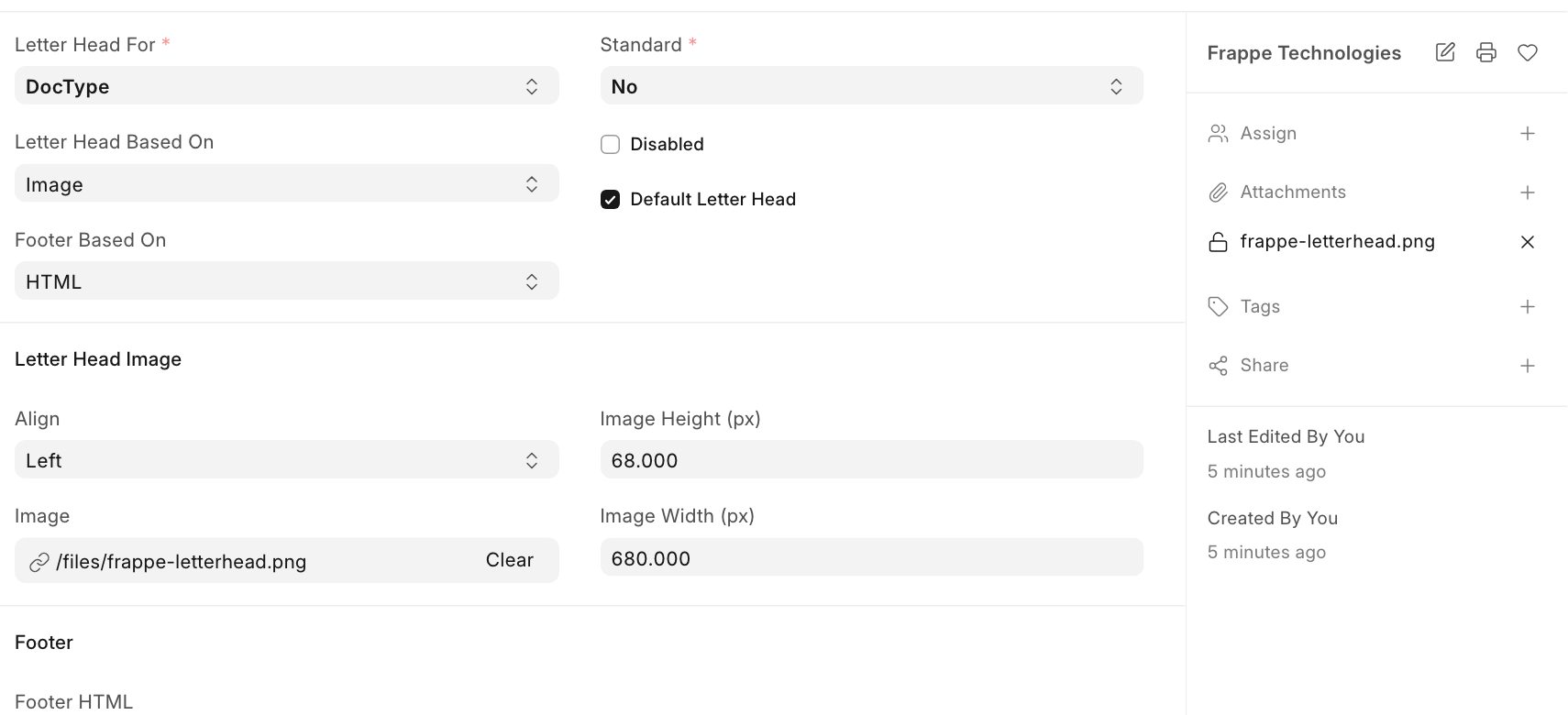
The letter head prints exactly what you put in it, so check the address, email and phone number before making it the default.
Keep Letter Head For as DocType for documents. Choose Report for a letter head used on report prints.
Use a letter head
- On the print page, pick it in Letter Head. Leave it empty to print without one.
- In the Print Format Editor, set Letter head in the page settings to save it with the format. Click the letter head on the page to change its image, alignment or size.
- A document with its own Letter Head field uses that one.
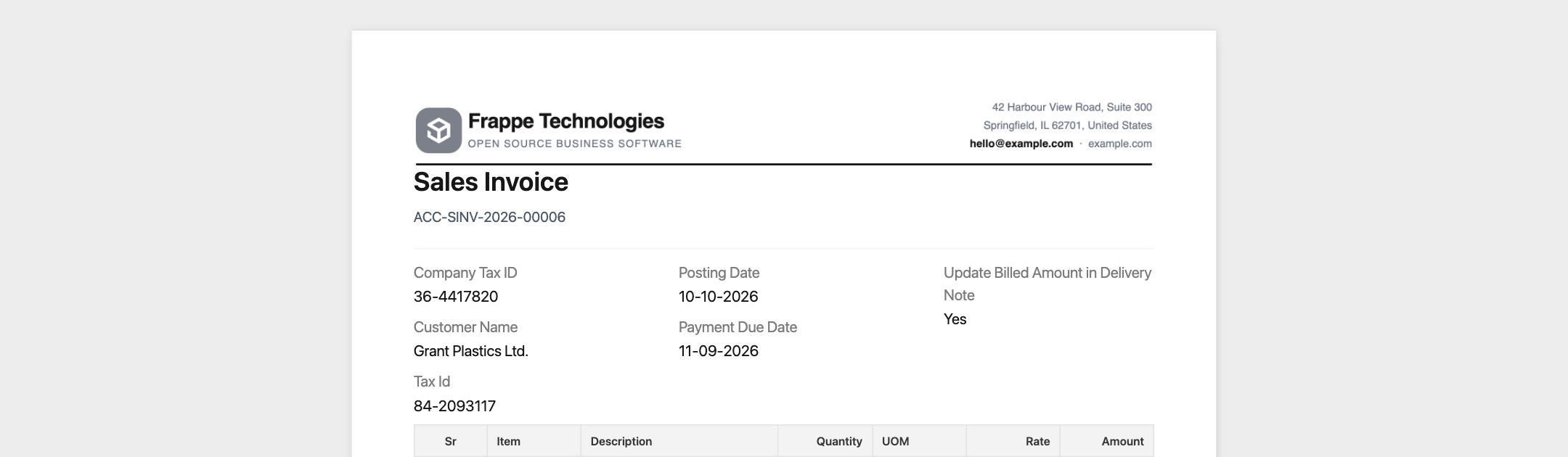
Header and footer on every page
The header and footer repeat on every page only when Repeat Header and Footer is on in Print Settings. When it is off, the footer prints once at the end, and the print page shows a warning next to Letter Head.
Tips
- Use an image at least twice the size it prints at, so it stays sharp.
- Leave room for the header in the format's top margin.
- HTML letter heads with custom CSS cannot be printed with the Typst renderer.
Last updated 3 weeks ago
Was this helpful?