


















I'm not receiving a password reset, login link, or two-factor authentication email
You click Forgot Password, Login with Email Link, or you have two-factor authentication (2FA) turned on, but the email with the reset link, login link, or verification code never arrives. In every case, Frappe queues the mail and depends on the site's own outgoing email setup to actually send it — so the fix is almost always in Email Account or the Email Queue, not in the password reset or 2FA feature itself.
The error
Often there is no error on screen at all — you just never receive the email. If there is one, it is usually this, shown as a pop-up when you try to log in with an email link:
Please setup default outgoing Email Account from Tools > Email Account
Or, in the Email Queue entry's own Error field, if an account is configured but misconfigured:
Invalid Outgoing Mail Server or Port: Connection unexpectedly closed
If you get a generic Server Error or a traceback mentioning reset_password instead of either of these, skip to If this does not fix it.
Why this happens
Frappe does not send the password reset, login link, or 2FA email the moment you ask for it. It writes the email as a new Email Queue entry and sends it from there, using whichever Email Account is marked Default Outgoing. Two-factor authentication mail follows the same path: if the Two Factor Authentication method is Email or SMS, Frappe emails or texts the code the same way on every login, and even with the OTP App method, the first time a user turns 2FA on, Frappe emails a setup confirmation before the authenticator app is considered registered.
So all three symptoms — no reset email, no login link, no 2FA code — usually trace back to the same two things: whether a working Default Outgoing Email Account exists, and whether the Email Queue actually sent the entry. If neither is the cause, the email can still be delivered but filtered as spam, or delayed by the queue's own send interval.
How to fix it
- Open the Email Account list (search "Email Account" in the Awesome Bar). Check that at least one account has Enable Outgoing checked, and that exactly one has Default Outgoing checked under Outgoing (SMTP) Settings. If none does, open a working account, check both boxes, and save.
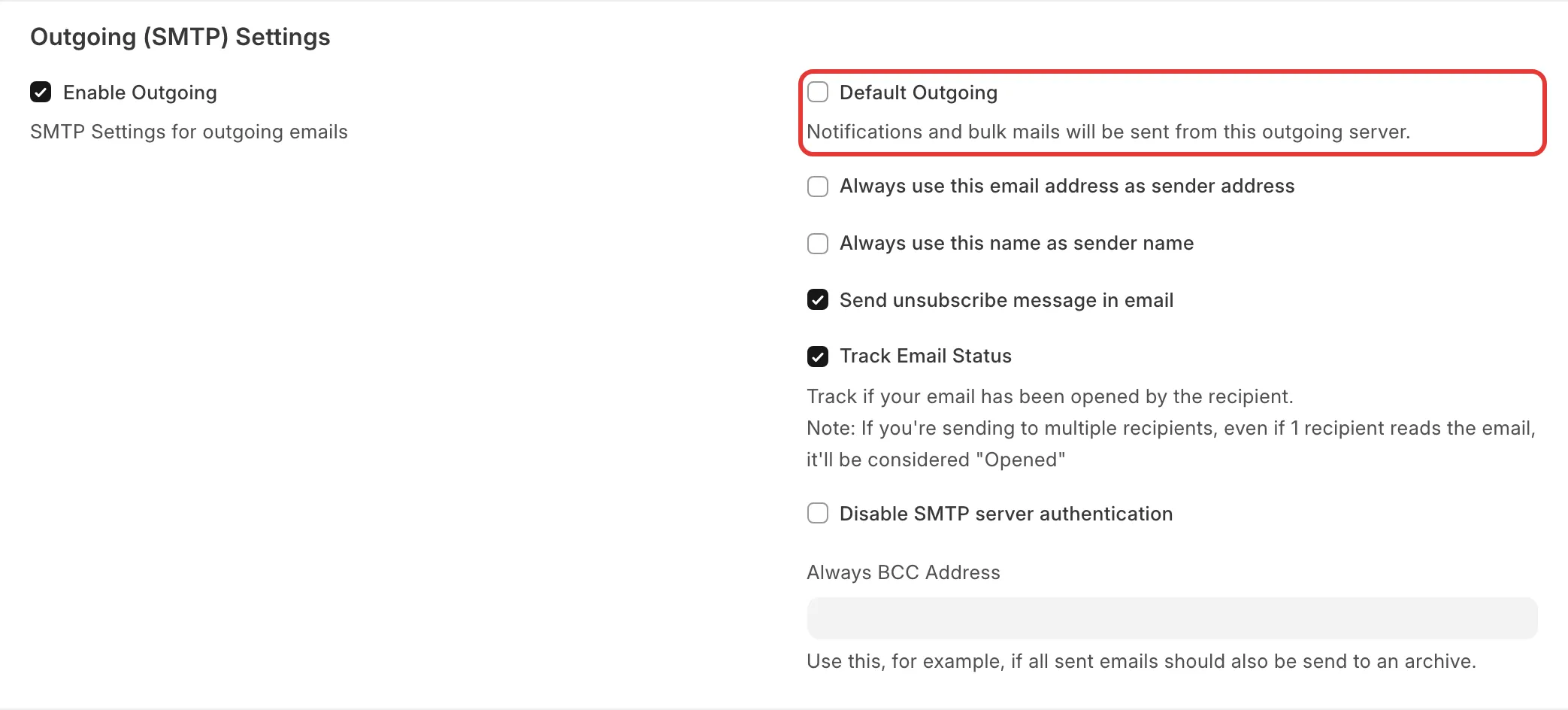
- Open the Email Queue list and find the entry for the email you expected (filter by recipient, or sort by Last Updated On for the most recent). Check its Status:
- Error: open the entry and read the Error field. A server/port/authentication message here means the Default Outgoing account's SMTP settings are wrong — fix them on the Email Account and resend.
- Not Sent or Sending: the queue has not flushed it yet. By default the queue sends every 4 minutes (the site's
scheduler_interval). Wait a few minutes, or ask a System Manager with bench access to run it immediately:bench --site [site-name] execute frappe.email.queue.flush. - Sent: delivery succeeded on Frappe's side. Go to step 3.
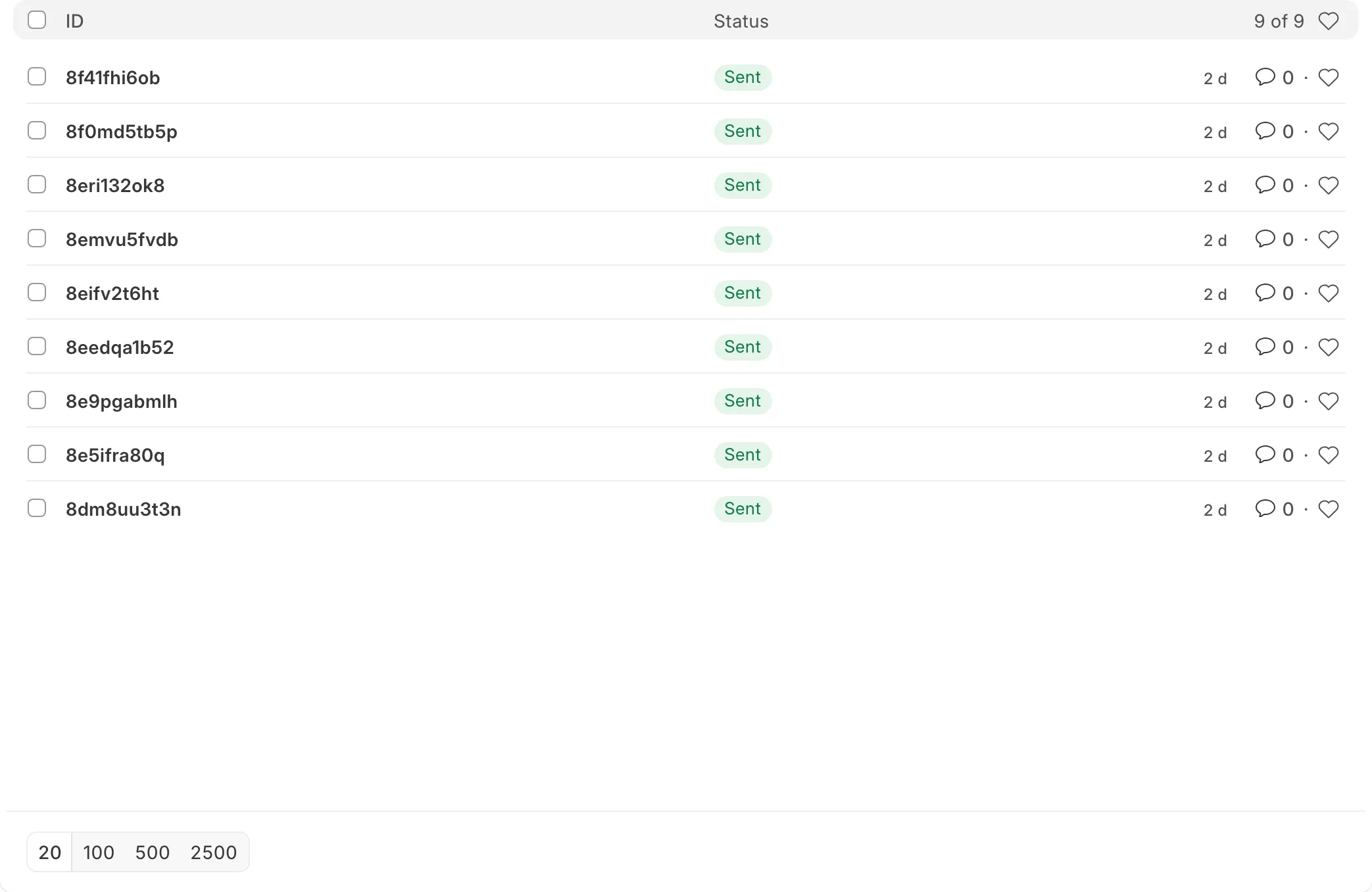
- If the queue shows Sent but the email still never arrives, check the recipient's spam or junk folder first. If it is consistently filtered, the sending domain is likely missing SPF or DKIM DNS records for the Email Account's domain — ask whoever manages that domain's DNS to add them, matching the mail provider's published values.
- On Frappe Cloud, if the site uses the built-in Email Delivery Service app instead of your own SMTP account, confirm it has not hit its plan's sending limit. See Upgrade the Email Delivery Service plan. Product support for email configuration itself depends on your site's support plan tier.
- If the missing email is specifically the 2FA code or setup mail, re-check step 1 first — this is the same Default Outgoing cause, not a separate 2FA problem. If step 1 is already correct, open System Settings → Login and confirm Two Factor Authentication method matches what you expect (OTP App, SMS, or Email).

To get a locked-out user back in without waiting on email, a System Manager can turn 2FA off for everyone temporarily by unchecking Enable Two Factor Auth in System Settings → Login, or scope it to specific roles by removing the Two Factor Authentication permission from the All role. Turn it back on once the underlying email problem is fixed.
If this does not fix it
- If the error is a server traceback naming
reset_passwordorAttributeError, instead of a missing Default Outgoing account, this is a code-level issue, usually tied to a recent version upgrade, not an email configuration problem. Raise a support ticket with the full traceback from the Error Log and the site's Frappe and app versions (Help → About). - Raise a support ticket if the Email Queue entry shows Sent, SPF/DKIM are already correct, and the email still never arrives. Include the site name, the Email Queue entry's name and status, and whether this affects one user or everyone.
How to prevent it
- Keep exactly one Email Account marked Default Outgoing, and test it after any change by sending yourself a password reset or login link email.
- If you add or change Email Accounts, re-check Default Outgoing — it is easy to leave unset on a new account, or to leave two accounts both marked Outgoing with neither set as default.