


















A Contact is an individual user in Helpdesk — typically the person who raises and follows up on support tickets. A contact may be linked to one or more Customers (organizations), which we cover in the Customer guide. A contact can also be invited as a user to log in and access the system.
Creating a Contact
- Navigate to the Contact page using the sidebar.
- Click on "Create New Contact", present in the top right corner.
- Fill in the following fields:
- Email ID (required)
- First Name (required)
- Last Name
- Phone
- Customer (Optional) — Select a customer this contact belongs to.
- Invite as User — If checked, the contact will be invited to the system as a user.
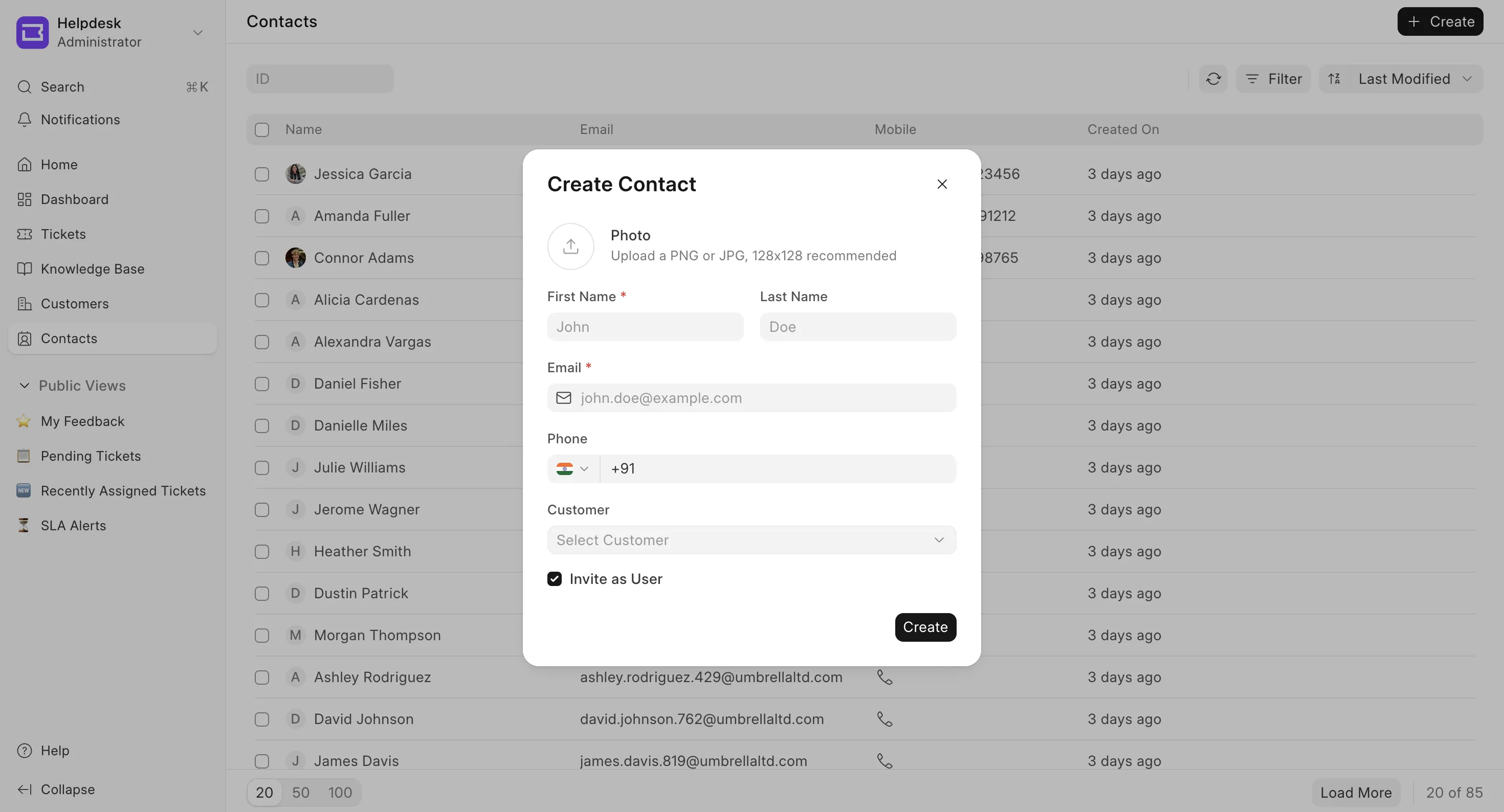
- Click Create to save the contact. On saving the contact, if the Invite as User option was checked, an email will be sent to the contact's email address with a link to set their password and access the system.
Contact View
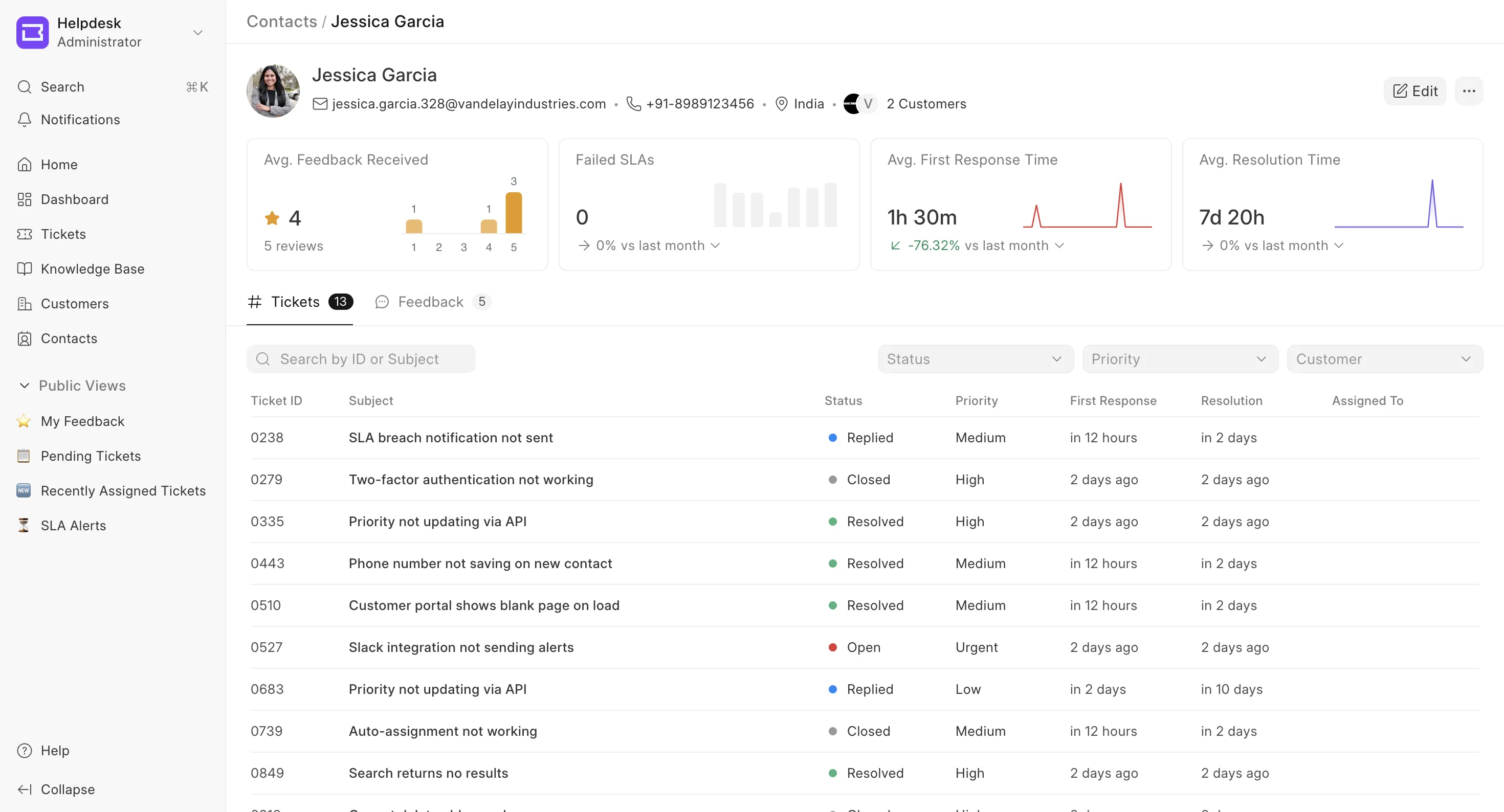
Top Info Section
- Photo and name of the contact.
- Primary email and primary phone — when a contact has multiple emails or phone numbers, the one marked as primary is shown here.
- Country — derived from the contact's time zone (shown only if the linked user has one set).
- Linked customers — the organizations this contact belongs to, shown as avatars. Click one to open that customer. Membership itself is managed from the Customer page.
- Invitation status — an Invited badge appears while an invitation is pending, or an Invitation Expired badge if it has lapsed.
Actions
Use the Edit button and the ⋯ (more) menu at the top right to manage the contact.
- Edit details — Opens the Edit Contact dialog where you can change the first name, last name, photo, and the contact's emails, phone numbers, and time zone. You can add multiple emails/phones and mark one of each as primary using the star. An Unsaved badge appears while you have pending changes; click Save to apply them.
- Invite as User — Available when the contact is not yet a system user and has no pending invitation. Sends an invitation email to the contact's primary email. The recipient gets a link to set a password and access Helpdesk with the HD Customer role.
- Resend Invite — Available when an invitation is already pending. Resends the invitation (a fresh one is sent if the previous invite had expired).
- Send reset password email — Available when the contact is already a system user. Emails them a link to reset their password.
- Delete — Permanently deletes the contact and unlinks it from any associated customers and tickets. A confirmation dialog appears; if the contact has linked tickets, you can choose to delete those tickets too, otherwise the tickets are kept and simply unlinked from the contact.
Analytics
A row of summary cards is shown above the tabs, giving a quick health check for this contact:
- Avg. Feedback Received — Average star rating across the contact's tickets, with the total number of reviews.
- Failed SLAs — Number of tickets that breached their SLA.
- Avg. First Response Time — Trend of how quickly the first response went out.
- Avg. Resolution Time — Trend of how long tickets took to resolve.
Tickets
The Tickets tab lists all tickets associated with this contact.
- Search by ticket ID or subject.
- Filter by Status and Priority. If the contact belongs to more than one customer, a Customer filter is also available.
- The table shows ID, Subject, Status, Priority, First Response, Resolution, and Assigned To. Click any row to open the ticket in a new tab.
Feedback
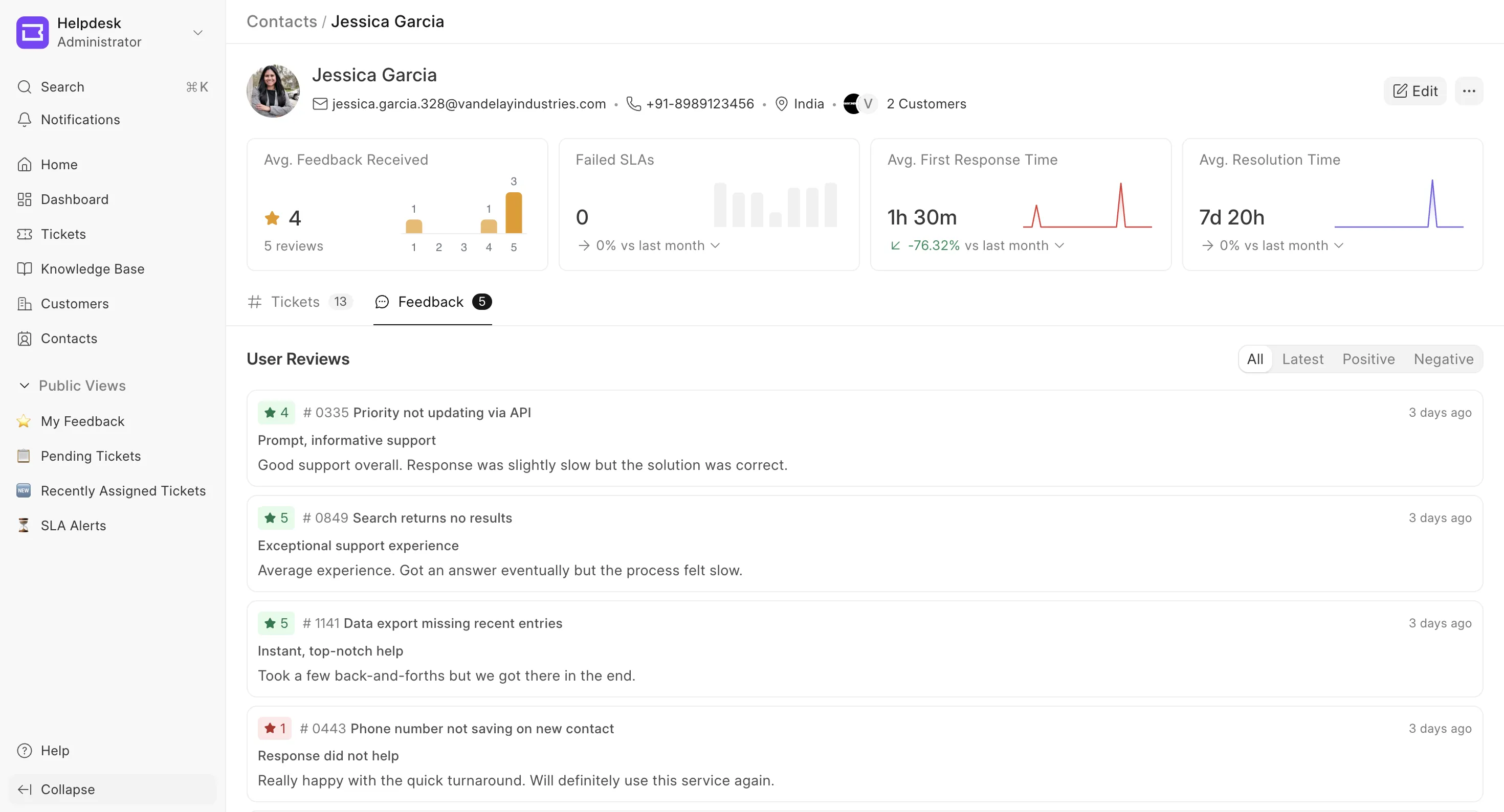
The Feedback tab collects the reviews this contact has left on their tickets.
- Sort the reviews using All, Latest, Positive, or Negative.
- Each review shows the star rating, the linked ticket (ID and subject), the feedback text, and when it was submitted. Click a review to open the related ticket.
- If the contact hasn't submitted any feedback yet, an empty state is shown.
Note:
If a contact is part of multiple customers, then while raising the ticket via the portal, they will be asked for which customer they are raising the ticket for, and that field is mandatory; this is to ensure the ticket is linked to the right customer.
Deleting a Contact - When you delete a contact, you can choose to also delete all tickets linked to that contact. If you do not delete the tickets, they will remain in the system but will no longer be associated with any contact i.e there will be no reference to the contact in those tickets. All the linked customers will also be unlinked from the contact.