


















The knowledge base holds help articles for your customers and your team. Agents write articles in the agent portal. Customers read them in the customer portal, and search and the new ticket form suggest them before a customer raises a ticket.
Each article is an HD Article record, and each category is an HD Article Category record:
| In the agent portal | In Helpdesk |
|---|---|
| Article | HD Article |
| Category | HD Article Category, linked from the Category field of the article |
| Draft, Published, Archived | The Status field of the article |
| Public, Customers, Private | The Visibility field of the article |
| Views | The Views field of the article |
| Helpful and not helpful votes | HD Article Feedback records |
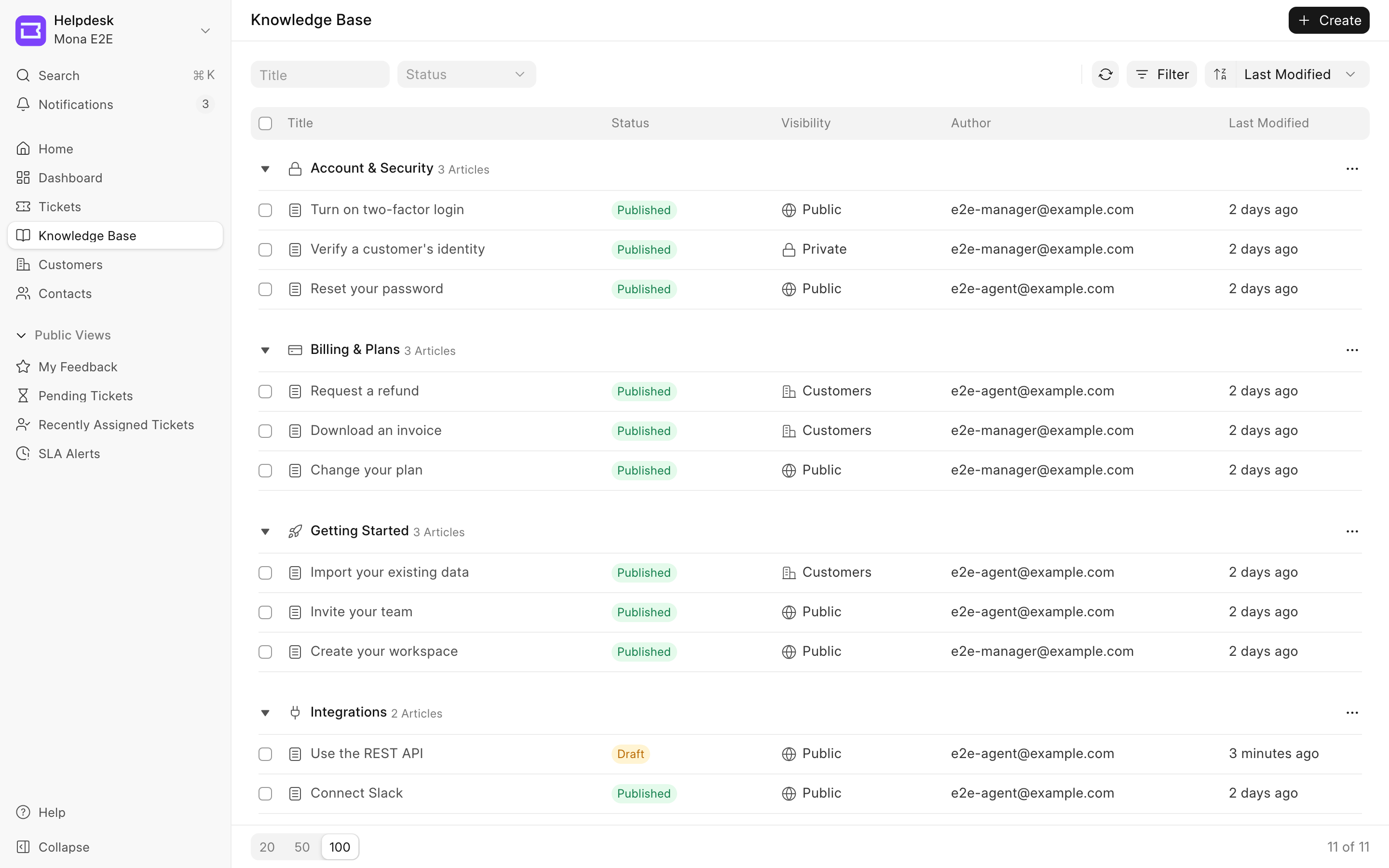 Knowledge Base in the agent portal
Open Knowledge Base from the sidebar. The list groups articles by category. Each row shows the Status, the Visibility, the Author and the time of the last change. The Author is an Agent.
Create a Category
Every article belongs to one category. Helpdesk creates the General category for you. You cannot rename, merge, delete or change the access of General as a category. Its menu has only Add New Article.
- Click Create, then Category.
- Enter a Name. The name can have up to 50 characters.
- Select an Icon.
- Click Create.
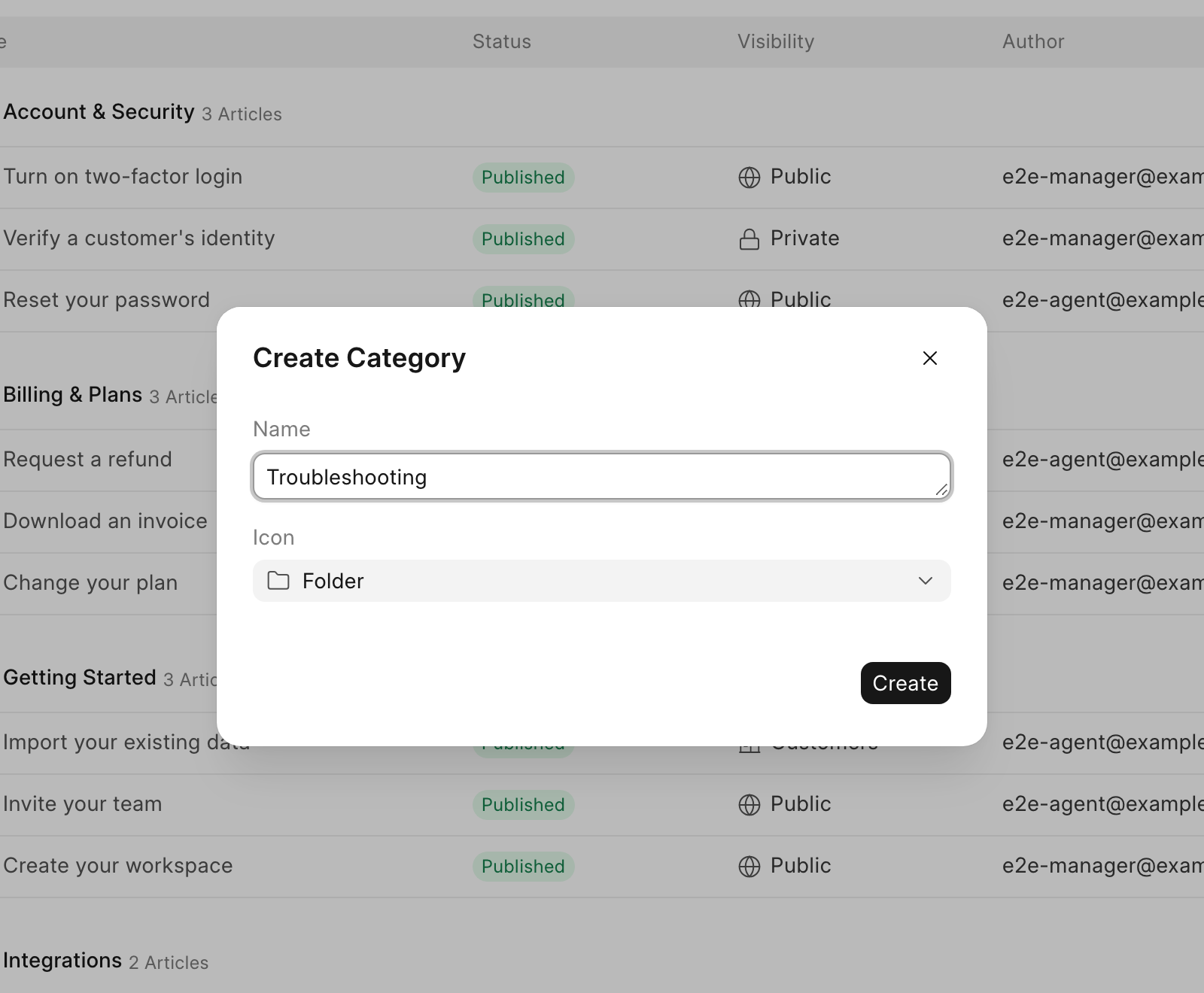 Create Category
Helpdesk also creates a draft article called "New Article" in the category and opens it for you to edit. A category must have at least one article. You cannot move or delete the last article of a category. Delete the category instead.
Create an Article
- Click Create, then Article. To add the article to a category directly, open the category's ⋯ menu and click Add New Article.
- Enter a title. The title can have up to 140 characters.
- Write the content. The editor supports headings, lists, tables, links, images and video.
- Next to the author name, select the category.
- Click Create.
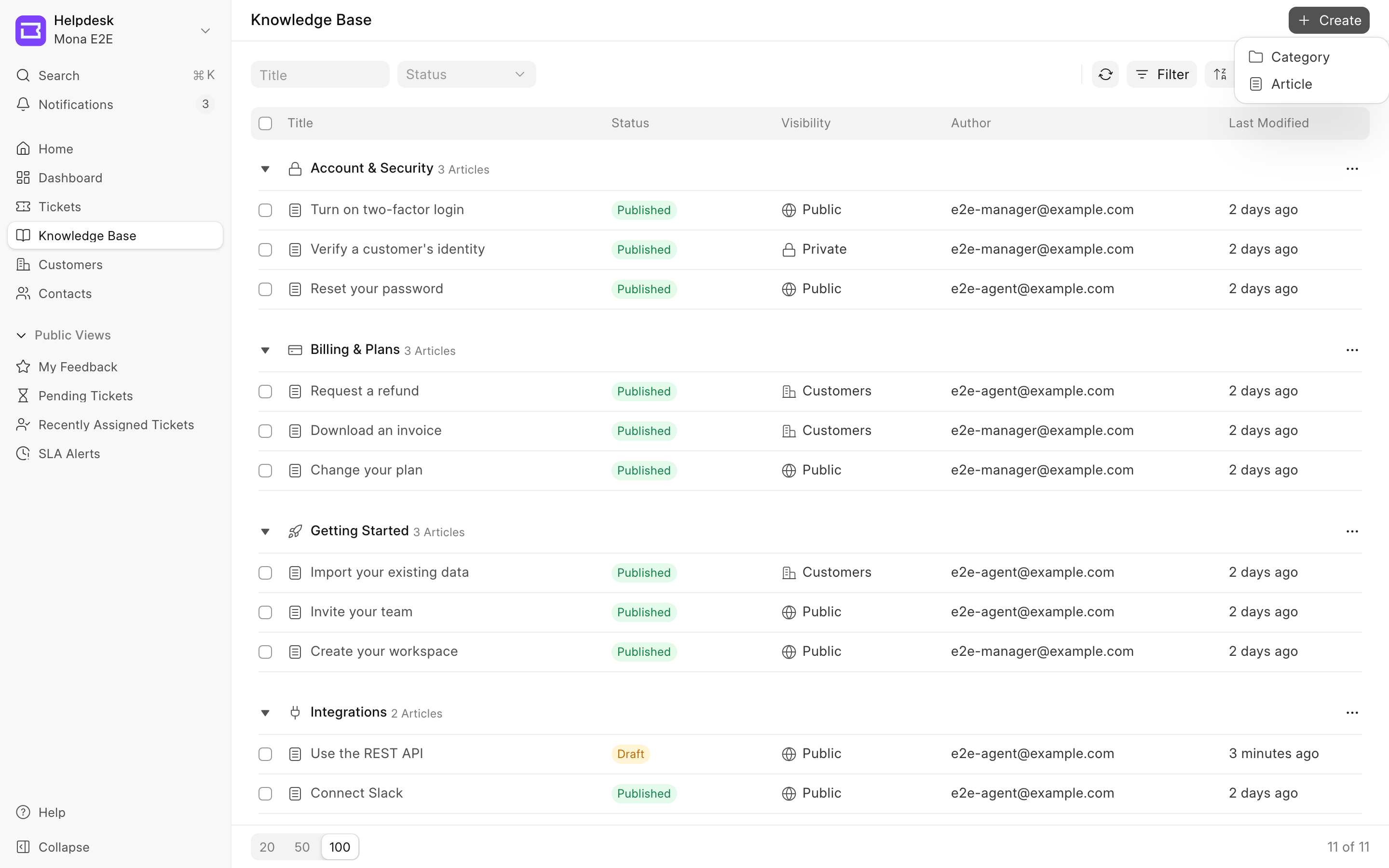 Create menu
A new article is a Draft. Only agents can see drafts. A new article gets the access Customers. If every article in the category is Private, the new article is Private too.
Use headings in the content. The customer portal builds the On this page list of an article from its headings of level 1 to 3. An article without headings has no On this page list.
Publish an Article
- Open the draft.
- Click Publish at the top right. The Publish article as dialog opens.
- Select Public, Customers or Private.
- Click Publish.
Publish a draft and choose who can read it
Helpdesk sets the Status of the article to Published and its Visibility to the access that you select. A published article shows its access next to the number of views, at the top of the article. Unpublish moves the article back to Draft. An article must have content before you can create or publish it.
Choose Who Can Read an Article
Each article has one of three access levels:
| Access | Who can read the article |
|---|---|
| Public | Everyone who can open the portal. Visitors who are not logged in can read it only when the knowledge base is public. |
| Customers | Logged-in customers and agents. A customer is a user with the HD Customer or HD Customer Manager role. |
| Private | Agents only. Customers and visitors do not see Private articles in the customer portal. Agents see them there. |
Agents can read every article, drafts included. Customers and visitors see only published articles. A logged-in user who is not a customer and not an agent sees only Public articles.
Change the Access of One Article
- Open the article.
- Click ⋯, then Change access. The Change article access dialog opens.
- Select the access.
- Click Update access.
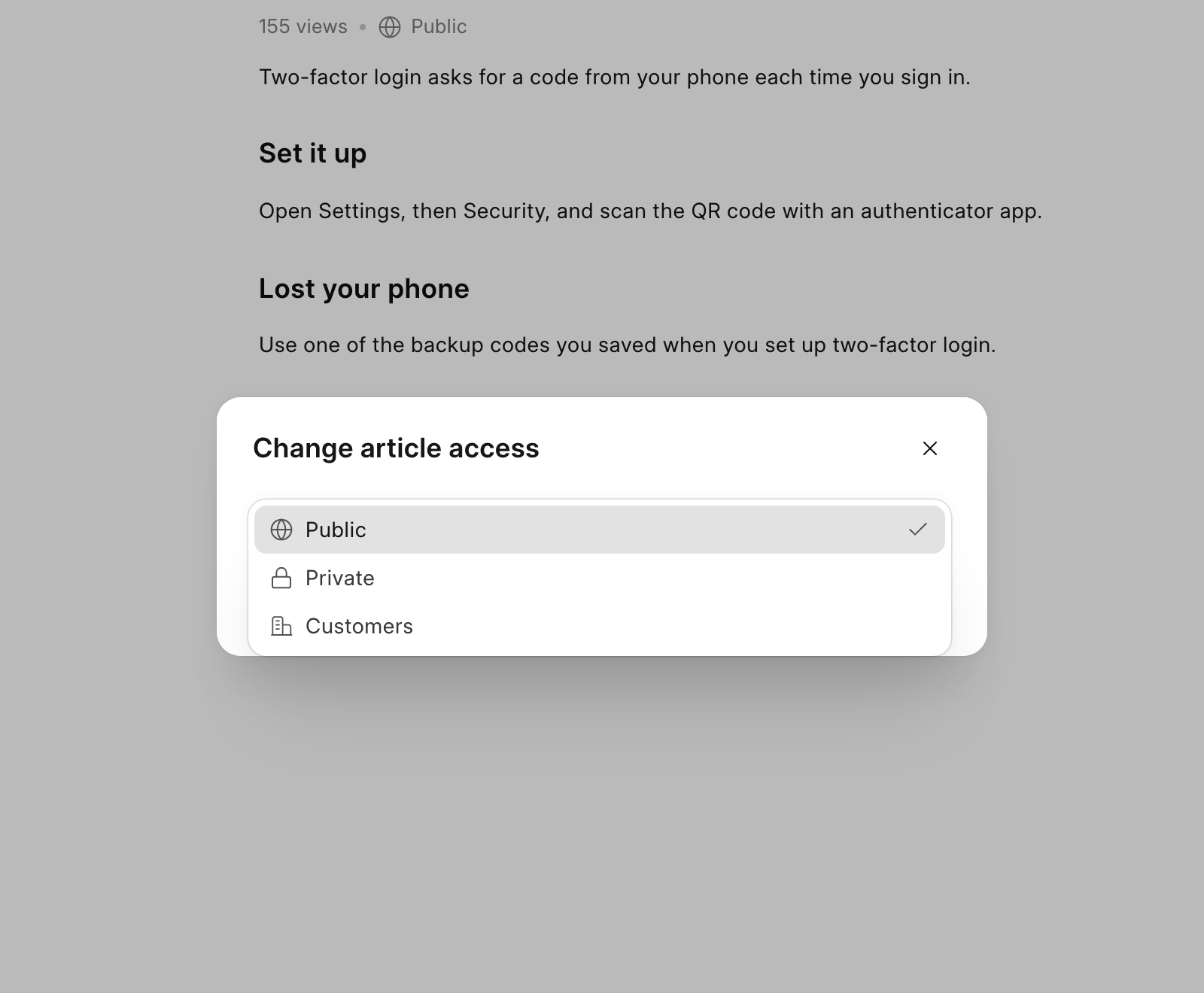 Access for one article
When all articles in the category share one access and you select a different one, the dialog tells you, for example "Other articles in Integrations are visible to everyone."
Change the Access of a Category
An HD Article Category does not have an access of its own. Its access is the Visibility that all its articles share.
- In the list, open the category's ⋯ menu.
- Click Change access. The Change category access dialog opens.
- Select the access.
- Click Update access. The button is available only after you select a different access.
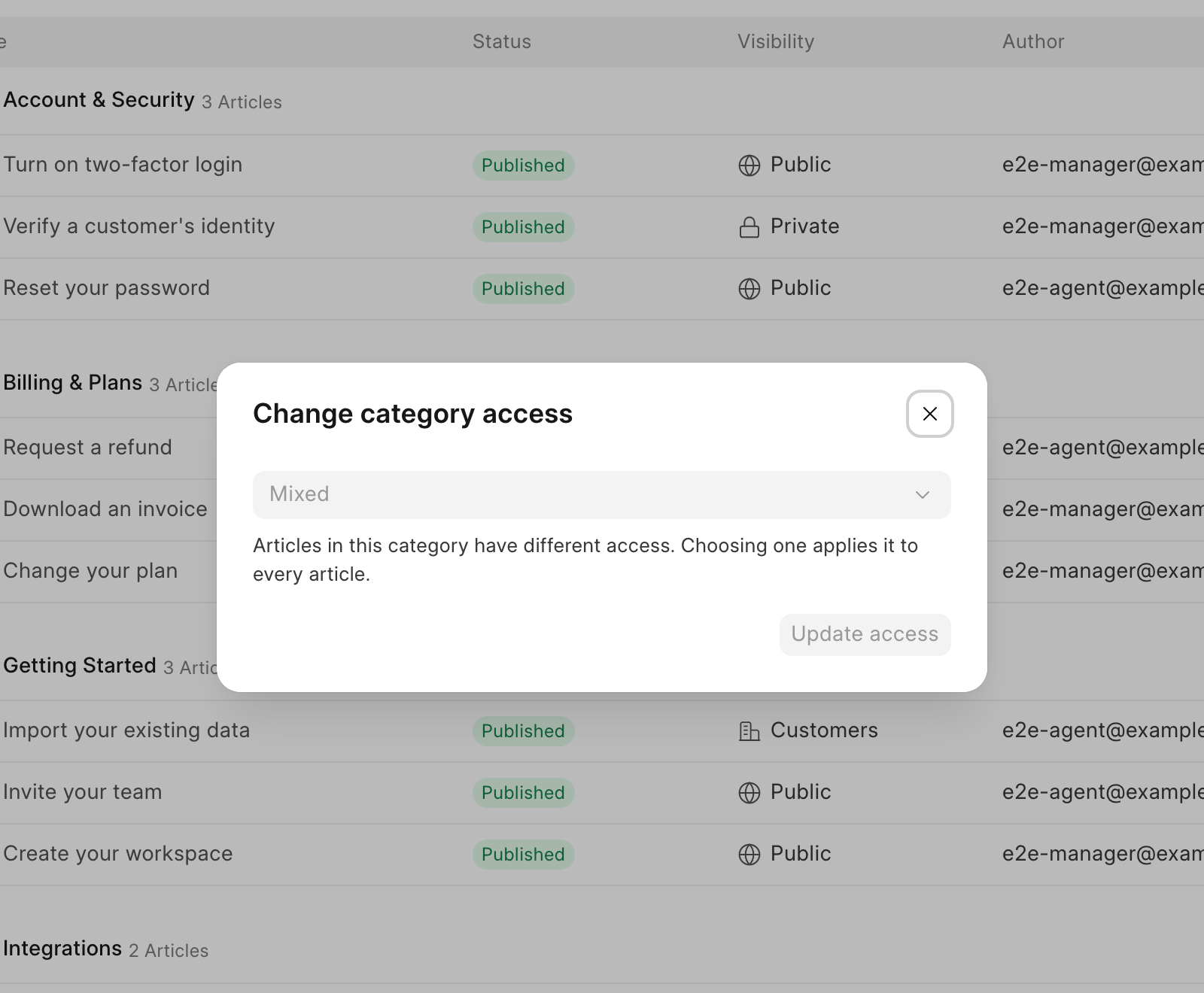 The articles in this category have different access
Helpdesk sets the Visibility of every article in the category, drafts included. When the articles have different access, the dialog shows Mixed. The dialog explains who can read the articles with the access that you select. If you set a category to Private, customers and visitors no longer see the category in the customer portal.
Change the Access of Several Articles
- Select the articles with the checkboxes.
- In the selection bar, click ⋯, then Change access.
- Select the access.
- Click Update access.
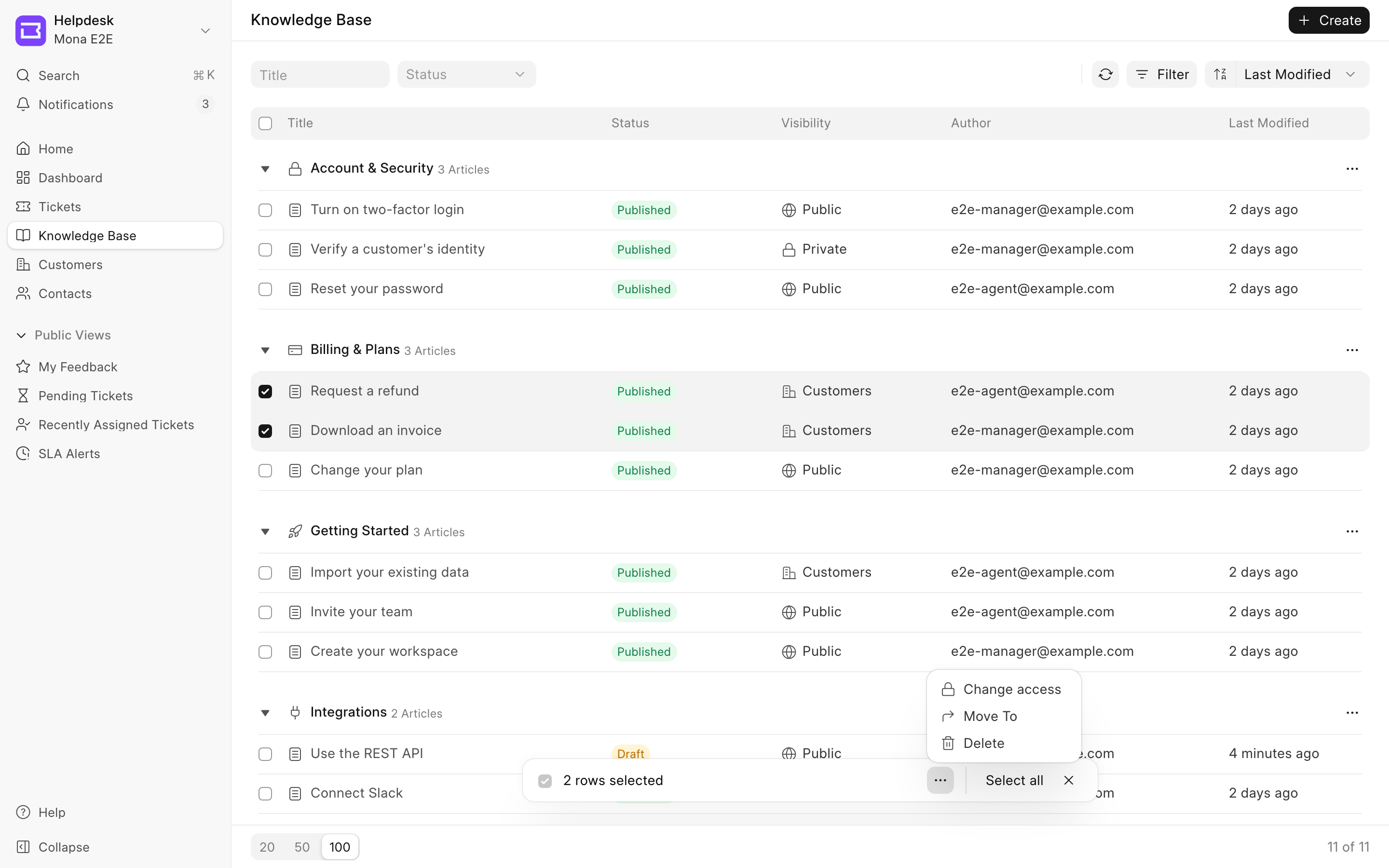 Actions for selected articles
The dialog title shows the number of selected articles, for example "Change access for 2 articles". It shows Mixed when the selected articles have different access.
Access When You Move Articles
Moving an article never makes it readable by more people. Helpdesk compares the article's access with the access that all articles in the target category share. The article gets the stricter of the two. From strictest to most open, the order is Private, Customers, Public.
| Article | Target category | Article after the move |
|---|---|---|
| Public | All articles Customers | Customers |
| Public | All articles Private | Private |
| Private | All articles Public | Private |
| Customers | Mixed | Customers |
The same rule applies when you merge a category, and when you delete a category and its articles move to General. When all articles in the target category are Customers or Private, the Move To and Merge dialogs show a note about it.
Manage Categories
Open the ⋯ menu of a category in the list.
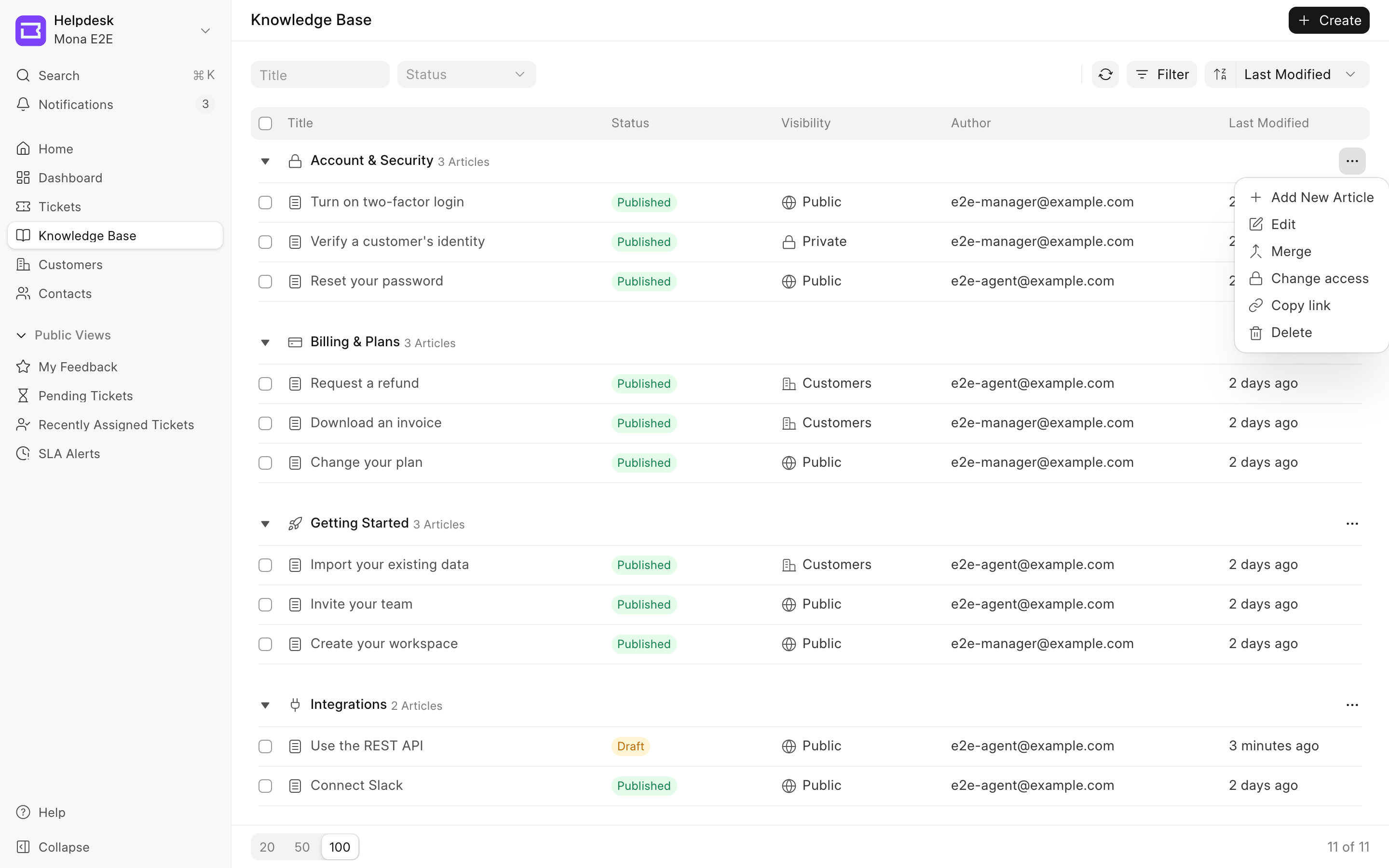 Category menu
| Action | What it does |
|---|---|
| Add New Article | Opens a new article in this category. |
| Edit | Changes the name and the icon. |
| Merge | Moves all articles of this category to the category you select, then deletes this category. You cannot undo a merge. |
| Change access | Sets the Visibility of every article in the category. |
| Copy link | Copies the link to the category page in the customer portal, /help/category/<category>. |
| Delete | Deletes the category. Its articles move to General. |
Manage Articles
Open an article and click ⋯.
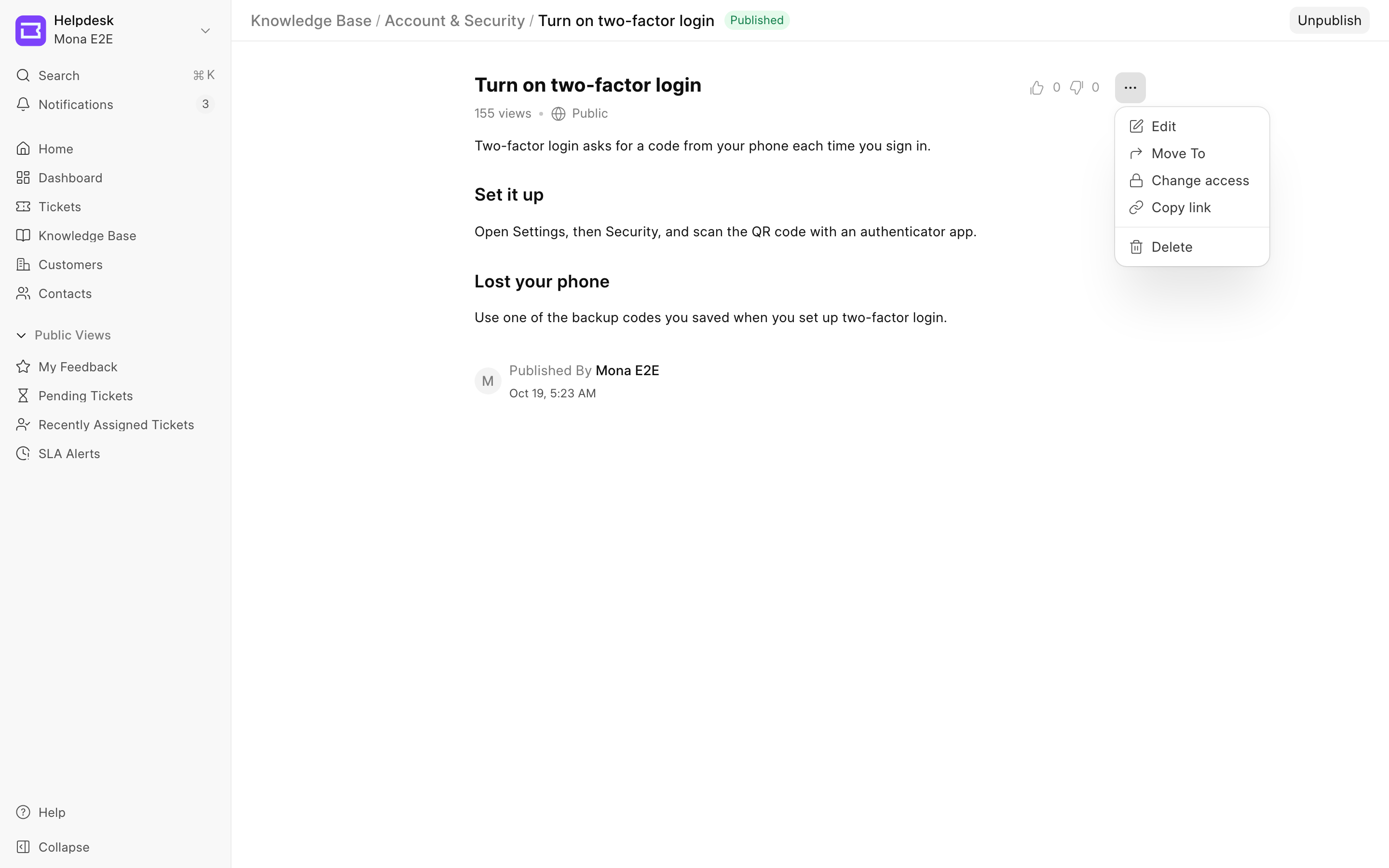 Article menu
| Action | What it does |
|---|---|
| Edit | Opens the editor. Click Save to keep your changes, or Discard. |
| Move To | Changes the Category of the article. When there is only one category, this item is Add Category. |
| Change access | Changes who can read the article. |
| Copy link | Copies the link to the article in the customer portal, /help/articles/<article>-<title>. |
| Delete | Deletes the article. Click Confirm Delete to finish. |
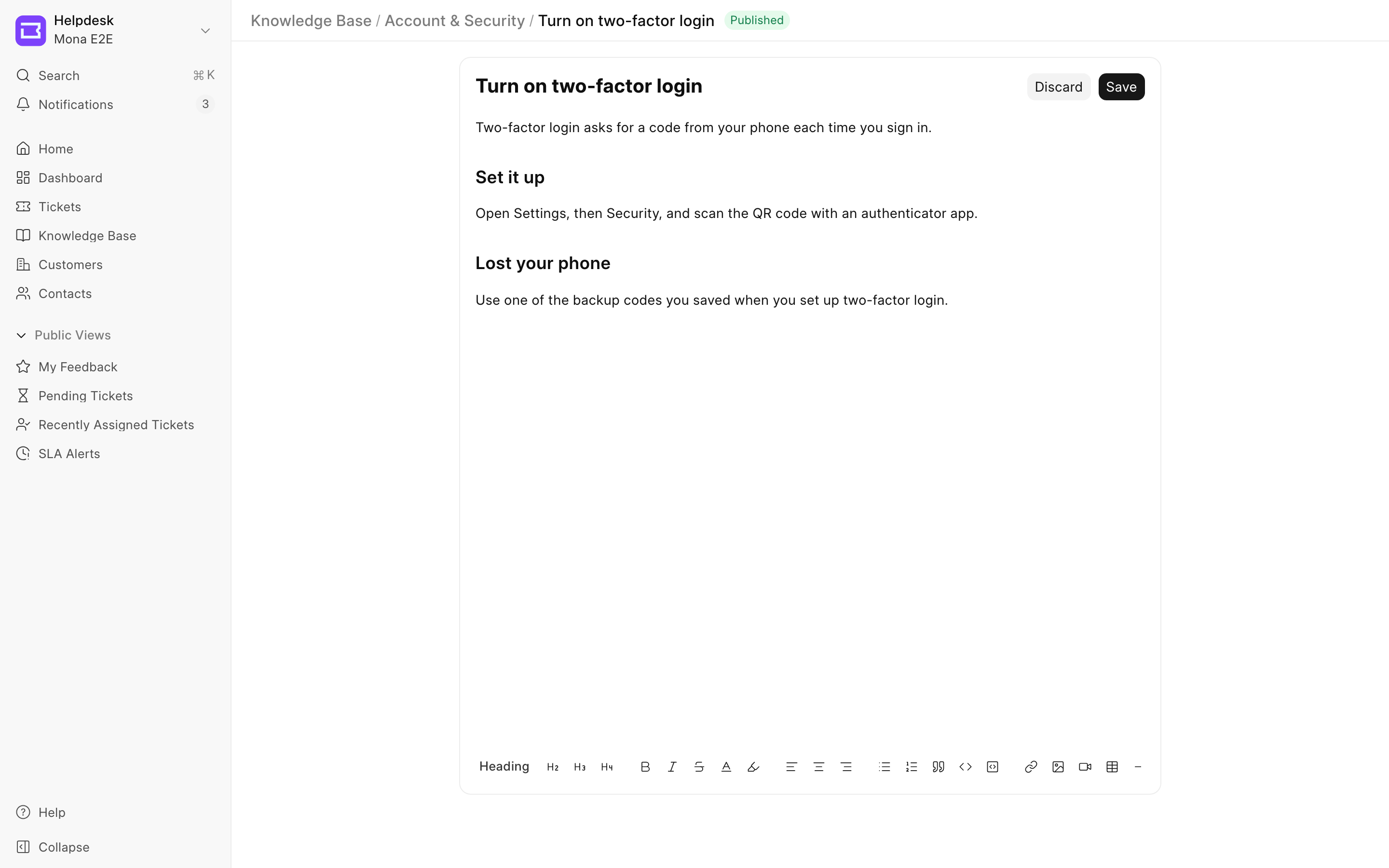 Edit an article
To move or delete several articles, select them in the list. Then click ⋯ in the selection bar and select Move To or Delete.
The article page also shows how many times readers opened the article in the customer portal, and how many readers found it helpful or not. Helpdesk counts one view for each reader and article in an hour. Visitors who are not logged in are counted by IP address. Drafts do not get views.
Good to Know
- An agent can open a draft from its link. Customers and visitors cannot.
- An article must have at least one paragraph with text. Otherwise Helpdesk shows "Article body cannot be set as empty." when you save.
- Helpdesk saves the first paragraph of each article, cut to 140 characters, in the Excerpt field. The category page in the customer portal shows this summary under each title.
- Article search in the customer portal needs RediSearch on your Redis cache server. Without it, search and article suggestions show no results.
- To set up the knowledge base home page, pinned categories, the banner and header links, see Knowledge Base Settings.
FAQ
Why can a customer not see an article?
The article is a draft, or its access is Private. Publish the article and set its access to Customers or Public.
Why can visitors who are not logged in not see a Public article?
The knowledge base is not public. Turn on Make knowledge base public in Settings → Knowledge Base.
Why did an article become Customers or Private after I moved it?
The target category is stricter than the article. Moving an article never makes it readable by more people. Change the access of the article after the move if you want it to be more open.