


















A Customer refers to an organization or a company. It is used to group Contacts under a common entity, so a team from the same company can be managed and reported on together.
Creating a Customer
- Navigate to the Customer page using the sidebar.
- Click on "Create", present in the top right corner, and fill in the details. Optionally, you can add details of the primary contact for the customer. If added, the contact will be created automatically and will be invited to the system.
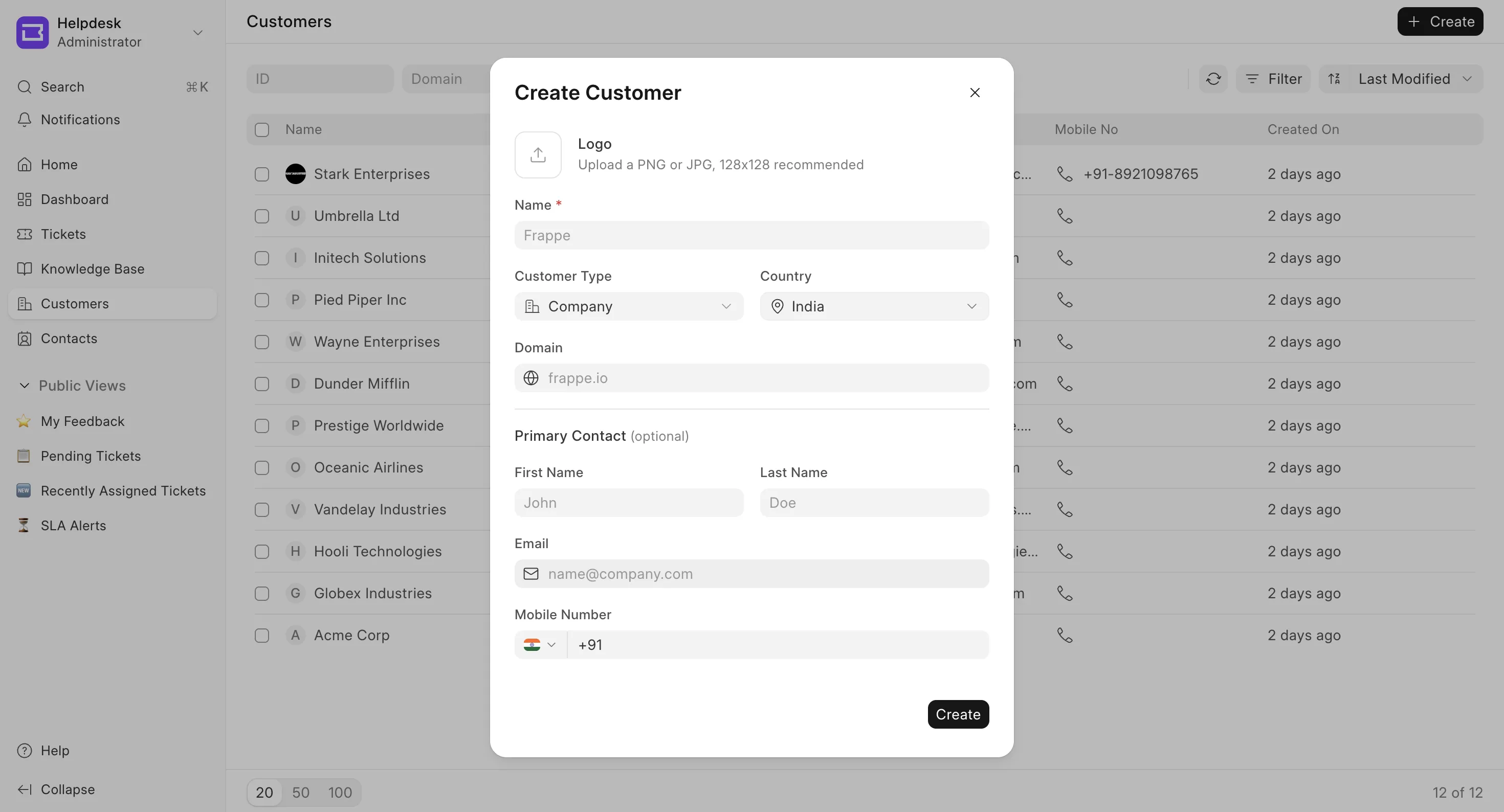
- Click Create to save the customer.
Customer View
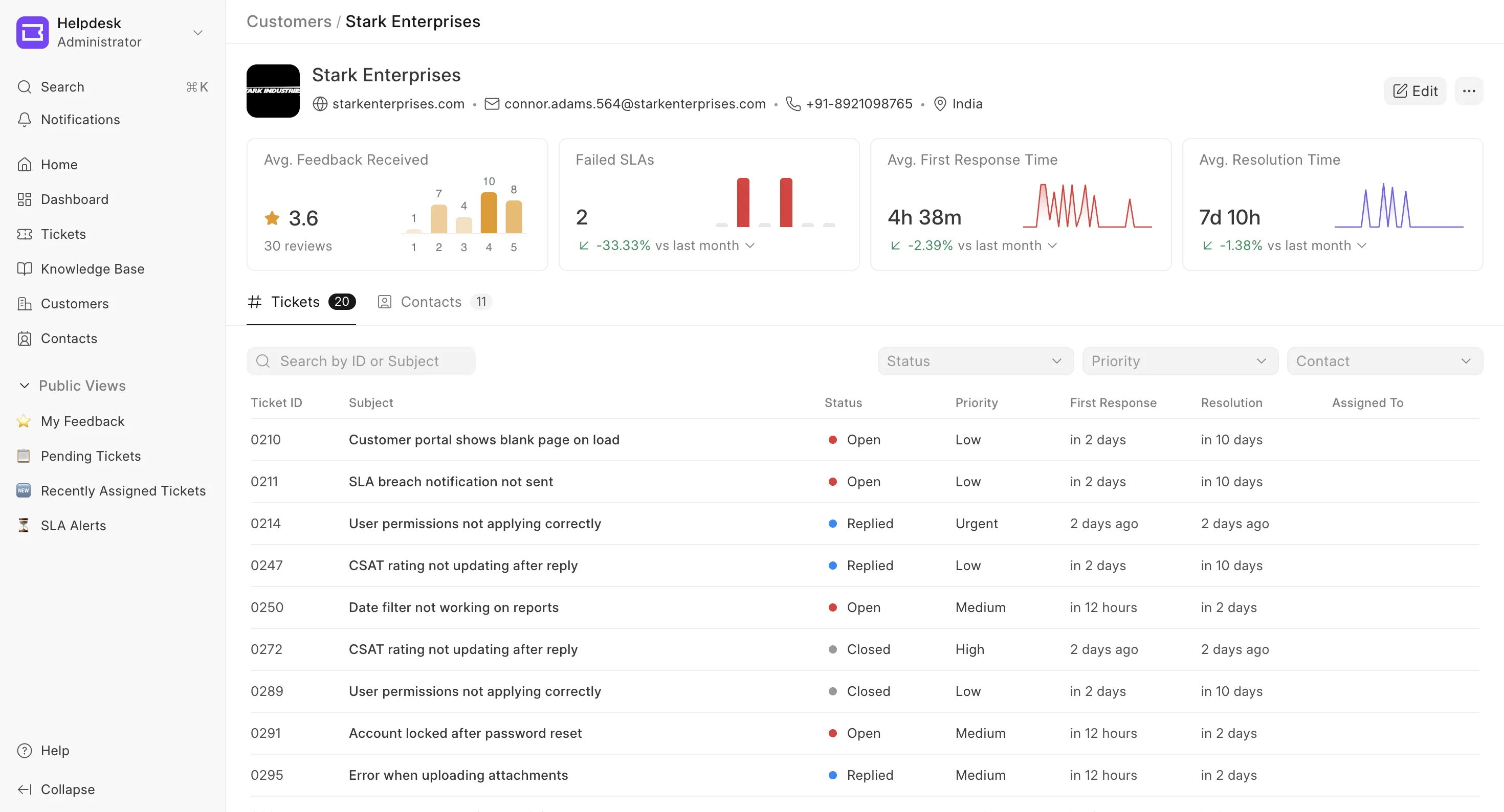
Open a customer from the list to see its full details. The top of the page shows:
Top Section
- Logo and name of the customer.
- Domain, Email, Phone, and Country — each shown when set. The email and phone are taken from the customer's primary contact.
Actions
Use the Edit button and the ⋯ (more) menu at the top right to manage the customer.
- Edit details — Opens the Edit Customer dialog where you can change the logo, name, customer type (Company, Individual, Partnership), country, and domain. An Unsaved badge appears while you have pending changes; click Save to apply them.
- Delete — Removes the customer. A confirmation dialog appears; the reference to this customer is removed from all related tickets. If the customer has linked tickets, you can also choose to delete those tickets.
Analytics
On desktop, a row of summary cards is shown above the tabs, giving a quick health check for this customer:
- Avg. Feedback Received — Average star rating across the customer's tickets, with the total number of reviews.
- Failed SLAs — Number of tickets that breached their SLA.
- Avg. First Response Time — Trend of how quickly the first response went out.
- Avg. Resolution Time — Trend of how long tickets took to resolve.
Tickets
The Tickets tab lists all tickets raised under this customer.
- Search by ticket ID or subject.
- Filter by Status, Priority, and Contact.
- The table shows ID, Subject, Status, Priority, First Response, Resolution, and Assigned To. Click any row to open the ticket in a new tab.
Managing Contacts under a Customer
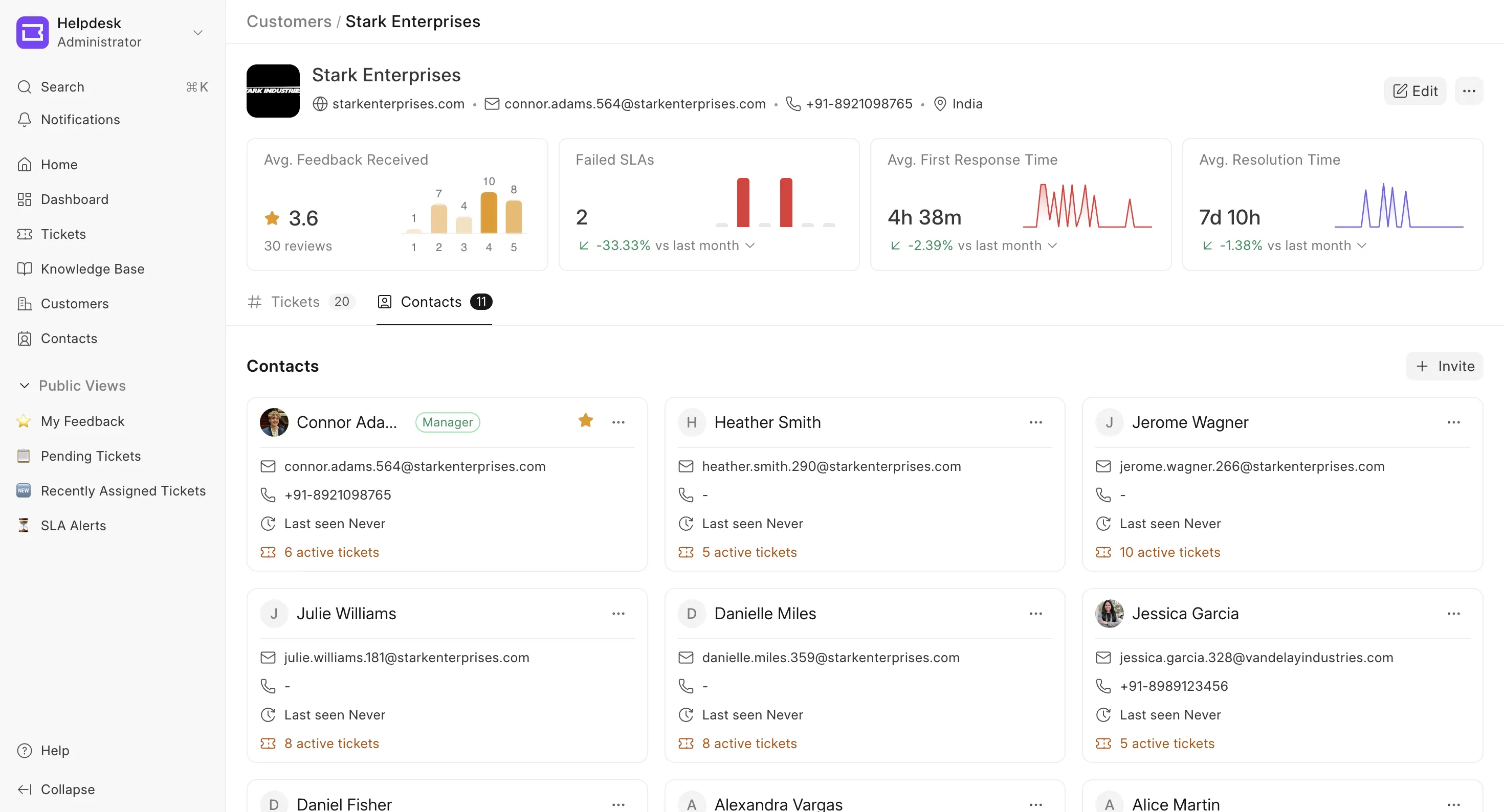
The Contacts tab lists everyone grouped under the customer as cards, and is where you manage membership.
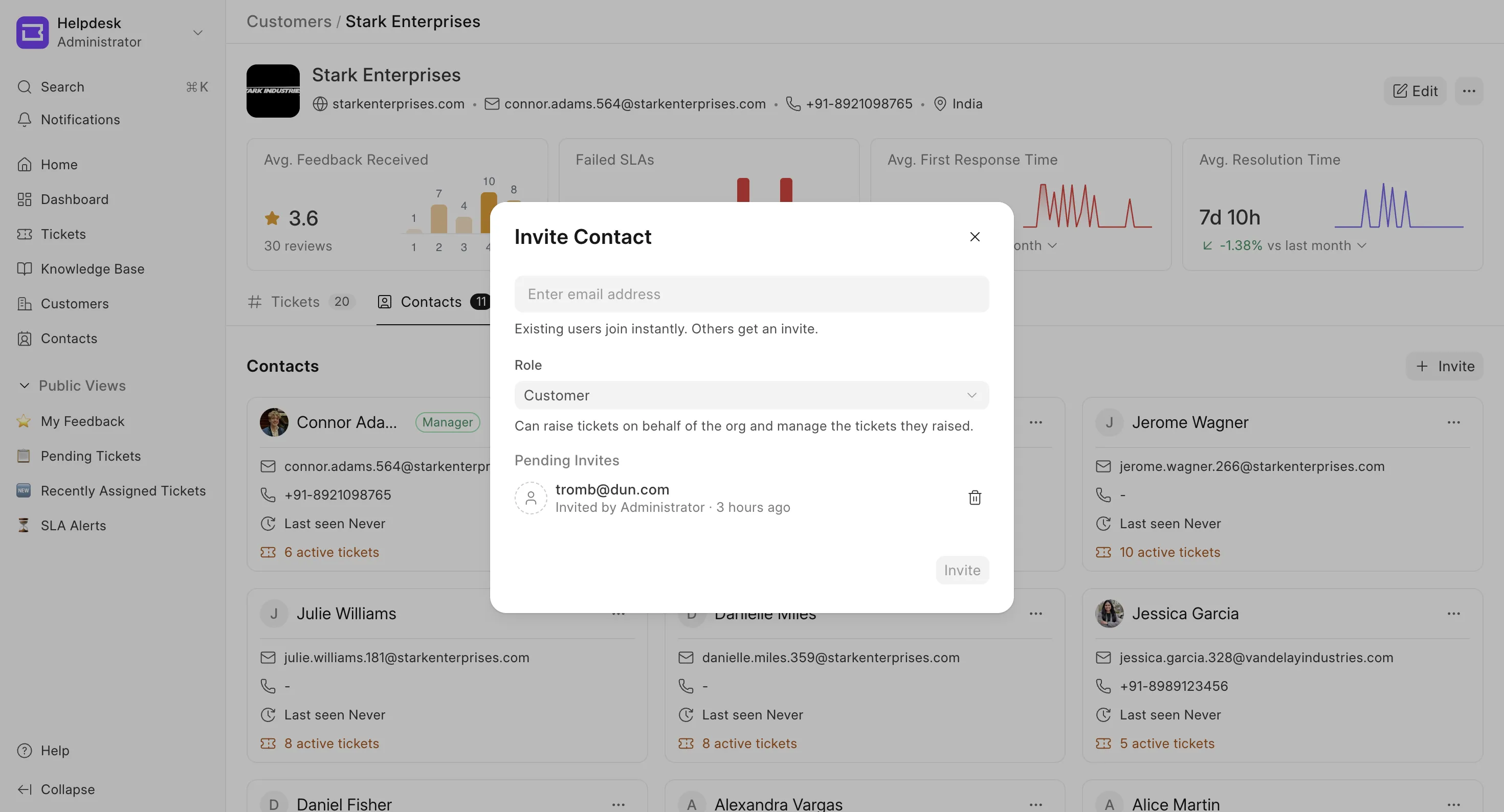
- Invite a contact — Click Invite to add people by email. You can add existing contacts or brand-new ones. For each, choose a Role:
- HD Customer — Can raise tickets on behalf of the organization and manage the tickets they raised.
- HD Customer Manager — Can view all tickets raised by the organization and assign other members as managers.
If a contact with that email already exists, it is linked to the customer; otherwise a new contact is created and invited as a user. Pending invitations are listed and can be revoked.
- Set as Primary — From a contact card's menu, mark a contact as the primary point of contact (shown with a star). The primary contact is always a manager.
- Assign / change role — Promote a contact to Manager or revoke manager access from the card menu. Managers can see all of the organization's tickets; regular contacts only see their own. A customer can have multiple managers.
- Remove a contact — Removes the contact from this customer only. The contact itself is not deleted and stays available for other customers.
- To view the invited contacts, click the Invite button to see the pending Invites.
Deleting a Customer - When you delete a customer, you can also choose to delete all tickets linked to that customer. If you do not delete the tickets, they will remain in the system but will no longer be associated with any customer; i.e., there will be no reference to the customer in those tickets.
Notes
- Linking a Contact to a Customer is optional.
- A Contact can be part of multiple Customers at the same time.
- Contacts under the same Customer can collaborate and see each other's support tickets (managers see all, regular contacts see their own).
- While raising a ticket, if the person raising the ticket via the portal is part of multiple customers, then adding a "Customer" becomes mandatory.
- Customer managers can manage their organization from the customer portal. See Customer Organizations.