
Outside Working Hours Banner
When users raise a ticket outside regular working hours, they may be confused about delayed responses. The Outside Working Hours Banner addresses this by notifying users of potential delays and setting clear expectations about response times.
To display the after-hours banner in the customer view, navigate to the General tab in the Settings view and enable the "Outside working hours notice" toggle, as shown below.
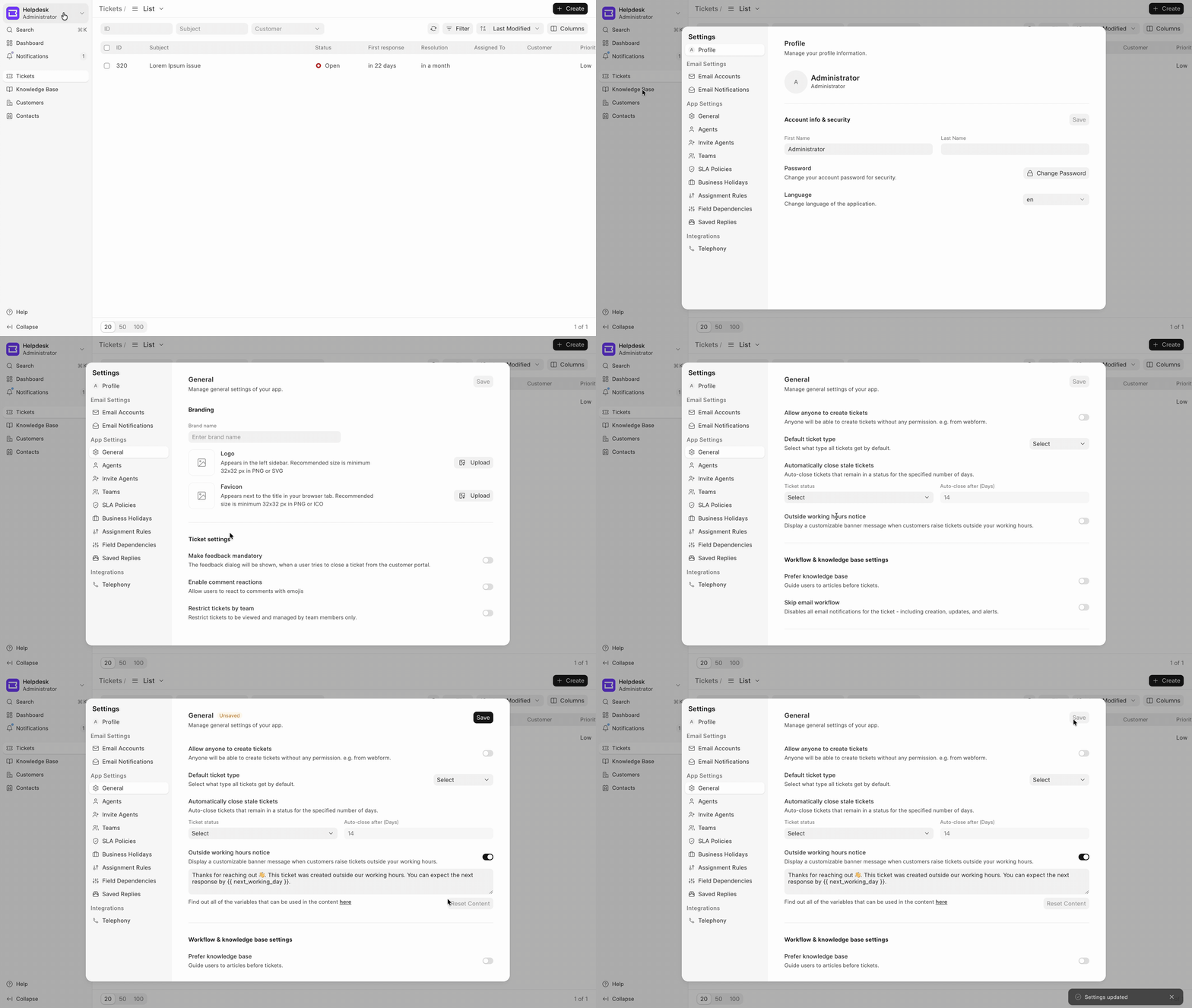
When you enable the toggle, a text input appears, allowing you to customize the banner message. Your customized message takes effect once you save the settings.
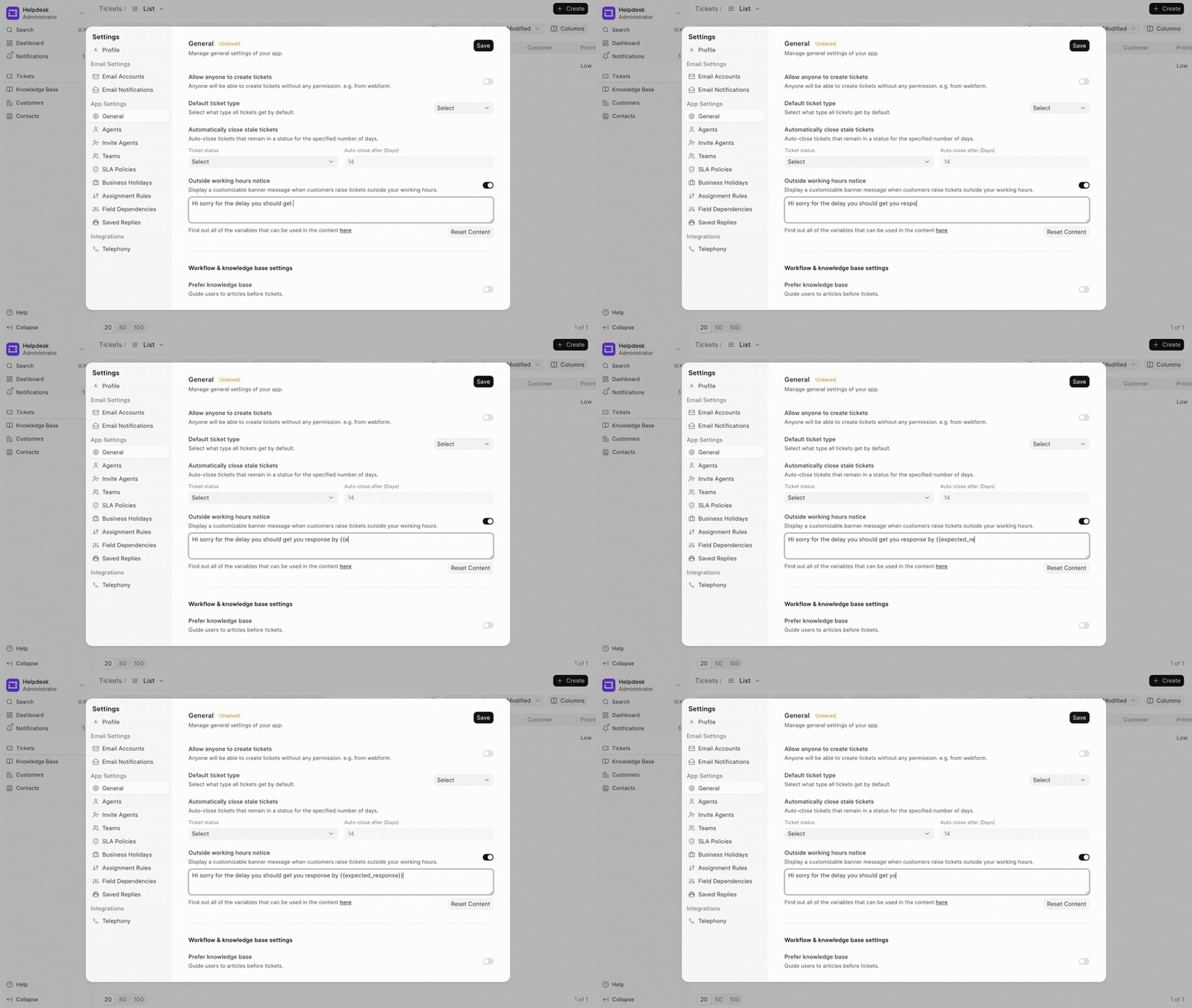
Currently, you can use the following variables to personalize your banner message.
Available variables:
{{ ticket.name}}— Ticket reference and other fields of the ticket can also be used. e.g: #TKT-00123{{ next_working_day }}— Full date with day name. e.g: Monday, 23 Jan{{ next_working_date }}— Short date format. e.g: 23 Jan{{ expected_response }}— Expected response time. e.g: 09:00, Monday, 23 Jan
How does it work?
Suppose your business working hours are set from 9 am to 6 pm on a working day. Now, a customer raises a ticket after 6 pm, say at 9 pm, outside of working hours, then what will happen?
Voila! A notice banner is now displayed for the ticket. Why? because according to the configured SLA for the ticket, the time 9pm is outside working hours.
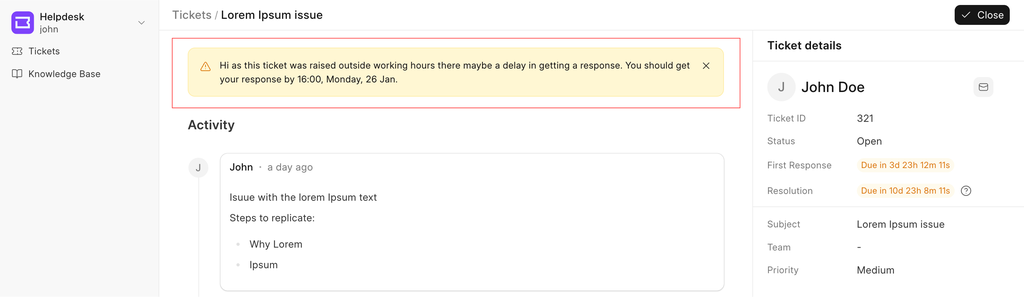
Now, in the same scenario, let's say a day has passed, and now it's 12 pm on a working day according to your SLA.
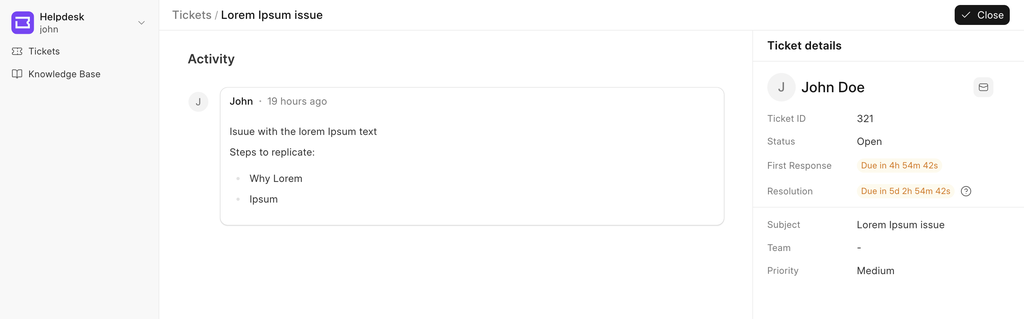
As you can see, the banner is no longer there. Why? because the ticket is now being viewed inside working hours. Seems confusing, but it's really simple.
Inside Working Hours = No Banner
Outside Working Hours = Show Banner
Additionally, if an agent replies to a ticket raised outside working hours, the banner will not be displayed again for that ticket.
Note: The logic for the banner to be displayed solely depends on the SLA's configured for the tickets, also including the holiday list of that particular SLA, to read more about how SLA's work, click here