Customers & Contacts
Contact
A Contact is an individual user who may be linked to a Customer (organization), we will talk about Customers in the next section. Contacts are the primary point of communication for support tickets, and they can also be invited as users to access the system.
Creating a New Contact
- Navigate to the Contact page using the sidebar.
- Click on "Create New Contact", present in the top right corner.
- Fill in the following fields:
- Email ID (required)
- First Name (required)
- Last Name
- Phone
- Customer (Optional) — Select a customer this contact belongs to.
- Invite as User (Optional) — If checked, the contact will be invited to the system as a user.
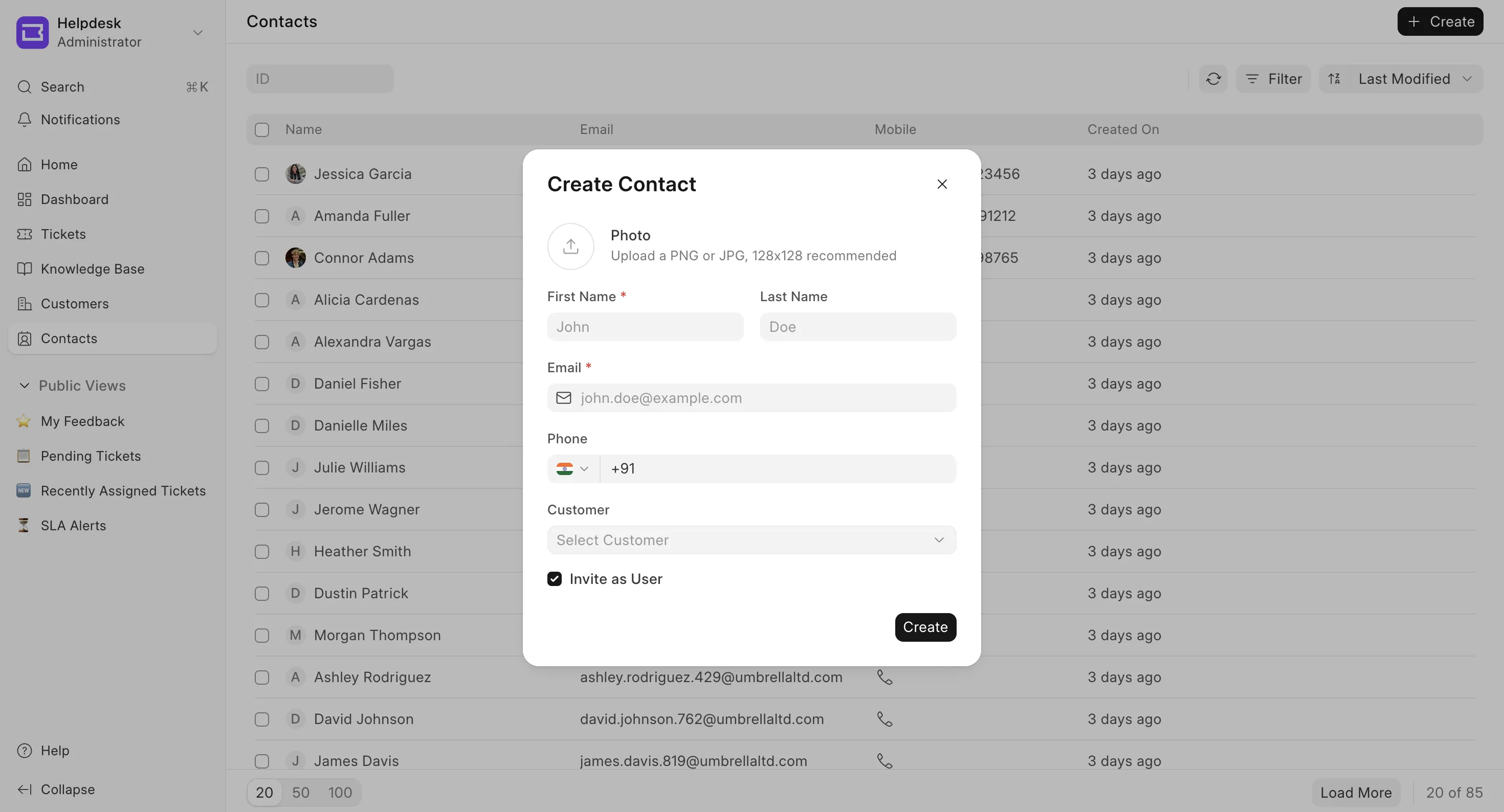
- Click Create to save the contact. On saving the contact, if the Invite as User option was checked, an email will be sent to the contact's email address with a link to set their password and access the system.
To know more about Contact, click here.
Customer
A Customer refers to an organization or a company. It is used to group contacts under a common entity.
Adding a New Customer
- Navigate to the Customer page using the sidebar.
- Click on "Create", present in the top right corner, and fill in the details. Optionally, you can add details of the primary contact for the customer. If added, the contact will be created automatically and will be invited to the system.
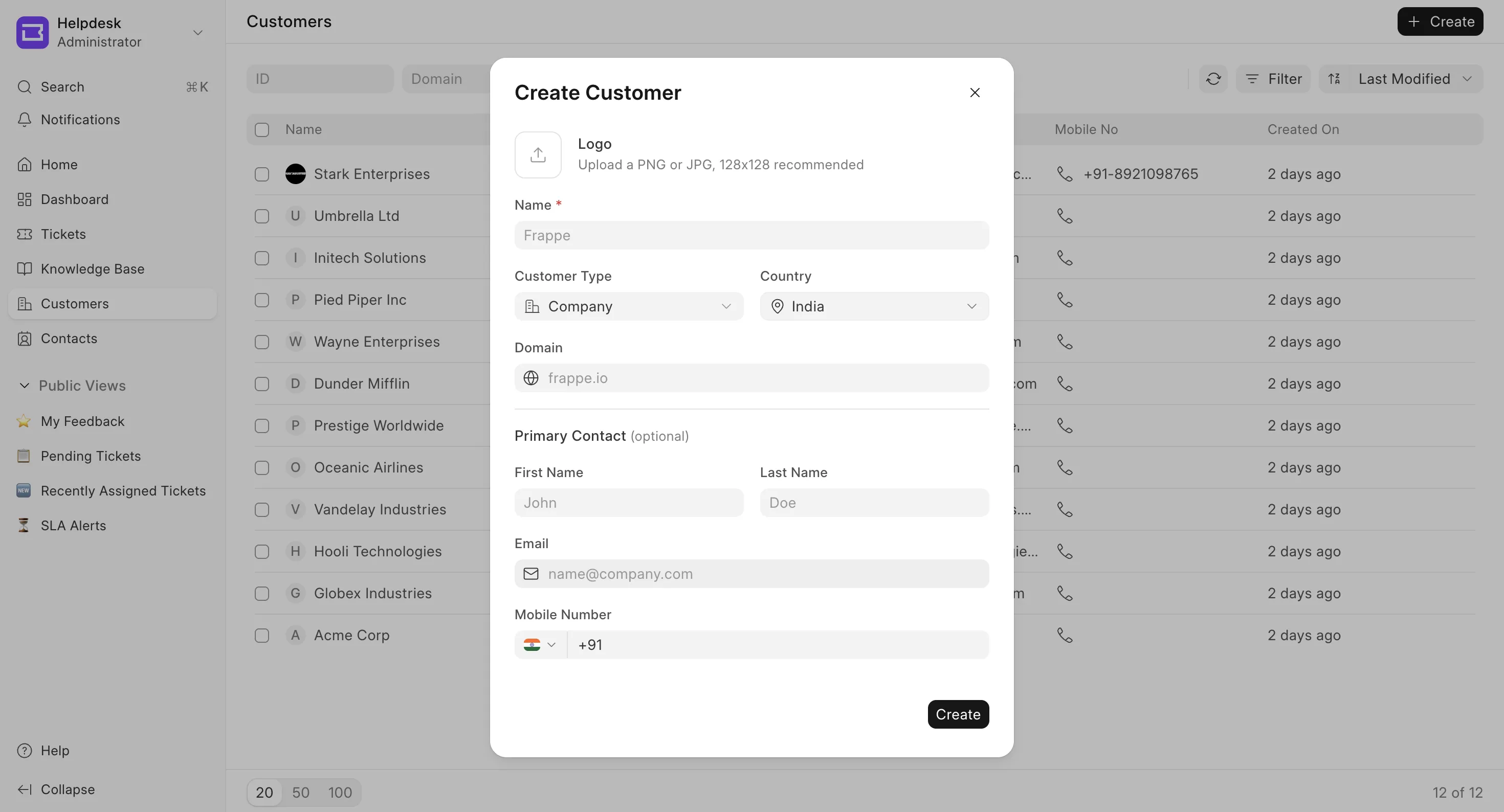
- Click Create to save the customer.
Managing Contacts under a Customer
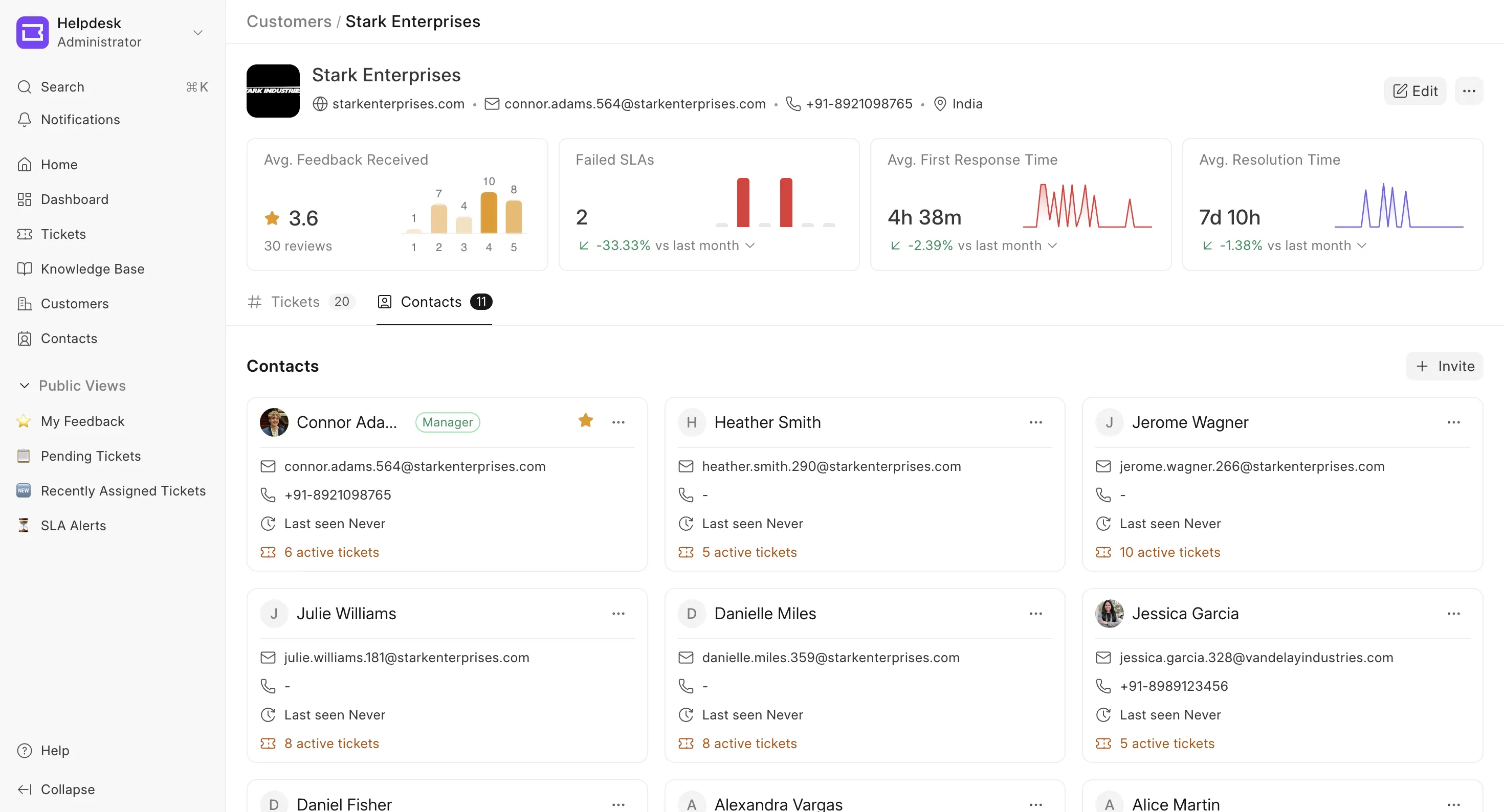
The Contacts tab lists everyone grouped under the customer as cards, and is where you manage membership.
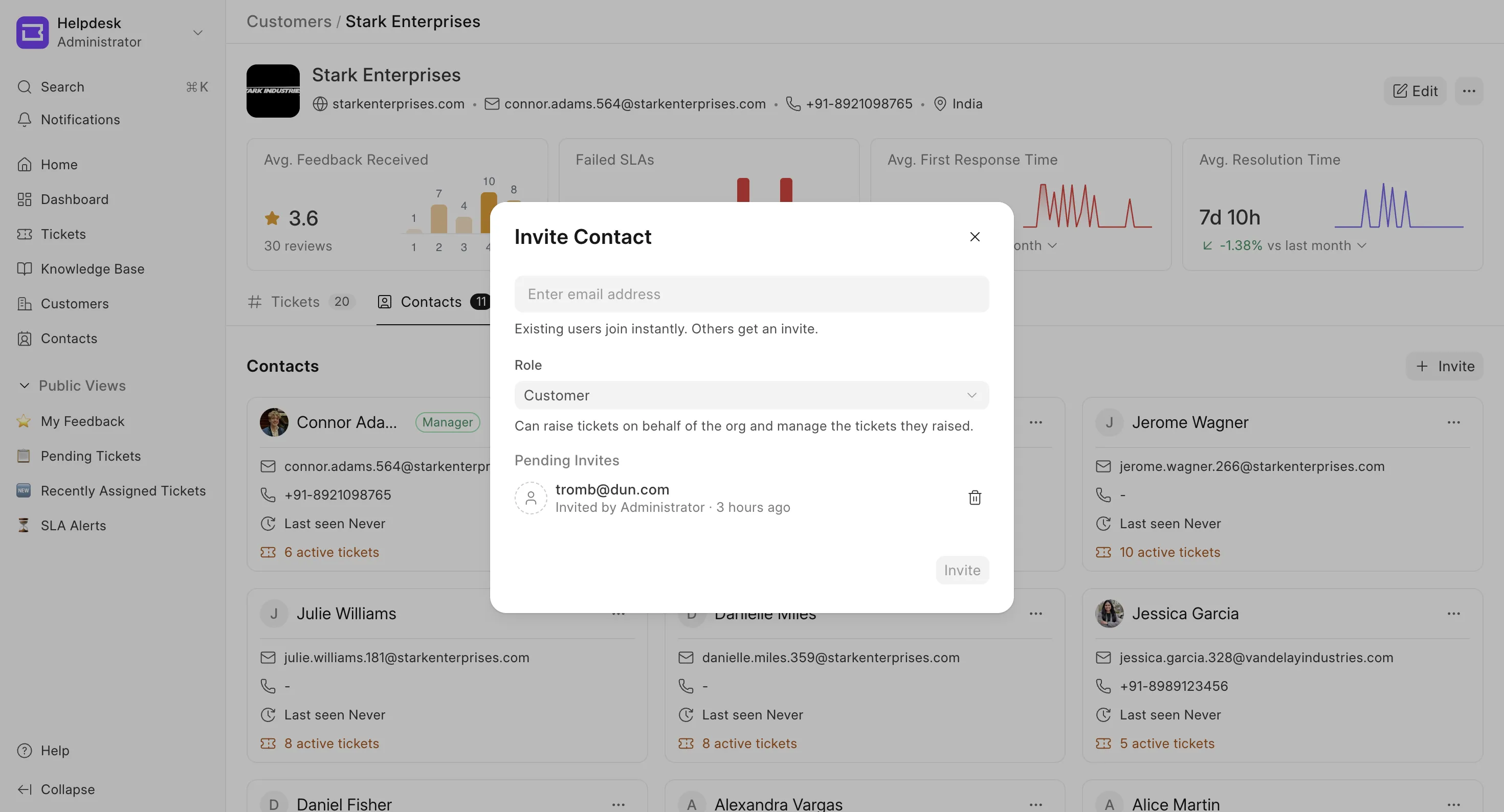
- Invite a contact — Click Invite to add people by email. You can add existing contacts or brand-new ones. For each, choose a Role:
- HD Customer — Can raise tickets on behalf of the organization and manage the tickets they raised.
- HD Customer Manager — Can view all tickets raised by the organization and assign other members as managers.
If a contact with that email already exists, it is linked to the customer; otherwise a new contact is created and invited as a user. Pending invitations are listed and can be revoked.
- Set as Primary — From a contact card's menu, mark a contact as the primary point of contact (shown with a star). The primary contact is always a manager.
- Assign / change role — Promote a contact to Manager or revoke manager access from the card menu. Managers can see all of the organization's tickets; regular contacts only see their own. A customer can have multiple managers.
- Remove a contact — Removes the contact from this customer only. The contact itself is not deleted and stays available for other customers.
- To view the invited contacts, click the Invite button to see the pending Invites.
Notes
- Linking a Contact to a Customer is optional.
- A Contact can be part of multiple Customers at the same time.
- Contacts under the same Customer can collaborate and see each other's support tickets (managers see all, regular contacts see their own).
- Customer managers can manage their organization from the customer portal. See Customer Organizations.
Update on Permissions⚠️
Breaking change: customer ticket permissions (v1.28.0)
Starting with v1.28.0, ticket visibility for customer portal users is controlled explicitly from the Customer page. It is no longer granted implicitly.
What changed
Before v1.28.0, any user who raised a ticket implicitly got portal access, and contacts linked to a customer could see all tickets of that customer. There was no per-contact control.
From v1.28.0 onwards, by default a contact can only see the tickets they raised themselves. To let a contact see all tickets of their customer (organization), mark that contact as a customer manager on the Customer page. Portal access itself is now gated on two new roles, HD Customer and HD Customer Manager, which Helpdesk manages for you as you add contacts and mark managers.
Who is affected
- Existing sites upgrading to v1.28.0: yes. Read the sections below.
- New sites: nothing to do. This is the default behavior.
- Agents: not affected. This change only concerns customer portal users.
After upgrading
Sites hosted on Frappe Cloud are migrated automatically. On self-hosted sites, run
bench migrateafter upgrading.The migration does the following:
- Grants the HD Customer role to every non-agent user who has raised a ticket, so they keep their portal access.
- Moves all existing contact-to-customer links onto the Customer page. You will see each customer's contacts listed there.
- Existing contacts are added as regular members, not as customer managers. This means that after the upgrade, contacts only see their own tickets until you decide otherwise (see "Restoring the old behavior" below).
Note: a contact who never raised a ticket does not receive the HD Customer role from the migration. Such users will regain portal access when you add them as a contact on the Customer page or give them HD Customer role from the backend.
Managing ticket visibility
All of this is done from the Customer page in the agent portal:
- Add or remove contacts on a customer to control who belongs to that organization. New contacts see only their own tickets by default.
- Mark a contact as a customer manager to let them see every ticket of that customer. Helpdesk assigns the HD Customer Manager role automatically.
Restoring the old behavior
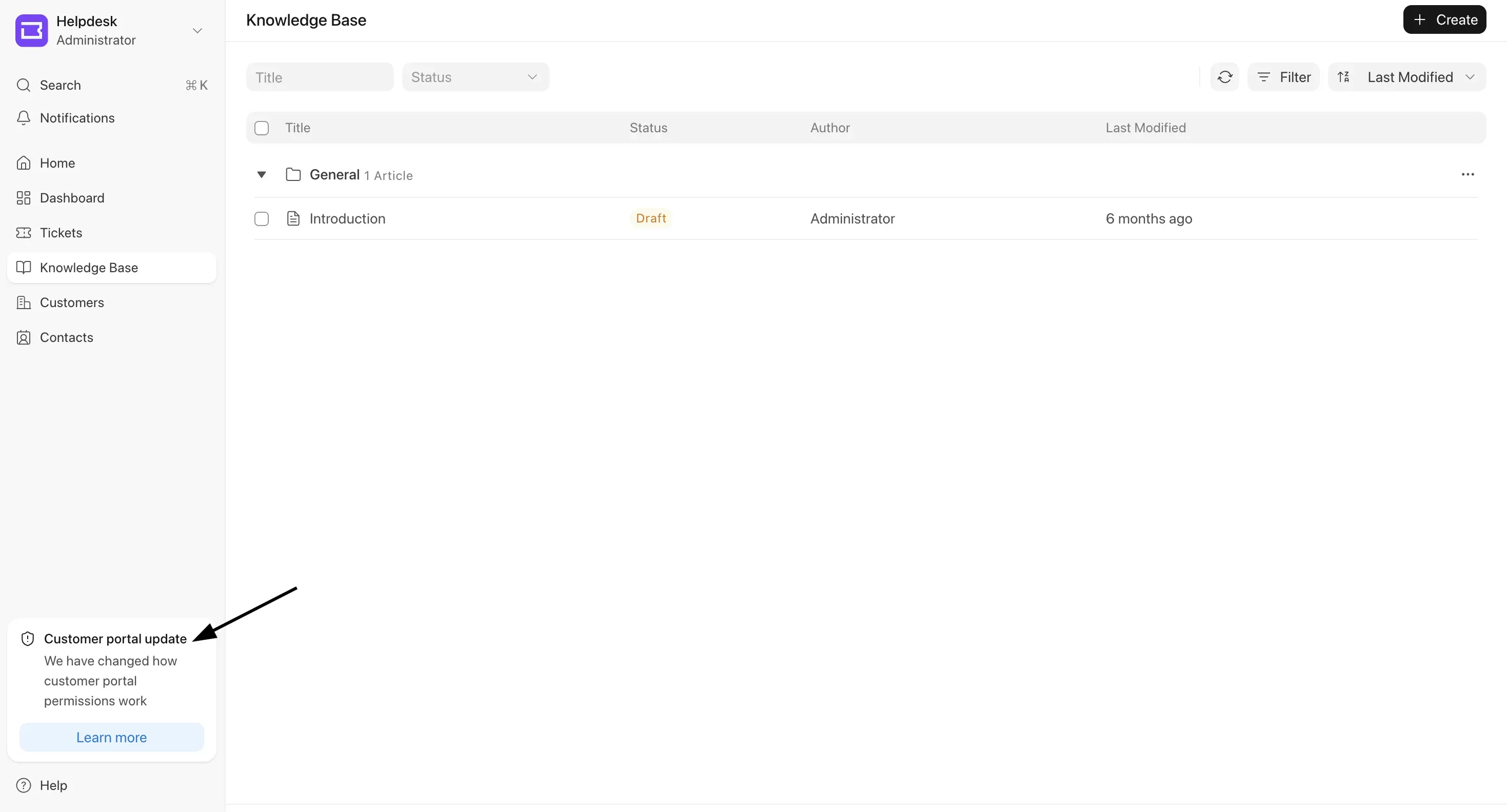
If you want all contacts to see each other's tickets again, like before the upgrade, use the Customer portal update banner:
- The banner appears in the sidebar of the agent portal and is visible only to Agent Managers and System Managers. Customer portal users never see it.
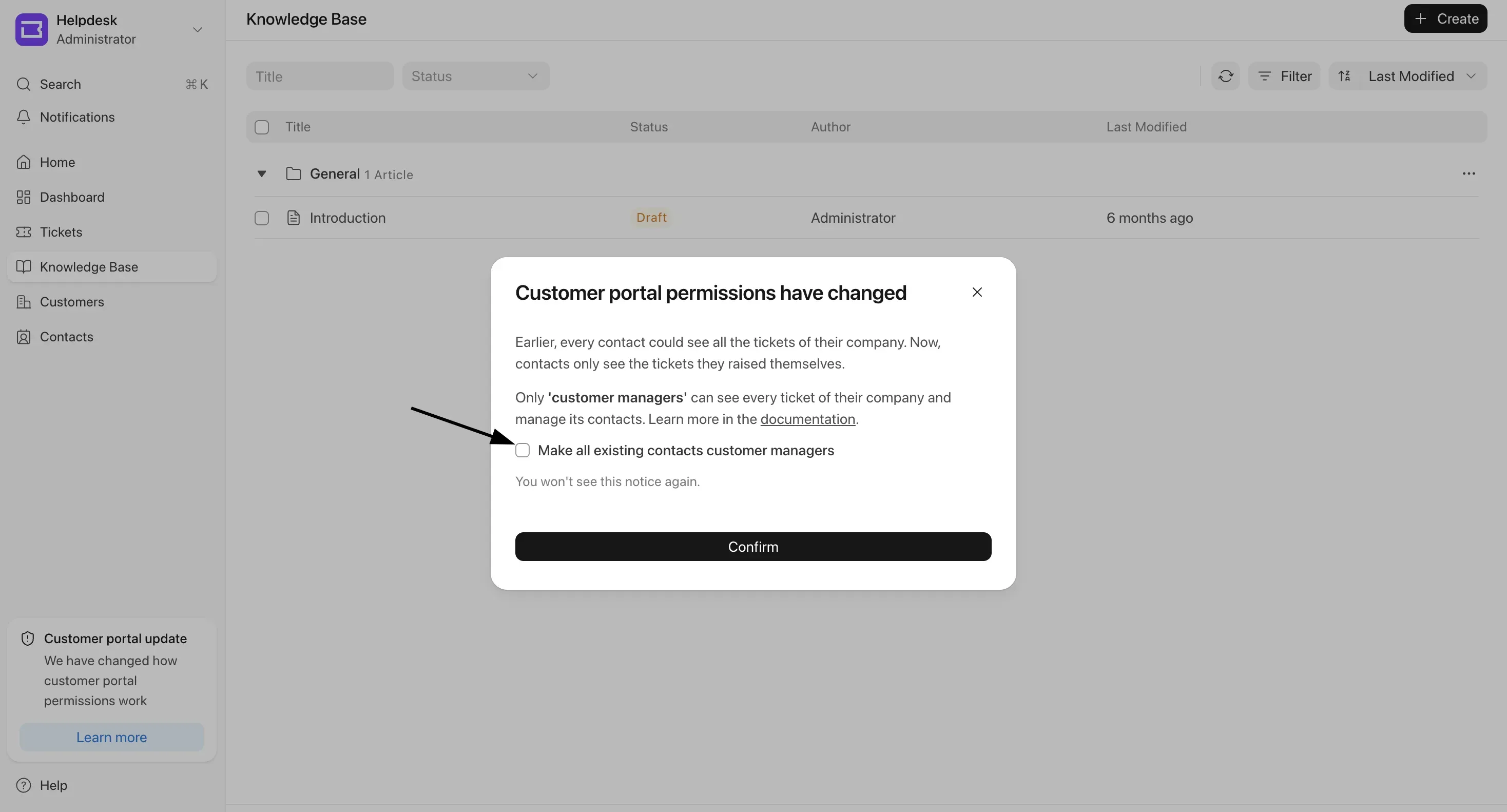
- Clicking Learn more opens a dialog explaining the change. To restore the old behavior, check Make all existing contacts customer managers and click Confirm. Every existing contact is marked as a customer manager, so all contacts of a customer can see that customer's tickets again. This runs in the background and may take a few minutes on large sites.
- To keep the new restricted behavior, leave the checkbox unchecked and click Confirm.
Two things to keep in mind:
- Restoring access is a one-time action, not a setting. It promotes the contacts that exist at that moment. Contacts added later will still start with access to only their own tickets, and you will need to mark them as customer managers individually.
- Confirming either way dismisses the notice permanently for all managers. It does not come back.
Default Role
Helpdesk sets the portal's Default Role to HD Customer automatically — this is the role new self-signup contacts receive, and it's what grants them access to the customer portal at
/helpdesk. On new sites this is already done for you.If you're on an existing site and had a different default role configured, the upgrade leaves your value untouched. Check Portal Settings → Default Role; if it isn't HD Customer, update it so newly signed-up contacts get portal access and the right permissions.
Ticket Template (Customer field)
"Customer" field will be rendered in Customer Portal only if the contact raising the ticket is part of multiple customers. If it is present in HD Ticket Template => Default, then the field will be only visible if an agent is raising a ticket.
Domain Linking
Domain based auto contact linking has been removed.