


















The knowledge base feature lets you write an answer once and share it with every customer using the portal. If you have faced this problem where customers would keep on asking and raising tickets regarding the same issues this is exactly where a knowledge base would come in handy. Instead of answering the same question multiple times, simply create an article in the knowledge base and publish it to your audience.
Each answer is an article, saved as an HD Article record in a category (HD Article Category) which would help users to navigate through your articles. Customers read articles in the knoweldge base where they are prompted to type their issue and if an solution exists? the problem is solved there itself. The portal also suggests articles when customers search or raise a ticket, so fewer customers need to raise one.
Write Your First Article
- Click Knowledge Base in the sidebar.
- Click Create, then Article.
- Enter a title and the content. Use headings, because the portal lists them under On this page.
- Next to the author name, select a category.
- Click Create. The article is a draft, so only agents can see it.
- Click Publish at the top right.
- In Publish article as, select Customers and click Publish. Logged-in customers can now read the article.
See It in the Customer Portal live
Click your brand name at the top left, then click on the Customer portal option. Click Latest on the home page: your article is at the top of the list. Type a word from the title in the search bar to find it.
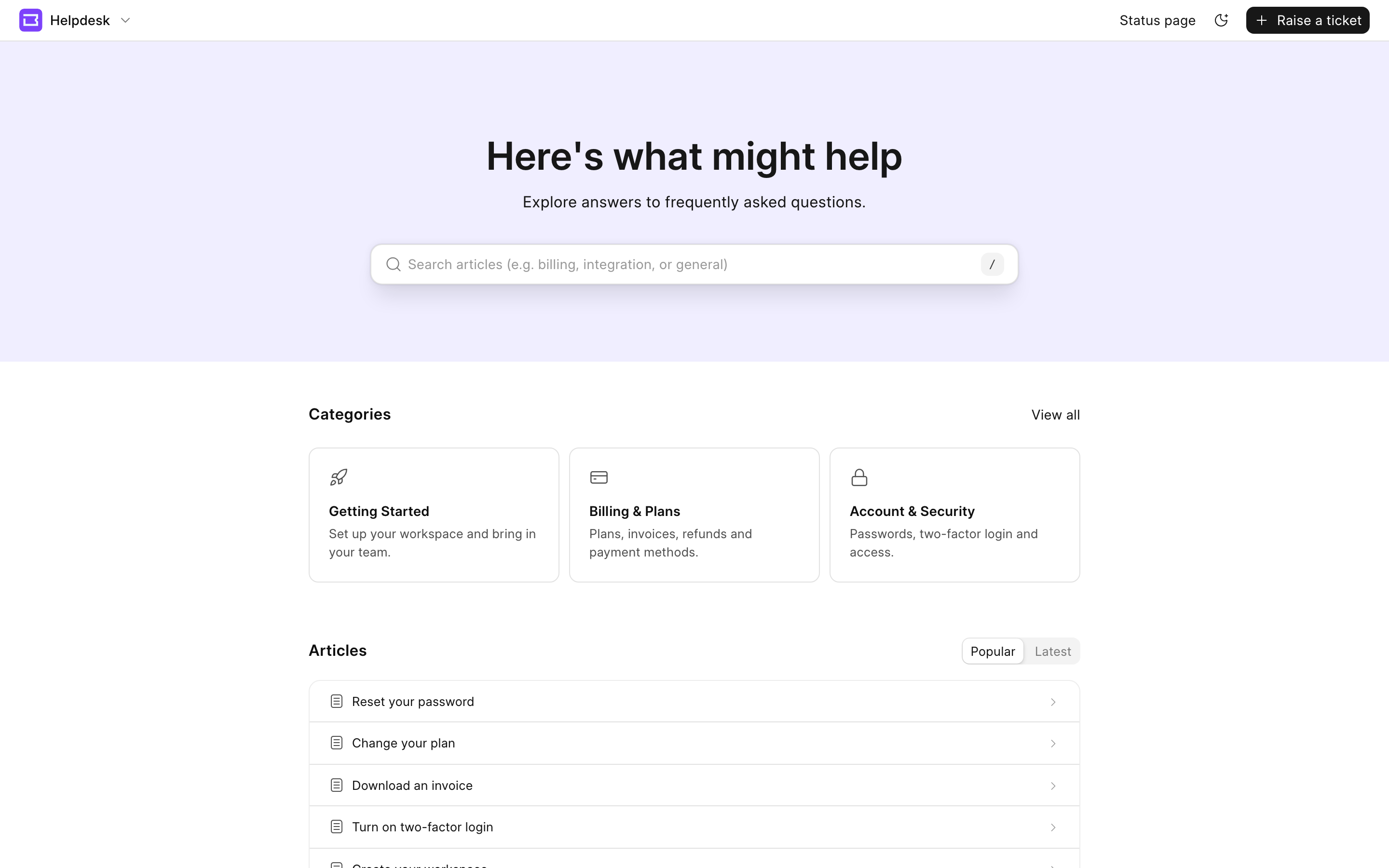 Knowledge base home page in the customer portal
Next Steps
- To organize articles in categories and to choose who can read them, see Knowledge Base.
- To pin categories and change the home page banner and links, see Knowledge Base Settings.
Next, see how customers use the Customer Portal to read articles and raise tickets.