

















Agent Availability Status
The Agent Availability Status feature lets agents communicate their current status throughout their shift, giving team leads and the system a real-time view of who can take on new tickets.
When an agent updates their status, it is immediately reflected across the team, giving other agents and team leads a clear picture of who is currently available. This helps route tickets efficiently so that no work lands with an agent who is unable to respond.
Here is a short walkthrough of the feature in action:
Each agent carries a live availability status Active, Away, or Unavailable that is shown across the agent portal as a coloured presence dot.
Setting your Availability
Agents can change their own status from within the agent portal by following the steps below:
- Click on the dropdown located in the top-left corner of the sidebar and select the Settings option.
- Once the Settings modal is opened, inside in the Profile section find the Agent Availability Dropdown
- Click the Dropdown and switch your current status.
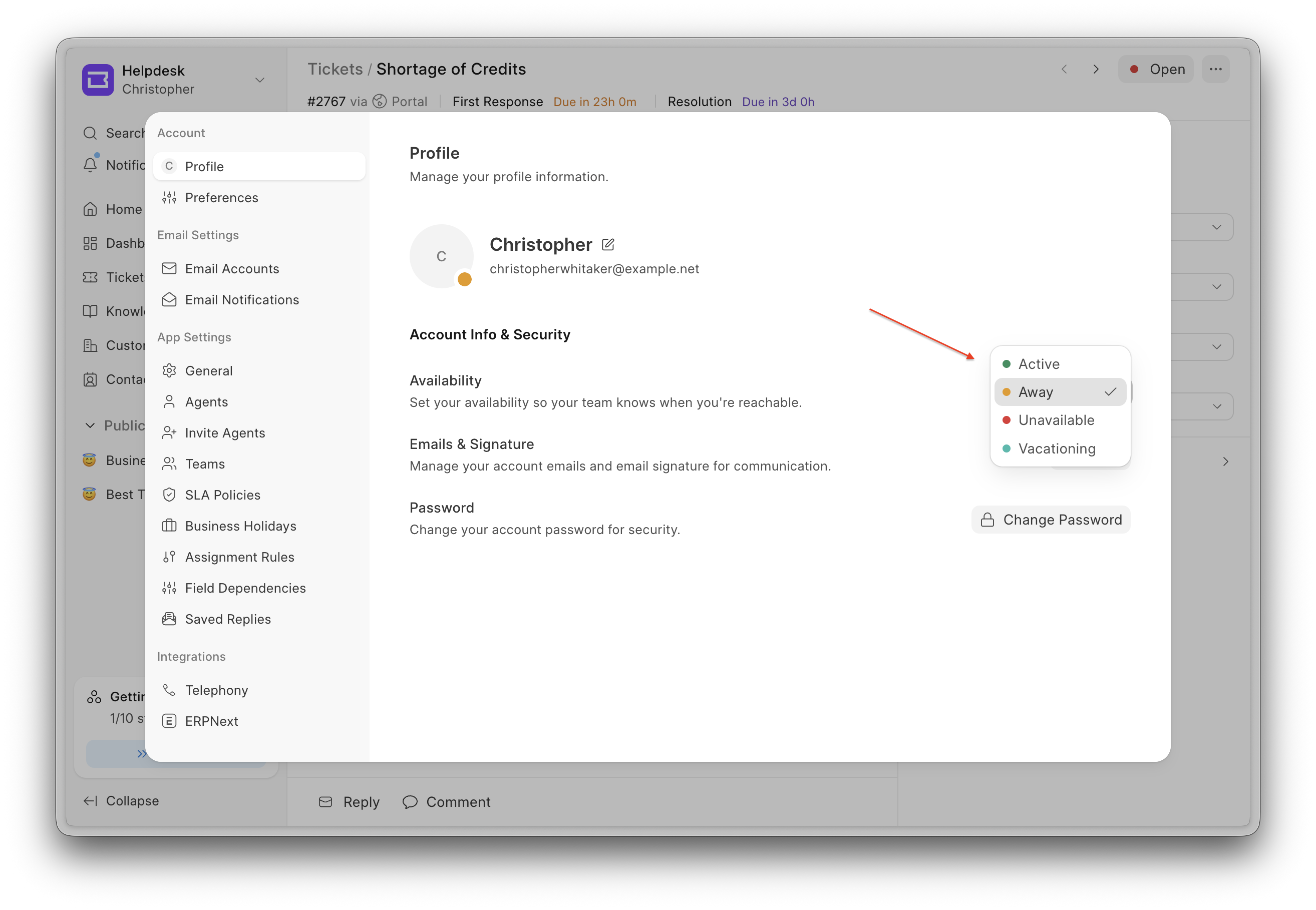
Selecting a status:
- On selecting a status the activity indicator in the avatar is updated and a "Status updated successfully" toast pops up.
- Changing the activity status saves it to the agent's HD Agent Doctype's****
availabilityfield which holds the agents current status and it also sets theavailability_changed_onfield which is very useful in calculation of time since the status was last changed.
These statuses influence both manual & automatic ticket assignment which can be done via assignment rules.
For automatic assignment, if a specific agent is away, this feature elegantly handles the situation by routing the ticket to the next available active agent instead leaving no ticket unassigned.
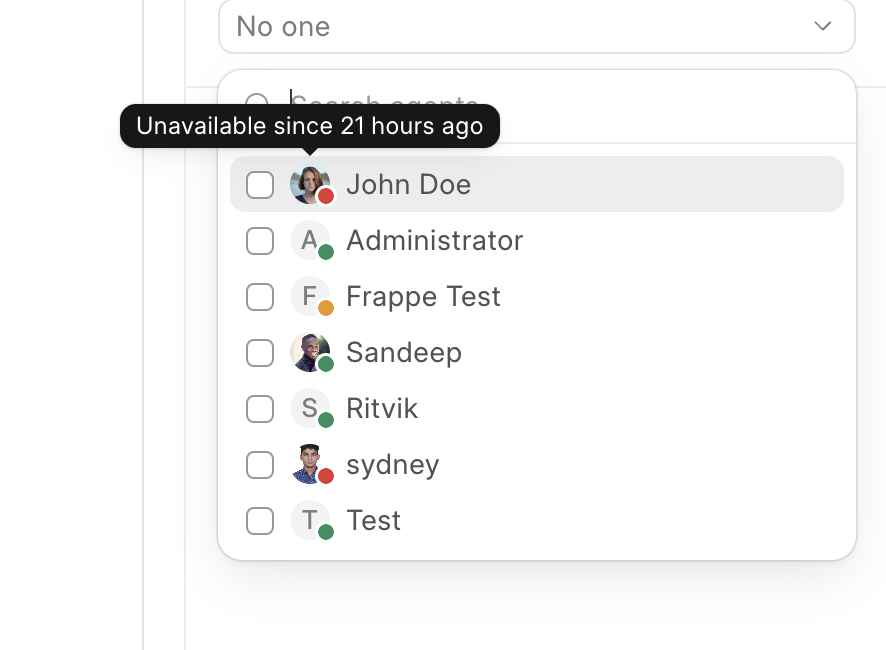
While manually assigning a ticket through the assignment modal, the team's current statuses are visible at a glance making it easy to have tickets routed to the right person.
HD Agent Status
The feature is built upon the HD Agent Status Doctype, which defines a set of statuses that can be customised according to the organisation's needs.
An agent can select from the available statuses enabled by the organisation, each belonging to a category that influences the ticket assignment behaviour.
The three basic categories available currently are as follows:
| Category | Meaning | Automatic Assignment behaviour |
|---|---|---|
| Active | The agent is available and working. | Preferred for automatic assignment. |
| Away | The agent is temporarily unreachable. | Skipped while any Active agent is available; used as a fallback before Unavailable. |
| Unavailable | The agent is off. | Used only as a last resort, so a ticket is never left unassigned. |
Every status belongs to exactly one of three categories. The category — not the status name — is what the routing logic reads, so you can add as many custom statuses as you like (e.g. "On Lunch", "In a Meeting", "Focusing") and slot each into the category that matches how reachable that state really is.
You can create a custom statuses by doing the following steps in the demonstration below:
How to Navigate to HD Agent Status
- Go to Desk.
- Click on Search in the awesome bar, type HD Agent Status, and open the first result.
- If you can't find it, open this URL directly in your browser:
<site_name>/desk/hd-agent-status
Key Properties
| Field | Type | Description |
|---|---|---|
agent_status |
Data (Unique) | The status name. This is also the record name (autonamed from this field), e.g. Active, Away, In a Meeting. |
enable |
Check | Whether the status is active and offered to agents. Only enabled statuses appear in the agent's status picker. |
status_order |
Int | Sequence in which statuses appear in the picker. |
category |
Select (Active / Away / Unavailable) | Drives automatic-assignment behaviour. |
color |
Select | Colour tag used for the presence dot shown next to the agent's avatar. |
How automatic assignment picks an agent
Helpdesk overrides Frappe's Assignment Rule (HelpdeskAssignmentRule) for Round Robin, Load Balancing, and Weighted Distribution rules. When a ticket needs an assignee, the assignment rule creates a pool of all the available agents which are currently accepting tickets.
To better understand this, consider the following example.
There are three agents: Bob, Sam, and Alice. Depending on various scenarios, the ticket assignment will occur as follows:
- If Bob is active while Sam and Alice are away, the ticket will be assigned to Bob.
- If both Bob and Sam are away and Alice is unavailable, the user pool for ticket assignment will be limited to Bob and Sam, and the assignment will follow the configured rules.
- If Bob, Sam, and Alice are all unavailable, the ticket assignment rule will proceed as usual.
This guarantees a ticket is always assigned to someone while still favouring people who are actually around.
Rules of type "Based on Field" assign through a document field and are unaffected by availability.
Manual assignment for away agents
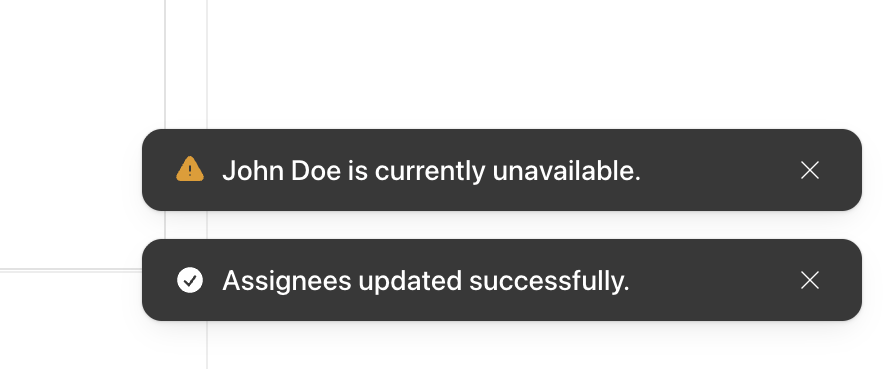
Manual assignment is never blocked. From a ticket's Assignee picker an agent can be assigned regardless of their status but if the chosen agent is Away or Unavailable, a warning toast is shown ("{agent} is currently away." / "{agent} is currently unavailable.") so the assigner knows the work may not be picked up promptly.
Each agent in the picker shows a coloured presence dot and a tooltip describing their status and how long they've been in it (e.g. "Away since 5m ago").
Behavioural Rules for HD Agent Status
categoryis mandatory and must be one ofActive,Away, orUnavailable.- The should be at least one status of the
Activecategory enabled at all times. agent_statusis unique and autonames the record, so two statuses cannot share the same name.- Only enabled statuses are offered to agents in the availability picker.