

















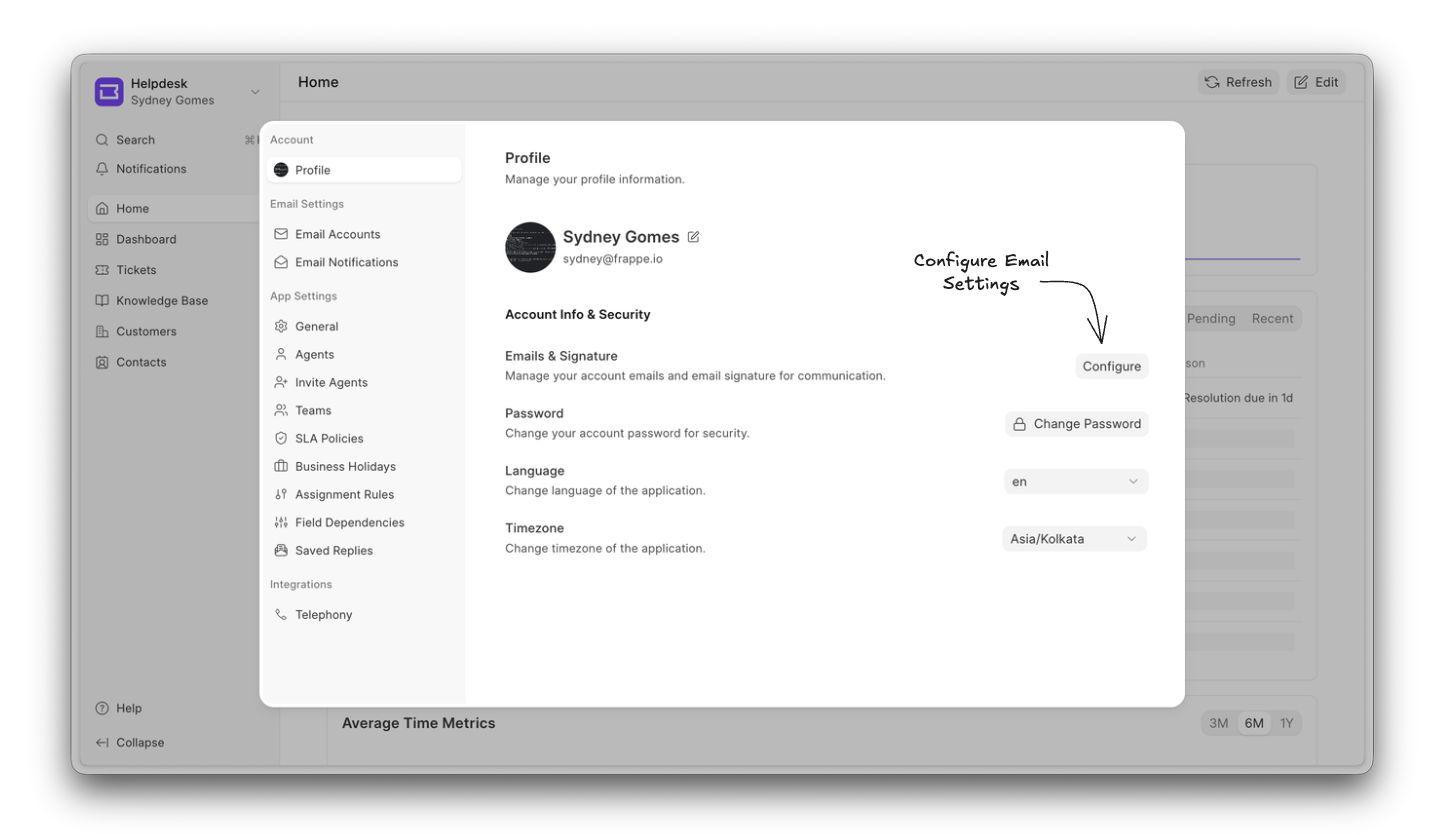
The Email and Signatures section in your profile settings allows you to control how your outgoing emails are sent and displayed. Any changes you make here will automatically apply when you reply to tickets via email in Frappe Helpdesk.
To access and update these settings:
- Click on the dropdown located in the top-left corner of the sidebar and select the Settings option.
- Once the Settings modal is opened, inside in the Profile section find Emails & Signature option.
- Click the Configure button next to it.
From this section, you can manage all email-related preferences in one place.
Email Signature
The Email Signature feature lets agents add a personalised signature to their outgoing email replies. Once configured in their profile, the signature is automatically appended to every new email reply.
Setting Up Your Signature
Each agent can configure their own signature from their Profile settings.
Once you're inside the Email & Signature section, you can use the rich text editor to create your signature. This editor allows you to include formatted text, links, and images, helping you design a more professional and visually appealing signature.
After making your changes, click Save to apply them.
Your signature is personal to your account. Each agent manages their own signature independently.
In the below demonstration you can see how Email Signature works in Frappe Helpdesk.
You can clear your signature at any time by simply deleting the content from the signature editor and saving the changes.
Once set up, your signature is automatically added to every outgoing reply, keeping your communication professional and consistent without any extra effort on your part.
From Emails
If your account has multiple outgoing emails configured, you can now select which one to use when replying to tickets directly from the email editor in Frappe Helpdesk.
A "From" dropdown menu appears in the email editor toolbar. Click it to switch between your available sender addresses. The chosen email address will be remembered for your session, so you won't need to change it for every reply.
In the below demonstration you can see how you can switch between your outgoing emails while reply to a ticket
This feature can be useful for agents who manage multiple inboxes or support different products from a single Helpdesk account.