
Comment reactions allow users to interact with comments using emojis. This feature provides a quick way to acknowledge feedback and keeps the ticket thread concise by reducing the need for short text responses.
Enabling Comment Reactions:
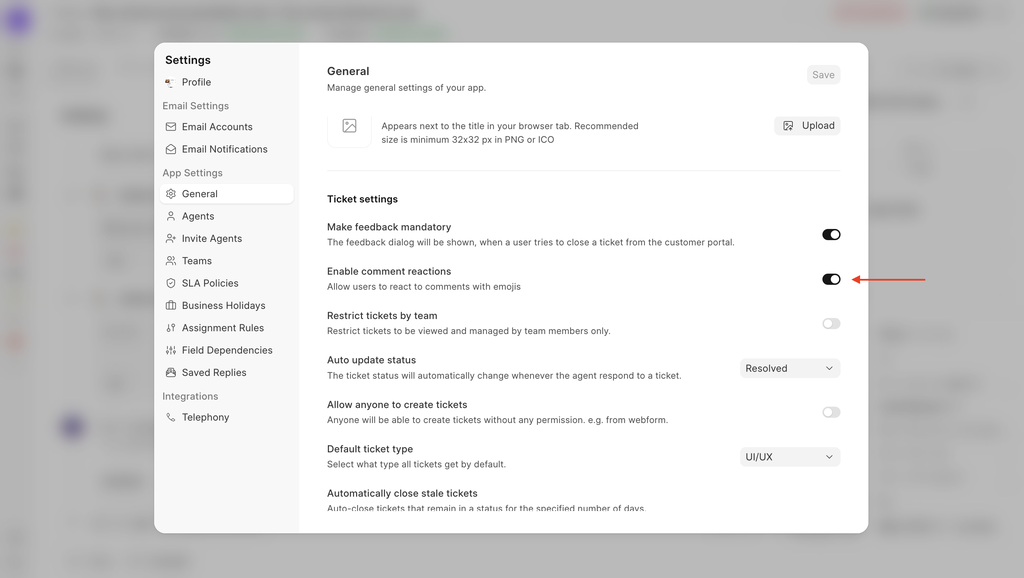
- Navigate to Settings from the sidebar.
- Go to the General tab under App Settings.
- Under the Ticket settings section, find the toggle labelled 'Enable comment reactions'.
- Switch the toggle on.
- Click the Save button at the top right of the page.
Adding Reactions:
- Whenever you are on ticket page.
- See comments, under each comment you will see the Reaction Icon (plus-face emoji)
- Select your desired emoji from the reaction picker.

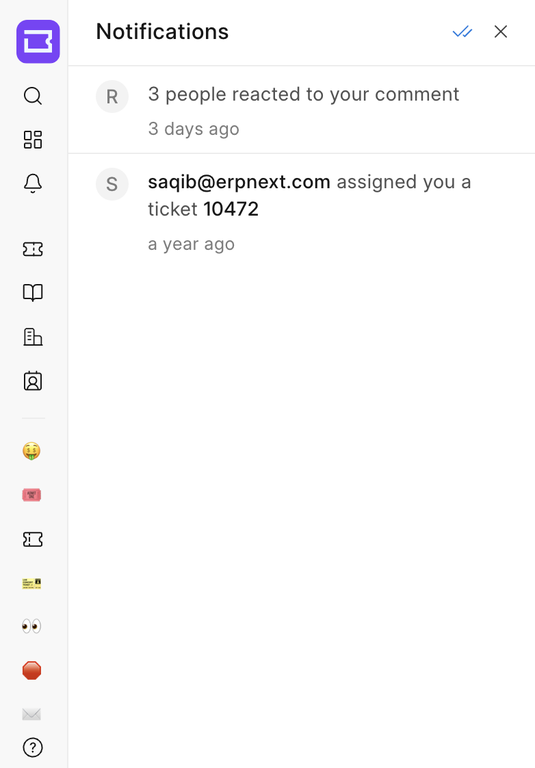
Notifications for Comment Reactions
When someone reacts to your comment, you’ll receive a notification.
Clicking the notification takes you directly to the comment that received the reaction.
Last updated 3 months ago
Was this helpful?