


















Once you have set up your Email account, you are ready to get started with helpdesk.
When you land on Helpdesk for the first time your URL should be "/helpdesk/tickets".
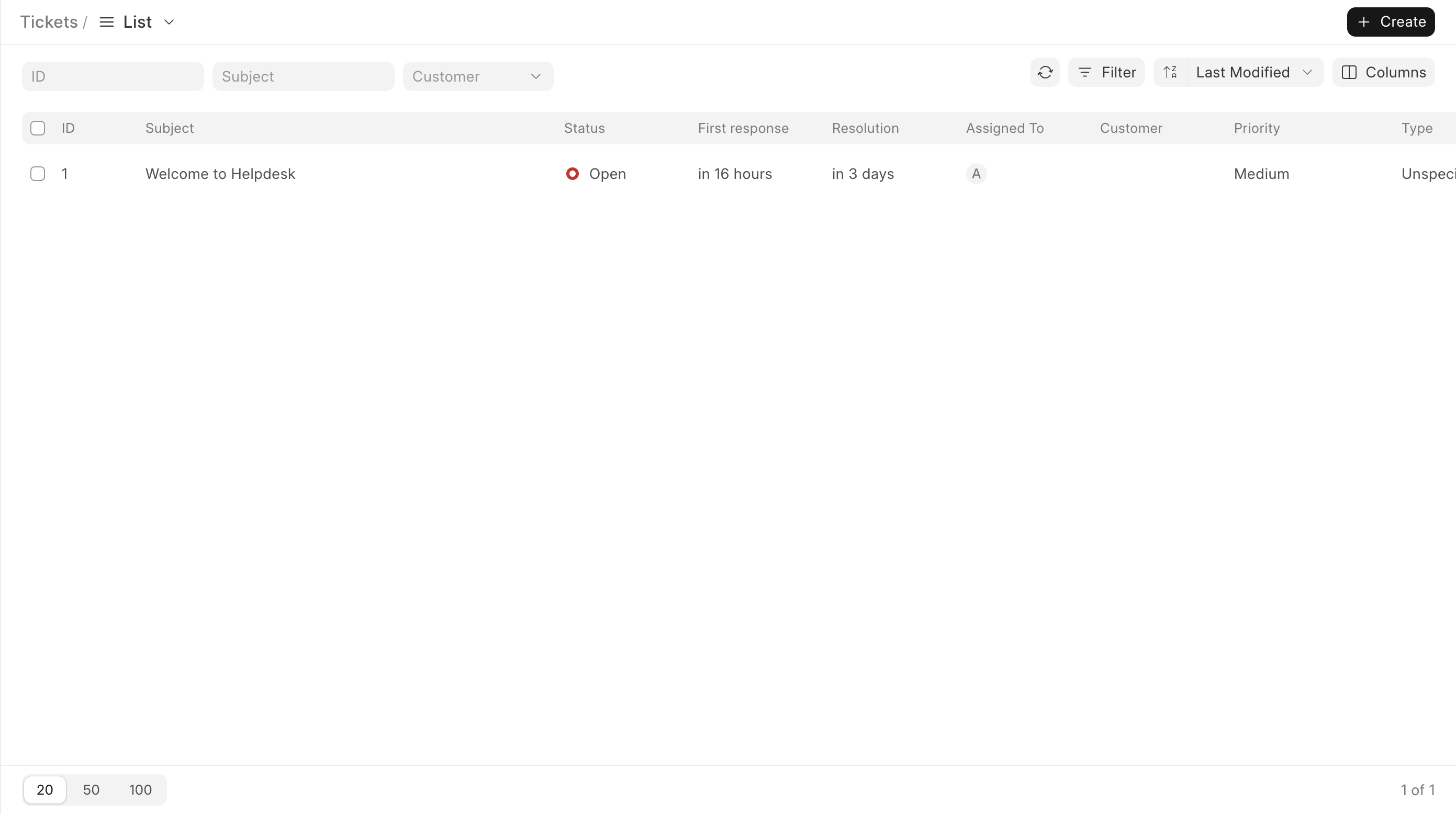
This view shows you the list of all the tickets, in the begining you will see only one ticket:
Channels to create tickets
In Frappe Helpdesk you can create tickets by many ways:
- Customer Portal
- Agent Portal
When you set up your email account, and enable that account as incoming or default incoming, all the emails you will receive on that email will be converted to tickets in your Helpdesk Portal. The system pulls the emails from your account every 10 minutes.
Customer Portal
Agents can raise a ticket from the customer portal too:
- Click your brand name at the top left, then Customer portal. The portal opens at
/help. - Open the account menu at the top left and click My tickets.
- Click Raise a ticket, fill in the form and click Create ticket.
Customers land on the customer portal when they log in. See Customer Portal.
Agent Portal
On the top right corner (agent portal) you will see a button called "Create", click on it and you will be navigated to "New Ticket Page" with url /help/tickets/new.
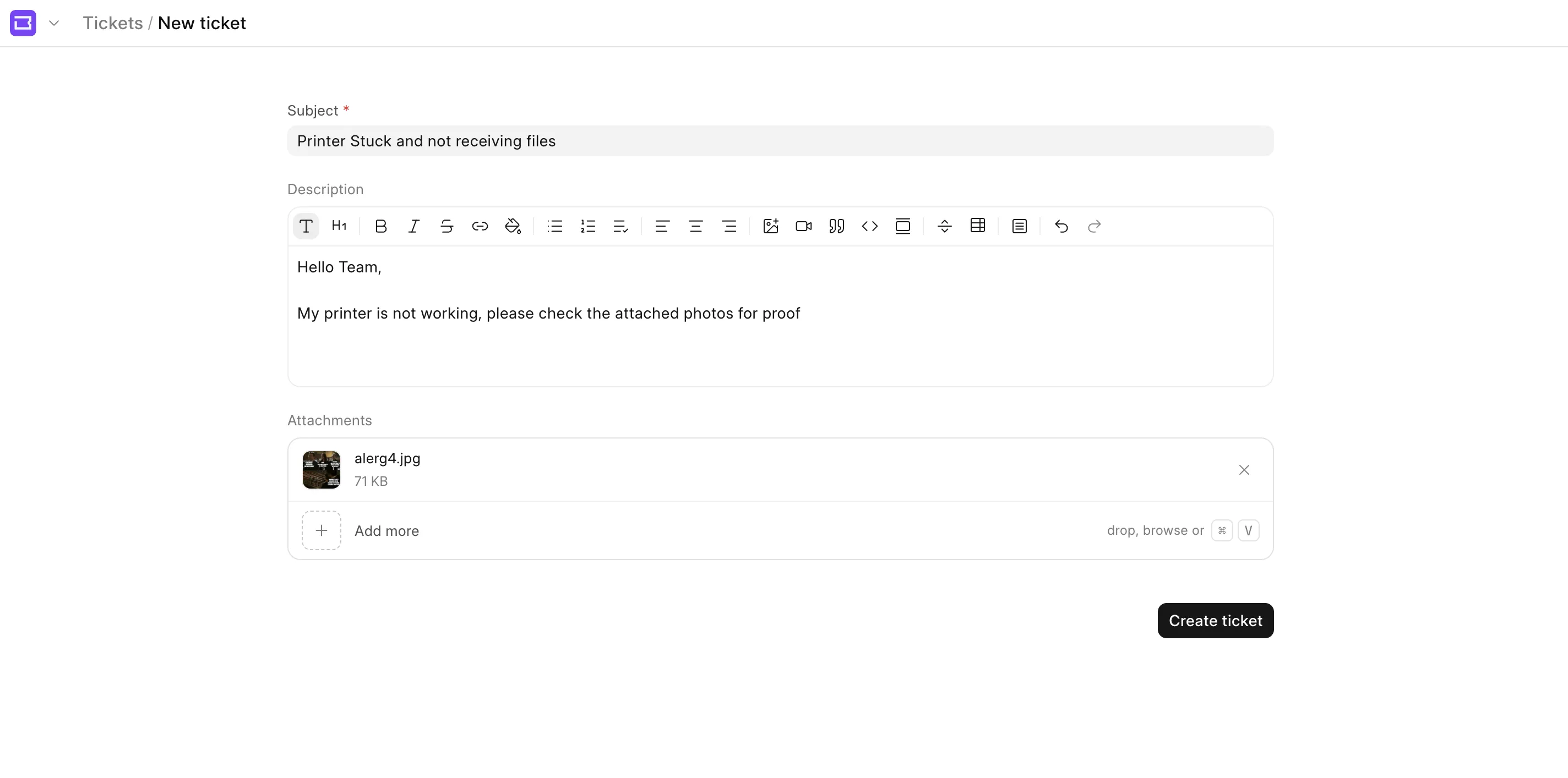
Fill the subject & description using our Rich Text Editor which provides support for headings, list, attachments and much more.
Once you fill the information, click on "Submit" button or use the shortcut "cmnd/ctrl + Enter", to create a new ticket.
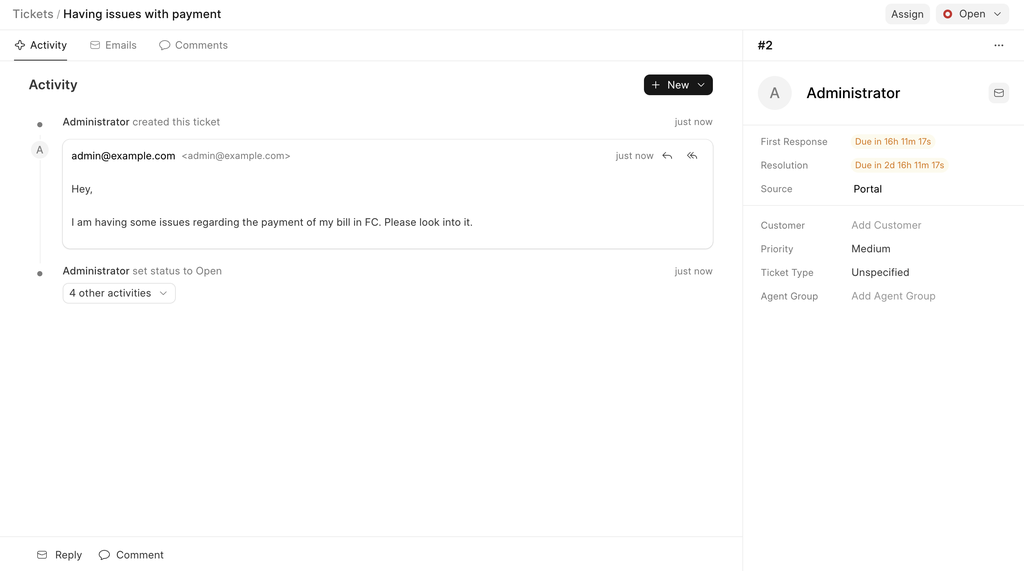
When a ticket is created you will be navigated to the created ticket.
Emails
- When a ticket is assigned to an agent, the agent receives an email.
- Whenever a customer replies on a ticket, agent received the email.
You have successfully created your first ticket 🎉
Let's move to the next section, to understand the ticket view in detail!